Urdu & Arabic Titles on Your Phone (RTL Text, Nastaliq Fonts)
Most phone editors treat Urdu and Arabic as an afterthought: letters that don’t join, lines that run the wrong way, one fallback font. ExpoCut has a dedicated Urdu/Arabic text tool with real Nastaliq faces and right-to-left editing — here’s how to set a title that reads the way it should.
Quick answer
In ExpoCut, tap Text in the bottom bar and choose Urdu/Arabic (next to Text and Lower 3rd). The tray opens in right-to-left mode: the field is RTL, the Style presets preview in Arabic script (عنوان), and the Fonts tab has Urdu and Arabic lists — 44 Urdu faces including Jameel Noori Nastaleeq, Alvi Nastaleeq, Noto Nastaliq Urdu, Mehr Nastaliq, Pak Nastaleeq and Faiz Lahori — each previewing your actual line. Paste or type the text, pick a face, set colour and size on the Text tab, and tap ✓. Cursive shaping and direction are preserved on the canvas and in the export; the Axes tab’s Direction row (Auto · LTR · RTL) handles mixed-script lines and curved paths.
- Use the Urdu/Arabic tile, not plain Text — it opens the tray in RTL mode with Arabic-script style previews.
- 44 Urdu faces on the Fonts tab (Nastaliq and Naskh), each previewing your own words; fonts download once and stay.
- Glyphs join correctly (cursive shaping) on the canvas and export identically — check the Nastaliq baseline against the frame edge.
- Direction is Auto; set RTL or LTR explicitly on the Axes tab when a line mixes English and Urdu, or when you curve it.
- Every other text feature — surfaces, effects, animations, keyframes — works on an Urdu/Arabic layer.
Nastaliq is one of the most beautiful writing systems on earth and one of the hardest to render: letters connect, stack and slope, and the line runs right to left. ExpoCut gives Urdu and Arabic their own text tool so a title looks like it was set by someone who reads it.
Where it lives
Tap Text in the bottom bar. The menu has five tiles — Text, Urdu/Arabic, Lower 3rd, Transcript and Text To Voice. Urdu/Arabic opens the same text tray you know, switched to right-to-left mode.
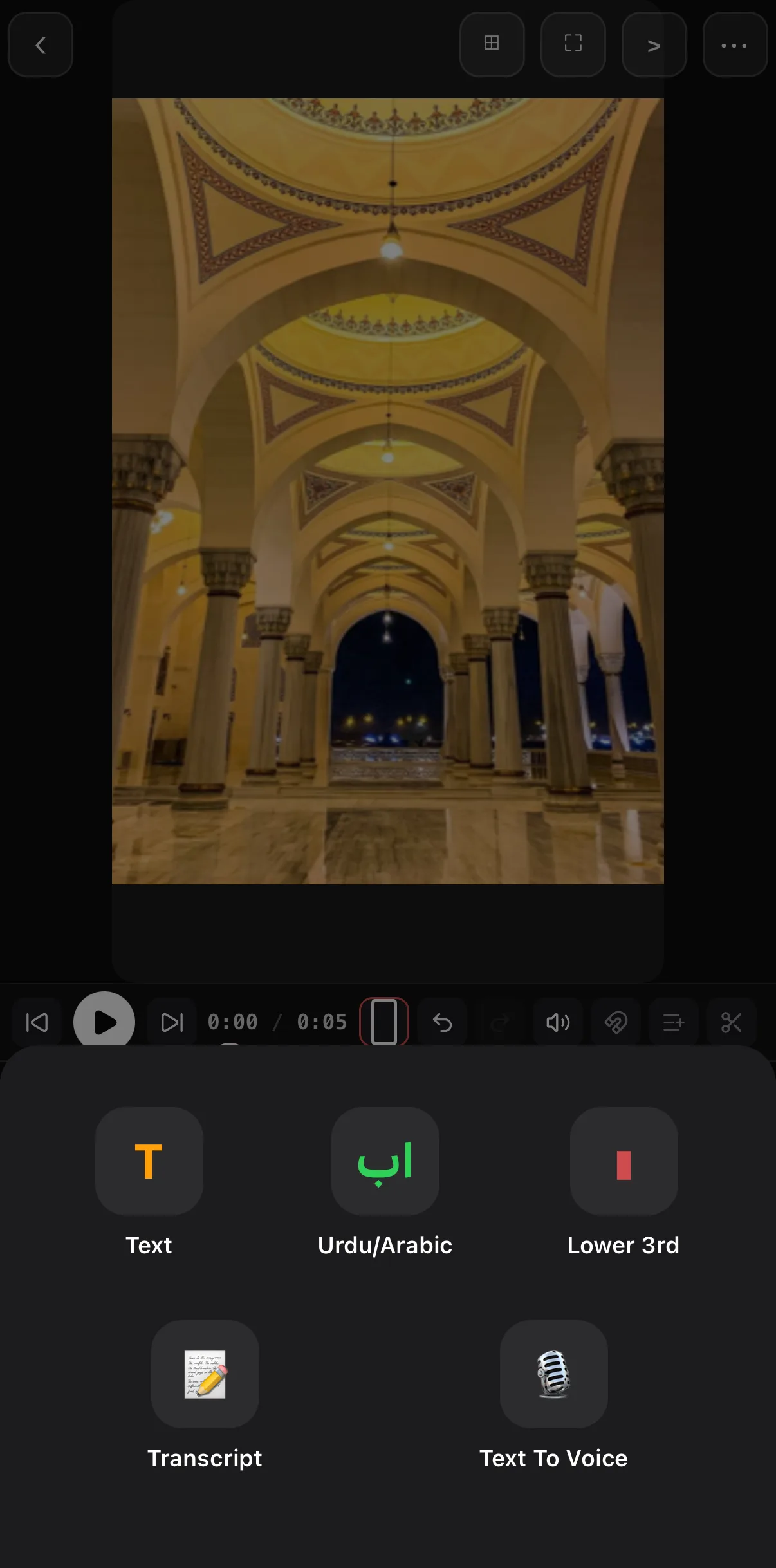 Urdu/Arabic
Step 1 — Type or paste the line
Tap Urdu/Arabic
The tray opens with a placeholder in Urdu (تحریر) and the field already in RTL mode.
Enter the text
Type with your Urdu or Arabic keyboard, or long-press the field and Paste. The canvas shapes the letters as you go.
Pick a style
The Style tab previews every preset in Arabic script — Clean White, Bold White, Highlight Yellow, Hero Title, News Title… — so you see the real weight and outline.
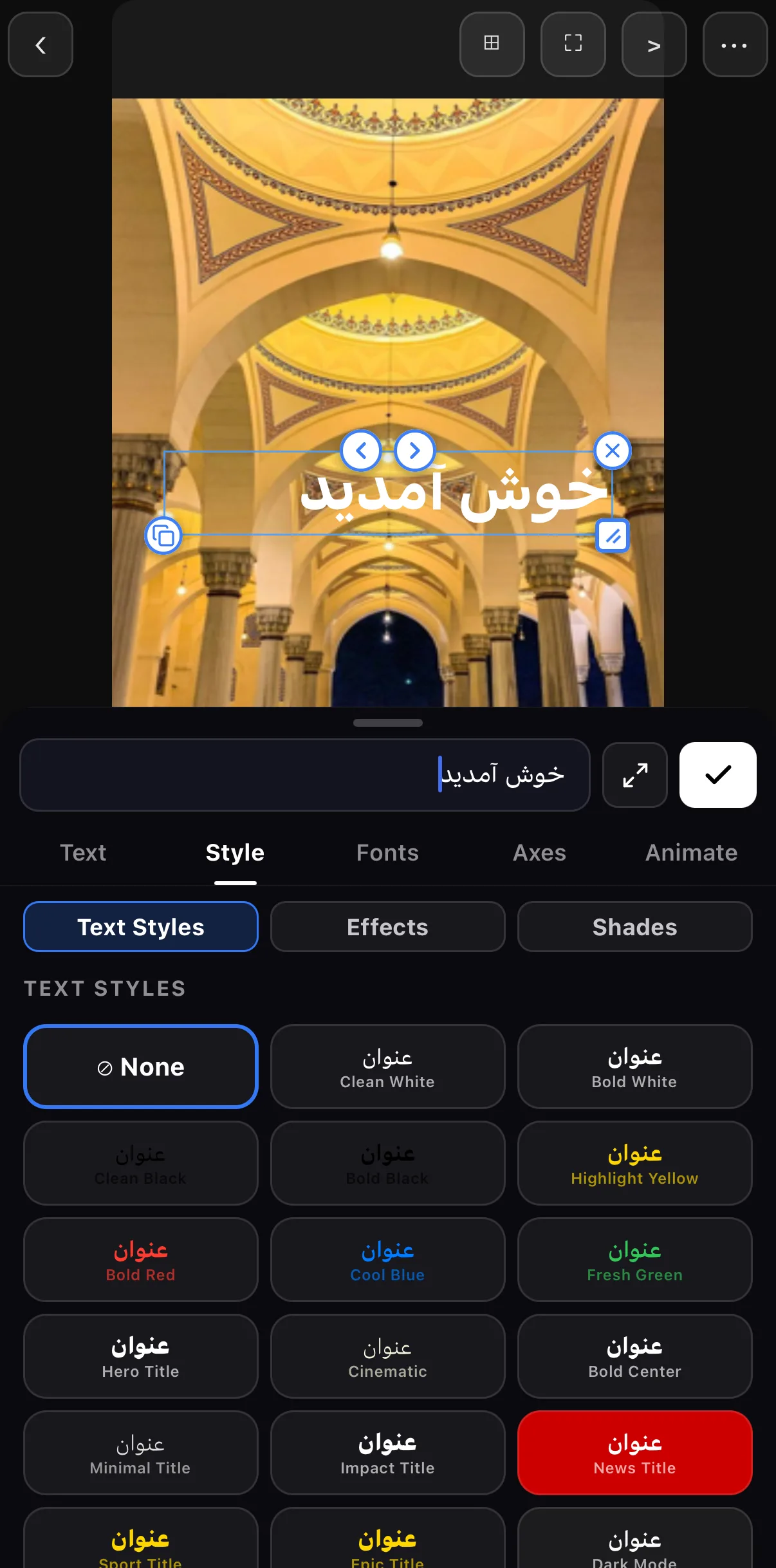 Right-to-left field
Cursive shaping on the canvas
Styles previewed in Arabic script
Right-to-left field
Cursive shaping on the canvas
Styles previewed in Arabic script
Step 2 — Choose a Nastaliq or Naskh face
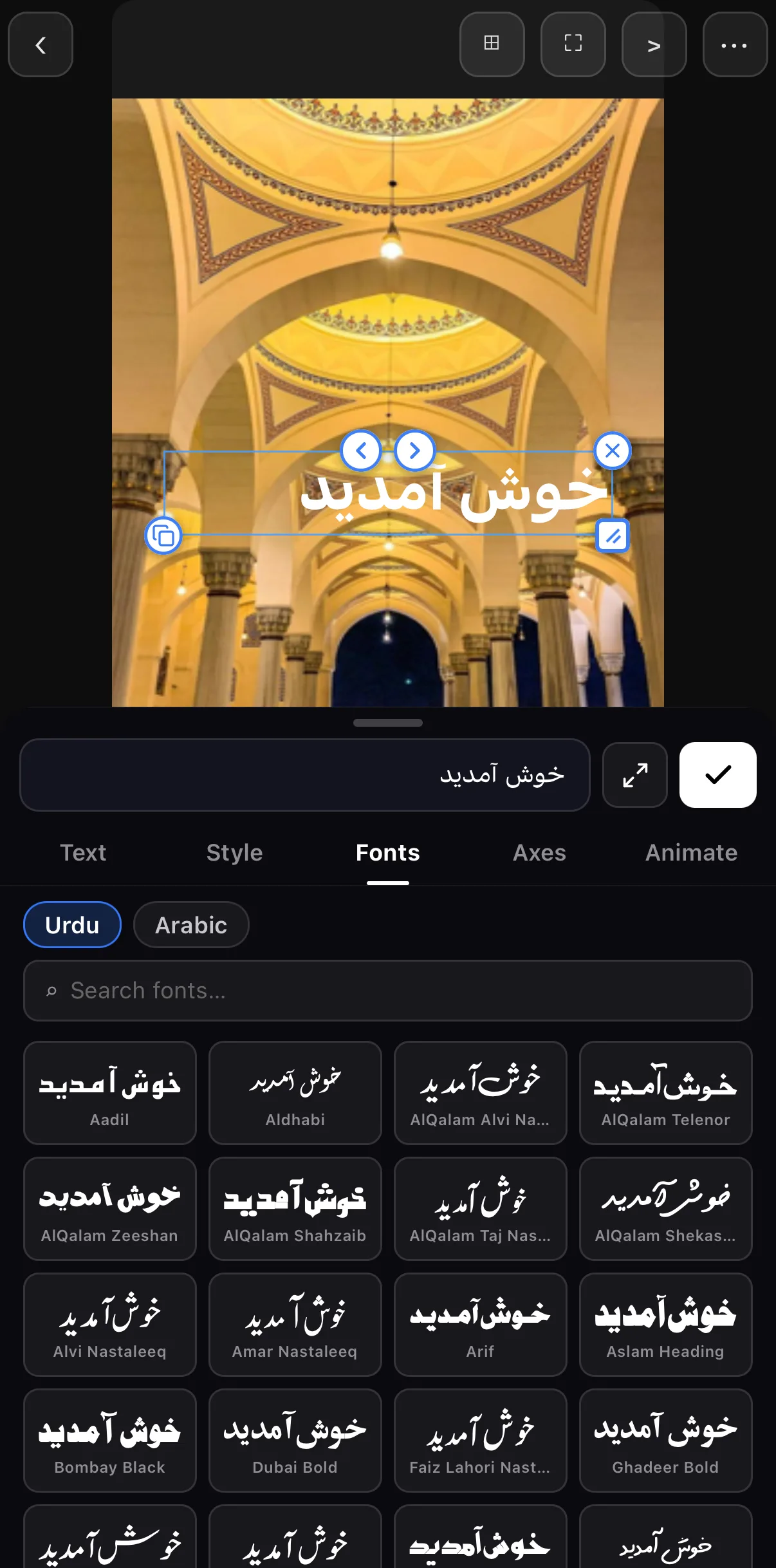 Urdu · Arabic tabs
Every face previews your actual line
Urdu · Arabic tabs
Every face previews your actual line
Tap a face and it applies straight away. Nastaliq slopes downwards to the left, so give the line a little more height than a Latin title and keep it clear of the bottom safe area.
Step 3 — Colour, size, position
Back on the Text tab: Colour swatches, a Shade for contrast, Font size, Line height and Align (right-aligned by default in RTL). The Surface row works here too — a Glass or Glossy Nastaliq headline is a look.
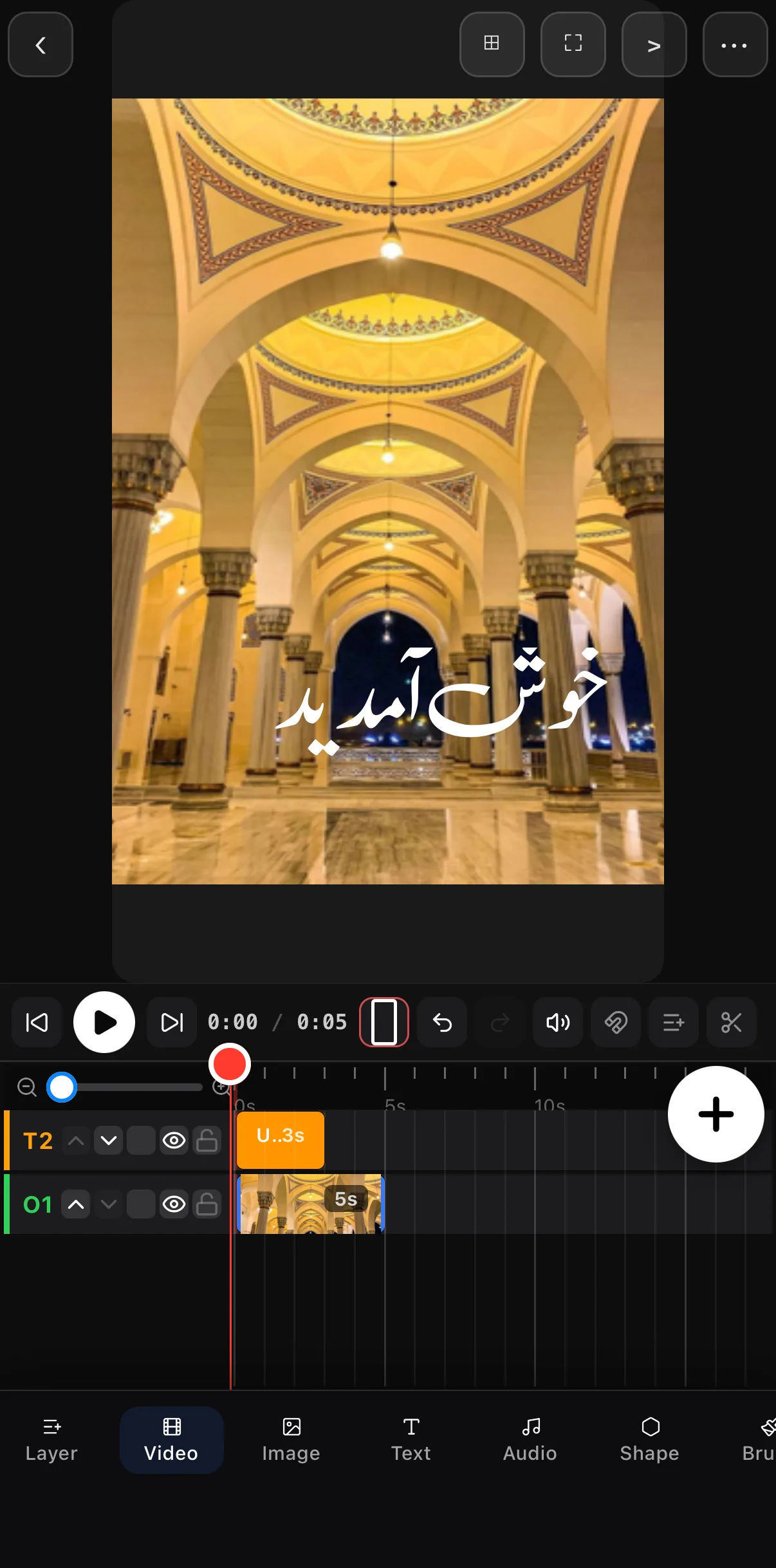 Nastaleeq, white, over the arch
Contrast beats colour. Gold Nastaliq on a gold ceiling disappears. Use white or black with a shade, and place the line over the calmest part of the frame.
Mixed scripts and curves
- Direction. The Axes tab has a Direction row — Auto · LTR · RTL. Auto detects Arabic and Hebrew; set it explicitly when a line mixes English and Urdu, or split the languages onto two layers.
- Curved Urdu. The same tab’s Path row (Arc, Circle, Wave) lays the shaped glyphs along a curve in reading order — see text on a path.
- Animations. Typewriter reveals run right to left; Particles and General loops work unchanged.
- Captions. The caption editor’s Segments tab has an RTL switch per segment for Urdu subtitles — see captions & subtitles.
Where to go next
- The tray, tab by tab: add text & titles.
- Materials and particle entrances: glass, plastic & particle text.
- Bend the line: curved text & snake path.
Pick the Urdu/Arabic tile, pick a Nastaliq face, give it contrast — and the title reads the way the language is meant to.
Frequently asked questions
How do I add Urdu text to a video on my phone?
Tap Text ▸ Urdu/Arabic in ExpoCut. Type or paste the Urdu line into the right-to-left field, open Fonts ▸ Urdu and tap a Nastaliq face such as Jameel Noori Nastaleeq or Alvi Nastaleeq, set colour and size on the Text tab, and tap ✓. The letters join correctly and the layer exports exactly as shown.
Why do Urdu letters look broken or disconnected in other apps?
Arabic-script letters change shape depending on their neighbours, and Nastaliq stacks them diagonally. Apps that draw text glyph by glyph without shaping produce isolated forms. ExpoCut shapes the run before laying it out, so the joins and the Nastaliq slope are preserved on the canvas and in the export.
Can I mix English and Urdu in one title?
Yes. Direction is Auto by default, which detects the script. If the mix comes out in the wrong order, open the Axes tab and set Direction to RTL or LTR explicitly — or put each language on its own text layer, which also lets you give them different fonts.
Related guides
Titles that read right
Right-to-left editing, 44 Urdu faces, cursive shaping that survives export — Urdu and Arabic video titles done properly, on your phone.
Get ExpoCut Browse all guides