How to Add Lower Thirds (Name Tags & Speaker Titles)
A lower third is the little name tag that slides in when someone speaks. It’s the fastest way to make a talking-head video look like a broadcast. Here’s how to add one in seconds.
Quick answer
Tap Text in the bottom bar and choose Lower 3rd (or pick Lower Third on the Add Layer sheet). The Lower Third Presets catalog has four families — Minimal, Accent, Boxed, Framed — with a play button on every preset; tap one and it lands on its own row. Tap Style on its toolbar to open the Lower Third editor: type the primary line (the name) and the secondary line (the role), set colour, weight, font and the entrance animation (Fade In, Typewriter, Zoom…), then Apply.
- Lower thirds are their own layer type with an L row on the timeline.
- Every preset previews its animation before you add it.
- Primary = name, Secondary = role; each has its own colour, weight and font.
- Keep one style per video and hold it on screen for 3–5 seconds.
The little name bar that slides in when someone starts talking? That’s a lower third — and it’s the single quickest upgrade for any interview, vlog, or talking-head video. ExpoCut ships a catalog of animated ones — Minimal, Accent, Boxed and Framed — so you pick instead of build.
When to use a lower third
- Introduce a speaker — name + role, the first time they appear.
- Label a segment — “Step 1,” “Q&A,” “Before.”
- Brand a moment — your handle or website, subtly, in a corner bar.
Step 1 — Pick a preset
Open the Text tool and choose Lower 3rd
Tap Text in the bottom bar and pick Lower 3rd from the fan-out (it’s also a tile on the Add Layer sheet). The Lower Third Presets catalog opens — each one slides, fades, or builds in.
Pick one that matches your vibe
Clean and minimal for corporate, bold for social, stylish for a vlog.
Edit the text
The preset lands on its own row. Tap Style on its toolbar to open the Lower Third editor and set the primary line (the name) and the secondary line (the role or detail). Apply when you’re done.
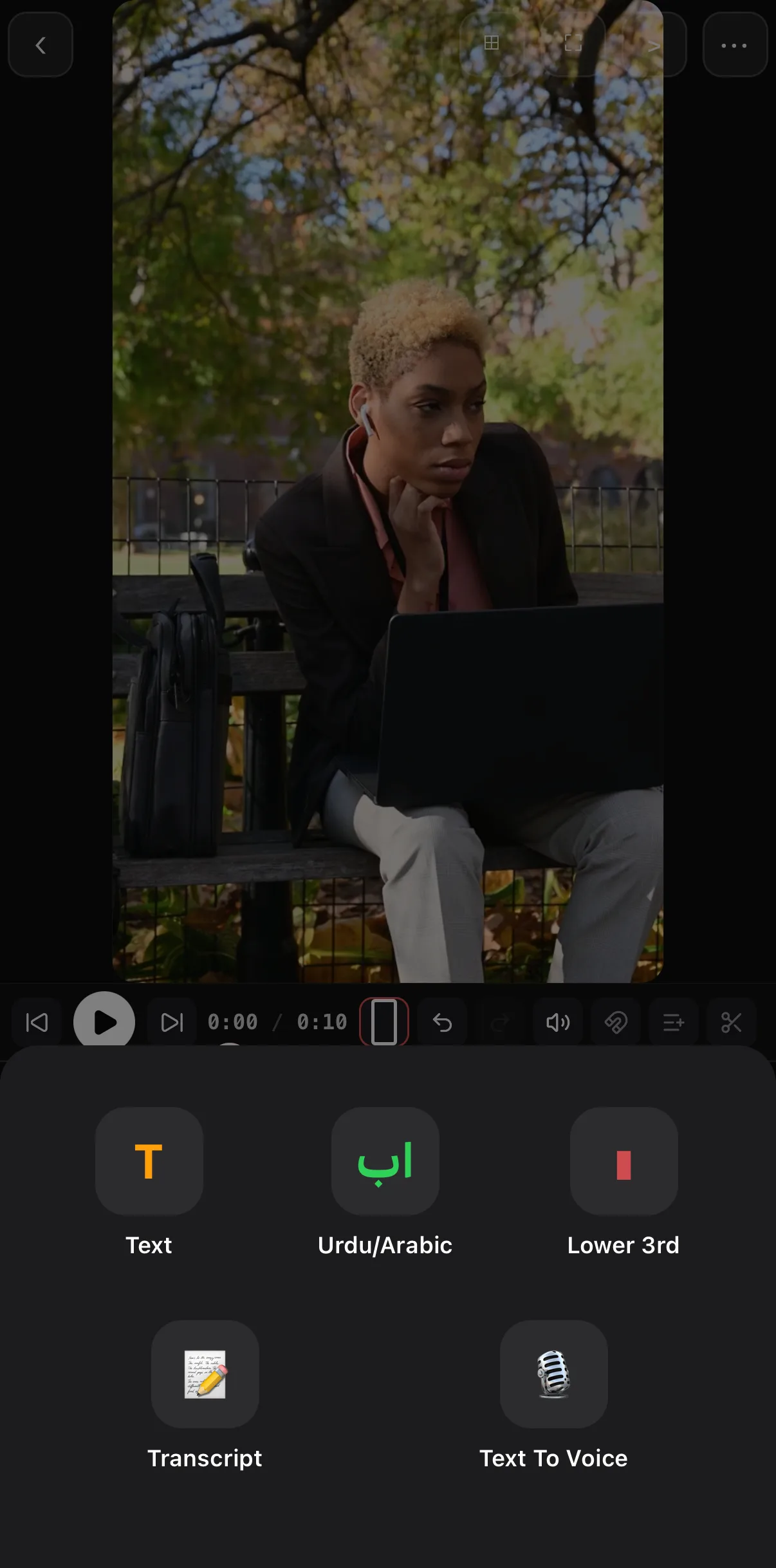 Lower 3rd
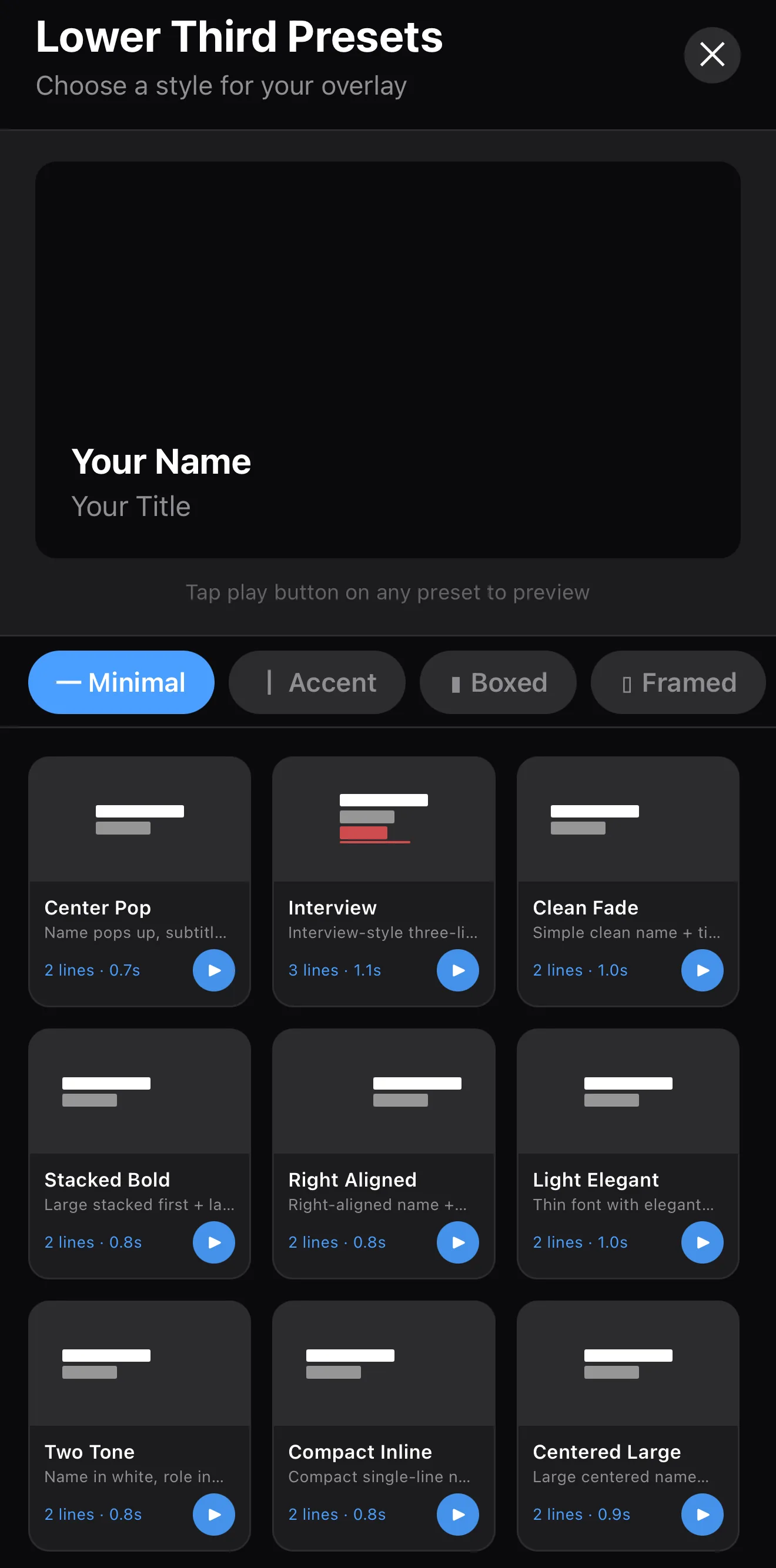 Minimal · Accent · Boxed · Framed
Tap ▶ to preview, tap the card to add
Minimal · Accent · Boxed · Framed
Tap ▶ to preview, tap the card to add
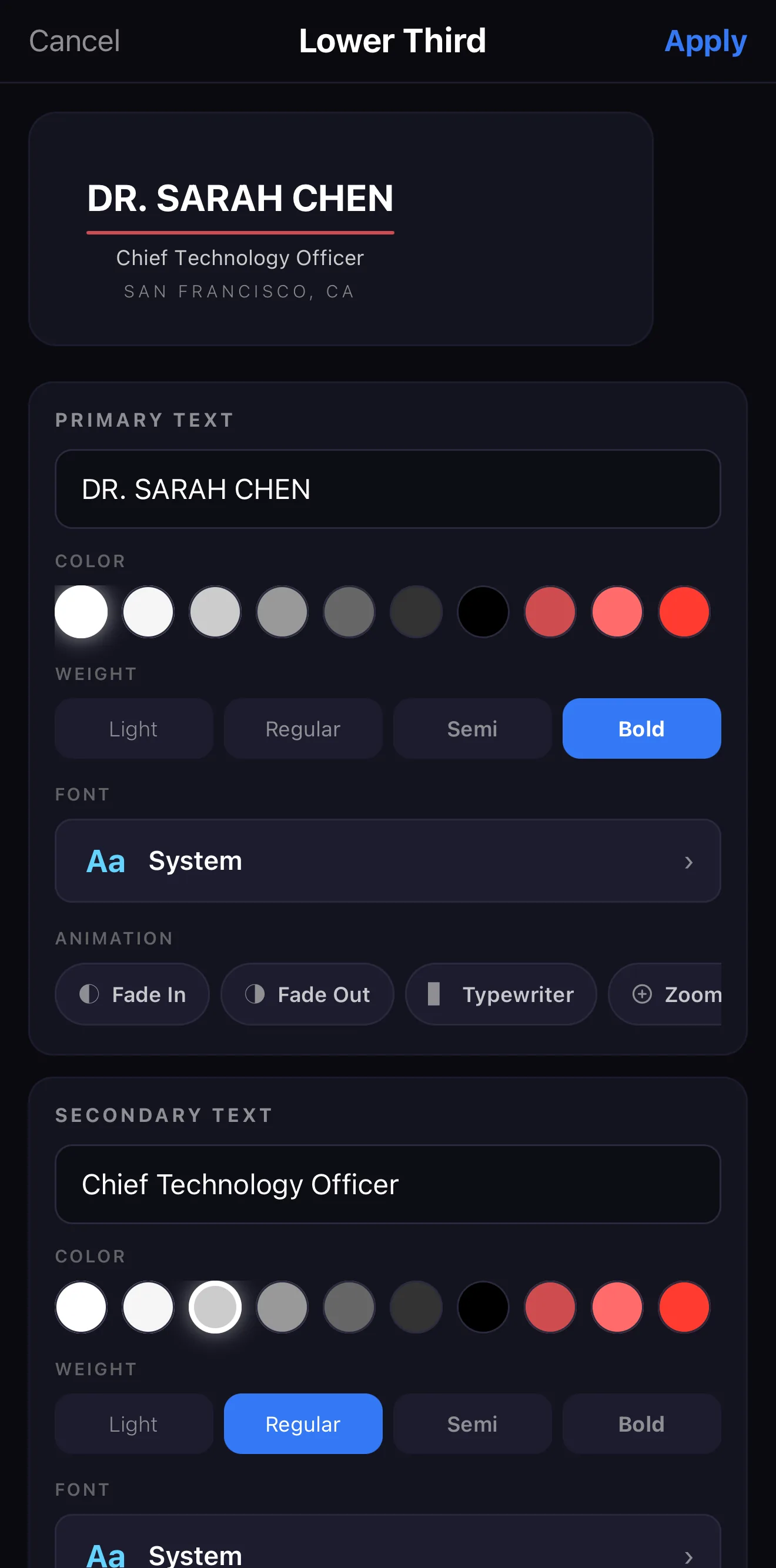 Primary text — the name
Colour
Weight
Entrance — Fade In · Fade Out · Typewriter · Zoom
Primary text — the name
Colour
Weight
Entrance — Fade In · Fade Out · Typewriter · Zoom
Lower thirds look generic until you make them yours:
- Color & accent — set the bar/accent to your brand color.
- Font weight & alignment — heavier for impact, left-aligned for a classic look.
- Background opacity — a subtle shade keeps it readable over busy footage.
Time it to the speech. Bring the lower third in a beat after someone starts talking, hold it for ~3–4 seconds, then let it slide out. It identifies, then gets out of the way.
Step 3 — Keep it consistent
Use the same lower third style for every speaker in a video. Consistency is what reads as “produced” — switching styles per person reads as “templates.” If you make videos regularly, save your styled lower third into a brand kit so it’s one tap next time.
Where to go next
- Style any on-screen text: animated text & titles.
- Build any on-screen graphic: scoreboard, poll & data widgets.
- Lock in your look: templates & the .ectpl format.
Pick a preset, set the name and role, match your color, time it to the speech — and your talking-head video instantly looks like it aired somewhere.
Frequently asked questions
What is a lower third?
A lower third is a title graphic in the lower portion of the screen — usually a name and a role ('Jane Doe / Founder'). It identifies a speaker or labels a segment, and it animates in and out so it doesn't overstay.
How do I add a lower third in ExpoCut?
Open the Text tool and choose Lower 3rd, pick one of the 120+ animated presets, then edit the primary and secondary text. You can change the font weight, color, alignment, and background opacity, and add your brand accent.
Do lower thirds support Arabic or Urdu?
Yes — there are right-to-left lower-third sets for Arabic and Urdu, with the text direction handled correctly.
Related guides
Name your speakers like a broadcast
120+ animated lower thirds — name tags, titles and segment labels that slide in clean. Pick, edit, brand, done.
Get ExpoCut Browse all guides