Glass, Plastic & Particle Text Effects on Your Phone
Flat white text is fine. Text that looks like frosted glass over a shader, or lands in a puff of glitter, is what gets screenshotted. Both are two taps in ExpoCut’s text tray — here’s where they live and how to use them without overcooking it.
Quick answer
In ExpoCut’s text tray, the Text tab has a Surface row — None · Transparent · Glass · Plastic · Glossy. Tap one to give the letters a material, pick a preset (Glass: Clear glass, Frosted, Bubble; Plastic: Soft plastic, Toy, Plastic 3D; Glossy: Lacquer, Candy, Chrome edge; Transparent: White wash, Dark wash, Black card, Outline only, Frost band) and tune Bevel, Depth and Shine. For particles, open the Animate tab, tap + on Starting (or Ending) and choose the Particles family — 101 presets from Smoke Puff and Embers to Glitter, Stardust, Confetti, Snow, Petals and Music Notes — then set the duration. Both render live on the canvas and in the export.
- Surfaces live on the Text tab (Surface row), not under Style — they work with any font, size or colour.
- Glass reads best over something bright and moving (a shader, a light leak, footage); Plastic and Glossy hold up on flat backgrounds.
- Every surface has three presets plus Bevel / Depth / Shine scrubbers — keep Depth under ~90 % for legible small text.
- Particles are a Starting/Ending family in Animate: 101 presets grouped by smoke, fire, electric, water, ice, sparkle, nature, comic, paint, tech.
- Duration sits at the bottom of the picker (2400 ms default); a 3-second text clip needs the entrance under ~1.5 s to be readable.
Two things make a title look expensive: a surface that catches light, and an entrance that feels physical. ExpoCut ships both inside the text tray — a Surface row that turns letters into glass, plastic or lacquer, and a Particles family that brings them in on smoke, sparks or glitter.
Where the two features live
| Feature | Where | What it does |
|---|---|---|
| Surface | Text tray ▸ Text tab ▸ Surface row | Material on the letters: Transparent, Glass, Plastic, Glossy |
| Particles | Text tray ▸ Animate ▸ Starting / Ending ▸ Particles | 101 particle entrances and exits |
Both apply per text layer and export exactly as previewed.
Step 1 — Put something behind the text
Glass needs light to bend. Start with a bright, moving background — a Shader (bottom bar ▸ Shader ▸ Fluid ▸ Liquid Chrome here), a light leak, or footage — then add the text on top with Text ▸ Text.
Step 2 — Pick a surface
Open the Text tab
Type the word, pick a style if you like (Hero Title here), then tap the Text tab at the left of the tray.
Tap a surface
The Surface row reads None · Transparent · Glass · Plastic · Glossy. Tap Glass.
Choose a preset and tune it
Clear glass, Frosted or Bubble, then the Bevel, Depth and Shine scrubbers. Tap ✓.
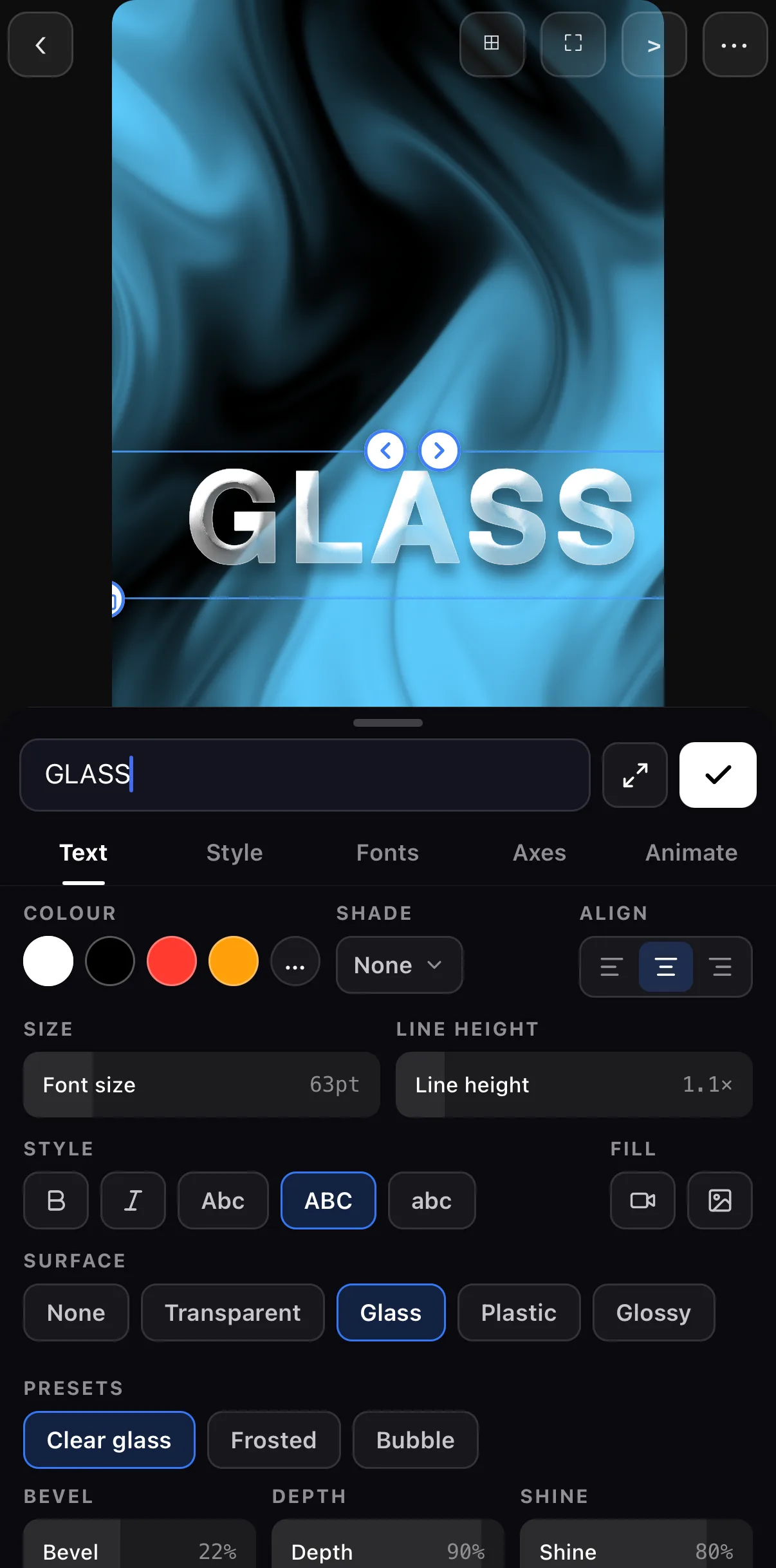 Surface — None · Transparent · Glass · Plastic · Glossy
Presets — Clear glass · Frosted · Bubble
Bevel · Depth · Shine
Surface — None · Transparent · Glass · Plastic · Glossy
Presets — Clear glass · Frosted · Bubble
Bevel · Depth · Shine
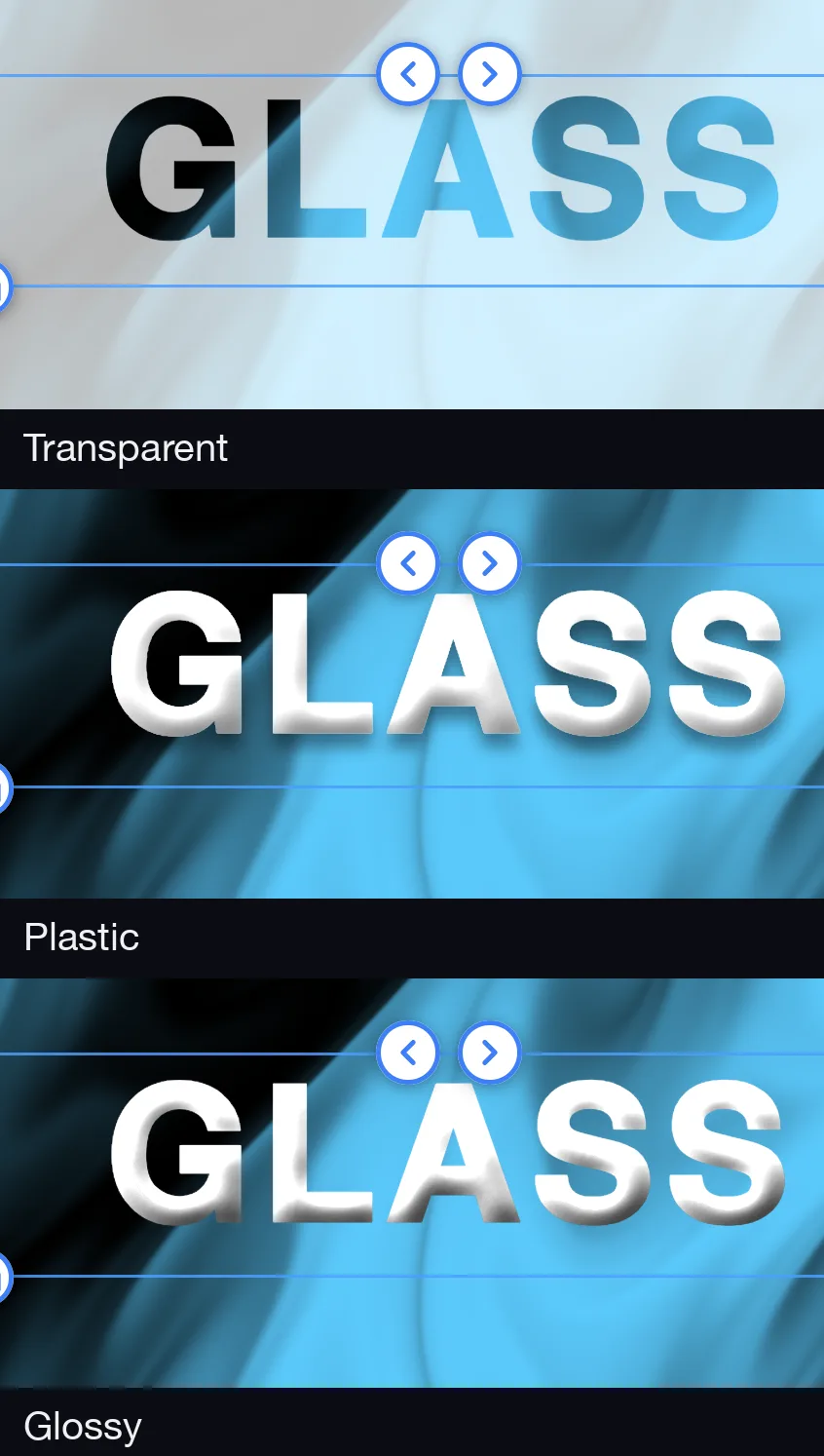
Match the surface to the background. Glass over a flat colour looks like a filter; glass over a shader or footage looks like glass. Plastic and Glossy don’t need anything behind them — they carry their own light.
Step 3 — Bring it in on particles
Open Animate
With the text selected, tap the Animate tab. Three slots: Loop, Starting, Ending.
Tap + on Starting and choose Particles
The picker’s family chips read Typewriter · Particles · General · Motion · Special. Particles is an entrance/exit family (Loop offers General, Motion and Special instead).
Pick a preset and set the duration
Tap a tile — the canvas previews it — set Duration at the bottom of the picker, then ✓.
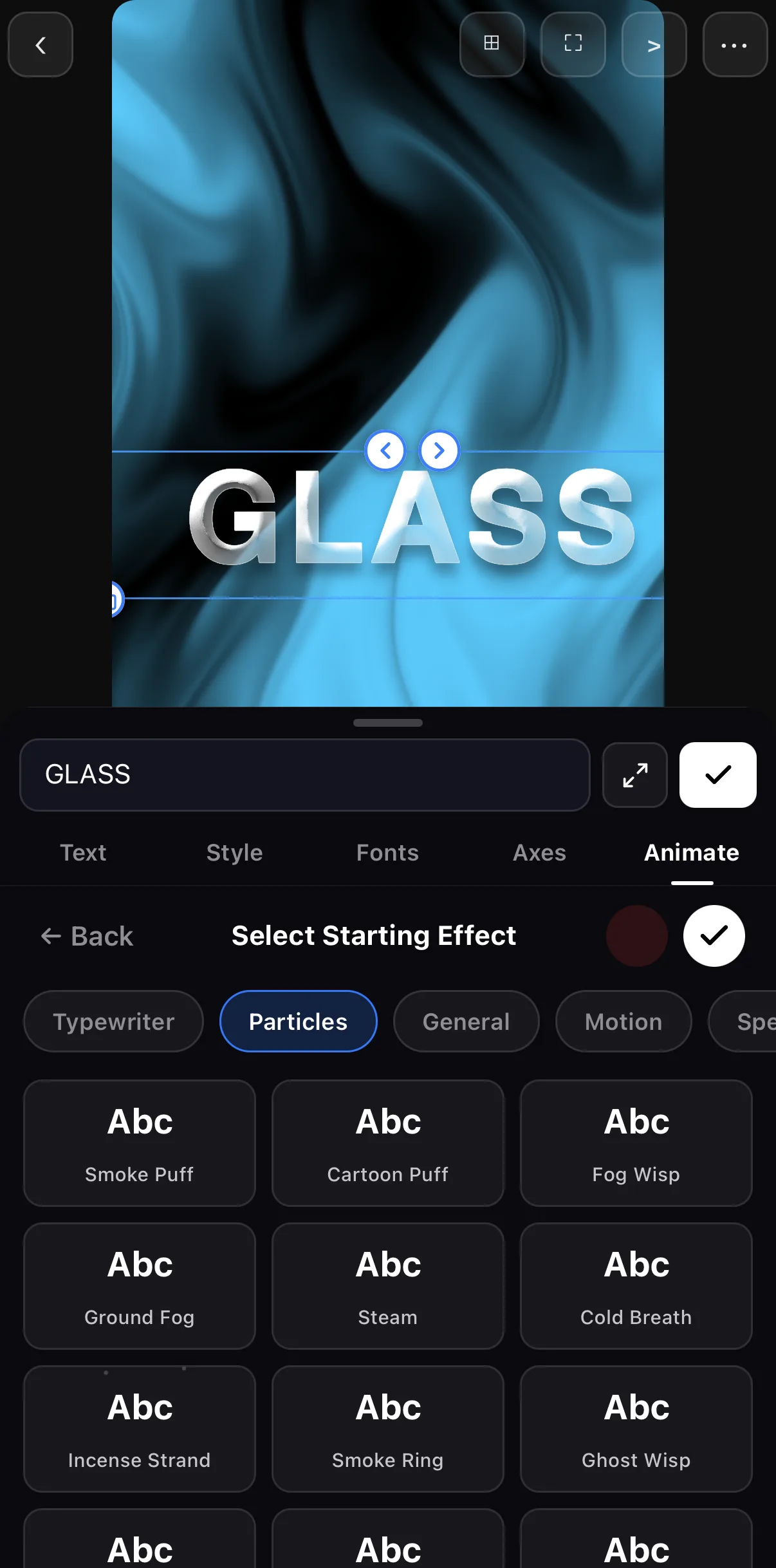 Typewriter · Particles · General · Motion · Special
Smoke Puff, Fog Wisp, Steam, Cold Breath…
Typewriter · Particles · General · Motion · Special
Smoke Puff, Fog Wisp, Steam, Cold Breath…
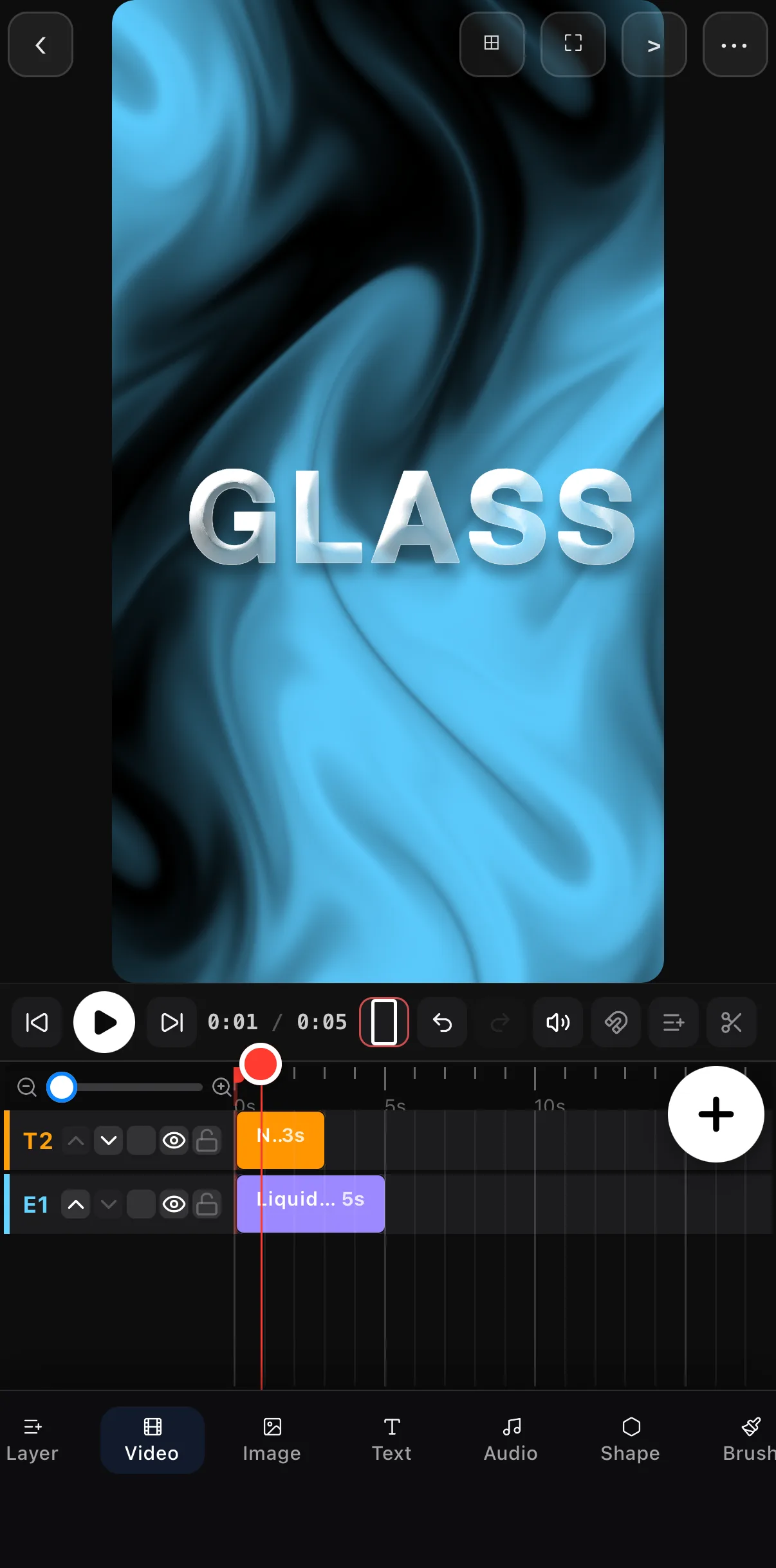 Glass surface over a Liquid Chrome shader
Text on T2 above the shader on E1
Glass surface over a Liquid Chrome shader
Text on T2 above the shader on E1
Recipes that work
- Frosted reveal: Glass ▸ Frosted, Depth 70 %, Starting ▸ Particles ▸ Mist Spray, 1200 ms.
- Candy pop: Glossy ▸ Candy, bright colour, Starting ▸ Confetti, Ending ▸ POW Burst.
- Ember title: Plastic ▸ Plastic 3D in dark orange over a Fire shader, Starting ▸ Embers, Loop ▸ General ▸ Breathe.
- Quiet luxury: Glass ▸ Clear glass, Shine 60 %, Starting ▸ Bokeh at 2000 ms, no loop.
Where to go next
- The tray itself — tabs, styles, fonts: add text & titles.
- Typewriter and word-by-word: kinetic typography.
- Backgrounds worth refracting: shaders & generative backgrounds.
Pick a surface, pick an entrance, keep the background bright — designed text in two taps.
Frequently asked questions
How do I make glass text in a video on my phone?
Add a Text layer, open the tray's Text tab and tap Glass in the Surface row. Choose Clear glass, Frosted or Bubble, then adjust Bevel, Depth and Shine. Put something bright behind it — a shader background or a light leak — so the refraction has something to bend.
What is the difference between Glass, Plastic and Glossy?
Glass is see-through with refraction and a bright edge; Plastic is an opaque, soft-lit material with a rounded bevel (Toy and Plastic 3D push it further); Glossy is opaque with a hard specular highlight — Lacquer, Candy or a Chrome edge. Transparent is a translucent panel behind the letters rather than a material on them.
How do I add particles to text?
Select the text, open the Animate tab, tap + next to Starting and choose the Particles family. Pick a preset — Smoke Puff, Glitter, Confetti, Snow, Petals and so on — set the Duration and tap ✓. Use Ending for the exit; Loop holds the General, Motion and Special families.
Related guides
Give your titles a material
Glass, plastic and glossy surfaces plus 101 particle entrances — designed text effects, on your phone, rendered on-device.
Get ExpoCut Browse all guides