Curved Text & Snake Path: Text on a Path on Your Phone
Straight text is a default, not a decision. ExpoCut lets a title follow a curve — arc, circle, wave — and, with Snake, lets the letters themselves travel along a path like a marquee that learned to swim. Both live two taps from the text tray.
Quick answer
In ExpoCut, select a text layer and open the tray’s Axes tab. The Path row offers Straight · Arc · Circle · Wave: Arc has a Curvature slider, Circle a Radius, Wave an amplitude and frequency, and each has Flip direction; the Direction row (Auto · LTR · RTL) keeps Urdu and Arabic reading correctly on the curve. For letters that move along a shape, tap the pencil (Edit), then Motion ◇+, pick any of the 25 motion paths (Wave, Spiral, Heart, Zigzag…) and tap Snake — the glyphs crawl along the path over the clip’s duration; Size, Speed, Reverse and Orient tune it.
- Curved text is on the Axes tab of the text tray (Path row), next to variable-font axes and writing direction.
- Arc = Curvature slider; Circle = Radius; Wave = ripple. Flip direction mirrors any of them.
- Glyphs are laid along the path individually, so it renders on the canvas and exports the same way.
- Snake is a mode of the Motion Path picker: any of the 25 preset paths (or a drawn one) becomes a track the letters travel along.
- Direction Auto detects Arabic/Hebrew; set RTL explicitly when mixing scripts on a path.
Text on a path is a poster-design move that never quite made it to phone editors — until now. ExpoCut has two versions of it: static curves (arc, circle, wave) that shape the line, and Snake, which sends the letters travelling along any motion path. Here’s both.
Where the two features live
| Feature | Where | What it does |
|---|---|---|
| Path (Arc · Circle · Wave) | Text tray ▸ Axes tab ▸ Path row | Lays each glyph along a curve — a static shape |
| Snake | Pencil (Edit) ▸ Motion ◇+ ▸ pick a path ▸ Snake | The glyphs crawl along the path over time |
Step 1 — Curve the line (Axes ▸ Path)
Add the text and size it
Text ▸ Text, type the line, pick a style. Keep the font on the small side — a curve needs room.
Open the Axes tab
It hosts the variable-font sliders (Weight, Width, Slant, Optical Size) and, below them, Path and Direction.
Tap Arc, Circle or Wave
Drag the slider that appears — Curvature for Arc, Radius for Circle — and tap Flip direction to bend the other way. Tap ✓.
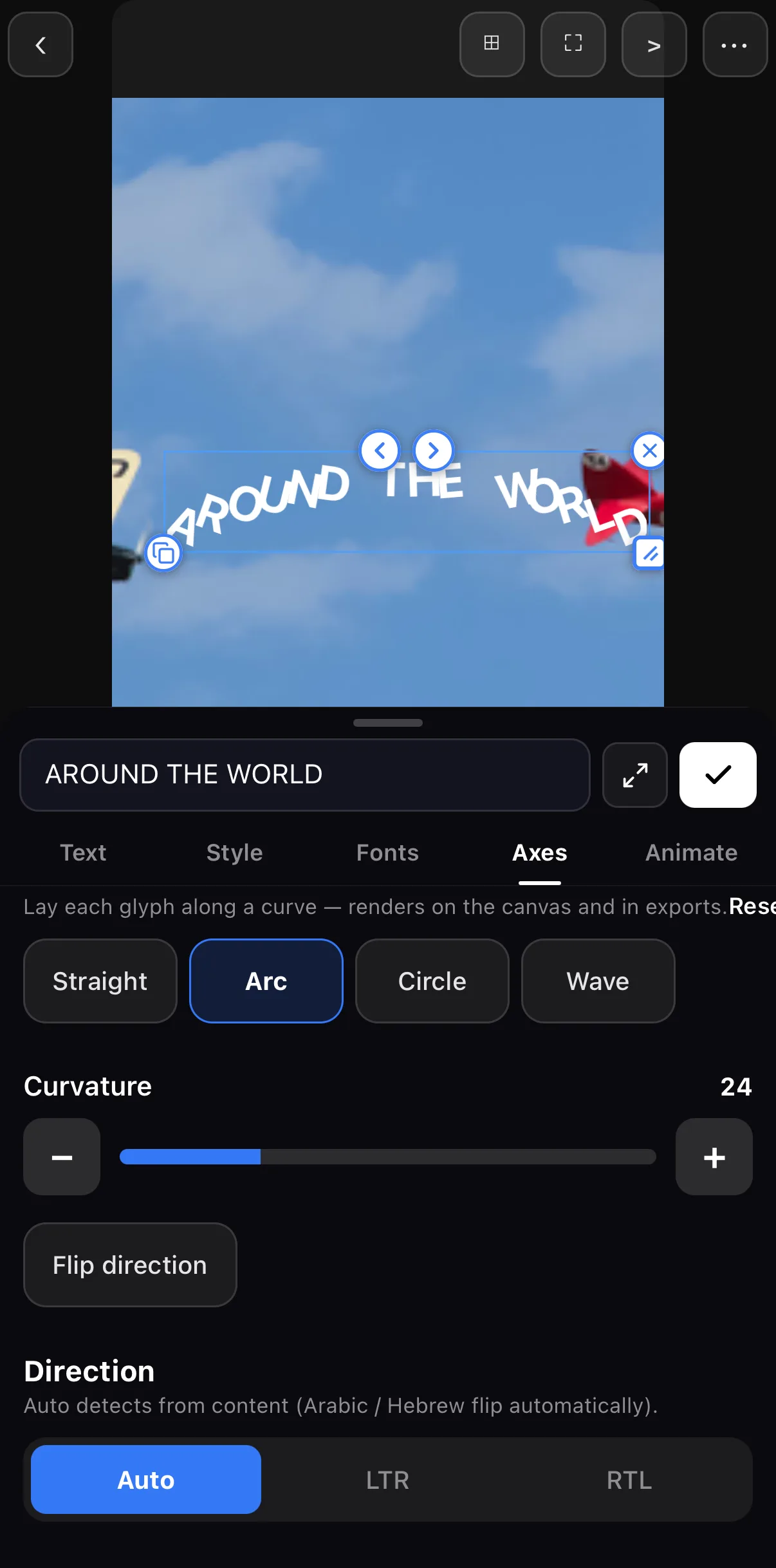 Path — Straight · Arc · Circle · Wave
Curvature
Flip direction
Direction — Auto · LTR · RTL
Path — Straight · Arc · Circle · Wave
Curvature
Flip direction
Direction — Auto · LTR · RTL
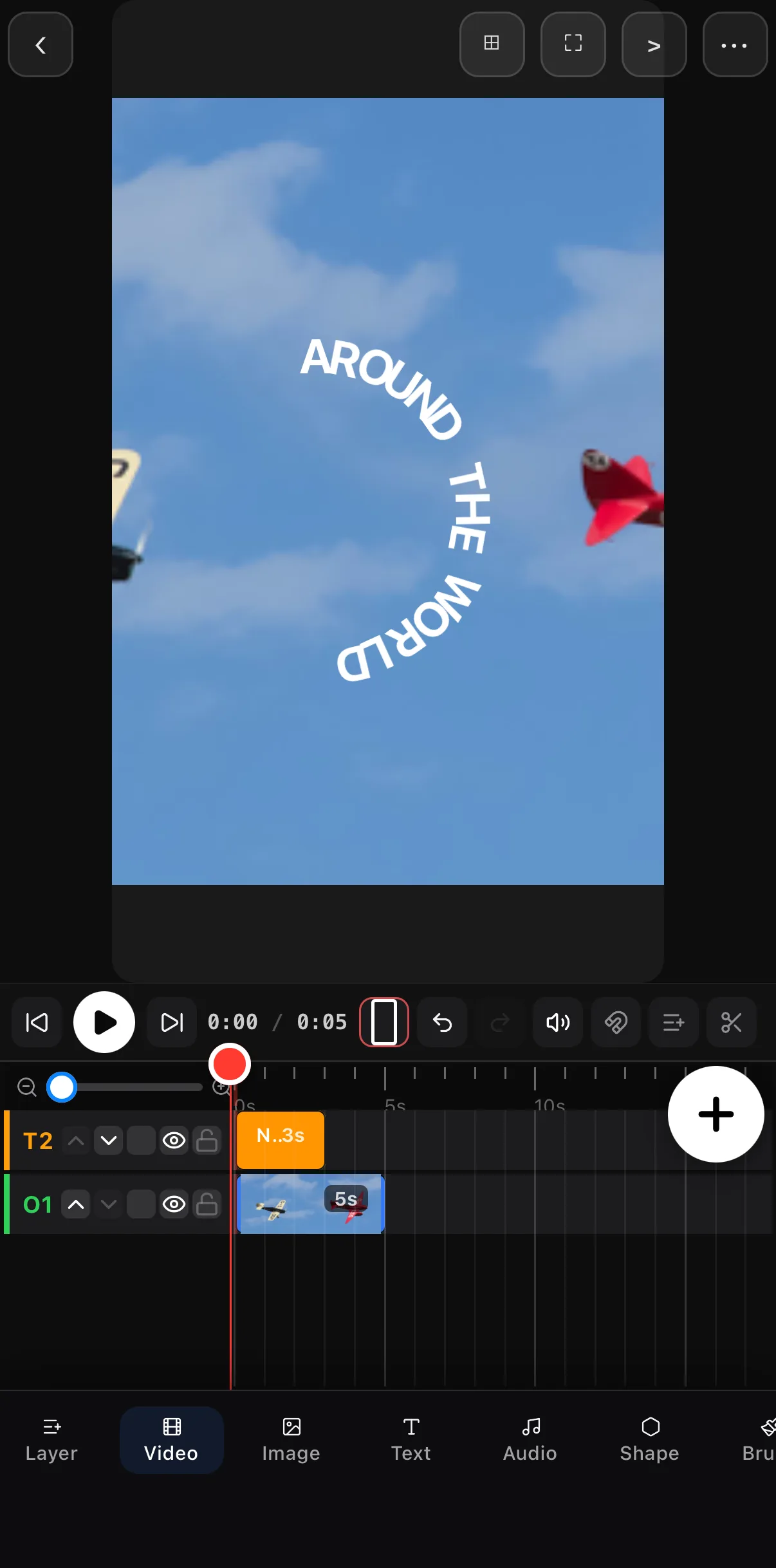 Circle, radius 80 — glyphs run around the ring
Wave ripples the baseline instead of bending it — good for a single long word. Whatever the path, the text stays editable: change the words, font or colour and the layout re-flows along the curve.
Right-to-left on a curve. The Direction row is set to Auto, which detects Urdu, Arabic and Hebrew and lays the glyphs in reading order with cursive shaping intact. If a line mixes scripts, set RTL or LTR explicitly. See the Urdu & Arabic titles guide.
Step 2 — Make the letters travel (Snake)
Snake lives in the Motion Path picker, because that’s what it is: a motion path the glyphs follow one by one.
Select the text and tap the pencil
Edit mode shows the Keyframe and Motion rows under the timeline.
Tap Motion ◇+ and pick a path
25 presets — lines, arcs, Wave, S-Curve, Loop, Spiral, Figure 8, Circle, Square, Triangle, Diamond, Star, Heart, Bounce, Zigzag, Spring, Stairs, Swing — or Draw your own. The dashed path appears on the canvas.
Tap Snake
The whole-layer motion becomes a per-glyph crawl. Set Size (how big the path is on the canvas) and Speed, and use Reverse or Orient if the letters should face the other way. Tap Done.
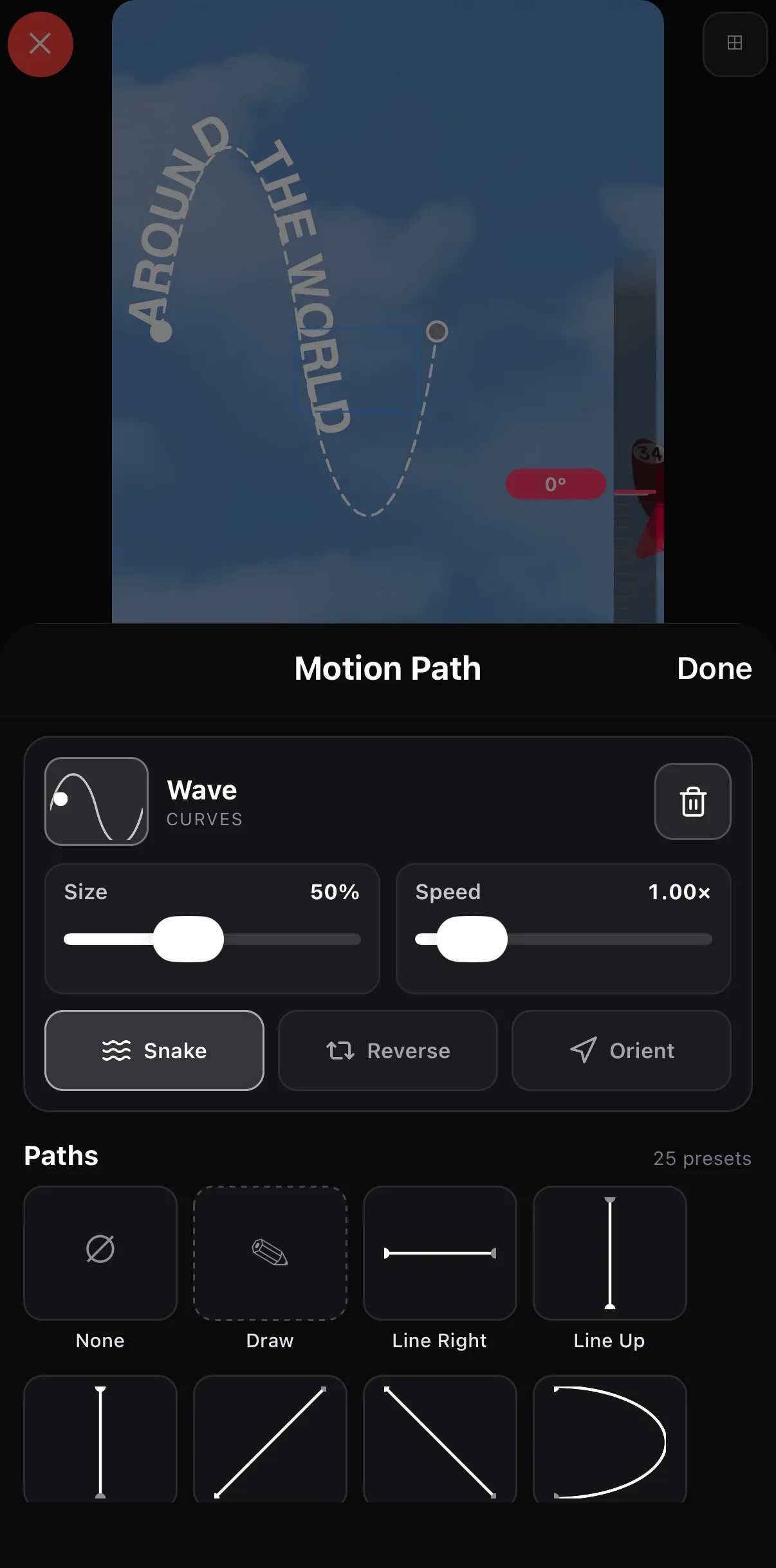 Glyphs crawl along the path
Wave path from the motion-path library
Size + Speed
Snake
Glyphs crawl along the path
Wave path from the motion-path library
Size + Speed
Snake
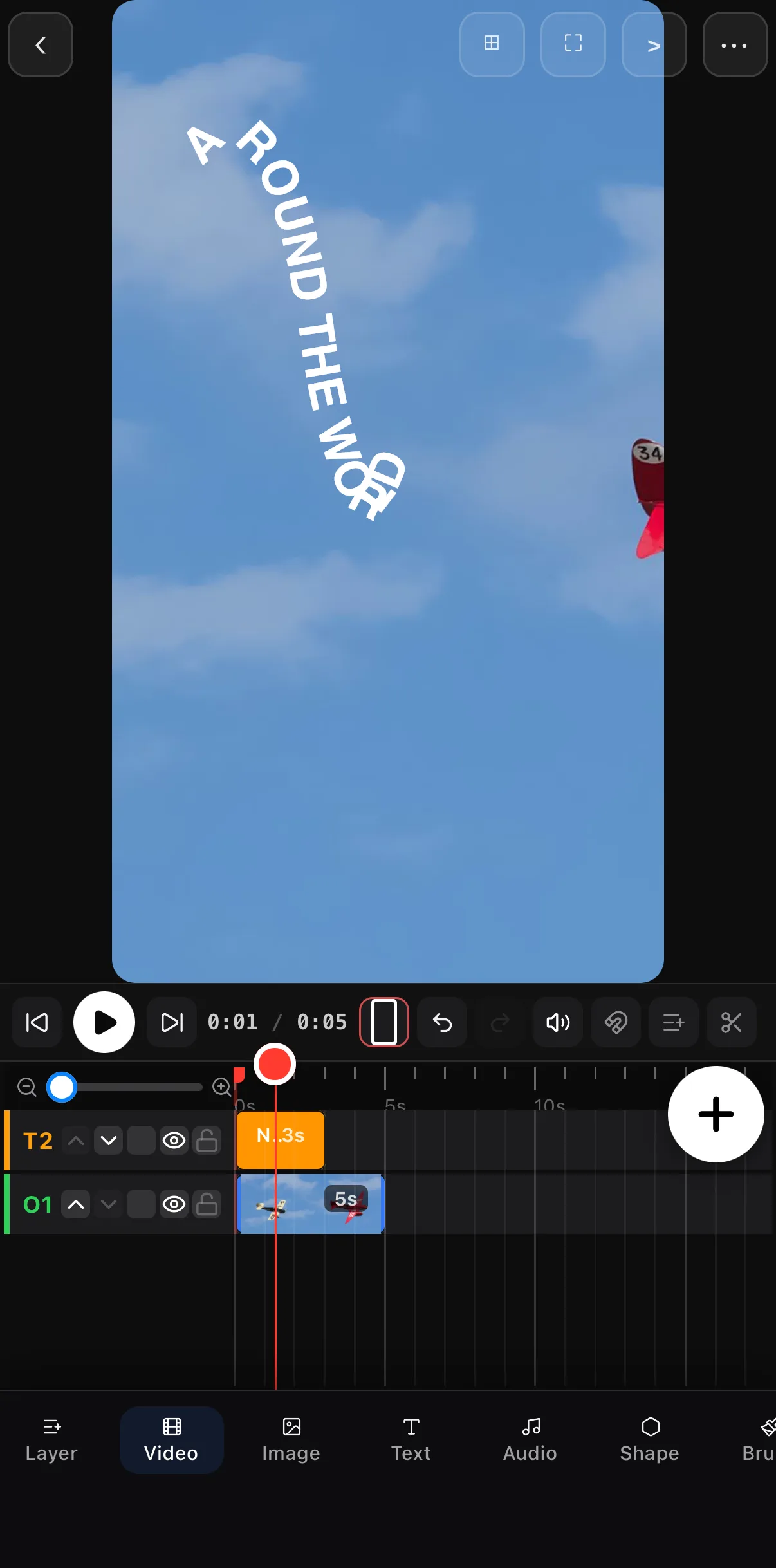 Mid-crawl at 0:01 — letters bunch through the bend
Tips that keep it readable
- Short lines. Curves and snakes eat width; two or three words is plenty.
- Wide box for arcs. Drag the ‹ › width handles out so the arc spans the frame instead of stacking.
- Gentle paths for Snake. Wave, S-Curve and Arc read; Spiral and Zigzag are for logos, not sentences.
- Contrast. A curve breaks the letters’ straight edges, so give them a shade or outline from the Style tab.
Where to go next
- The text tray, tab by tab: add text & titles.
- Paths for whole layers (the non-snake version): keyframes & motion paths.
- Right-to-left titles: Urdu & Arabic titles.
Bend it once on Axes, or set it walking with Snake — either way the title stops sitting in a box.
Frequently asked questions
How do I curve text in a video on my phone?
Select the text, open the tray's Axes tab, and tap Arc, Circle or Wave in the Path row. Drag Curvature (or Radius) to taste and use Flip direction to bend the other way. It renders live on the canvas and in the export.
What is Snake text?
Snake makes the letters travel along a motion path instead of the whole layer sliding along it. Tap the pencil, Motion ◇+, choose a path such as Wave or Spiral, and tap Snake — the glyphs crawl along the shape over the clip's length. Size sets how big the path is on the canvas, Speed how fast they travel.
Does curved text work with Urdu or Arabic?
Yes. The Axes tab's Direction row defaults to Auto, which detects right-to-left scripts and lays the glyphs in reading order along the curve; cursive shaping is preserved. Set RTL explicitly if a line mixes scripts.
Related guides
Bend the headline
Arcs, circles, waves and snake paths — text that follows a shape, rendered live on your phone.
Get ExpoCut Browse all guides