Video-in-Text: How to Put Footage Inside Your Letters
You’ve seen it on every title sequence lately: a giant word with video playing inside the letters. It looks like motion-graphics wizardry; it’s actually one setting. Here’s how.
Quick answer
Add a text layer, type one bold word, pick a heavy style such as IMPACT TITLE, then on the text tray’s Text tab tap the Video chip in the Fill row (or the Image chip for a photo) and choose a clip from your library. The footage plays inside the letters; the Fill row shows a thumbnail with an X to remove it. Bigger, heavier type shows more video.
- The fill lives on the Text tab’s Fill row — two icon chips, Video and Image.
- Use one word and the boldest font you have; thin type leaves nothing to see.
- High-contrast, moving footage reads best inside letters.
- Preview equals export — what the canvas shows is what ships.
A giant word with your footage moving inside the letters — it’s one of the most-copied title looks in short video, and it reads as high-end motion design. In ExpoCut it’s a single fill setting on a text layer.
Step 1 — Set big, bold text
Add a text layer with your word
Tap Text ▸ Text in the bottom bar and type one short, punchy word into the text tray — “SUMMER,” your brand, the topic.
Make it big and heavy
On the Style tab tap a heavy preset like IMPACT TITLE (or pick Impact, Futura or DIN on the Fonts tab), then on the Text tab drag the Font size scrubber up until the word spans the canvas. The footage only shows where the letters are, so thin type leaves nothing to see.
Step 2 — Fill it with video
Tap the Video chip in the Fill row
On the Text tab, the Fill row sits beside the B / I / case chips — two icons, Video and Image. Tap Video.
Pick your clip
Your library opens; choose a clip (or a photo via the Image chip). It pours straight into the glyphs and the Fill row shows a thumbnail with an ✕ to remove it. Pick footage with motion and contrast so the effect is obvious.
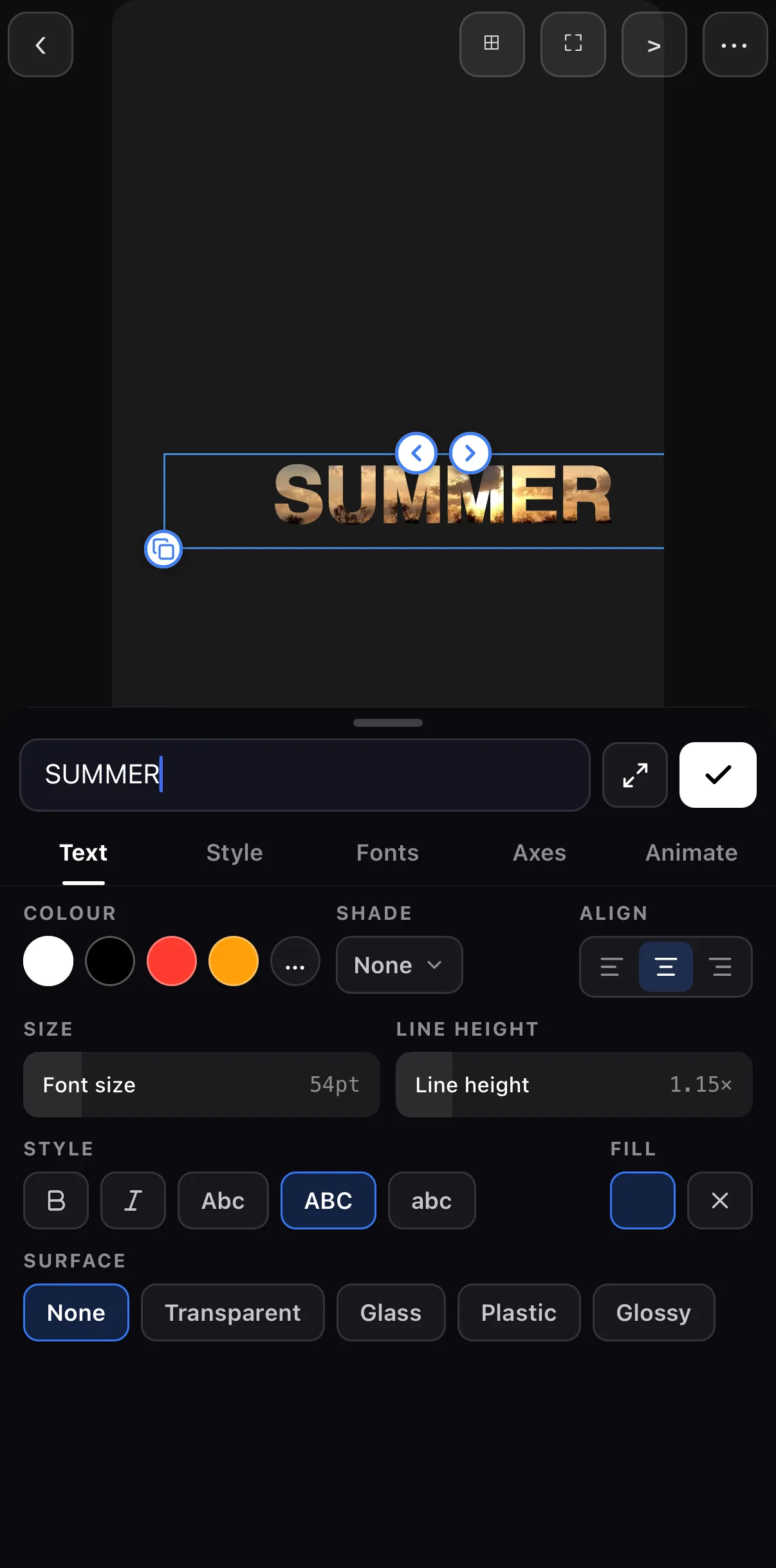 Fill — thumbnail + ✕
Colour is ignored once a fill is set
Fill — thumbnail + ✕
Colour is ignored once a fill is set
Bigger letters, more video. The thicker and larger the type, the more of your footage shows through. If the effect looks subtle, go bolder.
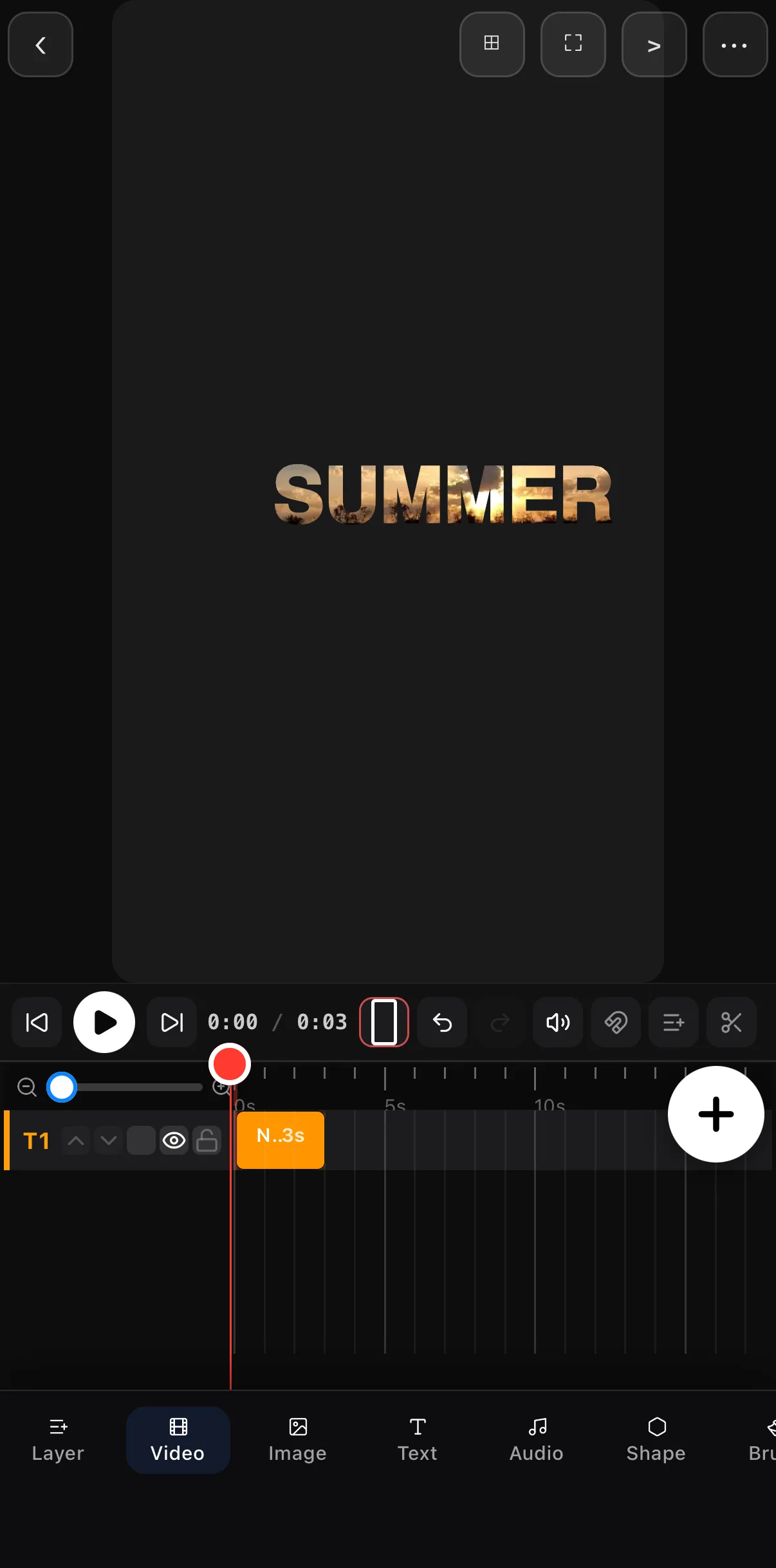 Footage plays inside the glyphs
Still a normal text layer
Footage plays inside the glyphs
Still a normal text layer
Center the word as a hero title, or anchor it as a lower banner. For extra punch, keyframe the text scaling up on your hook, or slide it in — the video keeps playing inside the whole time. What you see on the canvas is exactly what exports.
Make it land
- One word, not a sentence. The effect is a hero moment, not body copy.
- Match the footage to the message — beach footage in “SUMMER,” city lights in “NIGHTLIFE.”
- High-contrast clips read best inside letters.
Where to go next
- Style the rest of your text: animated text & titles.
- The advanced version (track mattes): every effect explained.
- Animate the hero word: keyframes & motion paths.
Big word, bold font, video fill — three steps to the title look that’s all over your feed.
Frequently asked questions
How do I put a video inside text?
Add a big, bold text layer, then set its fill to a media fill and choose a video (or image). The footage plays through the shapes of the letters — a single word becomes a window into your clip. Bigger, heavier fonts show more of the video.
What font works best for video-in-text?
The boldest, chunkiest font you have. Thin letters leave almost no room for the footage to show; a heavy display font gives the video space to read. Big and bold wins every time.
Can I animate the video-in-text?
Yes — keyframe the text scaling up on the hook, or have the letters slide in. The footage keeps playing inside them the whole time.
Related guides
Footage inside your title
Fill big bold letters with video for that scroll-stopping title look — one setting, no compositing. Make your intro pop.
Get ExpoCut Browse all guides