How to Use Keyframes to Animate Video (Zoom, Pan, Move)
Keyframes are the one skill that unlocks everything: zooms, pans, smooth reveals, animated text and graded looks. Learn how keyframes work — set a start, set an end, let the editor fill the middle — and you can animate any property of any layer.
Quick answer
Tap the clip, tap the pencil Edit button (or Keyframes on its toolbar) and the timeline shows a Keyframe row and a Motion row. With the playhead at the start, tap the Keyframe diamond; move the playhead later, change the size on the scale ruler (or the W / H fields), and tap the diamond again — the editor animates between the two. Graph opens the curve editor for easing; Motion ▸ Tap to pick a motion path gives 25 presets (lines, arcs, wave, spiral, figure 8) or Draw, and the path’s endpoint handles are draggable on the canvas.
- Keyframe = a value at a time; two keyframes with different values = motion.
- Subtle wins: 100 % → 112 % over three seconds is a pro push-in.
- The Graph panel has a chip per property (Opacity, Size, Width, Height, Rotation…) and a curve you tap to add keyframes.
- Motion paths are presets or a freehand Draw; drag the handles to stretch, rotate or move the path.
If you learn one advanced skill in mobile video editing, make it keyframes. They’re the engine behind zooms, pans, reveals, animated text and graded looks — every “how did they do that” move. And the idea is simple: mark a start, mark an end, and the editor animates the middle for you.
The one idea behind all animation
A keyframe stores a property’s value at a point in time. Set two of them with different values and the editor interpolates — fills in every frame between — to create smooth motion.
That’s it. Once you understand “start value here, end value there,” you can animate anything:
| Animate this property | And you get… |
|---|---|
| Scale | Zoom in / out, Ken Burns |
| Position | Pans, slides, motion paths |
| Rotation | Spins, tilts |
| Opacity | Fades, reveals |
| Filter intensity | A grade that blooms in |
Your first keyframe move: the slow zoom
Open keyframe mode
Tap the clip on the timeline, then the pencil Edit button (or Keyframes on its toolbar). Two rows appear under the clip — Keyframe and Motion — and the canvas shows the rotation and scale rulers with W / H fields.
Keyframe the start
With the playhead at the clip’s start, tap the Keyframe diamond. A yellow 1 appears on the row — the current size and position are recorded at 0 s.
Keyframe the end
Drag the playhead to the clip’s end, then drag the scale ruler under the canvas a little (or type into W / H) so the clip is ~12 % bigger. Tap the diamond again — keyframe 2.
Play it back
The editor animates a smooth, slow zoom across the clip. Drag the clip on the canvas at the second keyframe too and you’ve made a Ken Burns pan-and-zoom. Clear removes every keyframe on the row.
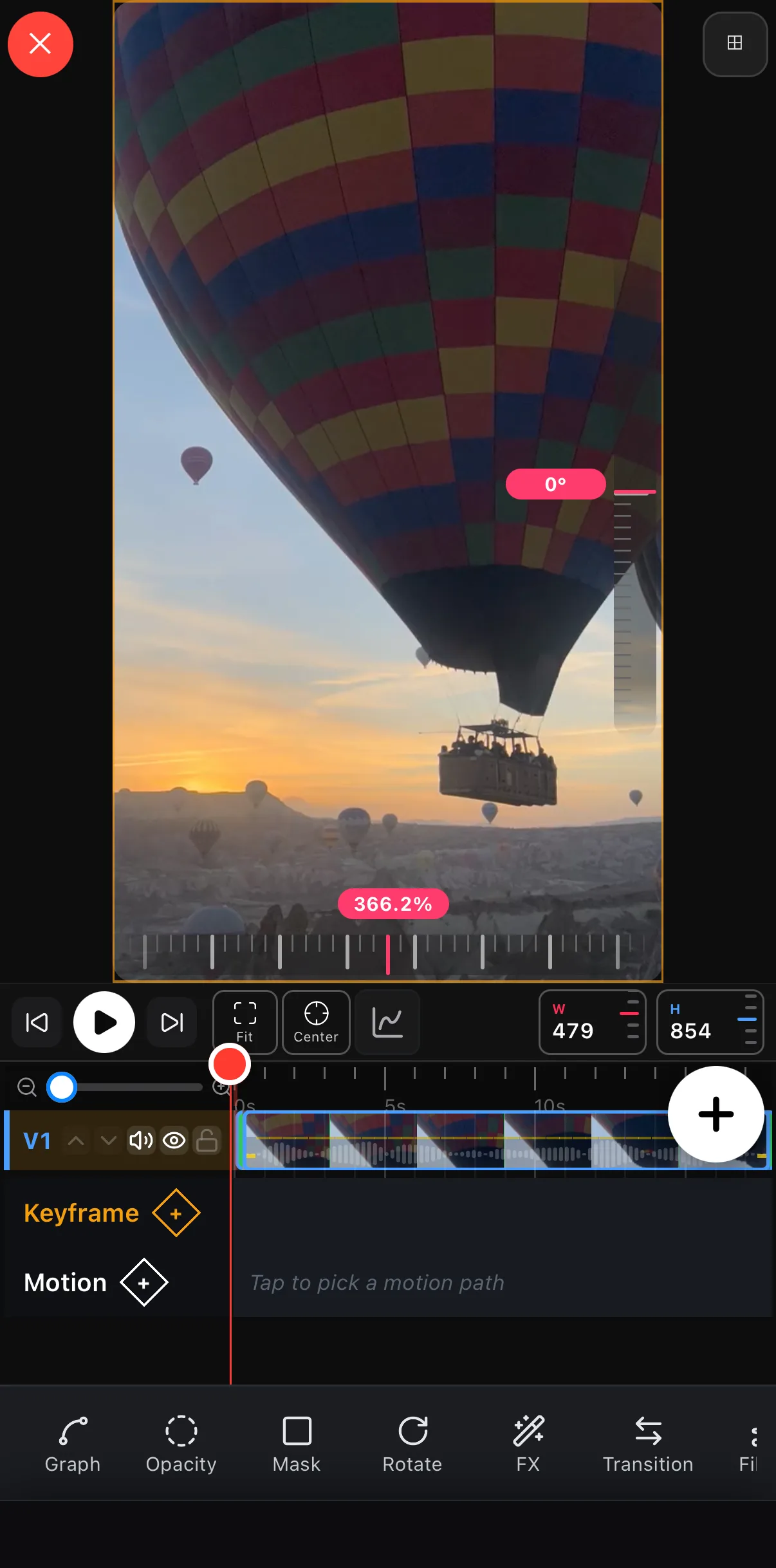 Tap the diamond to add a keyframe
Scale ruler
W / H
Tap the diamond to add a keyframe
Scale ruler
W / H
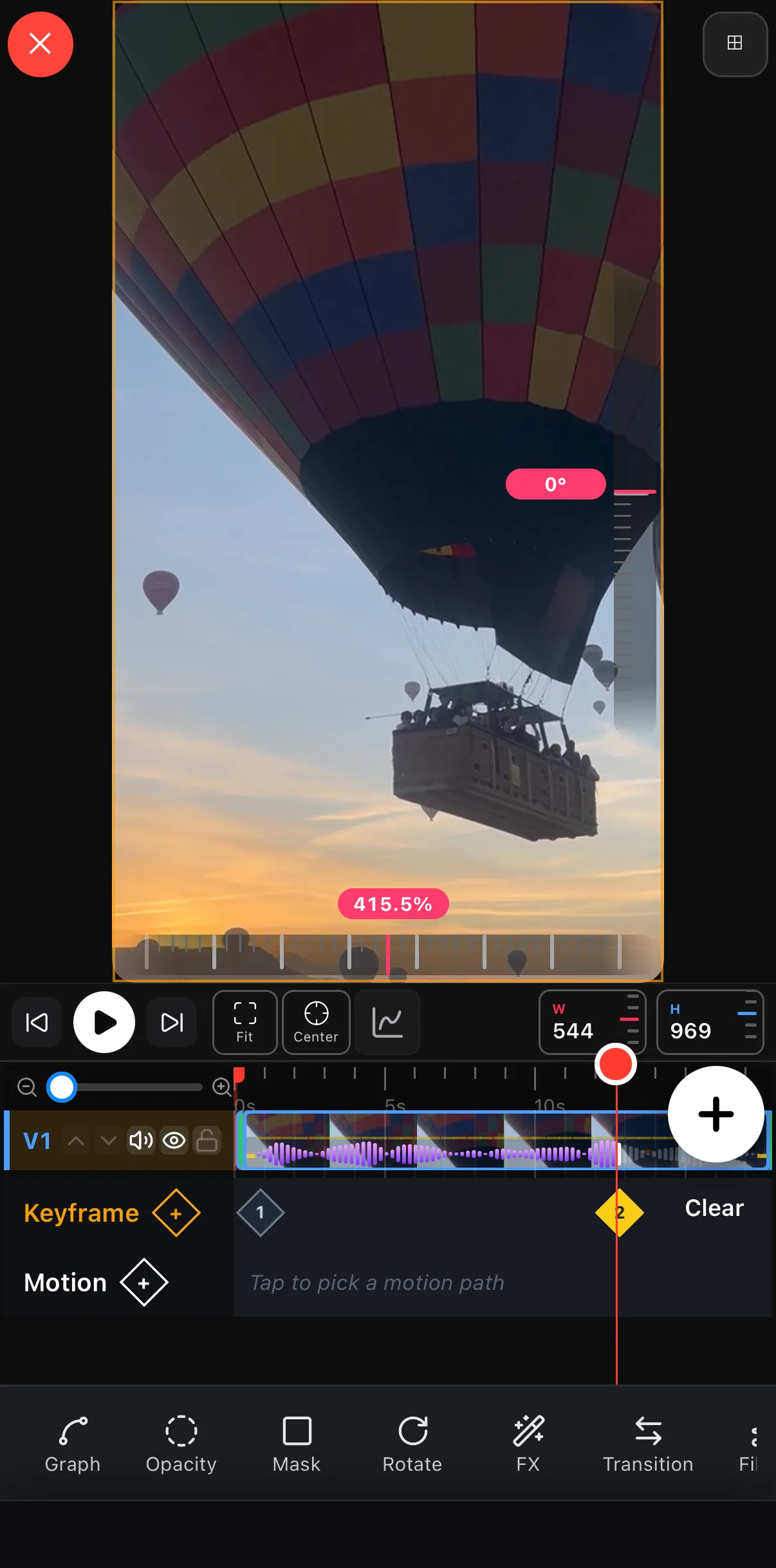 Keyframe 1
Keyframe 2 — bigger
Clear
Keyframe 1
Keyframe 2 — bigger
Clear
Easing makes it look professional
Raw keyframes move at a constant speed, which feels robotic. Easing fixes that:
- Linear — constant speed (use rarely).
- Ease-in-out — starts and ends gently (use almost always).
Tap Graph on the transform toolbar to open the curve editor: one chip per property (Opacity, Size, Width, Height, Rotation…) and a curve you can tap to add keyframes and drag to shape the easing. Switch your keyframes to ease-in-out and the same zoom instantly looks intentional instead of mechanical.
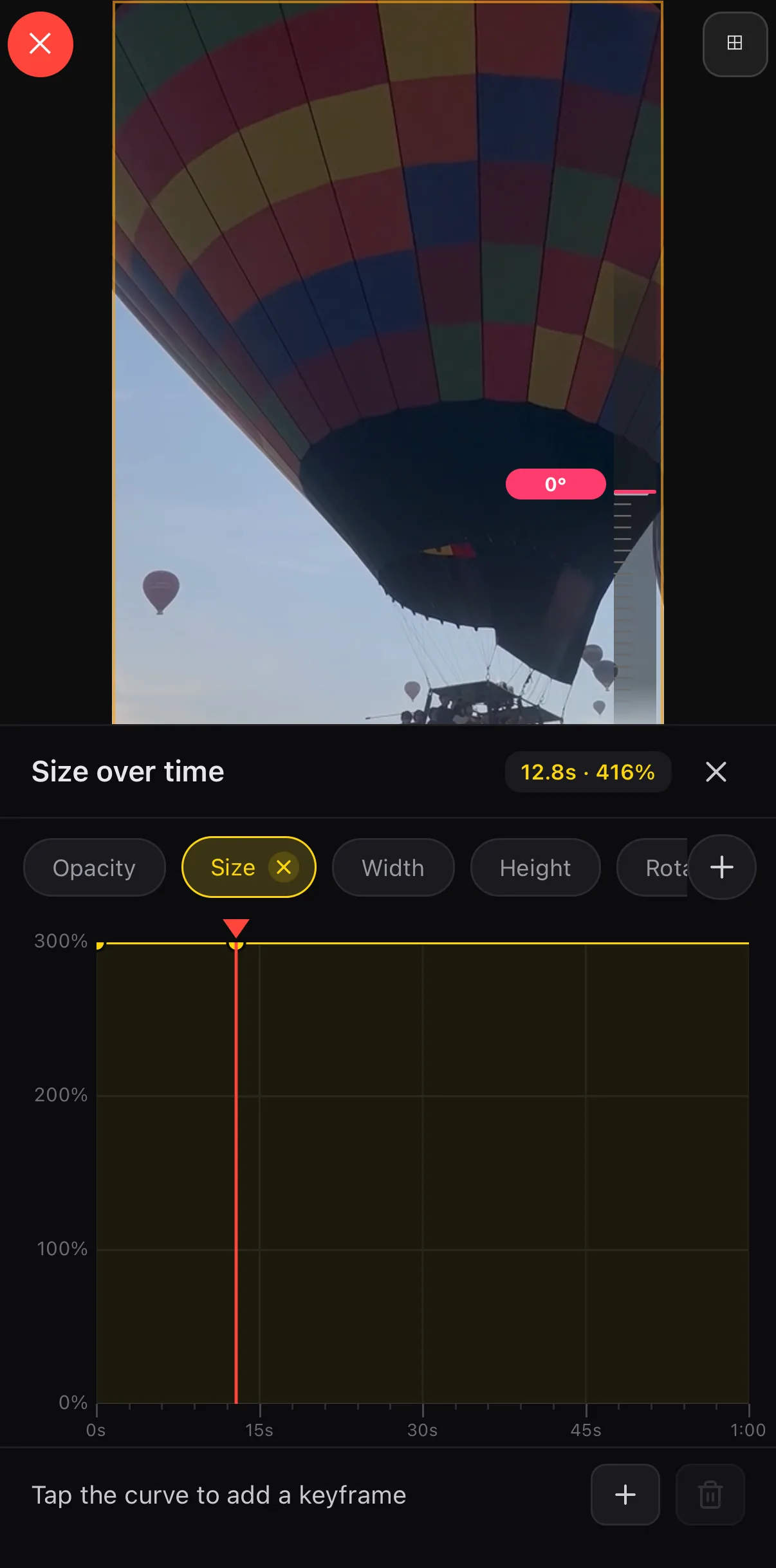 One chip per property
Tap the curve to add a keyframe
One chip per property
Tap the curve to add a keyframe
Less distance, more class. Beginners make huge keyframe moves — a 100%→200% zoom that feels dizzying. Pros keep it subtle: 100%→112% over three seconds. The viewer feels the motion without noticing it. Restraint, again, is the secret.
Motion paths
For position, you can do more than a straight line: a motion path lets a layer follow a curve across the canvas — a logo that arcs in, a sticker that bounces. Tap Motion ▸ Tap to pick a motion path and choose from 25 presets — lines, diagonals, arcs, wave, S-curve, loop, spiral, figure 8 — or Draw your own with a finger. The path appears on the canvas with a handle at each end: drag them to stretch, rotate or move the whole path. Combine a motion path with rotation and easing and you have full character animation.
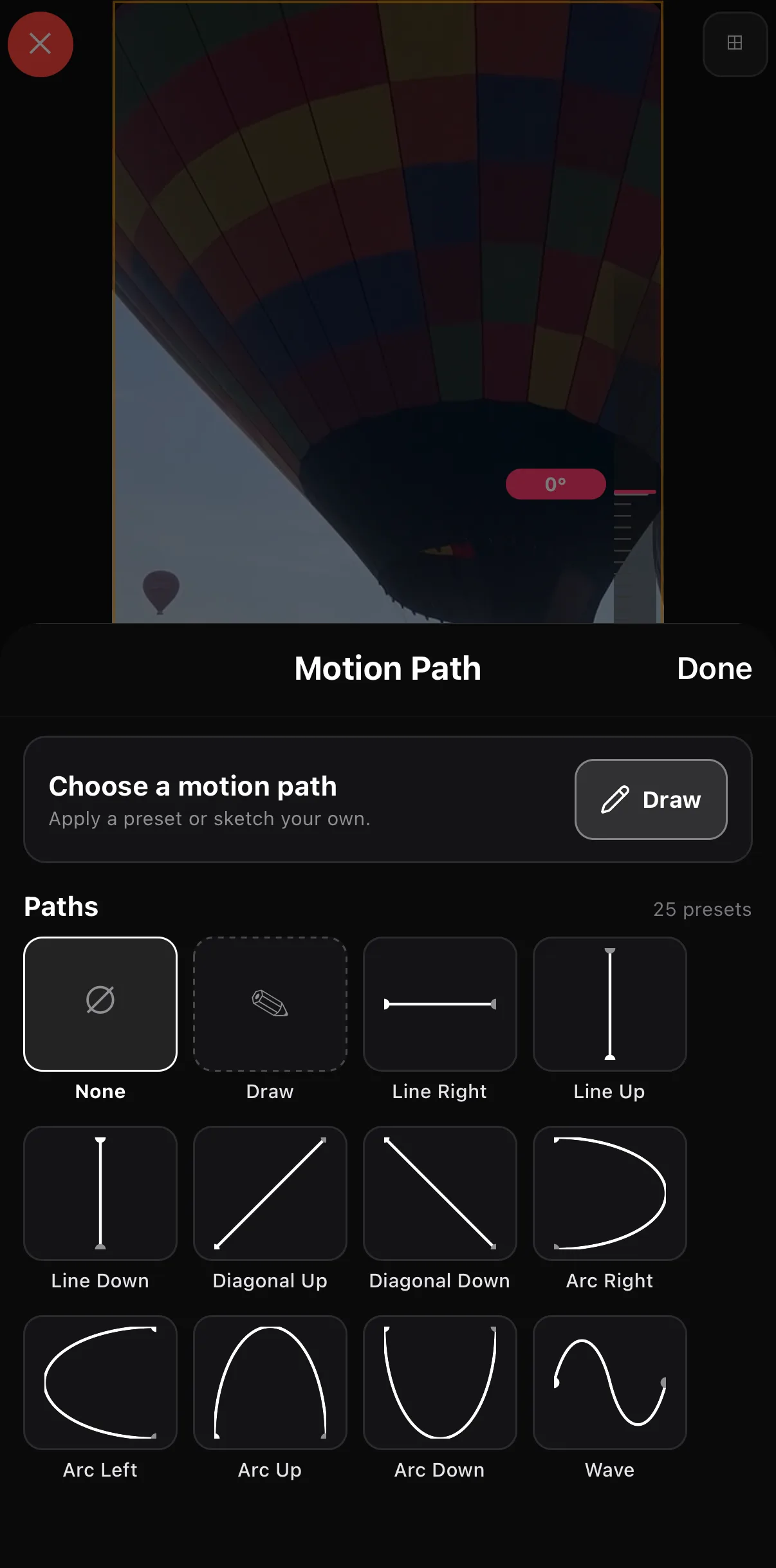 Draw your own
25 presets
Draw your own
25 presets
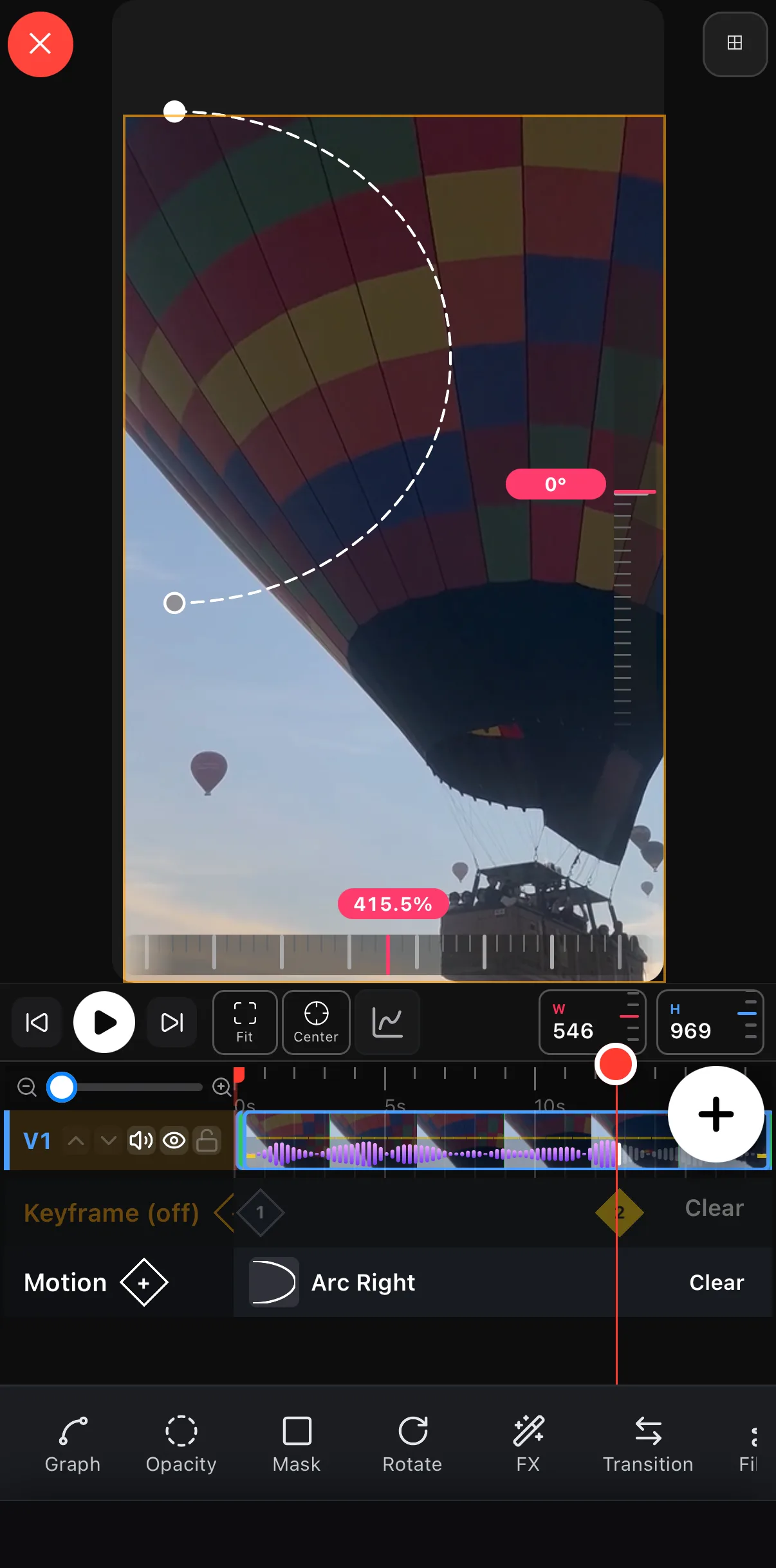 The path, live on the canvas
Drag the end handles
Motion · Arc Right
The path, live on the canvas
Drag the end handles
Motion · Arc Right
Keyframes power other effects too
Keyframing filter intensity makes a clip bloom from flat to graded (see color grading). Keyframing a mask creates reveals (see shapes & masks). Keyframes aren’t a feature — they’re the foundation under most advanced effects.
Where to go next
- Apply motion to color: color grading on your phone.
- Animate masks and shapes: shapes & masks.
- Where motion fits among effects: video effects guide.
Master keyframes and the whole editor opens up. Start with a subtle slow zoom on your next clip, switch it to ease-in-out, and you’ve already made the move that separates polished video from flat video.
Frequently asked questions
What are keyframes in video editing?
A keyframe records a property's value at a moment in time. Set two keyframes — a start and an end — with different values, and the editor animates smoothly between them. Keyframe a layer's scale from 100% to 120% and you've created a slow zoom.
How do I add a zoom or Ken Burns effect?
Add a keyframe for scale at the start of the clip, move the playhead to the end, and set a larger scale there. The editor interpolates a smooth zoom across the clip. Add a position keyframe too and you get the classic Ken Burns pan-and-zoom.
What is easing?
Easing controls the acceleration between keyframes. Linear moves at a constant speed (robotic); ease-in-out starts and ends gently (natural). Almost every animation looks better with ease-in-out than with linear motion.
Related guides
Animate your next clip
Keyframe position, scale, rotation, opacity and more — with easing and motion paths, all previewing live on-device.
Get ExpoCut Browse all guides