How to Reverse & Freeze-Frame a Video on Your Phone
Reverse and freeze used to mean a keyframe table. Now they are two buttons on the clip toolbar — tap Freeze at the playhead, tap Reverse on the clip — with Slip and Repeat next to them. Time Remap is still there when you want to bend time by hand.
Quick answer
Tap a video clip and swipe its toolbar past Speed: tap Freeze to hold the frame under the playhead for 3 seconds inside the clip, tap Reverse to play the clip backwards (baked natively so the export matches), tap Slip to shift which part of the source plays without moving the clip, and tap Repeat to loop the clip to 30 s, 2, 3 or 5 minutes. For custom shapes of time, Layer Properties ▸ Enable Time Remap gives you the Playhead → Source keyframe table.
- Freeze grows the clip by 3 seconds at the playhead; trim the hold like any clip.
- Reverse shows a dot on the button while on; tap again to go forward.
- Boomerang = Split at the peak, Freeze the first piece, Reverse the second.
Some of the most-shared video moments are just time, paused or reversed: a splash un-splashing, a freeze on the punchline, a skater landing in rewind. In ExpoCut both are one tap — Freeze and Reverse sit on every video clip’s toolbar, next to Slip and Repeat — and the old Time Remap table is still there for anything custom.
The four time tools on the clip toolbar
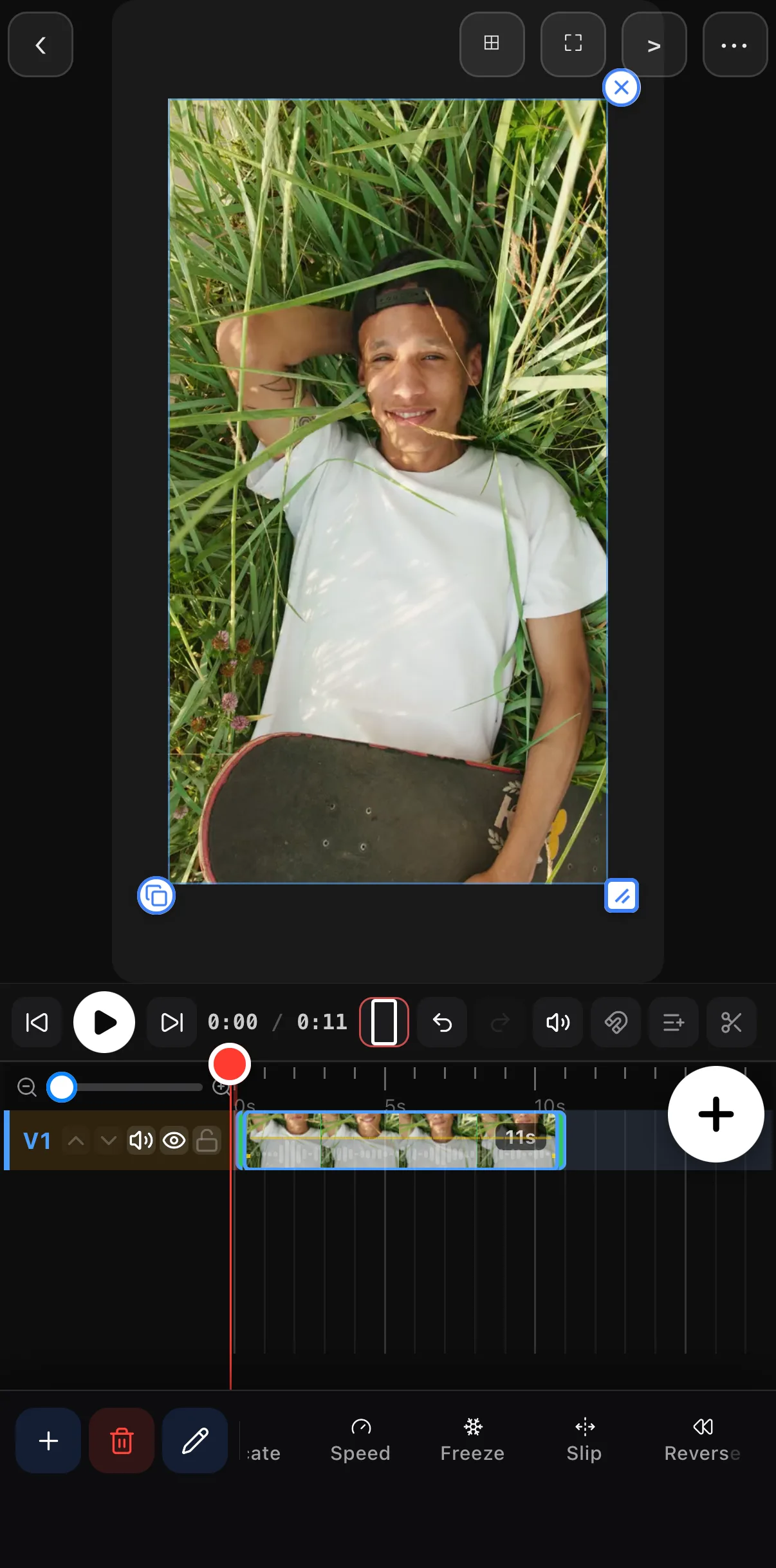
Tap a video clip on the timeline and swipe its toolbar past Speed:
| Button | What it does |
|---|---|
| Speed | Constant speed or a speed curve — see slow motion & speed ramps |
| Freeze | Holds the frame under the playhead for 3 seconds, inside the clip |
| Slip | Shifts which part of the source plays here — the clip stays put, its content moves |
| Reverse | Plays the clip backwards (baked natively, so it exports exactly as previewed) |
| Repeat (further left) | Loops the clip to fill 30 s, 2, 3 or 5 minutes |
 Speed
Freeze
Slip
Reverse
Speed
Freeze
Slip
Reverse
Step 1 — Freeze a frame
Park the playhead
Scrub to the exact frame you want to hold — the landing, the reaction, the punchline.
Tap Freeze
With the clip selected, tap Freeze. ExpoCut inserts a 3-second hold of that frame right there: the footage before it plays normally, the frame sits still, then the footage resumes. The clip grows by 3 seconds on the timeline.
Do something with the hold
Drop a title or a zoom keyframe over the held stretch so the frozen frame does real work — a “you’re probably wondering how I got here” intro, or a beat of emphasis on a reaction. Trim the clip if you want a shorter hold.
 Playhead at 0:04
11 s → 14 s
Playhead at 0:04
11 s → 14 s
Step 2 — Reverse a clip
Select the clip
Tap it on the timeline.
Tap Reverse
ExpoCut bakes a reversed copy of the footage natively, so the preview and the export play backwards identically — a poured drink un-pours, a mess un-spills. The button shows a dot while reverse is on; tap it again to go forward.
Reverse a section, not the whole clip
Split the clip first, then reverse just one piece to play forward → rewind → continue.
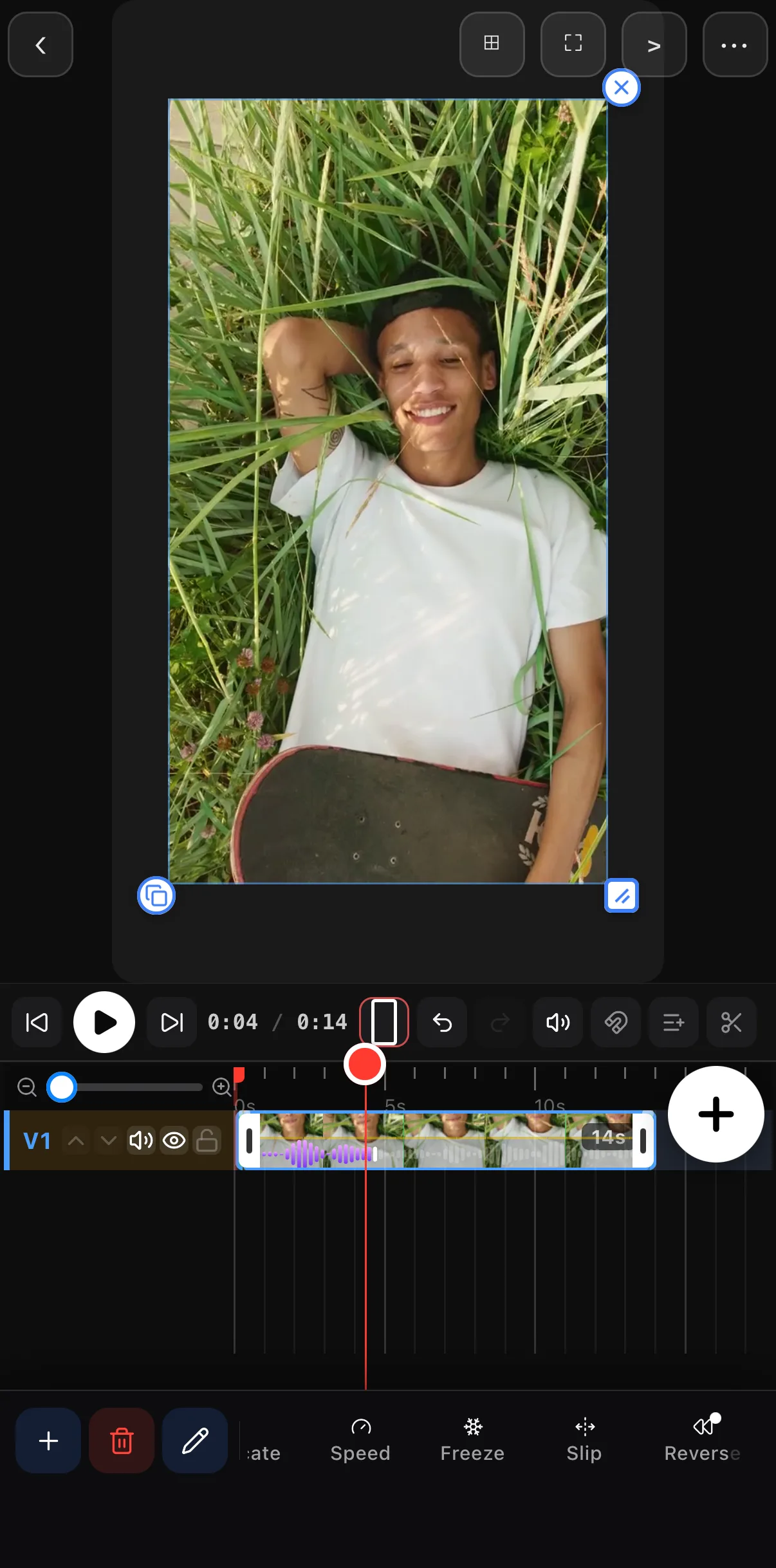 Reverse on
Step 3 — Slip and Repeat
Slip is for when the clip is the right length in the right place but shows the wrong moment. Tap Slip and nudge the source by ±100 ms or ±1 s — the clip doesn’t move on the timeline; only which part of the footage plays inside it does.
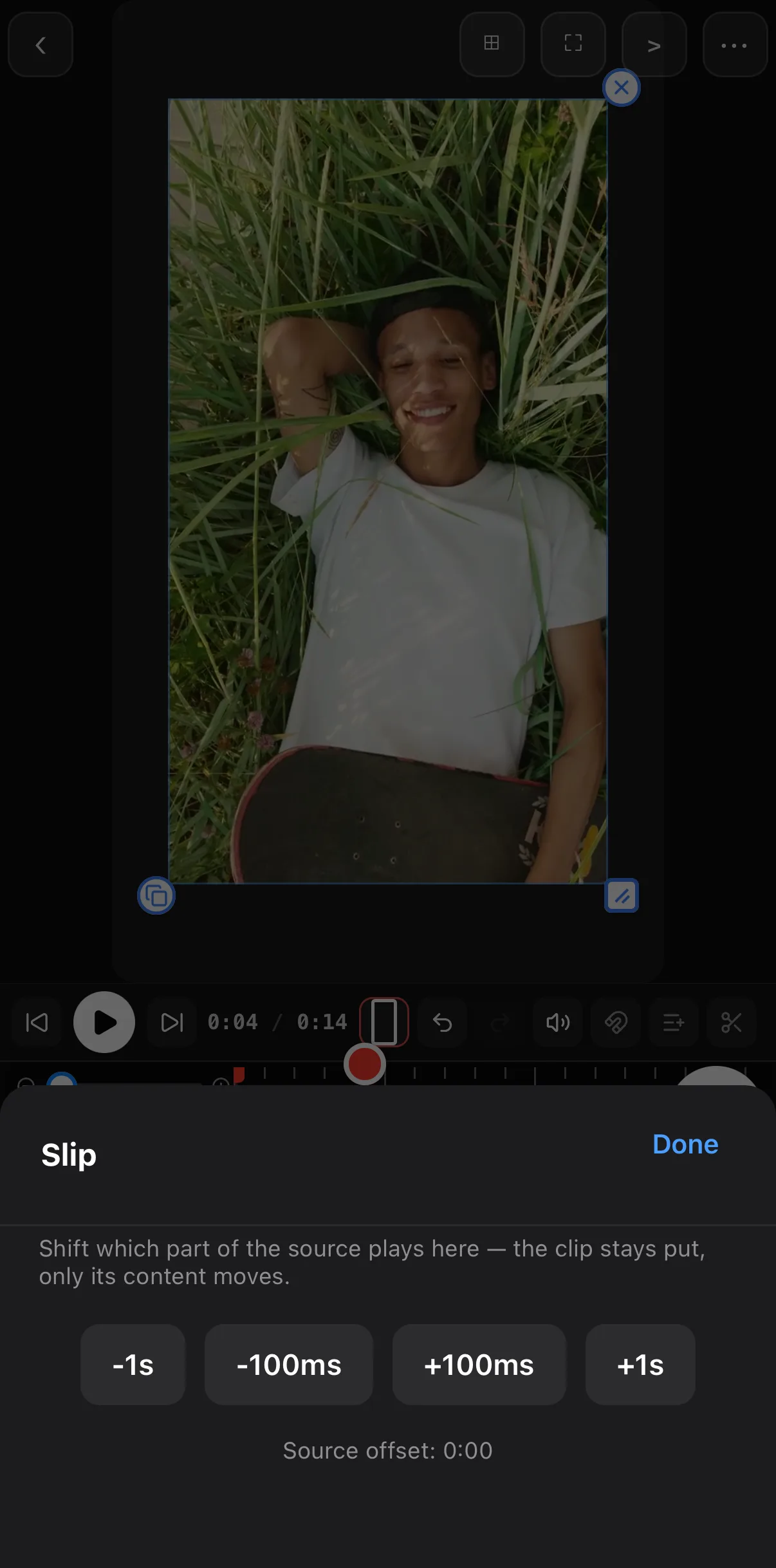 Nudge the source
Source offset
Nudge the source
Source offset
Repeat is for when the clip is too short. Tap Repeat and pick a target — 30 s, 2, 3 or 5 minutes — and the clip loops its source to fill it instead of freezing on the last frame. Ideal for a background loop under a long voiceover.
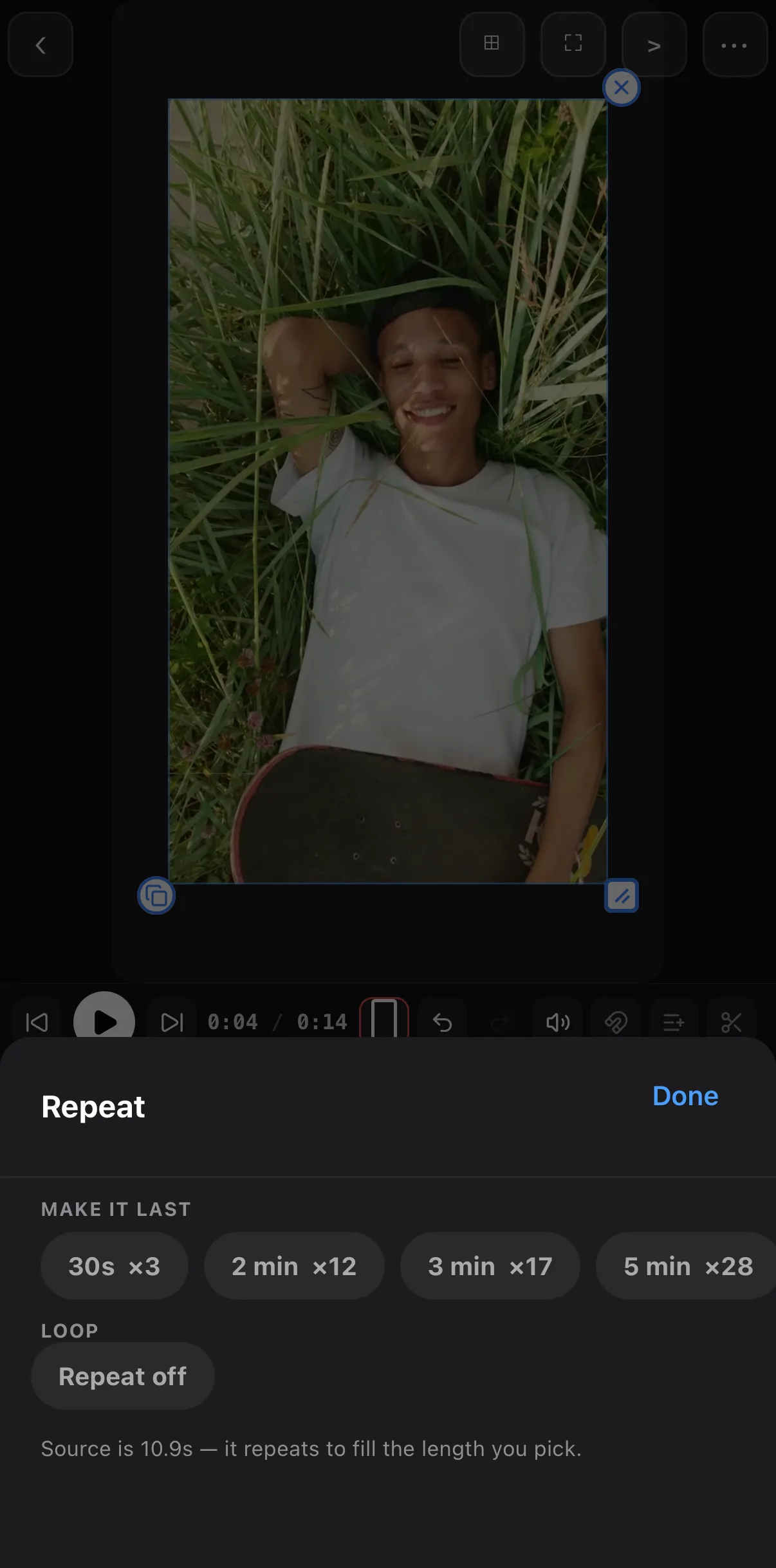 Pick a target length
Loop on / off
Pick a target length
Loop on / off
Combine them: the boomerang
Forward, freeze on the peak, then reverse — three taps:
- Split the clip at the peak frame.
- Freeze the first piece at its last frame for a beat.
- Reverse the second piece.
Stack a transition on the cut and a plain clip becomes a seamless loop that never visibly jumps.
Going manual: Time Remap
Freeze and Reverse are shortcuts for the two most common shapes of one underlying control. For anything custom — a freeze that isn’t 3 seconds, a rewind that slows as it goes, a hold-then-sprint — open the clip’s Layer Properties (Edit ▸ scroll the transform toolbar to the end ▸ Properties) and switch on Enable Time Remap. Each row of the table is a Playhead → Source pair:
| Playhead (ms) | Source (ms) | What happens |
|---|---|---|
| 0 | 0 | plays normally from the start |
| 1000 | 1000 | …up to the freeze point (still 1:1) |
| 3000 | 1000 | 2 s where Source is held → freeze |
| 5000 | 3000 | resumes normal speed afterwards |
Make the Source count down while the Playhead counts up and you have reverse; make it move faster or slower and you have a speed ramp. Because the mapping between keyframes is linear, the footage runs smoothly — not stepped.
Where to go next
- Smooth speed changes: slow motion & speed ramps.
- Animate over a freeze: keyframes & motion paths.
- Loop it cleanly: transitions between clips.
Freeze to hold, Reverse to rewind, Slip to pick the moment, Repeat to fill the time — and Time Remap when you want to bend the clock yourself.
Frequently asked questions
How do I reverse a video clip?
Tap the clip on the timeline and tap Reverse on its toolbar. ExpoCut bakes a reversed copy of the clip in the background and plays it backwards in the editor and in the export. Tap Reverse again to go back to forward. To reverse only part of a clip, Split it first.
How do I freeze a frame in a video?
Park the playhead on the frame you want to hold, tap the clip, and tap Freeze. ExpoCut inserts a 3-second hold of that frame at the playhead and the clip gets longer by the same amount. Trim the held stretch like any clip if you want it shorter.
What is Time Remap?
Time Remap maps playhead time (where you are on the editor timeline) to source media time (which frame of the clip plays there). Identity is 1:1. Bend that mapping and you get speed changes, freezes and reverse in one keyframe table. Freeze and Reverse are one-tap shortcuts for the two most common shapes; Time Remap in Layer Properties is the manual version for anything custom.
Related guides
Bend the clip's timeline
Reverse for loops and rewinds, freeze for emphasis, slip to pick the moment, repeat to fill the length — one tap each on the clip toolbar.
Get ExpoCut Browse all guides