Add Animated Stickers & Lottie Overlays to a Video
Two kinds of overlay keep a video feeling alive: ready-made animated widgets for instant personality, and Lottie animations for designed, razor-sharp motion. Both drop on the canvas; neither bloats your file. Here’s how to use them without sticker-bombing your edit.
Quick answer
In ExpoCut, animated stickers live in the Widget catalog — tap Widget in the bottom bar (or + ▸ Widget) to open the 23-widget list with All / News / Clock / Social / Sports tabs. Tap Confetti Burst, pick a preset (Rainbow, Party, Stars), a particle style (Classic, Emoji, Stars, Hearts, Streamers) and a direction, then Save Confetti. For your own vector animation, tap Lottie Animation, paste the JSON or Pick File (.json / .lottie) and tap Add. Each widget becomes its own layer; tap Style on its toolbar to reopen the editor.
- Widget is a bottom-bar entry — the catalog has 23 widgets grouped by All · News · Clock · Social · Sports, each with a one-line description.
- Confetti Burst = presets + Particles/Colors tabs; the Emoji style takes any emoji you type.
- Like Burst (hearts/thumbs) and Comment Bubble are the other social-reaction widgets.
- Lottie Animation accepts pasted JSON or a picked .json/.lottie file and stays crisp at any size.
- A widget lands as its own layer with a Style button to re-edit; resize and reposition it like any layer.
Two kinds of overlay keep a video feeling alive: ready-made animated widgets (personality — confetti, hearts, stars) and Lottie animations (polish — crisp vector motion you bring yourself). Both drop on the canvas from the Widget menu; both stay sharp; neither bloats your file.
Two ways to add motion overlays
| Animated widgets | Lottie | |
|---|---|---|
| Feel | Fun, casual, social | Clean, designed, motion-graphic |
| Best for | Reactions, celebrations, accents | Arrows, callouts, badges, loaders |
| Source | Built in, tweakable | Your own .json / .lottie |
Both live in the Widget catalog — tap Widget in the bottom bar (or the big + ▸ Widget).
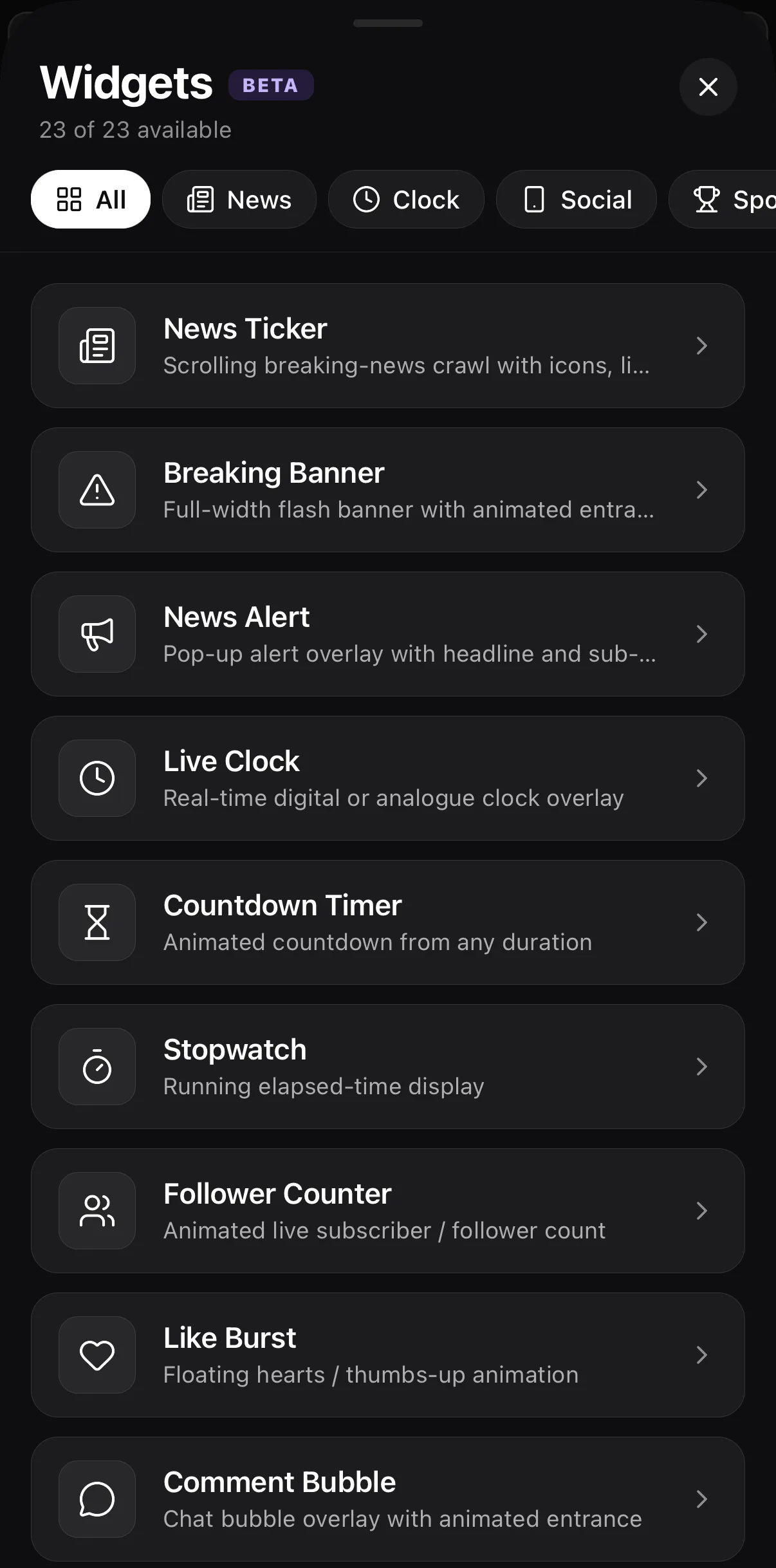 23 widgets
All · News · Clock · Social · Sports…
Tap a widget to configure it
23 widgets
All · News · Clock · Social · Sports…
Tap a widget to configure it
Step 1 — Drop a ready-made animated overlay
The fastest personality is a built-in animated widget. Confetti Burst is the workhorse: it ships with looks like Rainbow, Party and Stars, and you can switch the particle itself to Emoji, Hearts, Stars or Streamers — so the same widget gives you a heart shower, a star pop, or a classic confetti rain.
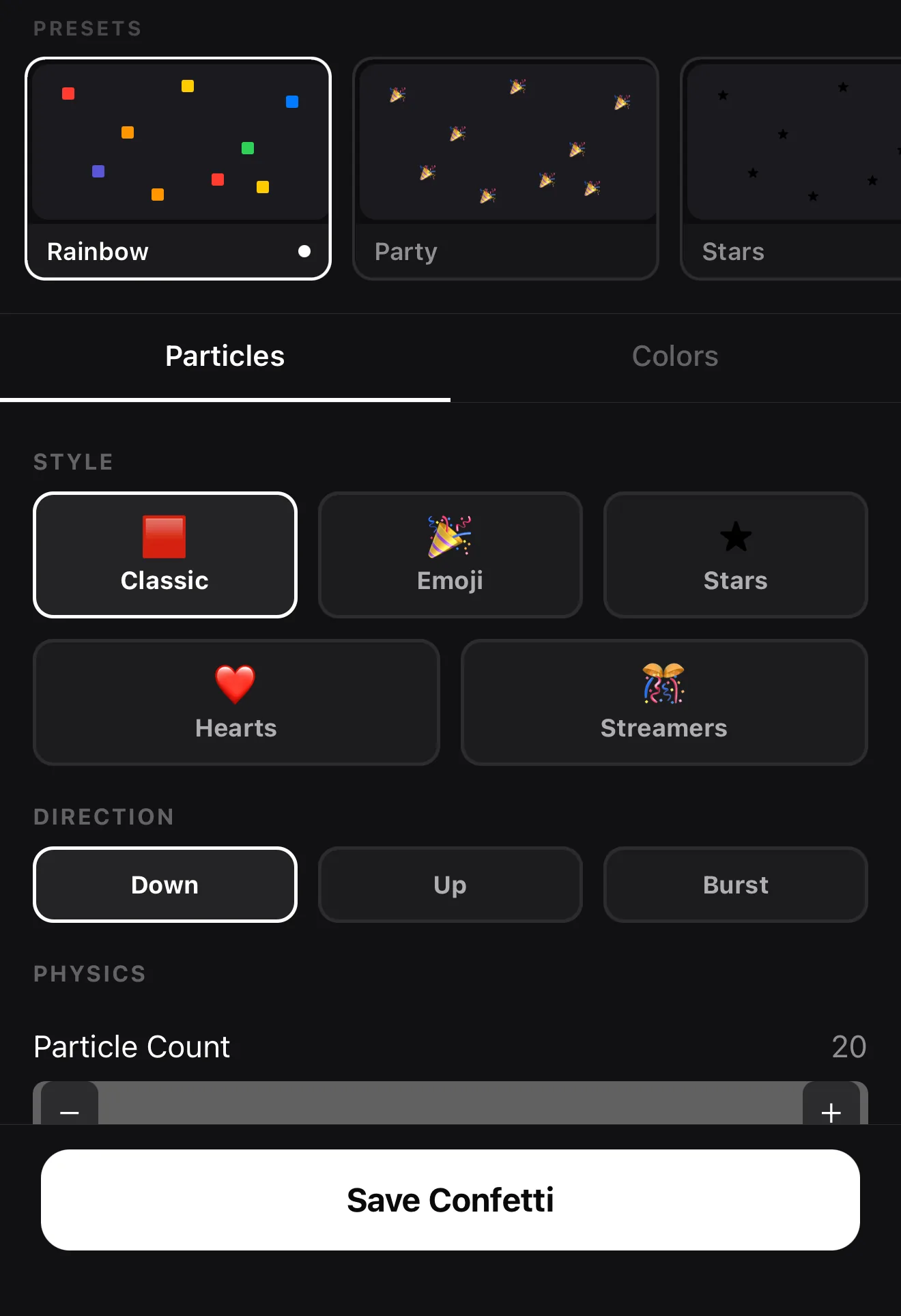 Presets: Rainbow · Party · Stars
Particle style: Classic, Emoji, Stars, Hearts, Streamers
Save Confetti
Presets: Rainbow · Party · Stars
Particle style: Classic, Emoji, Stars, Hearts, Streamers
Save Confetti
It’s not the only one. Like Burst floats hearts and thumbs-up for a social-reaction beat, and Comment Bubble drops a chat bubble with an animated entrance — both ready to use the same way.
Step 2 — Bring your own Lottie
For designed motion — a swipe arrow that points at your CTA, an animated “NEW” badge, a looping logo — use Lottie. Because Lottie is vector, you can blow it up to fill the frame or shrink it to a corner accent with zero quality loss.
Open Widget ▸ Lottie Animation (near the bottom of the catalog). You get two ways in: paste the raw Lottie JSON, or tap Pick File to choose a .json / .lottie from your device, then Add.
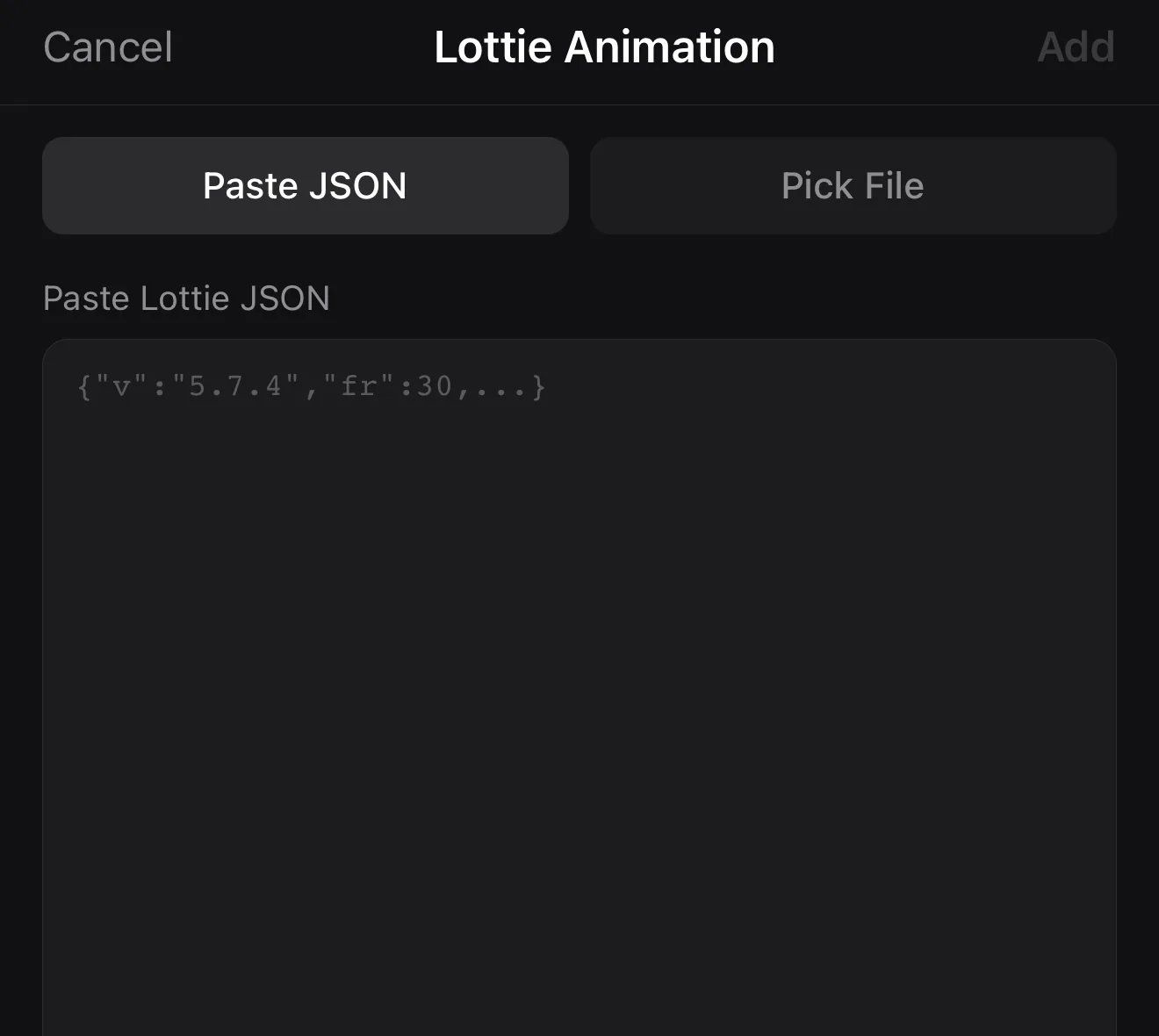 Paste JSON or Pick File (.json / .lottie)
Drop your Lottie here
Paste JSON or Pick File (.json / .lottie)
Drop your Lottie here
Crisp at any scale. Vector overlays don’t pixelate. Resize a Lottie badge from a thumbnail to full-screen and the edges stay clean.
Don’t sticker-bomb it
A widget lands as its own layer — drag it into place, resize it with the corner grip or the pencil’s W/H fields, and tap Style on its toolbar to reopen the editor. The fastest way to make a video look amateur is to cover it in overlays. Use one or two with intent — a confetti burst on the win, an arrow pointing at the thing that matters — and let the rest breathe. Keyframe a quick pop-in so an overlay arrives with energy instead of just appearing.
Where to go next
- Animate your overlays: keyframes & motion paths.
- Static graphic elements: shapes, masks & overlays.
- Titles over the action: add text & titles.
A ready-made burst for personality, a Lottie for polish — a couple of well-placed overlays keep a video moving without burying the content.
Frequently asked questions
How do I add animated stickers to a video?
Add a Widget and choose an animated overlay like Confetti Burst — then switch its particle style to Emoji, Hearts, Stars or Streamers for instant personality. Like Burst (floating hearts/thumbs-up) and Comment Bubble are ready-made too. Position and size each on the canvas like any layer.
What is a Lottie animation?
Lottie is a lightweight vector animation format — arrows, loaders, accents, badges — that stays perfectly crisp at any size and barely adds to your file. In ExpoCut you add one via Widget ▸ Lottie Animation and bring your own JSON.
Can I import my own Lottie file?
Yes — open Widget ▸ Lottie Animation, then either paste the raw Lottie JSON or tap Pick File to choose a .json or .lottie from your device. Fills, strokes, opacity and keyframes come across, so designer animations stay sharp at any scale.
Related guides
Add personality and polish
Ready-made animated widgets for character, Lottie for crisp motion accents — lightweight overlays that keep your video alive. Drop them on.
Get ExpoCut Browse all guides