How to Make Your First Video in ExpoCut (Start to Export)
Never edited a video before? Perfect. This is the only guide you need to go from a blank project to a finished, share-ready clip — without any jargon. We’ll build a real video together, one tap at a time.
Quick answer
To make your first video in ExpoCut: tap New Project, pick 9:16, tap Video and add a clip from your camera roll or the Stock tab (a Trim Clip sheet lets you keep just the good part), then tap Text to add a title in the text tray, Audio to add music from Explore, Edit ▸ Filters to grade the clip, and ••• ▸ Export Video at 1080p. The whole loop — add, trim, title, music, filter, export — takes about ten minutes.
- A video is layers stacked on a timeline: footage, title and music each get their own row.
- New clips land centred at 80 % width — tap Edit ▸ Fit to fill the frame.
- Filters, LUTs, FX and transitions live on the transform toolbar you reach with the pencil Edit button.
- Free exports end with a 3-second ExpoCut outro; Pro and Elite are clean.
Every great video starts the same way: one clip on an empty timeline. In the next ten minutes you’ll add that clip, shape it, dress it up with a title and music, give it a cinematic color, and export something you’re proud to post. No experience required — just follow along, screen by screen.
What you’re about to build
We’re making a short, vertical clip — the kind that works on Reels, TikTok, and Shorts. By the end you’ll have a single video with a bold title, background music, and a film-style color filter. The exact same steps work for any video you’ll ever make in ExpoCut, so this is your foundation.
The one idea that makes editing click: a video is just layers stacked on a timeline. Your footage is one layer. Your title is another. Your music is another. You stack them, line them up in time, and ExpoCut plays them all together. That’s the whole game.
Step 1 — Start a project and add your first clip
Create a new project
Open ExpoCut and tap New Project at the top of the home screen. (Your saved projects, the Templates gallery and the Reels gallery live in the tabs underneath.)
Pick your shape
The Format sheet asks for an aspect ratio — 9:16 for vertical (Reels / TikTok / Shorts), 1:1 for a square post, or 16:9 for YouTube. You can change your mind later.
Add a clip
The Add Layer sheet opens on every new project. Tap Video, then choose Gallery for your camera roll or Stock for the built-in library of free clips. Tap a result to select it, then tap Add.
Keep the good part
Before the clip lands, a Trim Clip sheet lets you drag the ends of the filmstrip to keep only the part you want (or just tap Done to keep it all). Flip on HD quality if you want the export to use the full-resolution original instead of a lighter 1080p copy.
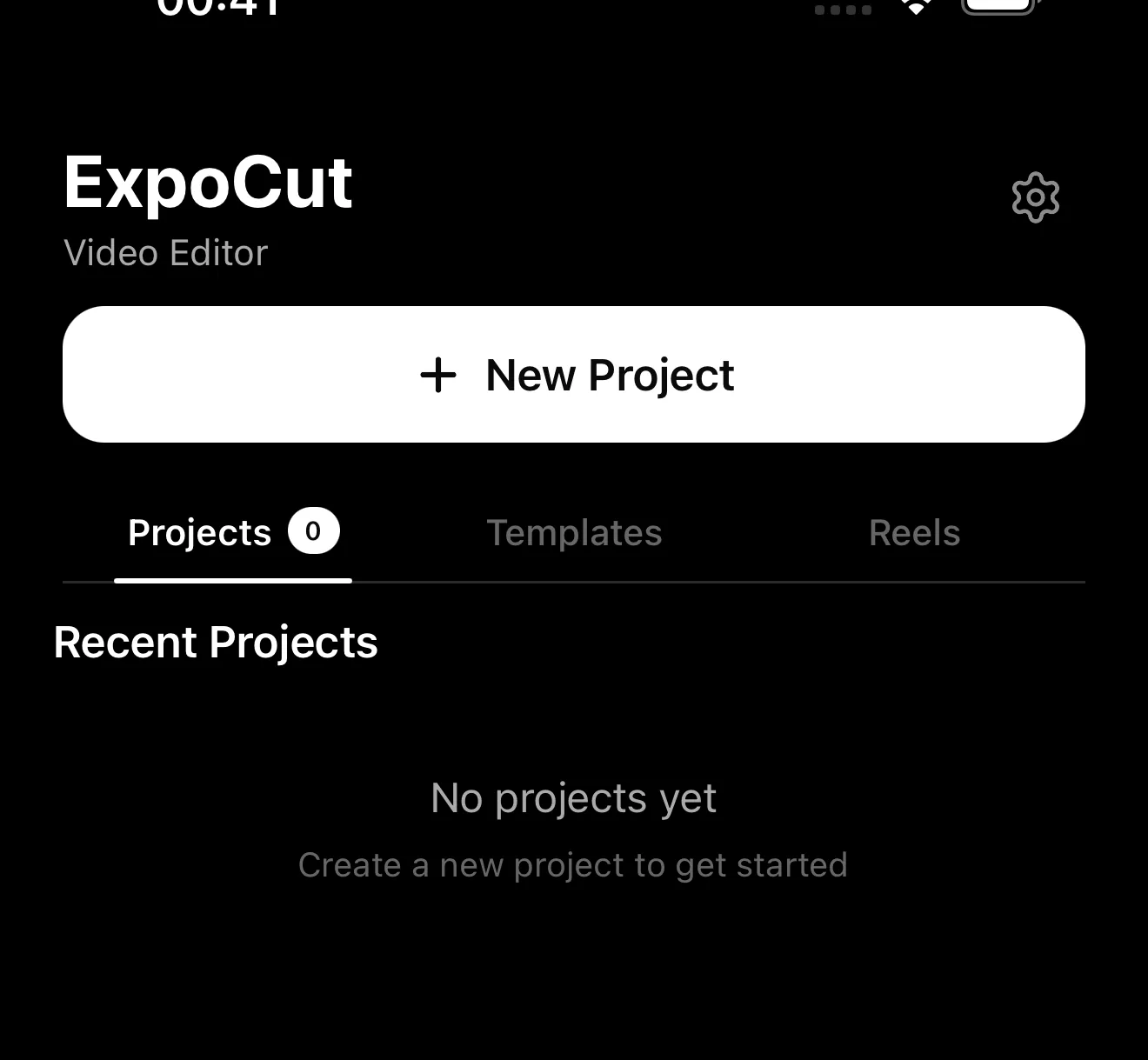 Tap to start
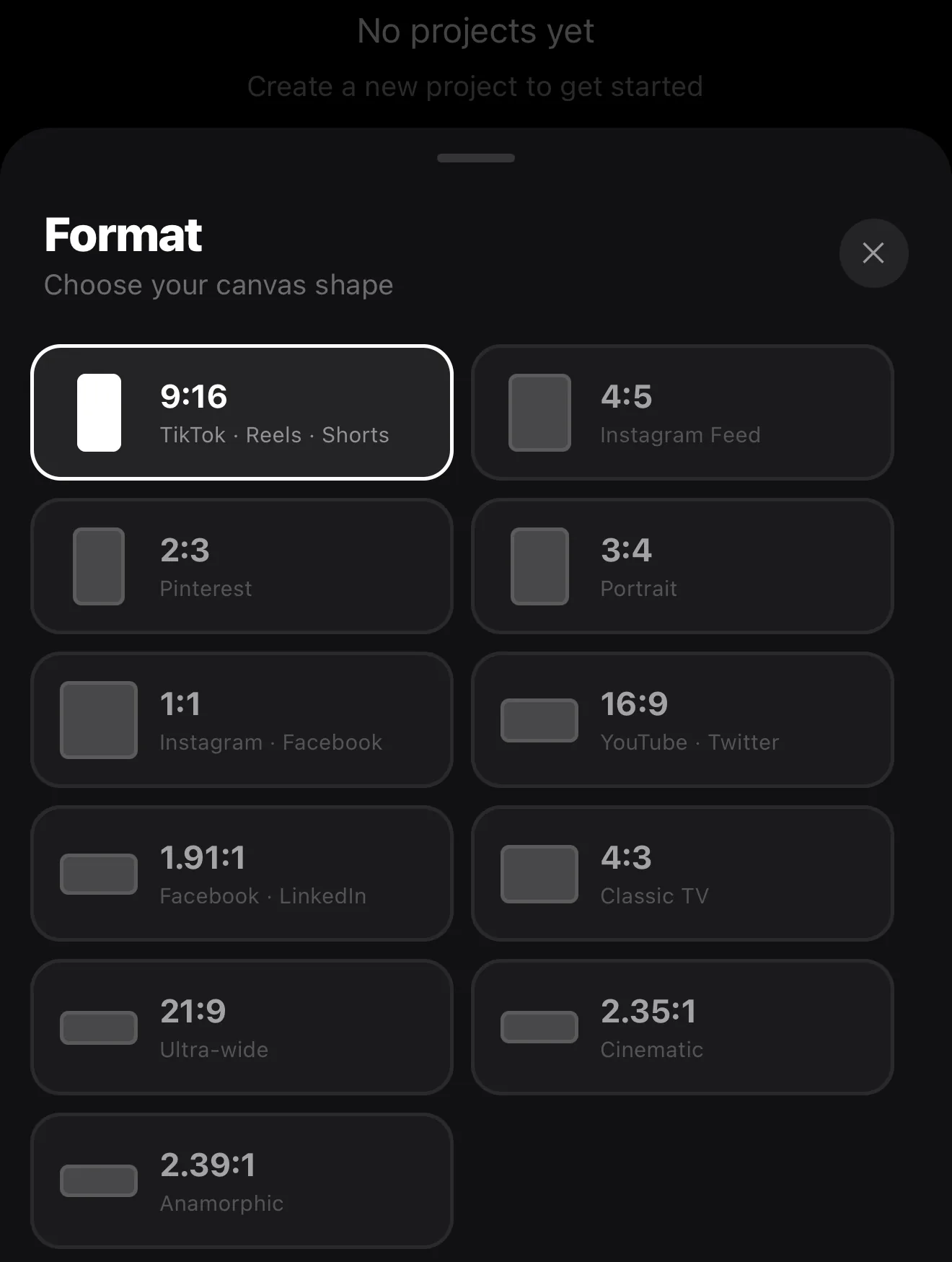 Pick 9:16
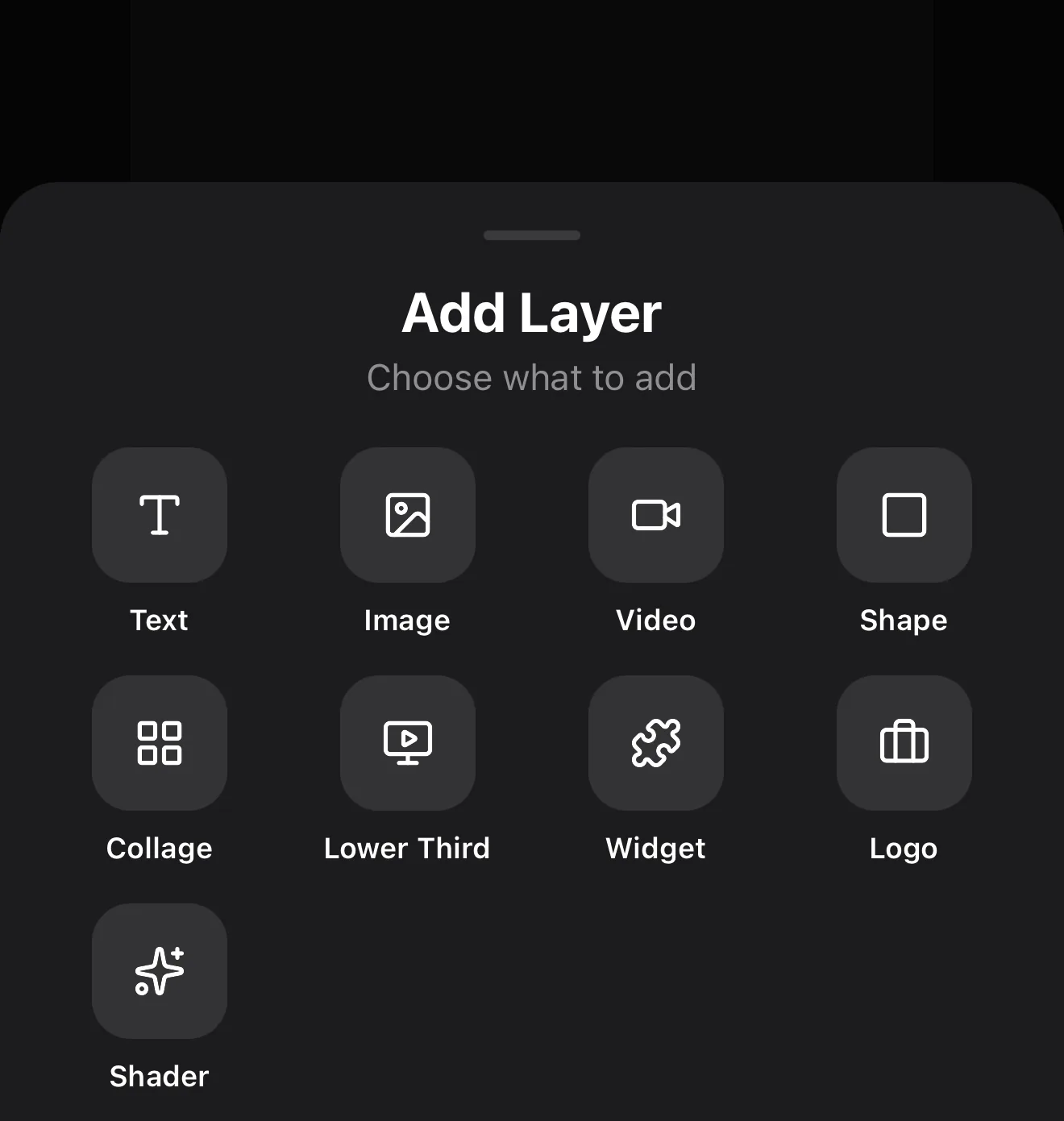 Tap Video
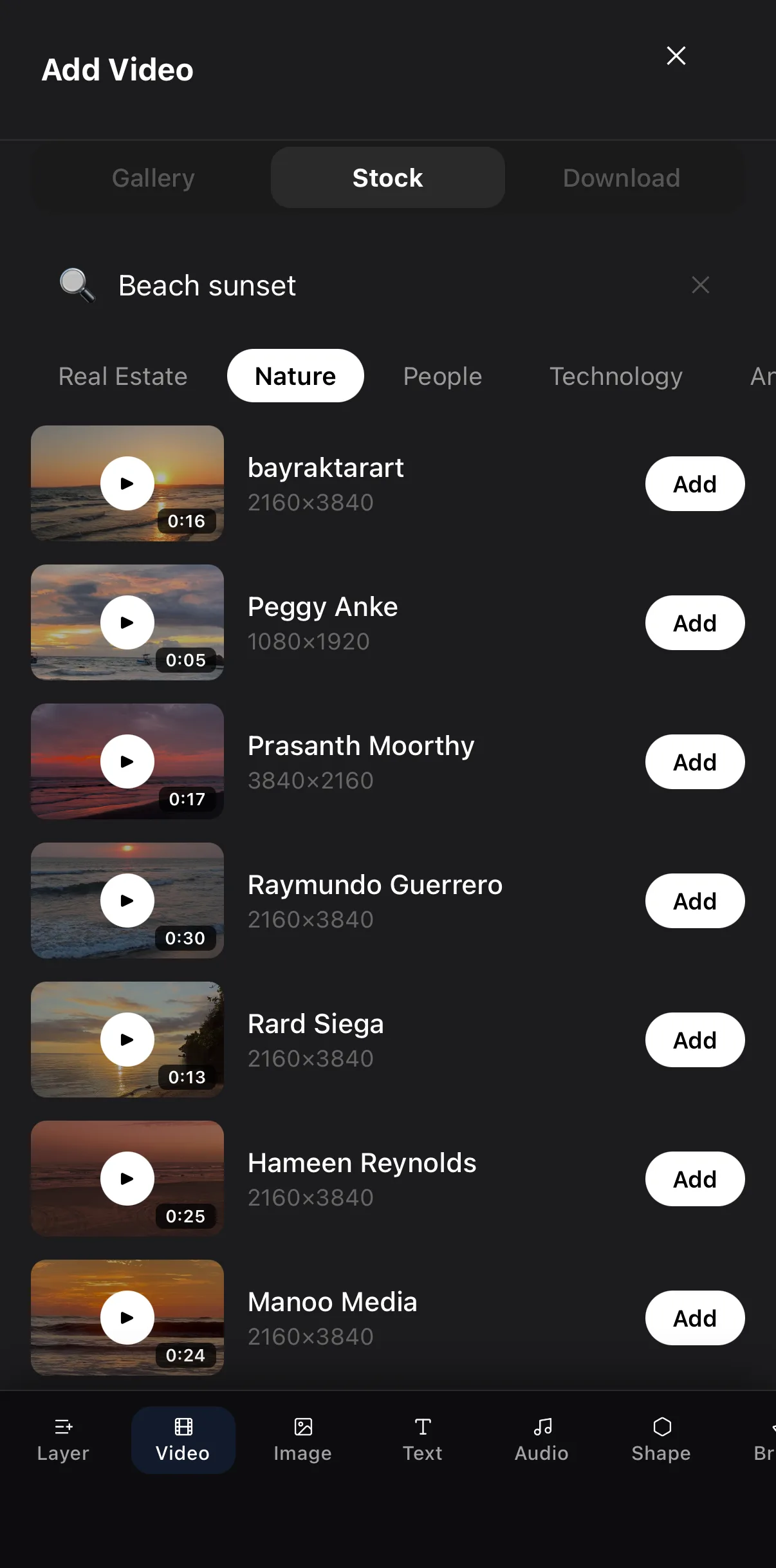 Gallery or Stock
Tap Add
Gallery or Stock
Tap Add
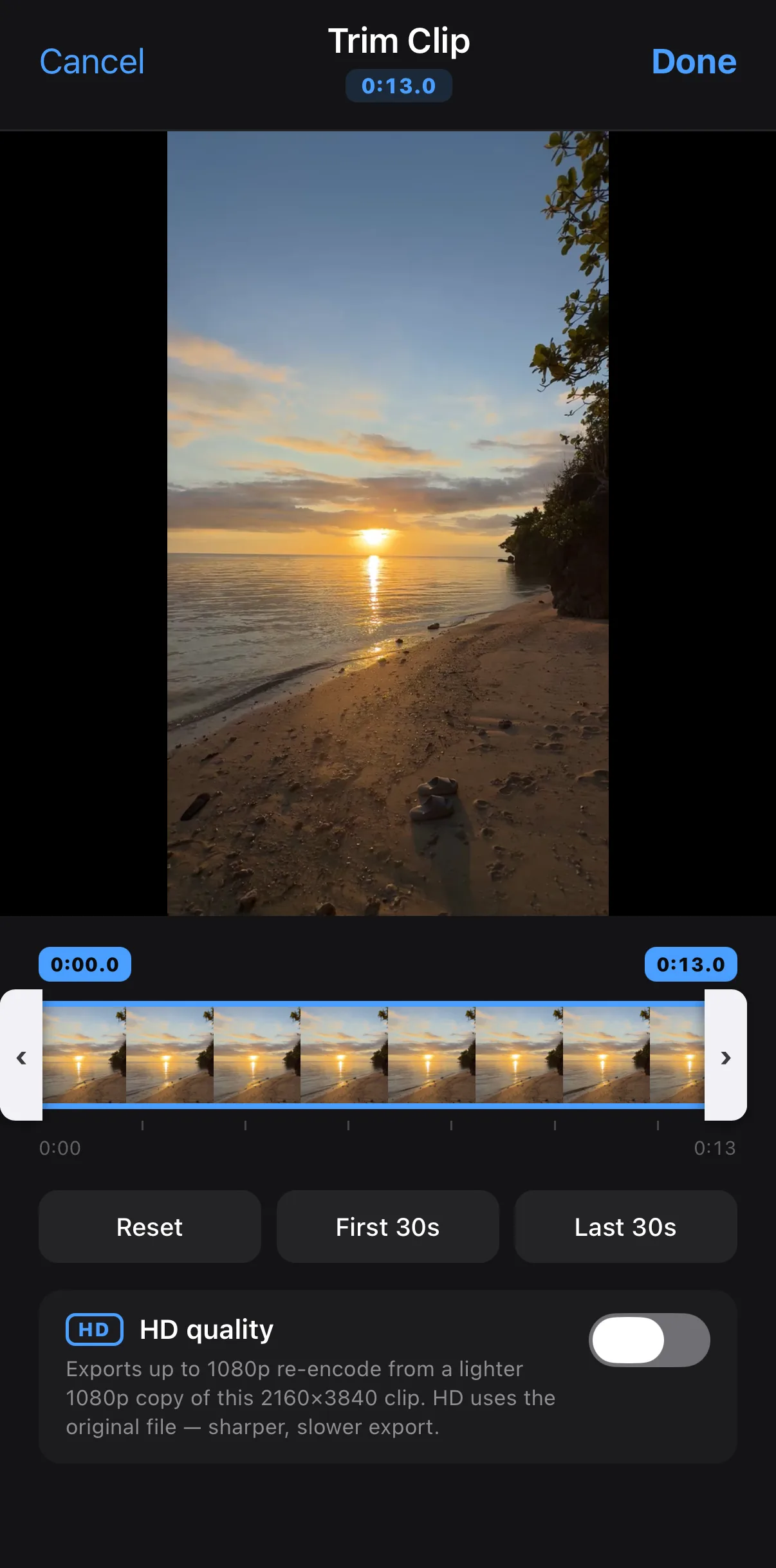 Drag the ends to keep the good part
HD quality
Drag the ends to keep the good part
HD quality
Step 2 — Trim it on the timeline (and fill the frame)
Your clip now sits on its own row of the timeline, and it’s already selected. Most clips have a few boring seconds at the start or end — trimming keeps only the part that matters.
Tap to select
Tap the clip on the timeline once. Yellow trim handles appear on both ends and the clip’s own tools fill the bottom bar — Trim, Repeat, Crop, Replace, Split, Speed and more.
Drag the handles
Drag the left handle inward to cut the start, and the right handle inward to cut the end. The canvas scrubs as you drag so you can find the exact frame.
Split if you need to
Want to cut something out of the middle? Move the red playhead to that spot and tap Split (the scissors), then delete the piece you don’t want.
Fill the frame
New clips land centred at 80 % of the canvas width so they’re easy to grab. To make yours full-bleed, tap the pencil Edit button, then tap Fit on the bar above the timeline. The red ✕ in the top-left takes you back.
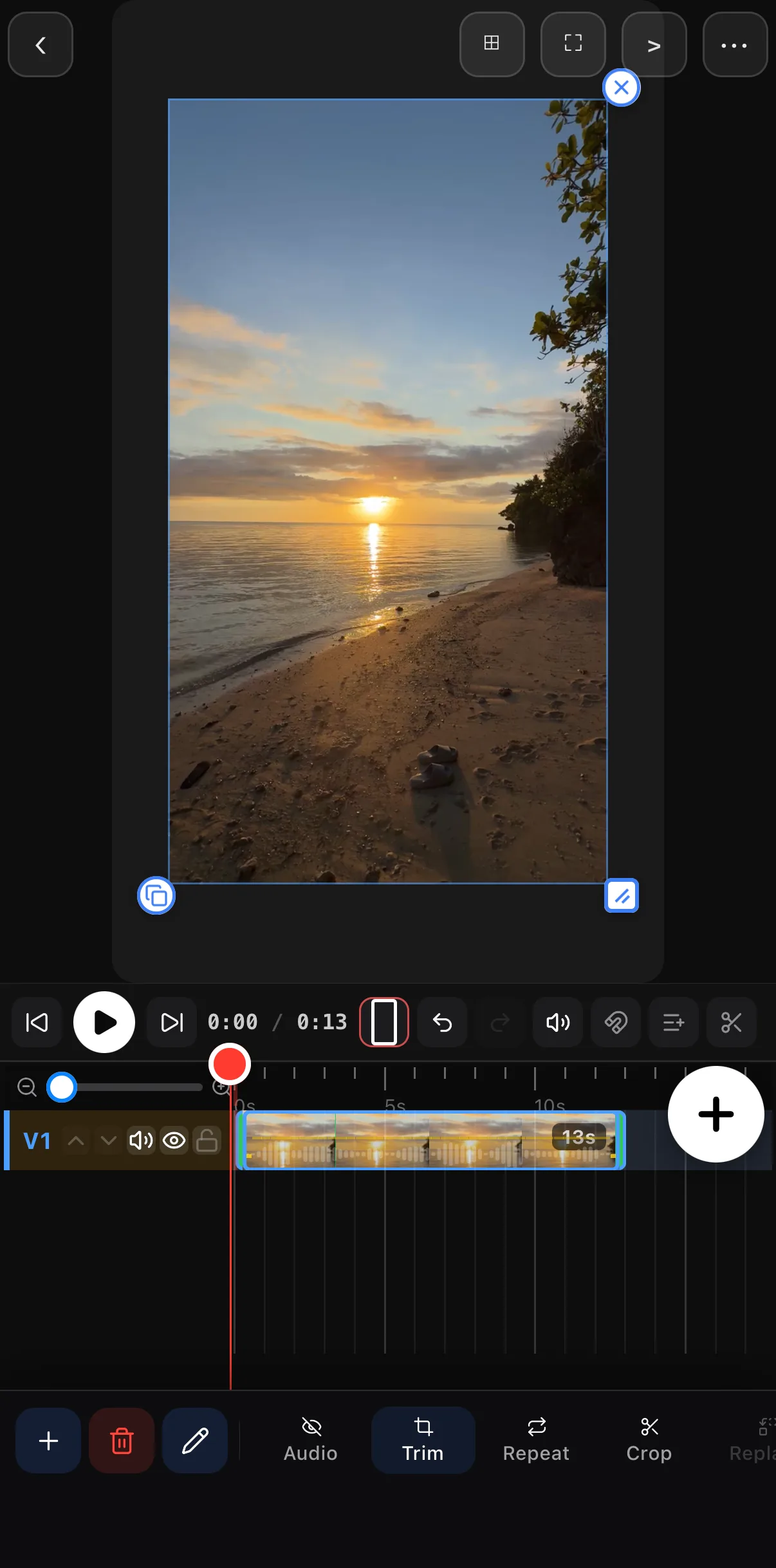 Drag either end to trim
Edit
Drag either end to trim
Edit
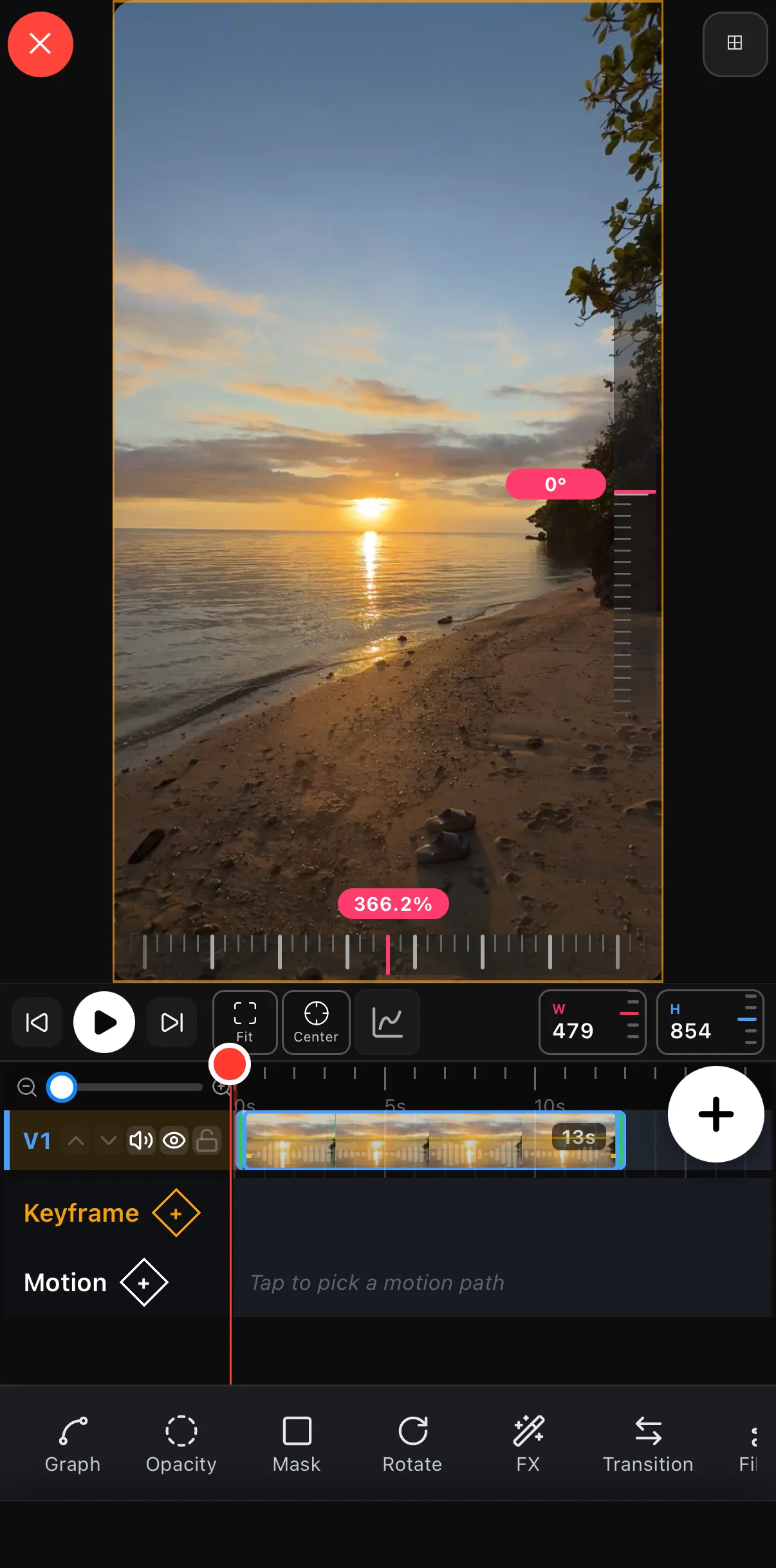 Fit
Opacity · Mask · Rotate · FX · Transition · Filters …
Fit
Opacity · Mask · Rotate · FX · Transition · Filters …
Tip: shorter is almost always better. A tight 8–15 second clip holds attention far better than a loose 30-second one. When in doubt, cut.
Step 3 — Add a title
A title tells viewers what they’re watching in the first second — the moment that decides whether they keep watching.
Add a text layer
Tap the black margin beside the canvas to deselect the clip, then tap Text in the bottom bar and choose Text from the fan-out. A text box appears on the canvas and the text tray slides up under it.
Type your headline
Type straight into the field at the top of the tray. The canvas is the preview — you’ll see the words update live over your footage.
Style it in one tap
The tray opens on the Style tab. Tap a preset — Bold White is a safe, readable choice over bright footage — or switch to Fonts for hundreds of typefaces, and Text for colour, size, alignment and shades.
Make it animate
Open the Animate tab, tap + next to Starting, and pick an entrance like Fade In or one from the Typewriter family. Every tile previews its motion on your own text. Tap ✓ to confirm, then ✓ again to close the tray.
Place it
Drag the text where you want it. Pinch to resize, drag the ‹ › handles to change how wide the text box is, and use the corner grip to scale or rotate.
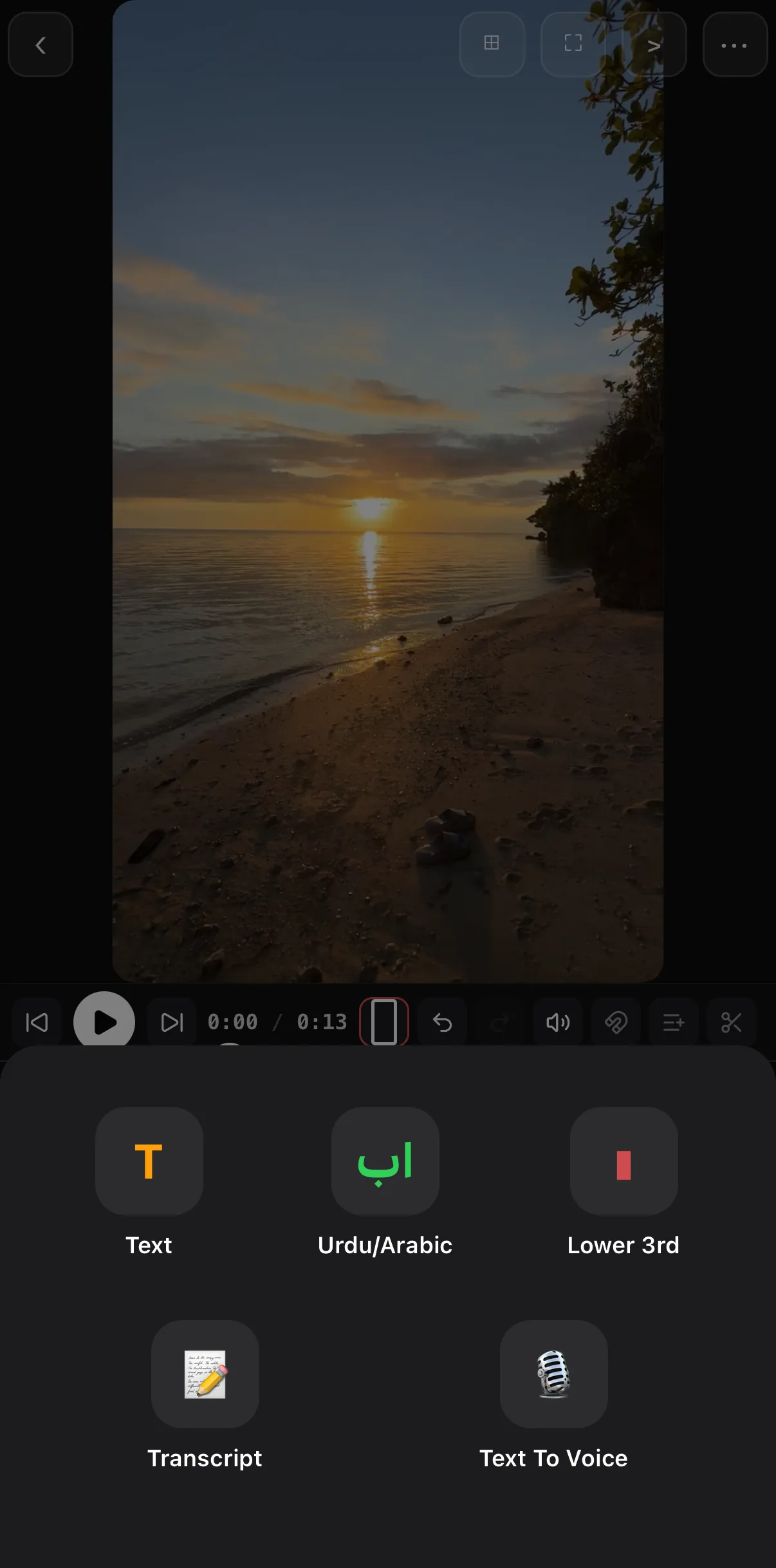 Tap Text
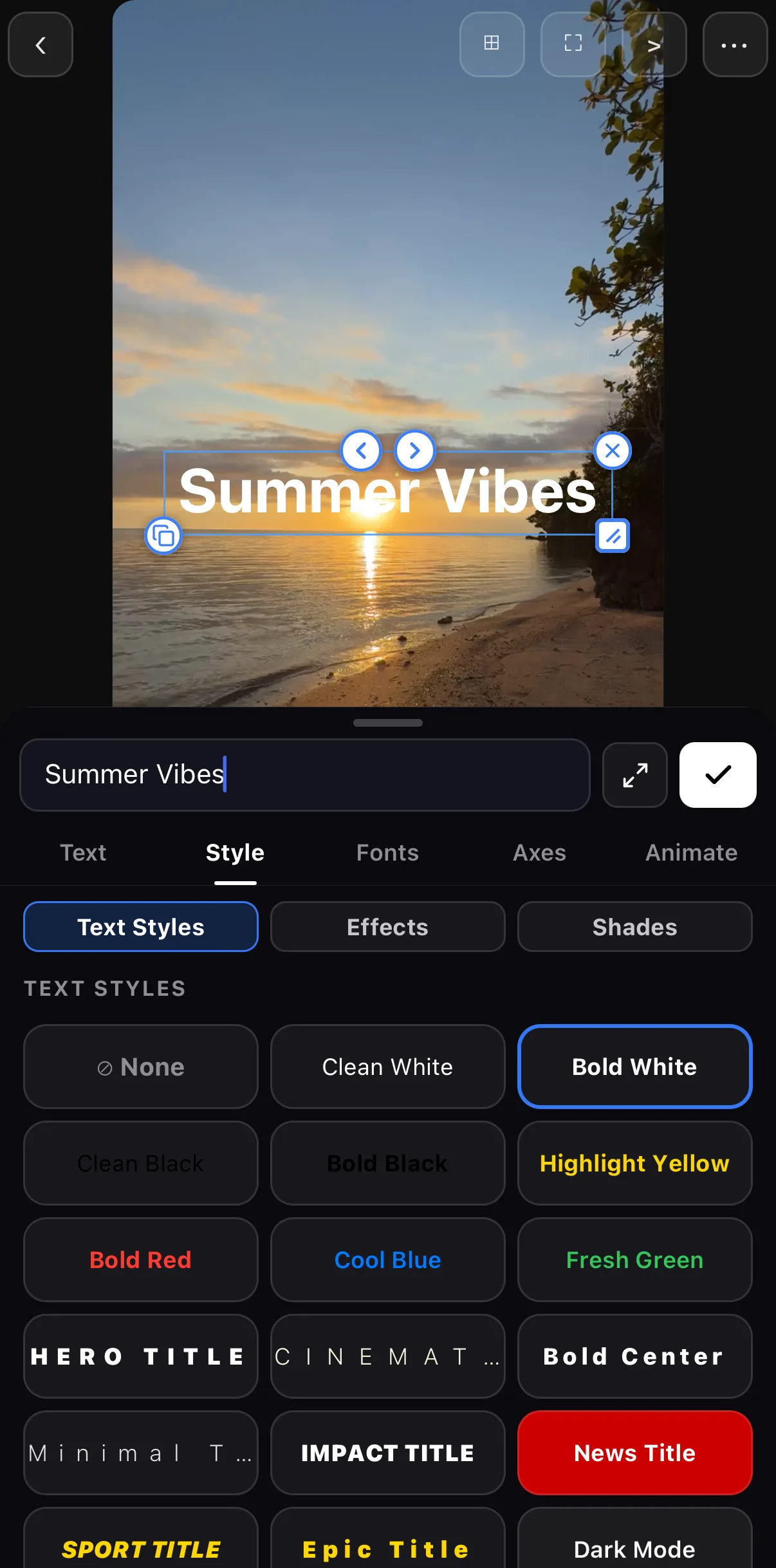 Type here — the canvas is the preview
Text · Style · Fonts · Axes · Animate
One-tap style
Type here — the canvas is the preview
Text · Style · Fonts · Axes · Animate
One-tap style
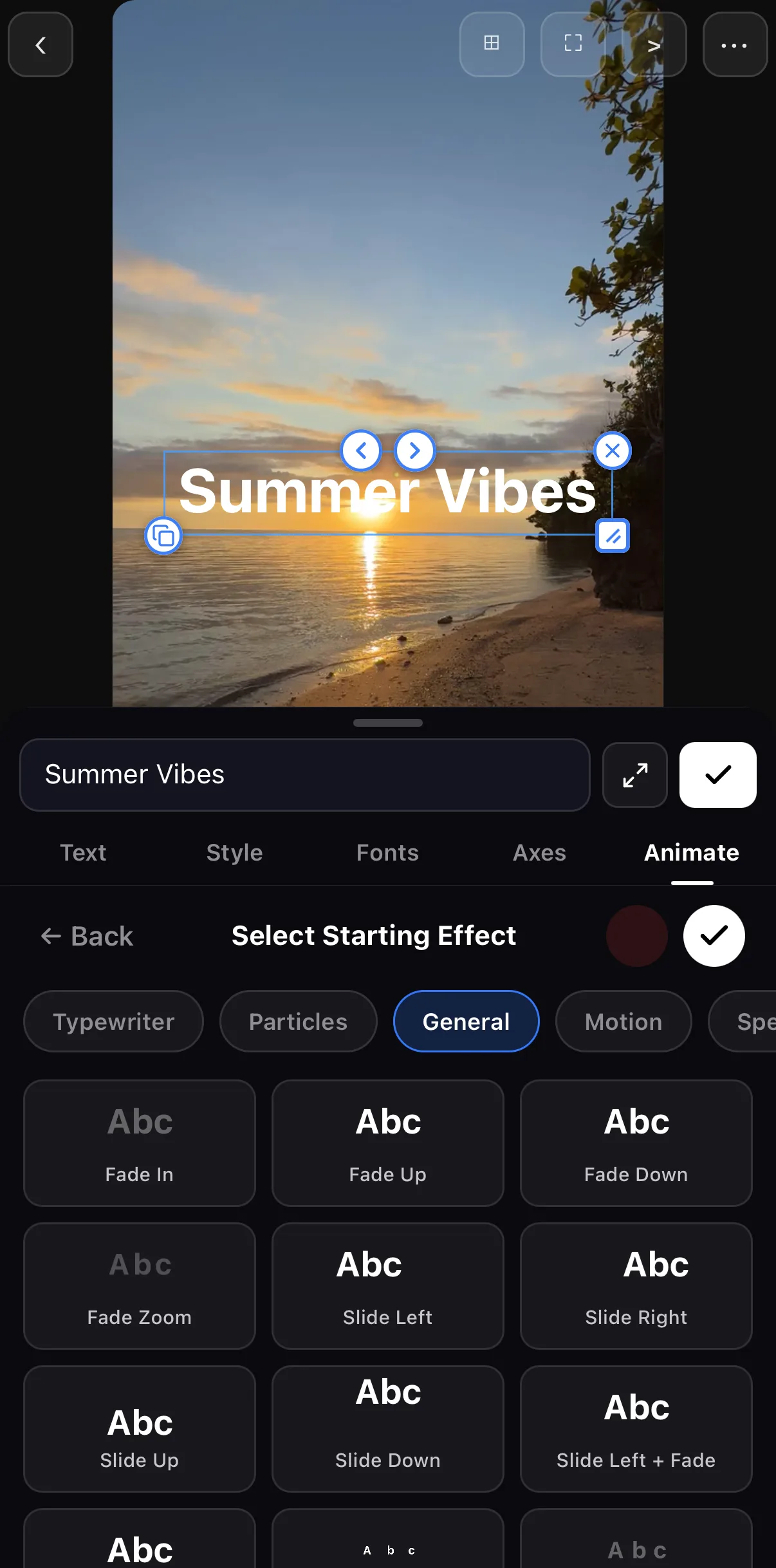 Typewriter · Particles · General · Motion · Special
Fade In
Typewriter · Particles · General · Motion · Special
Fade In
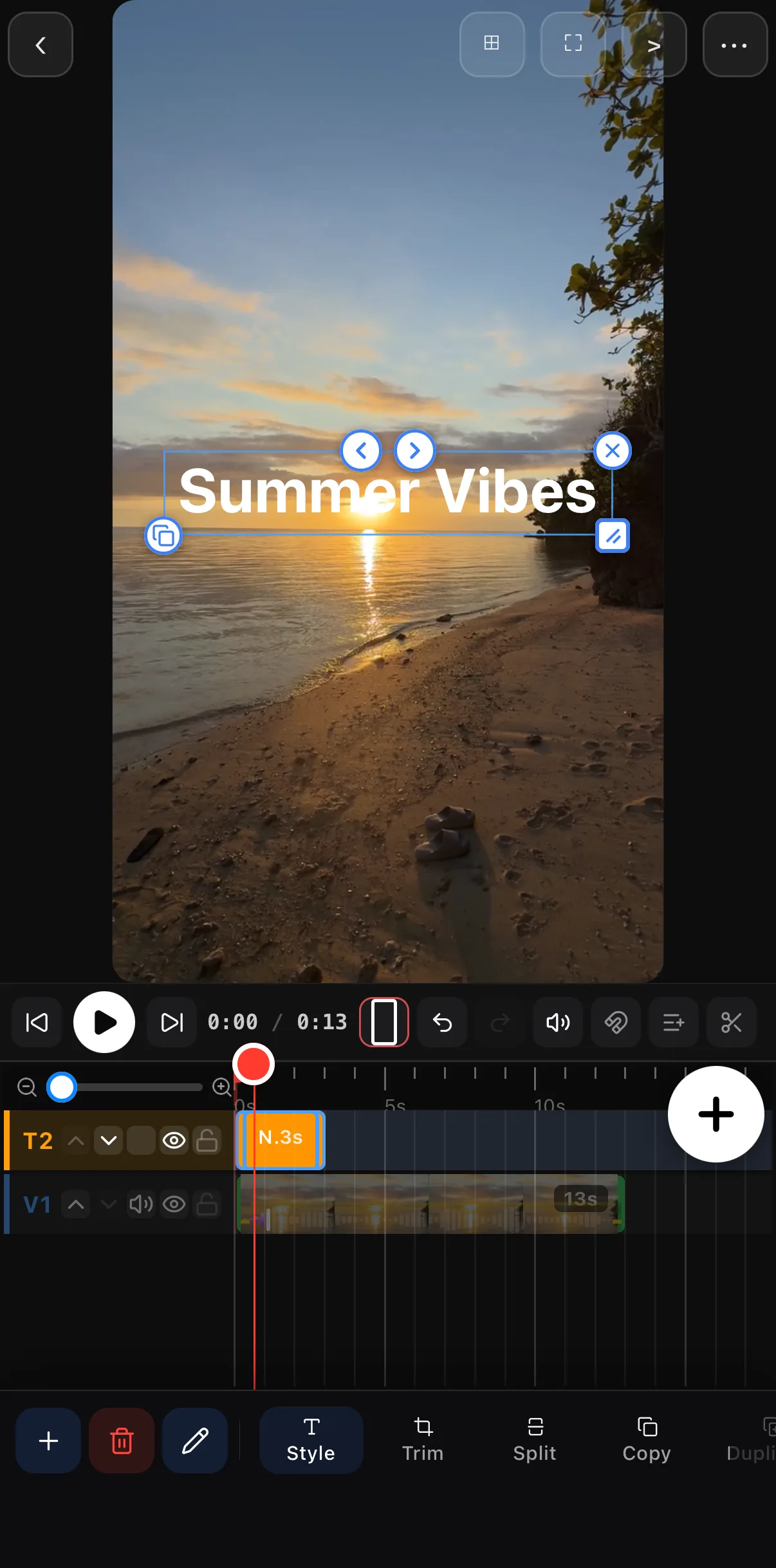 Your title = its own row
Here’s the result on the canvas — a clean, bold title over the footage:

Step 4 — Add music
Music sets the mood more than any other single choice. ExpoCut gives you a built-in library so you never have to leave the app.
Open the audio tray
With nothing selected, tap Audio in the bottom bar. The tray opens on Explore — a searchable library of music and sound effects — with Record, Import (a file from your phone) and URL beside it.
Pick a track
Tap the Music chip to filter to melodies, press ▶ to preview one, then tap Add. It lands on its own audio row at the bottom of the timeline. Drag it left or right to line the beat up with your cut.
Fade it nicely
With the audio clip selected, drag the small pins on its top corners inward to add a fade in at the start and a fade out at the end, so the music eases in and out instead of cutting abruptly. Volume on the clip’s toolbar sets the level.
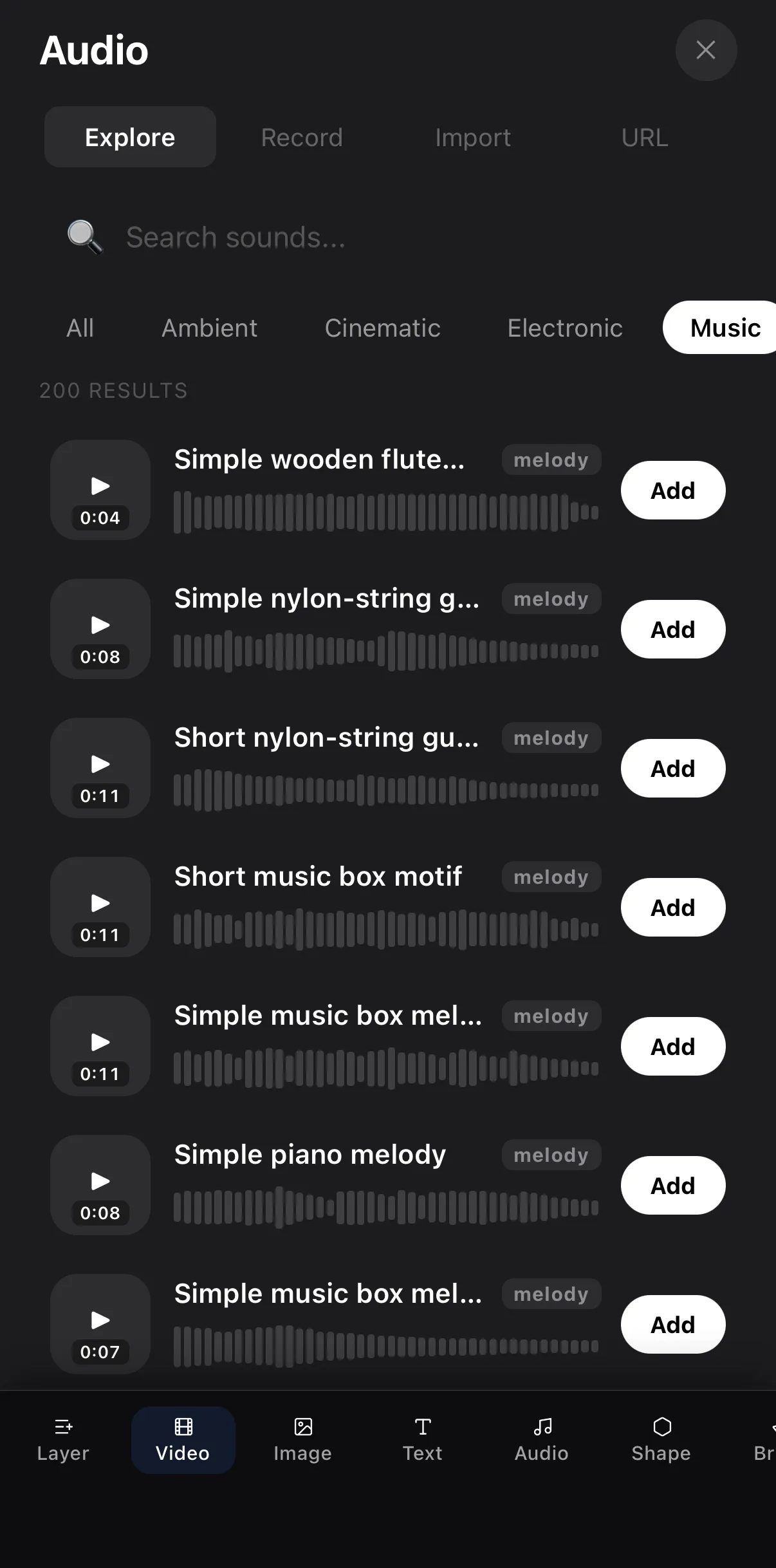 Explore · Record · Import · URL
Tap Add
Explore · Record · Import · URL
Tap Add
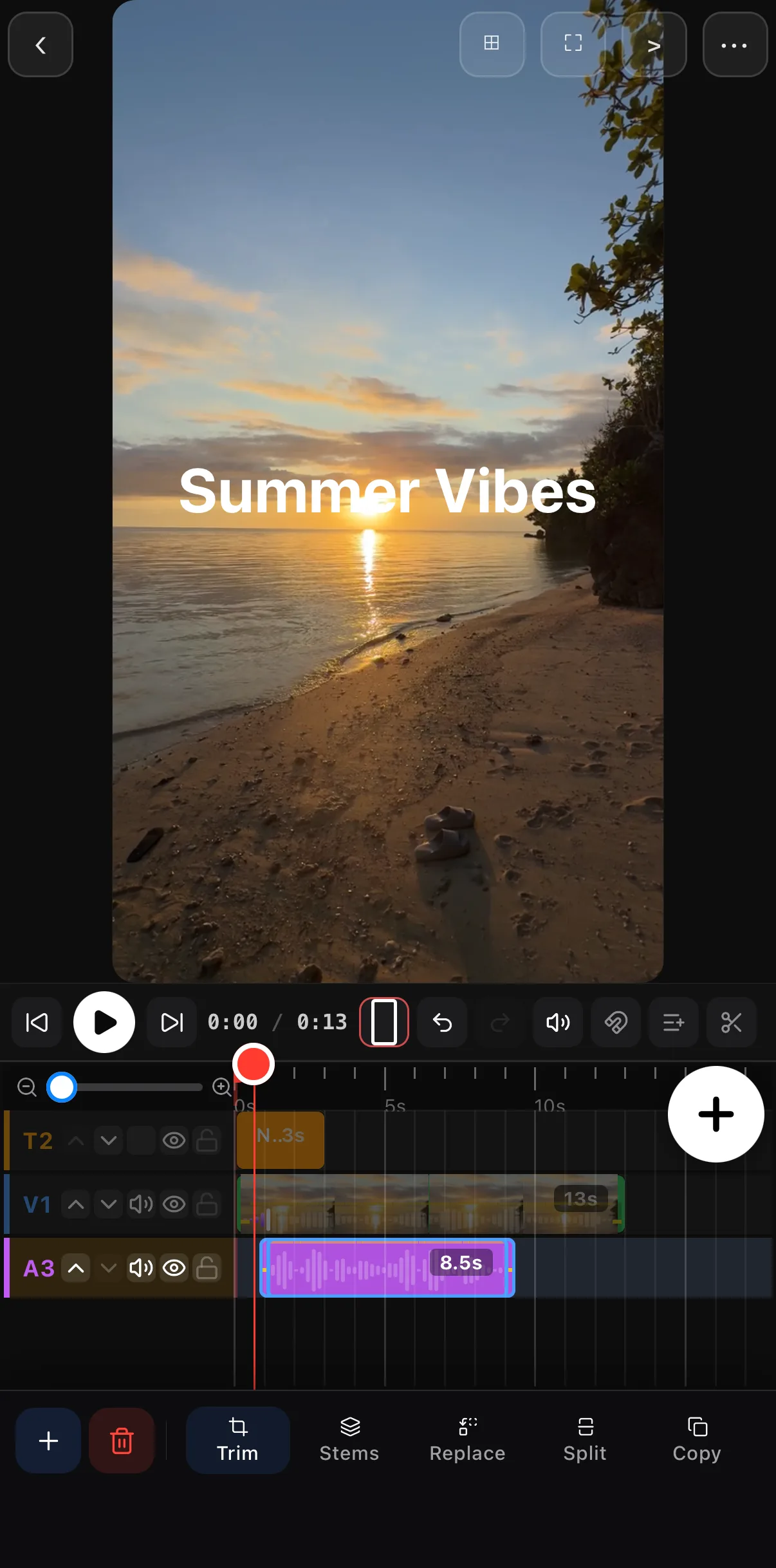 Music on its own row
Step 5 — Give it a look with a filter
One filter can take a flat phone clip and make it feel intentional and cinematic.
Open the effects tools
Tap your video clip on the timeline, then tap the pencil Edit button. The bottom bar switches to the transform tools — swipe it to find Filters.
Browse the looks
The Filters panel previews everything on your actual footage. Swipe the category tabs — Film, Duotone, Instagram, VSCO, Cinematic and more — and tap a thumbnail to try it.
Dial it in
A look applies at full strength so you can see its character; drag the before / after line on the preview to compare, then pull the Intensity slider down until it feels right. Subtle usually wins. Tap Done.
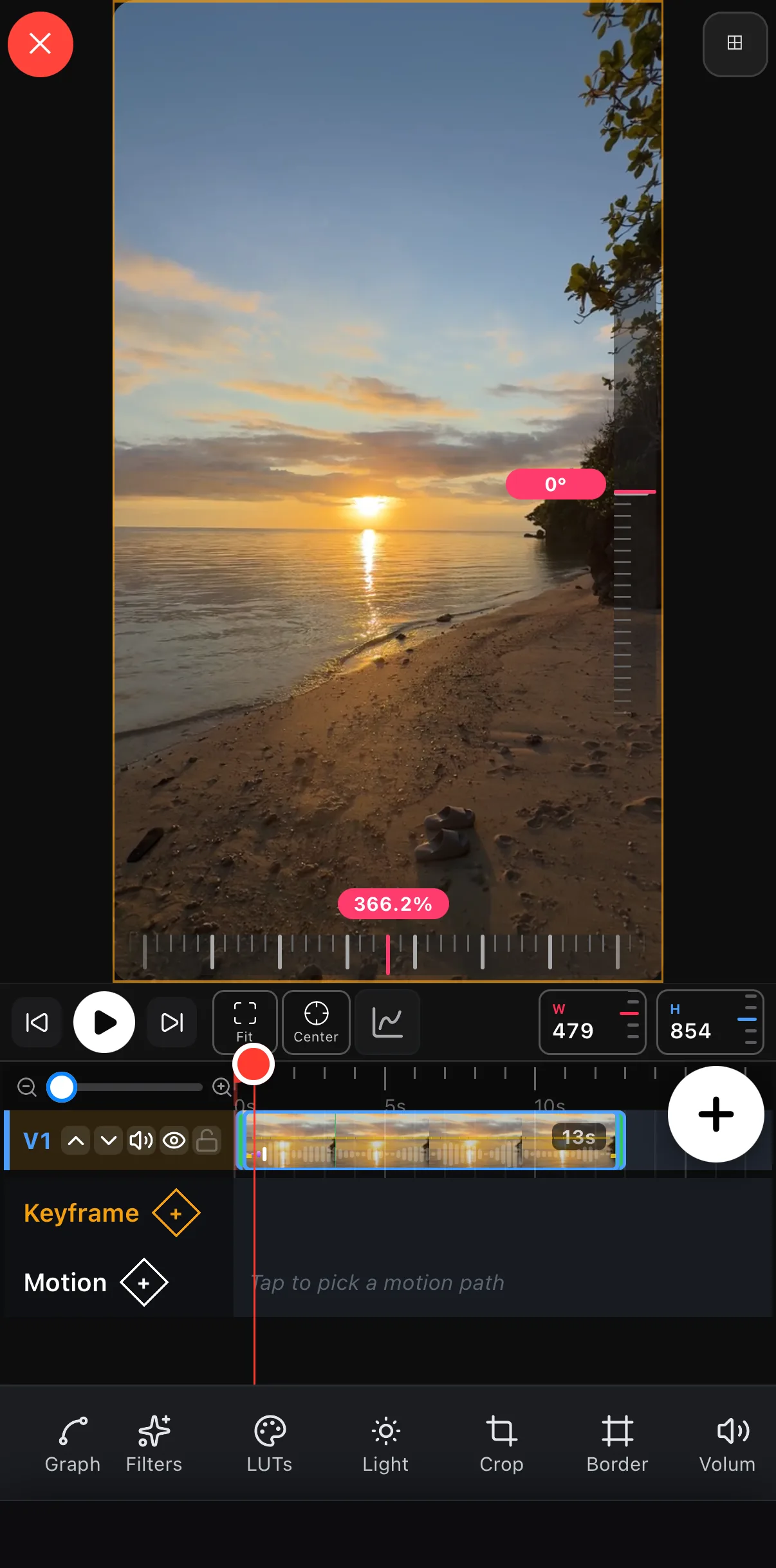 Tap Filters
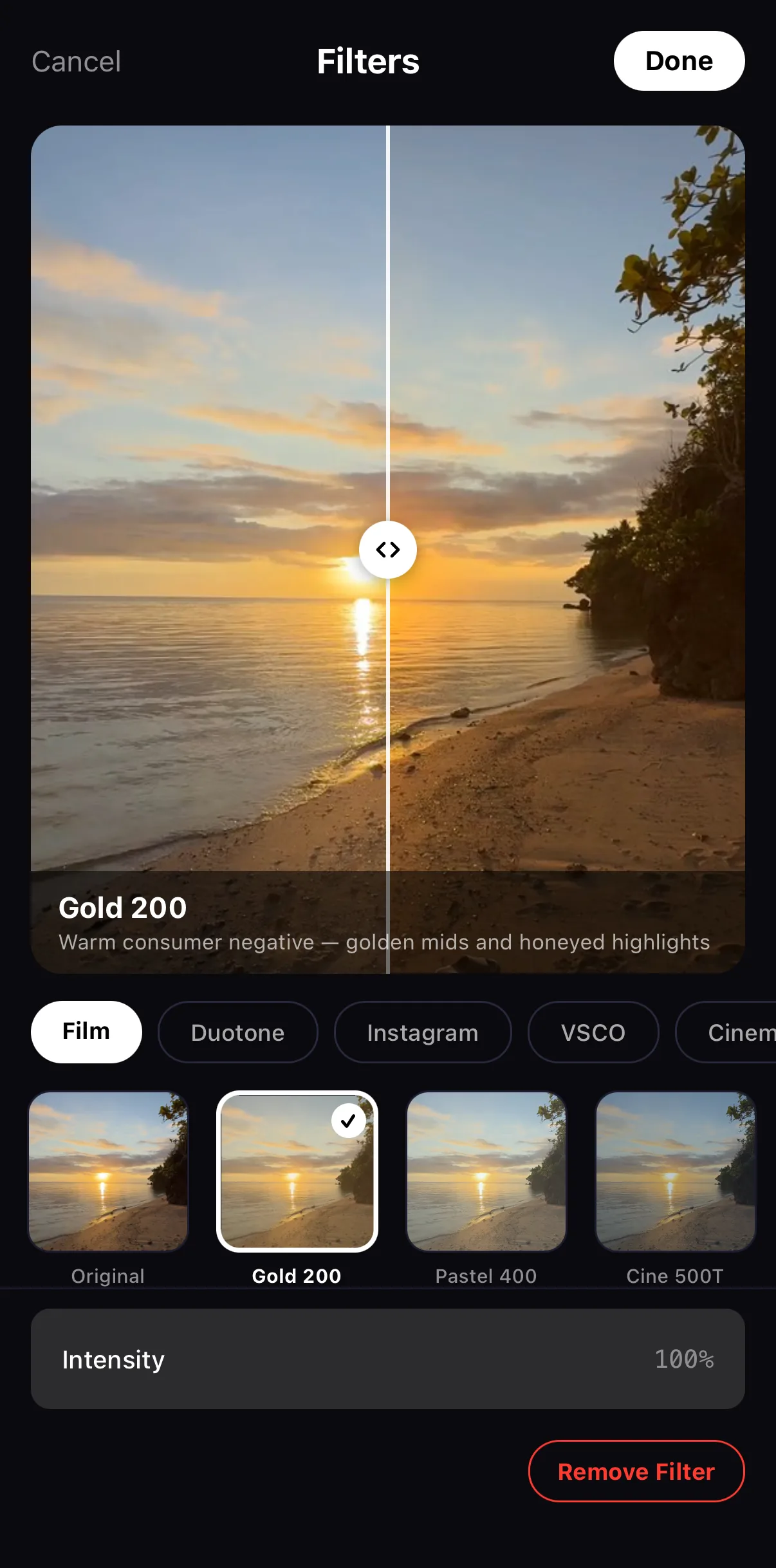 Drag to compare
Pull Intensity back
Drag to compare
Pull Intensity back

The table below is a cheat sheet for matching a filter family to the vibe you’re going for:
| You want it to feel… | Try a filter from… |
|---|---|
| Warm, nostalgic, film-like | Film and Vintage (Gold 200, Cine 500T, 70s) |
| Clean and punchy for social | Instagram (Clarendon, Juno) |
| Moody and desaturated | VSCO (A4, A6) |
| Big-screen drama | Cinematic (Teal & Orange) |
| Cool and modern | Modern and Color Pop |
Step 6 — Export and share
This is the payoff: turning your project into a real video file.
Open the menu
Tap the ••• menu in the top bar and choose Export Video.
Choose your settings
Pick 1080p (best for social) — your aspect ratio is already set from when you started. Set quality to High, leave Bitrate on Auto and the format on MP4. The sheet shows your layer count, duration and an estimated render time before you commit.
Save and share
Tap Export. ExpoCut renders the finished video straight to your camera roll. On the Free plan it ends with a short 3-second ExpoCut outro; Pro and Elite exports are clean. From there, post it anywhere.
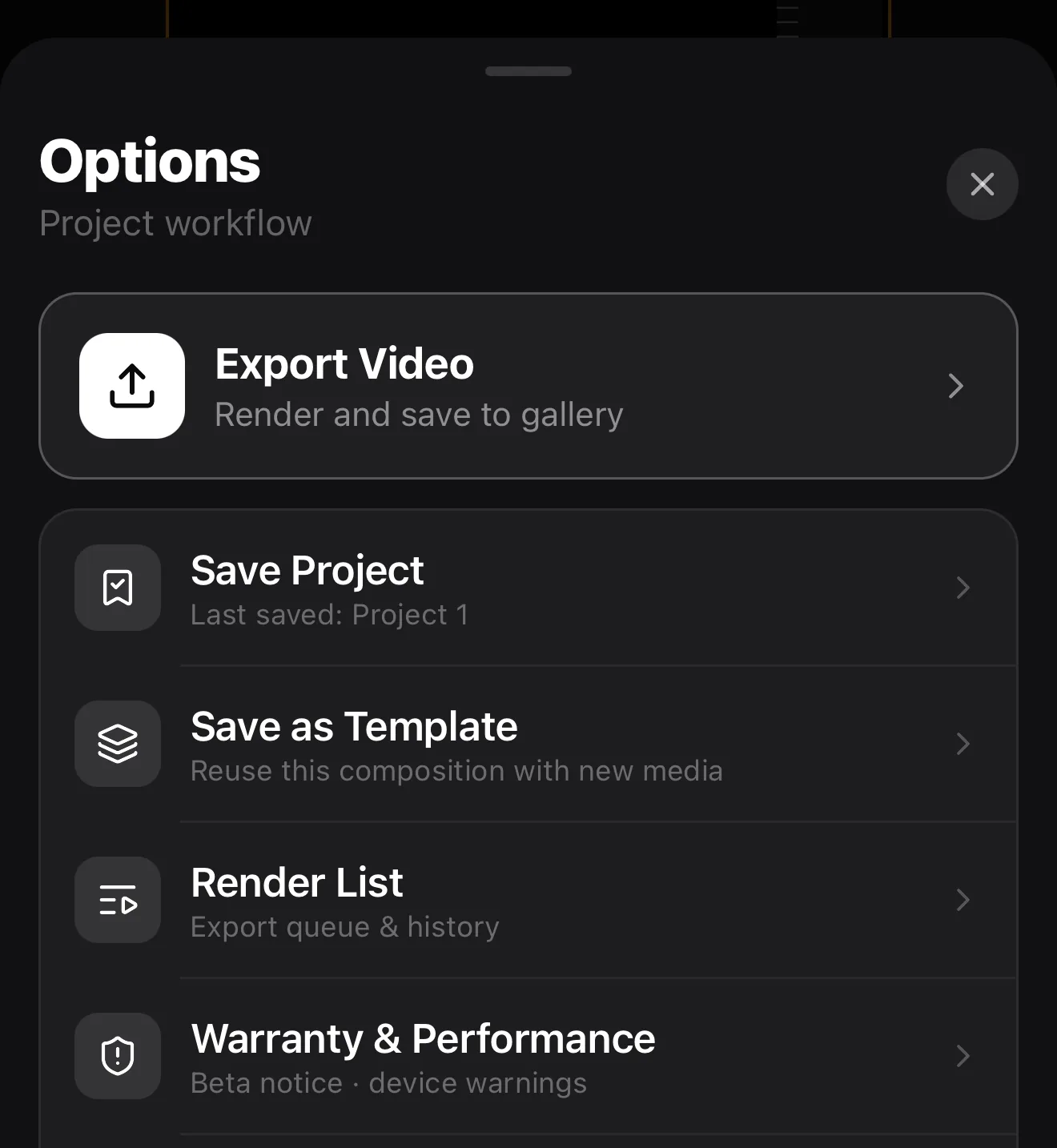 Tap Export Video
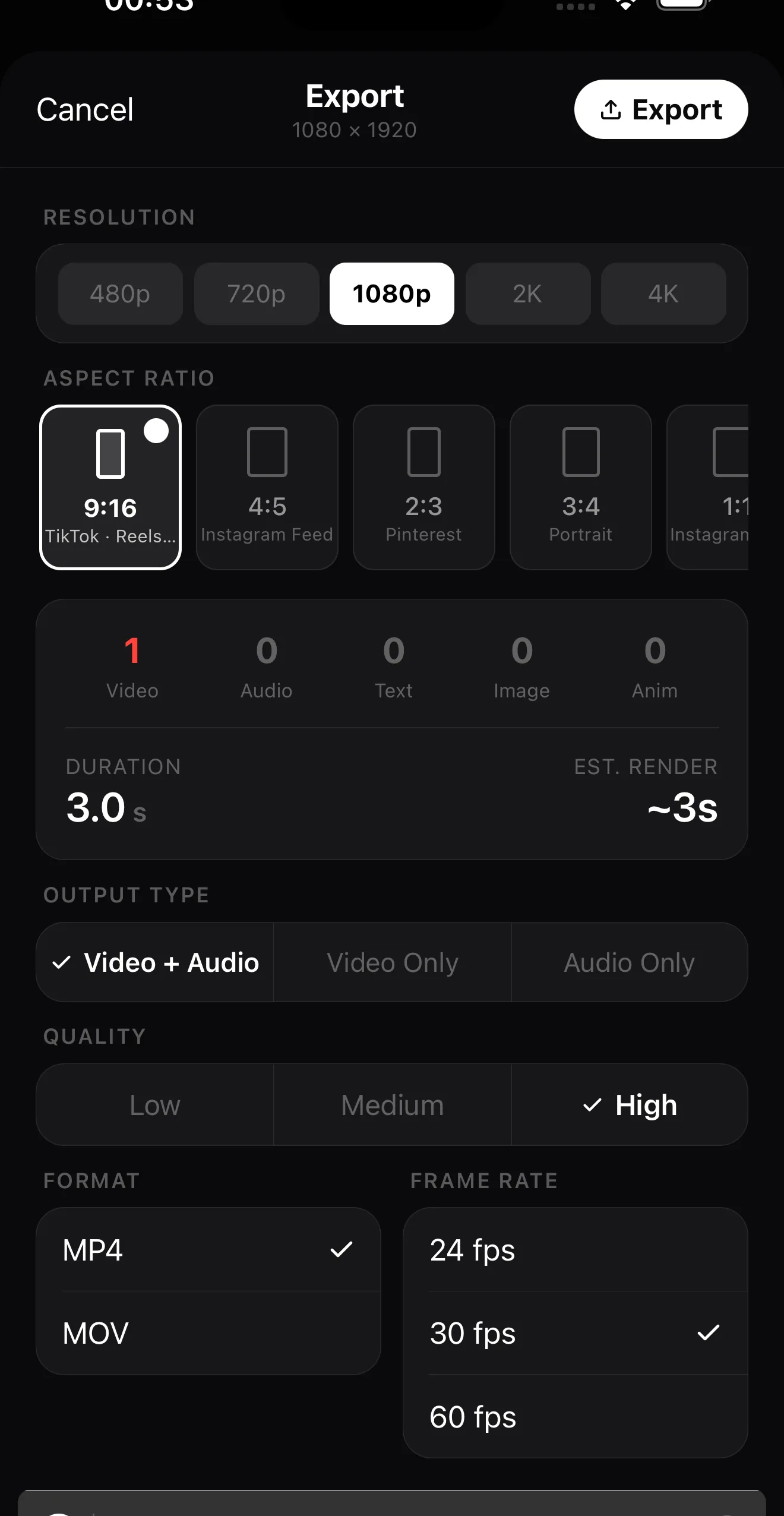 1080p for social
High
Tap Export
1080p for social
High
Tap Export
You did it. That exact six-step loop — add, trim, title, music, filter, export — is how every video in ExpoCut gets made, from a quick story to a polished brand promo. Everything else you’ll learn is just a richer version of one of these steps.
Where to go next
Now that the foundation is solid, pick the thread that excites you most:
- Make titles pop — explore the 300 text behaviours, glass and particle surfaces, and text on a path.
- Find the perfect look — go deeper on filters and pro color grading.
- Move things around — learn keyframes and camera moves to animate position, scale, and rotation.
- Go faster — start from a template or reel and just swap in your own clips and text.
Each of those has its own guide. But the video you just made? That’s the hard part — and you already did it.
Frequently asked questions
Do I need any editing experience to use ExpoCut?
No. ExpoCut is built so a complete beginner can make a clean, share-ready video on their first try. Every tool has sensible defaults, so you can get a great result just by adding clips and tapping export — then go deeper whenever you're ready.
How long does my first video take to make?
About ten minutes. Adding a clip, trimming it, dropping on a title and some music, and picking a filter are all a few taps each. Export to 1080p takes seconds on a modern phone.
What resolution should I export at?
1080p is the sweet spot for social media — crisp, fast to upload, and supported everywhere. Step up to 4K only if you need it, since the file will be much larger.
Can I keep editing after I export?
Yes. Exporting writes a finished video to your camera roll but leaves your project untouched. Reopen it any time to tweak and export again.
Does the free version add a watermark?
No watermark on the picture. On the Free plan the finished video ends with a short 3-second ExpoCut outro; Pro and Elite exports are completely clean.
Related guides
Ready to make your first one?
Open ExpoCut, add a clip, and follow along. Your first share-ready video is ten minutes away.
Get ExpoCut Browse more guides