Slow Motion & Speed Ramps on Your Phone (the Cinematic Way)
Speed is the most underrated effect in short video. A slow push on the hook, a fast-forward through the boring bit, a ramp that snaps to the beat — here’s how to control time on your phone.
Quick answer
Tap the clip and tap Speed on its toolbar. The Speed sheet has one row of presets (0.25× to 2× and beyond), a Curves row for ramps (Montage, Hero, Bullet, Flash In…), a Shutter row that adds motion blur on export (180°–720°), a Smooth Slow-Mo switch that appears below 1× and interpolates the extra frames, and Keep pitch so voices stay natural. The clip’s timeline length updates as you pick; Freeze on the same toolbar holds a single frame.
- Below 1× = slow motion, above 1× = fast-forward; the readout shows the new clip length.
- Curves are one-tap speed ramps — Hero for slow-in / fast-out, Bullet for a snap.
- Smooth Slow-Mo (below 1×) generates in-between frames so 30 fps footage doesn’t stutter.
- Shutter adds cinematic motion blur on export; Keep pitch protects voices.
Time is a tool. Slow motion makes a moment feel important; fast-forward skips the dead air; a ramp between them is the cinematic move that makes a phone edit feel like a film. ExpoCut gives you all three on a single clip — and the preview matches the export frame-for-frame.
Three ways to control speed
| Effect | What it does | Use it for |
|---|---|---|
| Constant speed | One speed for the whole clip (e.g. 0.5×, 2×) | Slow-mo a moment, fast-forward a process |
| Speed ramp | Speed changes over time within the clip | Slow → fast hits, beat snaps, reveals |
| Freeze frame | Holds a single frame, then resumes | Emphasis, intros, “record-scratch” beats |
Step 1 — Set a constant speed
Select the clip
Tap it on the timeline to bring up its tools.
Tap Speed
Swipe the clip’s toolbar past Duplicate and tap Speed. A compact sheet slides up.
Pick a speed
Tap a preset: below 1× slows it down (0.5× = half speed, 0.25× = dramatic slow-mo); above 1× speeds it up. The readout at the bottom shows the clip’s new length, and the timeline updates to match. Below 1× a Smooth Slow-Mo switch appears — turn it on and ExpoCut generates the in-between frames so 30 fps footage plays smoothly instead of stuttering.
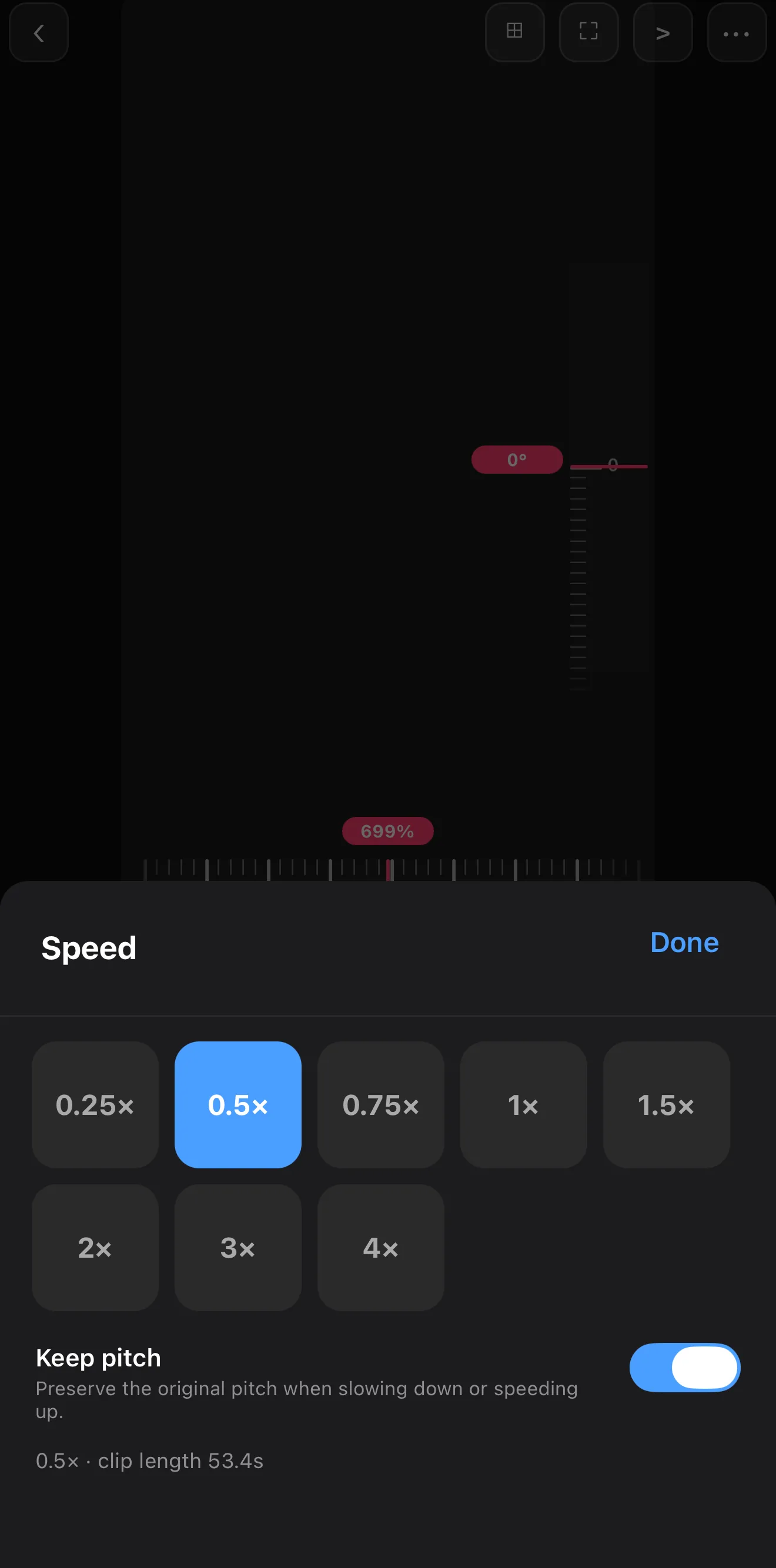 Pick a preset
Smooth Slow-Mo — appears below 1×
Keep pitch
New clip length
Pick a preset
Smooth Slow-Mo — appears below 1×
Keep pitch
New clip length
Keep Pitch for talking clips. When a clip has voice, turn on Keep Pitch so changing the speed doesn’t change how the voice sounds — sped-up talking stays human instead of going chipmunk. Leave it off when you want that effect.
Step 2 — Ramp from slow to fast
A constant speed is useful; a ramp is cinematic. Instead of one fixed number, a curve changes the speed over the clip. The Curves row on the Speed sheet holds one-tap presets — Montage, Hero, Bullet, Flash In and more — each a different shape of slow-and-fast; Keyframes on the clip toolbar lets you build your own.
The classic moves:
- Slow → fast: linger on the start of an action in slow motion, then snap to real time as it pays off.
- Fast → slow: rush in, then drop into slow-mo on the key frame.
- Beat snap: drop the speed right before a beat and snap back up on it, so the footage hits with the music.
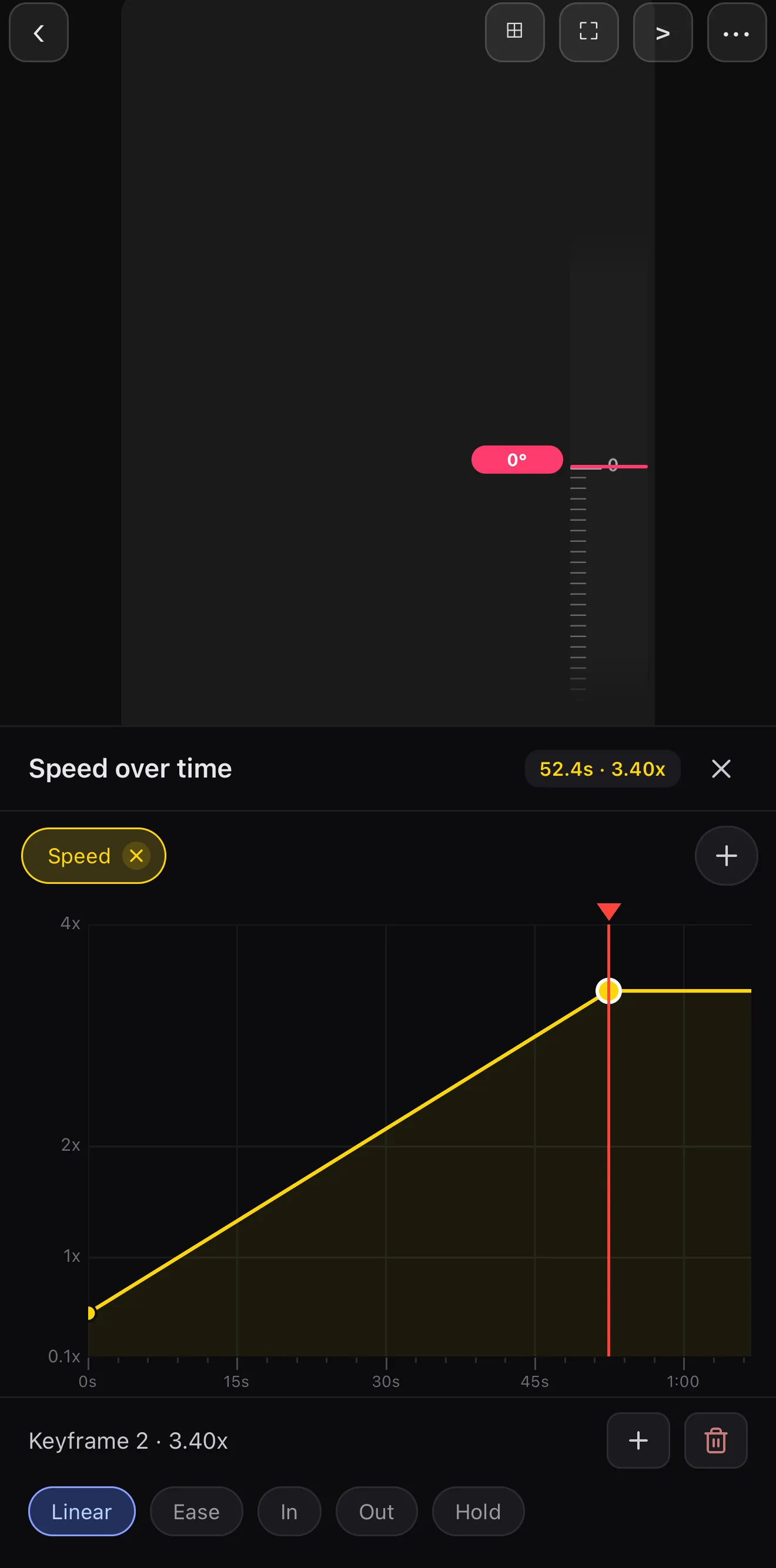 Hero — slow in, fast out
Shutter — motion blur on export
Hero — slow in, fast out
Shutter — motion blur on export
Ramp on a beat. Speed ramps and music are best friends. Place the fast part of the ramp on the downbeat and the whole edit feels intentional. Pair it with editing to the beat.
Step 3 — Freeze a frame
To stop time completely, tap Freeze (right next to Speed on the clip toolbar): the clip plays, holds the frame under the playhead for 3 seconds, then continues. It’s perfect for an intro title card, a punchline, or a “wait — what?” beat. Add a title or a zoom keyframe over the freeze to land it.
Taste rules for speed
- Slow-mo the moment, not the whole clip. One slowed beat hits; a whole slow video drags.
- Fast-forward the boring parts. Setup, walking, loading — speed straight through them.
- One ramp per scene. Like transitions, ramps are spice. Save them for the shots that earn it.
- Mind the footage. Slowing 30fps footage a lot can look choppy; footage shot at a higher frame rate slows the smoothest.
Where to go next
- Snap your speed to the music: add music & audio.
- Add a move on top of the slow-mo: keyframes & motion paths.
- Punctuate a ramp with a cut: transitions between clips.
Control the clock and a phone edit stops looking like a phone edit. Slow the moment, skip the filler, ramp into the hit — and let the speed do the storytelling.
Frequently asked questions
How do I slow down a video on my phone?
Select the clip, tap Speed, and drag the speed below 1× — 0.5× is half speed, 0.25× is dramatic slow motion. Turn on Keep Pitch if the clip has voice so it doesn't sound chipmunky. The preview updates live and matches the export exactly.
What is a speed ramp?
A speed ramp changes speed *over time* within one clip — for example easing from slow motion into real time, or snapping from slow to fast on a beat. In ExpoCut you draw it as a speed curve: a graph where the line rising or falling means the footage speeds up or slows down at that moment.
Will speeding up a clip make the voice sound weird?
Only if you want it to. Turn on Keep Pitch and the app preserves a natural voice while changing the tempo, so sped-up talking still sounds human. Leave it off for the classic chipmunk/slow-drawl effect.
Related guides
Bend time in your edit
Slow motion, fast-forward and smooth speed ramps — with pitch-corrected audio and a preview that matches the export. Speed up your storytelling.
Get ExpoCut Browse all guides