Wizard Mode: Fill a Video Template Without Touching the Timeline
Templates are only fast if filling them is fast. ExpoCut’s Wizard mode turns a 20-slot template into a form: type the text, pick the photo, tap Next, and the finished video plays while you do it. When you need the real editor, it’s one tap away — and one tap back.
Quick answer
In ExpoCut, open Templates on the home screen, tap a template to see its live preview, then Use this Template. The slot filler takes you through the template’s slots (1/8, 2/8…) — a text field or a media picker above a live canvas that updates as you type — with Next, Skip, and Use defaults to accept the sample content for the rest. You land in Wizard mode: the finished video plays above a strip of slot chips (All · Text · Image · Video · Audio); tap any chip to change that slot. Timeline in the top bar opens the full editor with every layer; Wizard brings you back.
- Preview first: the template card plays a live preview with real sample media before you commit.
- The slot filler is a form over a live canvas — what you type appears in the frame immediately.
- Use defaults accepts the sample text for the remaining slots; Skip leaves one slot as-is.
- Wizard mode = slot chips grouped by All / Text / Image / Video / Audio; tap to swap text, photo, clip or music.
- Timeline ⇄ Wizard is a two-way switch — trim a layer in the timeline, then come back to change a slot.
A good template is a finished video with holes in it. Wizard mode is the fastest way to fill the holes: a form, a live canvas, and a chip strip that lets you change any slot later — without ever opening the timeline unless you want to.
Step 1 — Preview, then commit
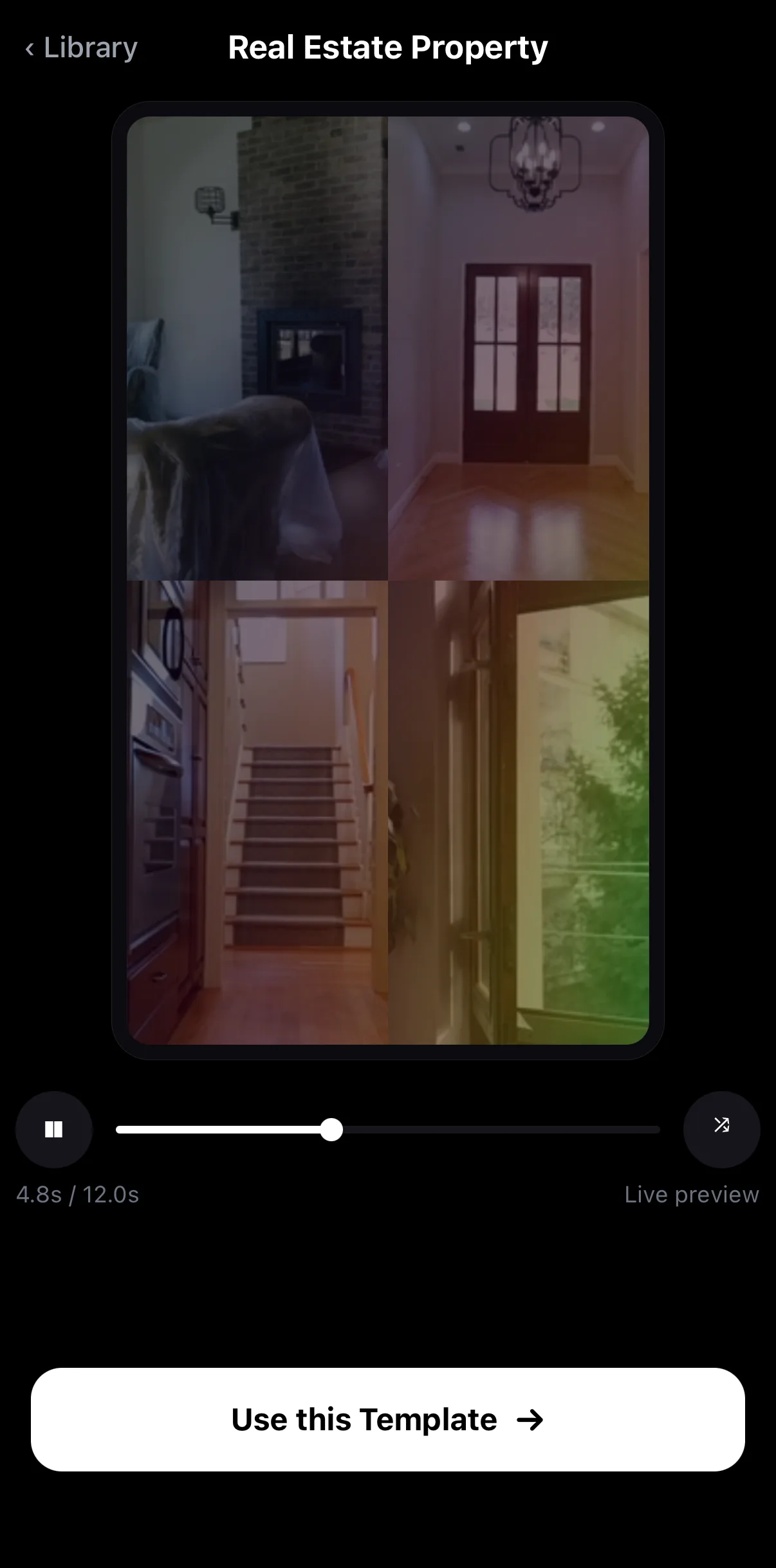 Live preview — real samples, real motion
Use this Template
Live preview — real samples, real motion
Use this Template
Step 2 — Fill the slots
Read the slot
Each screen names the slot (New text, Headline, Image…), says whether it’s optional, and suggests the sample content.
Type or pick
Text slots have a field; media slots open the same Add Image / Add Video / Add Audio pickers as the editor. The canvas below updates live.
Next, Skip, or Use defaults
Next saves and moves on; Skip keeps the sample for this slot; Use defaults keeps the samples for every remaining slot and finishes.
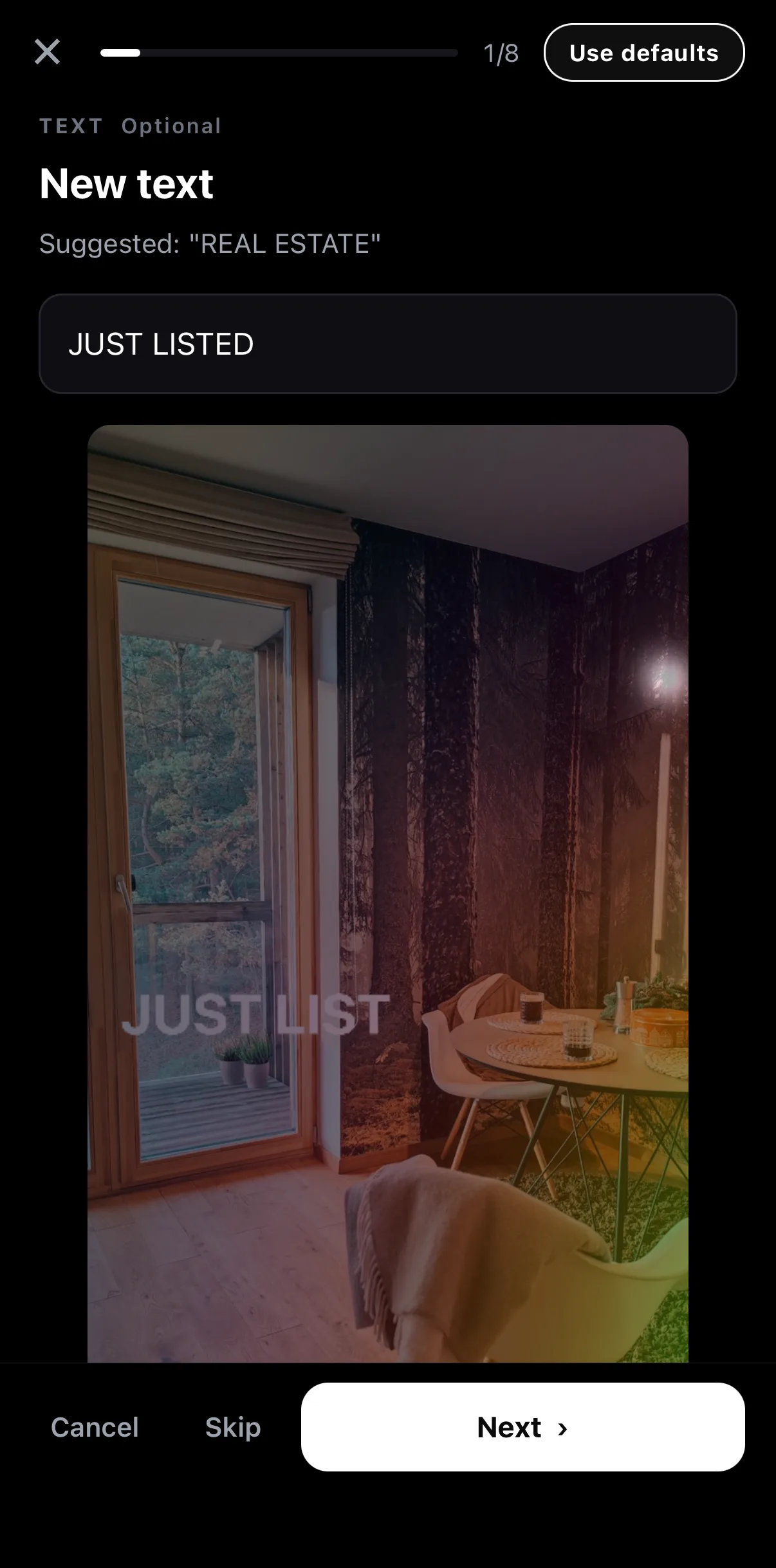 Slot 1 of 8
Use defaults — skip to the end
Type — the canvas updates live
Next / Skip
Slot 1 of 8
Use defaults — skip to the end
Type — the canvas updates live
Next / Skip
Step 3 — Wizard mode
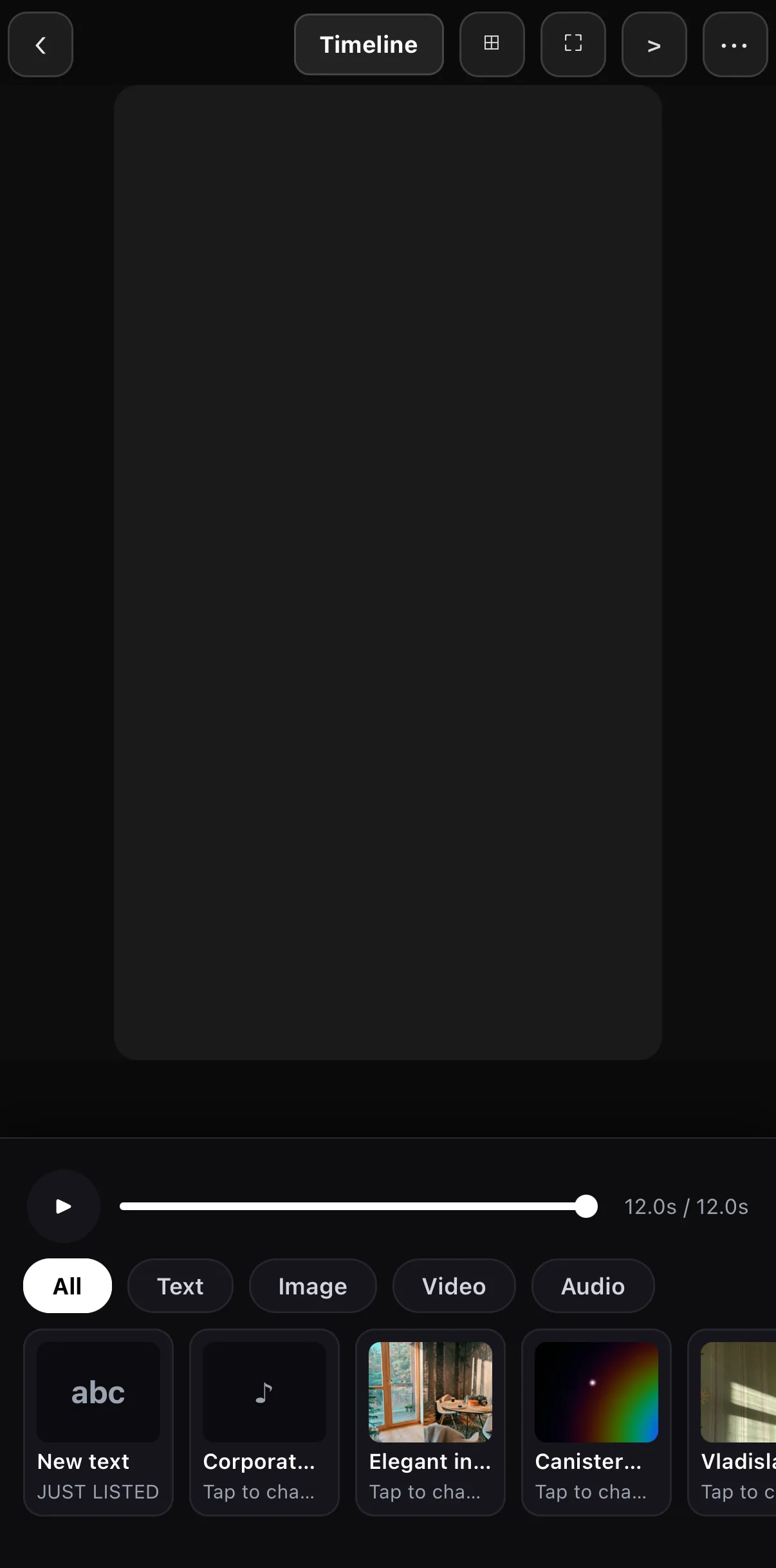 Timeline — open the full editor
All · Text · Image · Video · Audio
Slot chips — tap to change
Timeline — open the full editor
All · Text · Image · Video · Audio
Slot chips — tap to change
Wizard mode is where most template edits should stay: swap the photo, fix a name, change the music. Export straight from ••• when it looks right.
Step 4 — Timeline when you need it
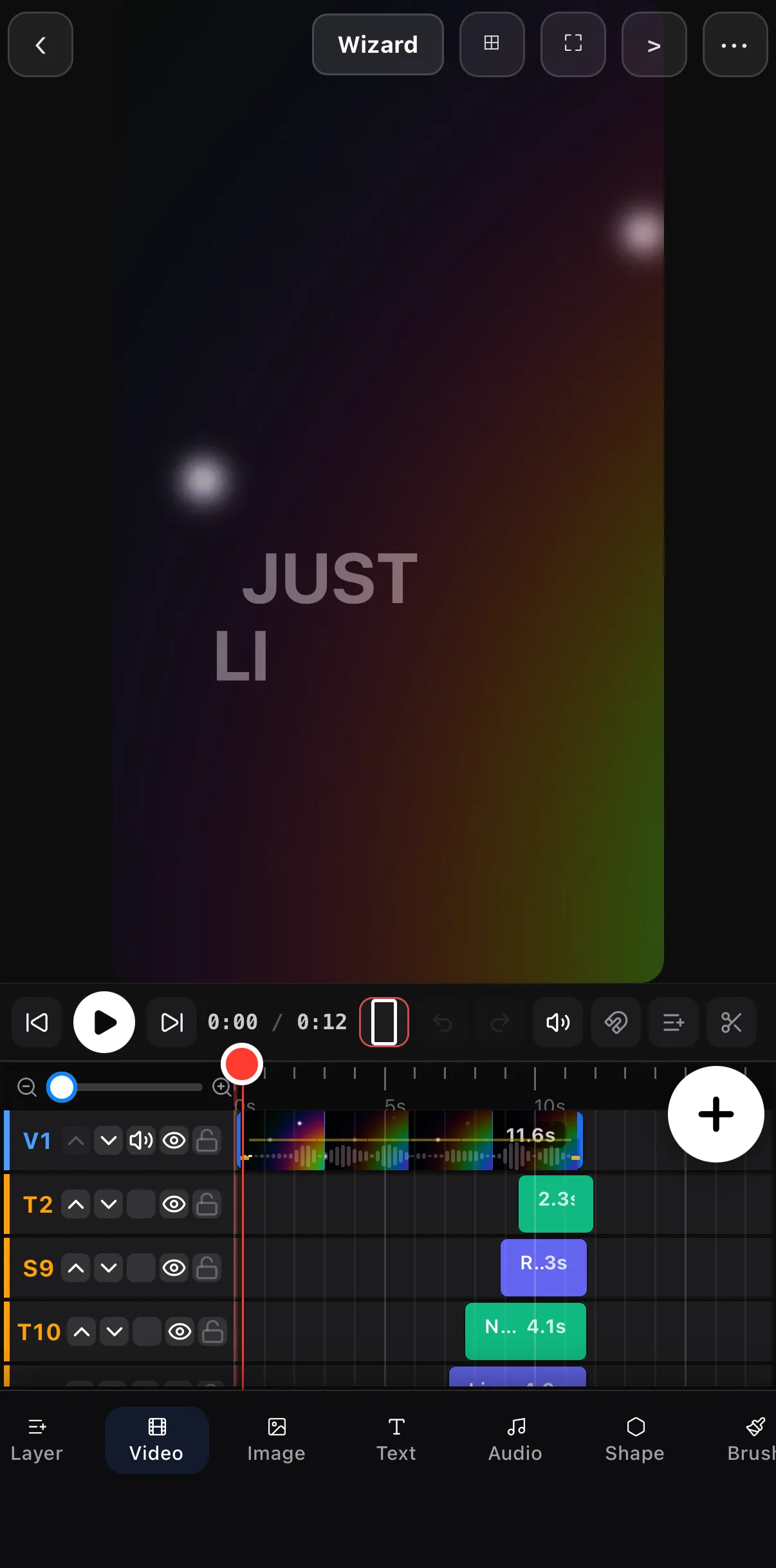 Wizard — back to slots
The template’s real layers and rows
Wizard — back to slots
The template’s real layers and rows
Keep the layout, change the content. Media you drop into a slot keeps the slot’s size and timing, so a portrait photo in a square hole gets cropped, not stretched. If you need a different framing, switch to Timeline and use Crop or Fit on that layer.
Where to go next
- Templates, Reels and Colour Themes: use templates & Reels.
- Save your own: save & reuse your own template.
- Bring one in from another editor: import .mogrt, Lottie & FCPXML.
Preview, fill, tap a chip — the template does the editing; you do the choosing.
Frequently asked questions
How do I use a video template on my phone?
Open Templates, tap a template to watch its live preview, then Use this Template. Fill the slots one at a time — the canvas shows each change — or tap Use defaults to keep the sample content. You land in Wizard mode where every slot is a chip; tap one to change it, then export.
Can I edit a template beyond its slots?
Yes. Tap Timeline in the top bar to open the full editor with every layer of the template — trim, reorder, add effects, change fonts. Tap Wizard to return to the slot view; both edit the same project.
What is the difference between Skip and Use defaults?
Skip leaves the current slot with its sample content and moves to the next one. Use defaults accepts the sample content for every remaining slot and jumps straight to Wizard mode — useful when you only need to change the first few.
Related guides
Fill it, don't build it
Live-preview templates, a slot-by-slot wizard, and a full timeline one tap away — finished videos in minutes.
Get ExpoCut Browse all guides