How to Save & Reuse Your Own Video Template
If you make the same kind of video over and over — a series intro, a product spotlight, a weekly recap — stop rebuilding it. Save it once as a template and start every future episode finished.
Quick answer
To save your own template in ExpoCut: open the project, tap ••• (top right) and choose Save as Template — it lands under Templates ▸ Mine on the home screen, named after the project. Start a new video by tapping it there. To publish it for other creators, choose ••• ▸ Share to Community, pick an auto-delete window (one download, 1 day, 1 week … up to 60 days) and tap Share now; a key stays on your device so only you can delete it early.
- ••• ▸ Save as Template banks the whole composition — layers, timing, animations, branding — as a reusable starting point.
- Saved templates show under the Mine chip on the Templates tab (with a count) as My Templates.
- Tapping one launches a fresh project with the structure in place; swap the clips and text.
- Share to Community publishes the template with a self-destruct timer; only you hold the delete key.
- Rename the project before saving — the template takes the project’s name.
The best content is consistent content — and consistency is exhausting if you rebuild from scratch each time. Save your format as a template once, and every future episode starts at the finish line.
When to make your own template
- A series with a recurring intro/outro and the same look.
- A repeatable format — product spotlights, weekly recaps, tips.
- A house style you want every video (or every team member) to match.
Step 1 — Build the reusable version
Make one clean, polished project that represents the format:
- Lock the intro and outro.
- Set your titles and lower thirds as styled placeholders.
- Apply your brand kit — logo, colors, handles.
- Leave clear slots where the per-episode content goes.
Step 2 — Save it as a template
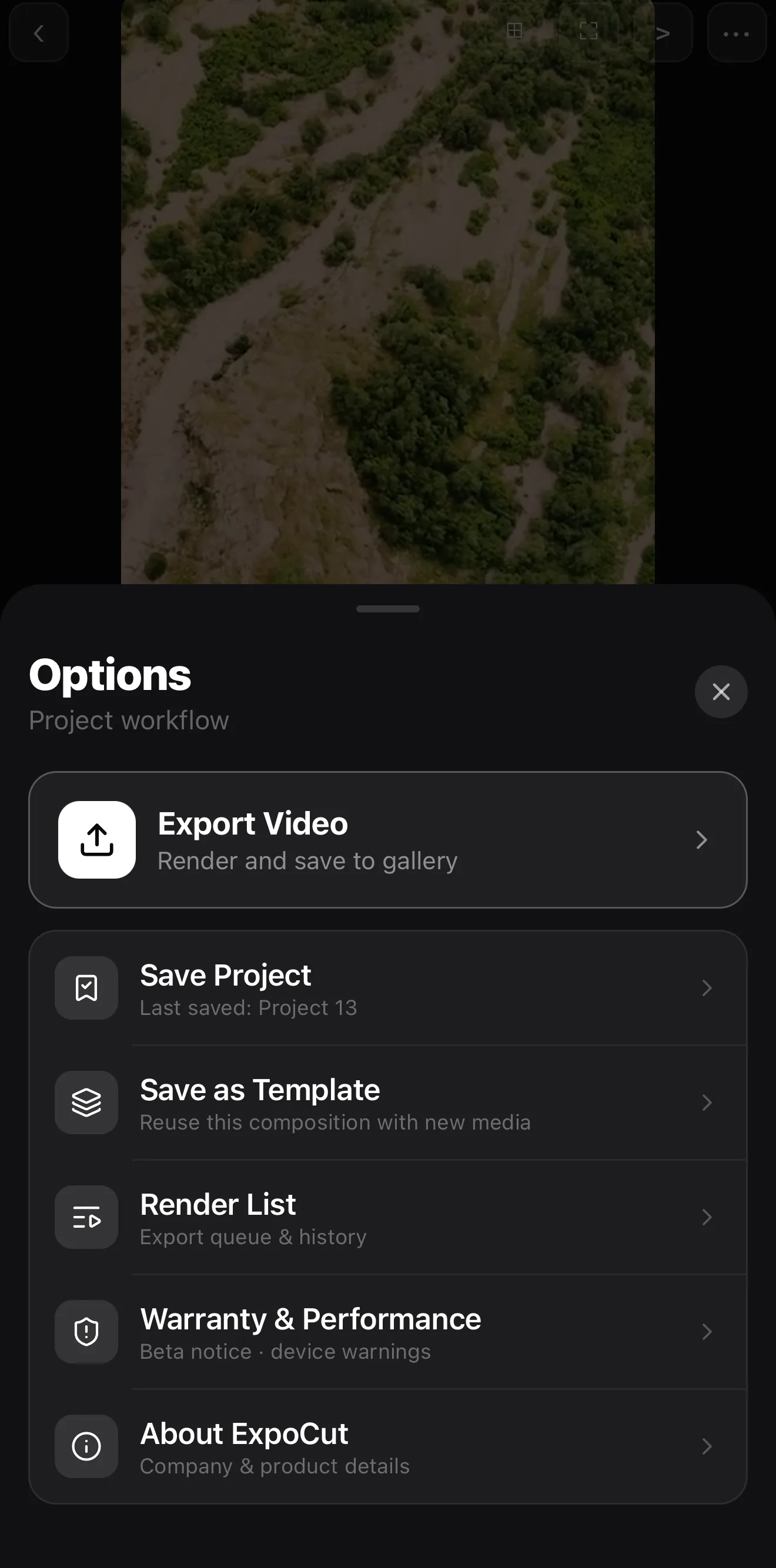 Save as Template
Share to Community
Save as Template
Share to Community
Name the project first
The template takes the project’s name — rename it to something you’ll recognise in the gallery: “Weekly Recap,” “Product Spotlight.”
Open ••• ▸ Save as Template
A confirmation tells you it’s now under Library ▸ Templates ▸ My Templates.
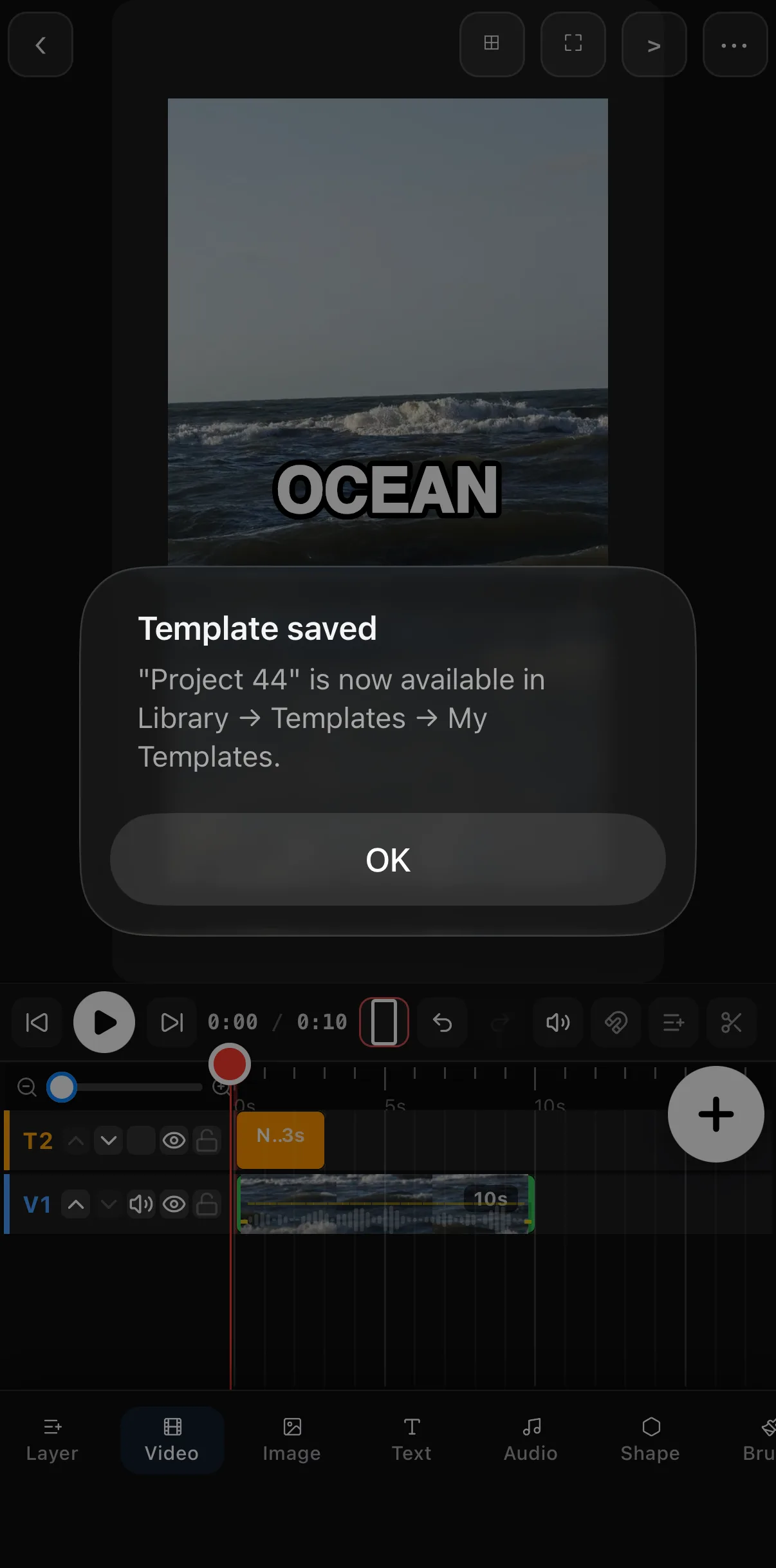 Saved to Templates ▸ My Templates
Use placeholders, not real content. Replace your sample clips with neutral placeholders before saving, so each new episode starts clean instead of with last week’s footage.
Step 3 — Start new videos from it
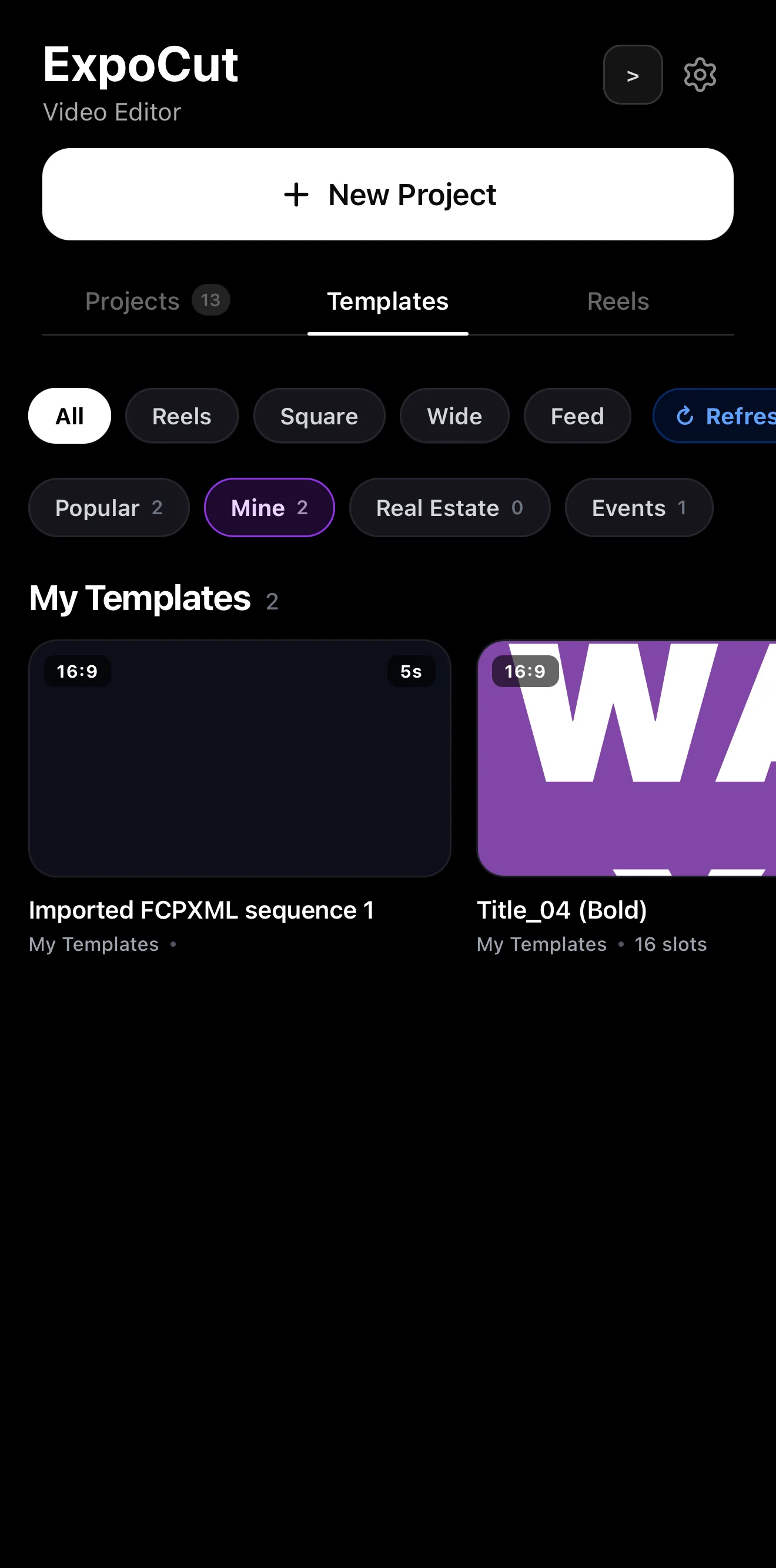 Mine
Tap to start a new video from it
Mine
Tap to start a new video from it
Next time, open your template from the gallery — it launches fully built. Swap in this episode’s clips and text, and you’re done. The animations, timing, and branding are already exactly right.
Step 4 — Share it (optional)
••• ▸ Share to Community publishes the template so other creators can try it. Pick how long it stays up — one download, 1 day, 1 week and so on, up to 60 days — and tap Share now. A key stays on your device, so only you can delete it earlier.
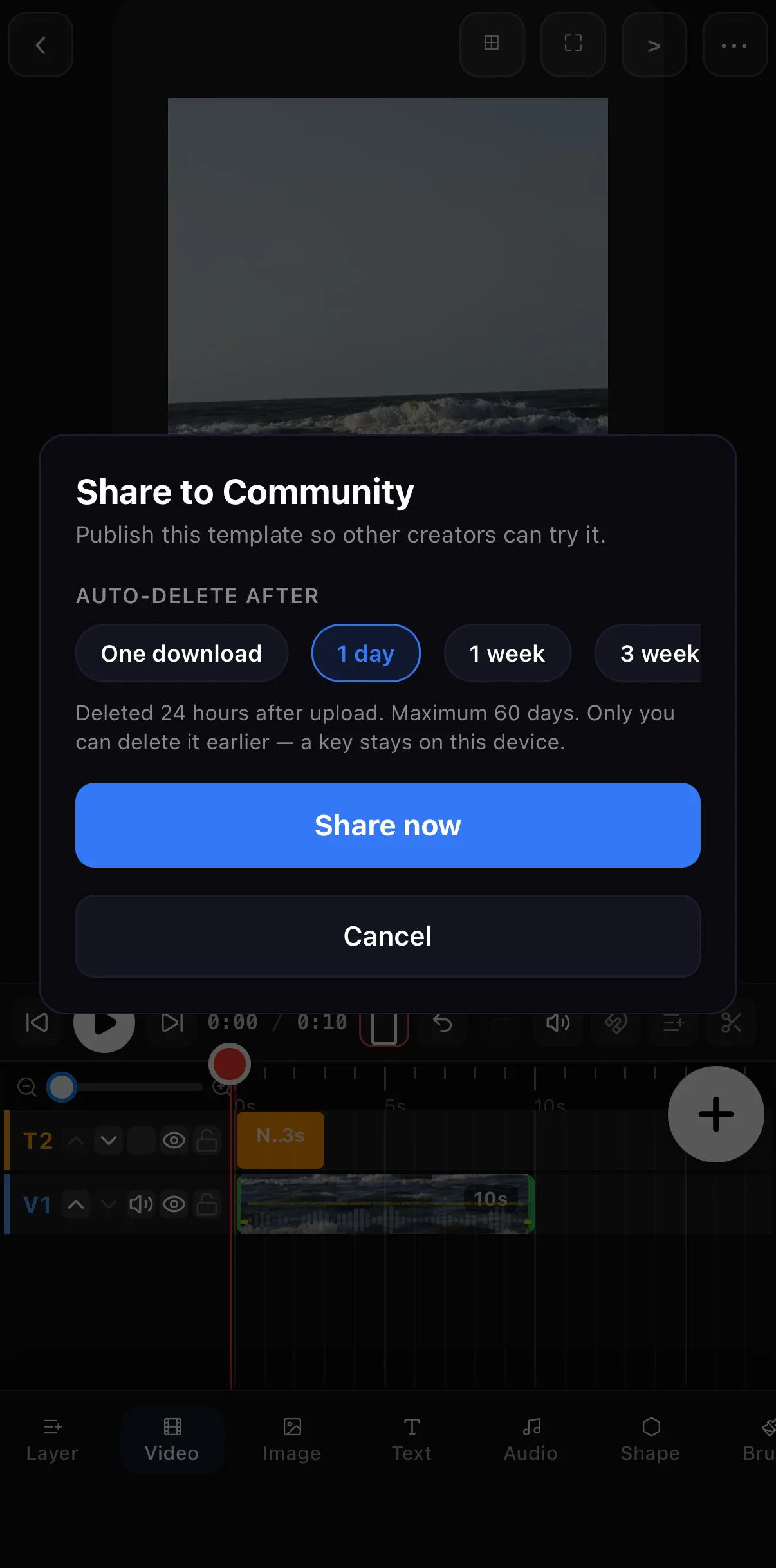 Auto-delete window — 1 day to 60 days
Share now
Auto-delete window — 1 day to 60 days
Share now
Where to go next
- Start from bundled ones too: how to use templates & Reels.
- Lock your branding in first: brand kits & the .ectpl format.
- Polish the structure: transitions between clips.
Build the format once, save it, reuse it — and turn “make a video” into “fill in this week’s video.”
Frequently asked questions
How do I save my own video template?
Build the project the way you want it, then choose Save as Template from the project options. It's stored in your templates, so you can start a new video from it anytime with all the structure, animations, and timing already in place.
Why save a template instead of duplicating a project?
A template is a clean, reusable starting point you can launch from the gallery for any new video. Duplicating works for a one-off, but a template is the right tool when you'll reuse the same format repeatedly — like a series.
Can I share my template?
Yes. Tap ••• ▸ Share to Community to publish it for other creators with an auto-delete window of one download, 1 day, 1 week and up to 60 days; a key stays on your device so only you can remove it earlier. Templates also save as self-contained files you can reuse across your own projects.
Related guides
Build it once, reuse it forever
Save any project as your own template and start every new video finished — your animations, timing and branding already in place.
Get ExpoCut Browse all guides