How to Remove the Background from a Video (No Green Screen)
You don’t need a green screen to put yourself on a new background anymore. ExpoCut detects the subject on-device and cuts the background out automatically — here’s how, plus when an actual green screen still wins.
Quick answer
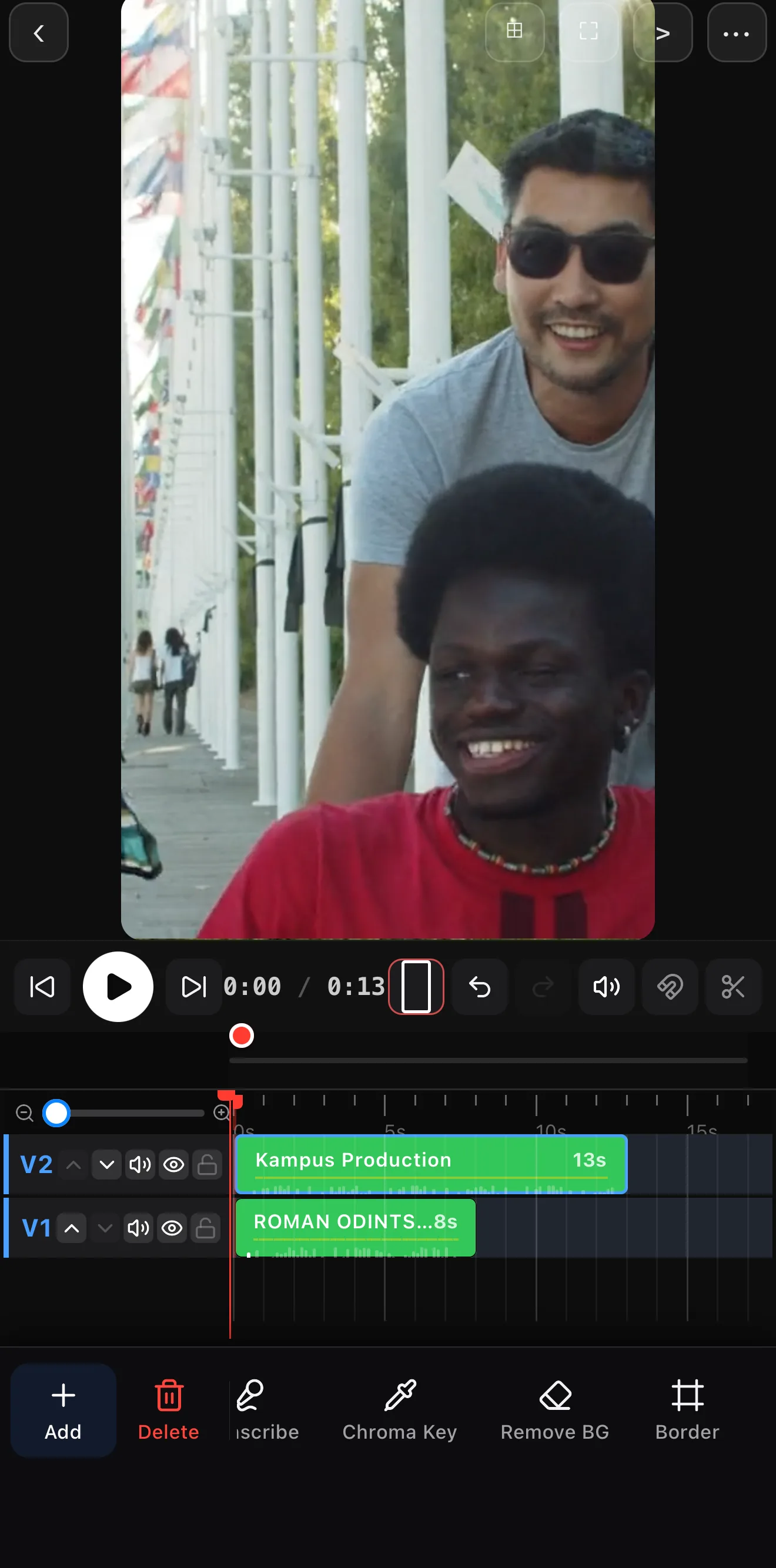
To remove a video background in ExpoCut without a green screen: put the new background on a row below your clip, select the subject clip, swipe its toolbar to Remove BG (next to Subject Blur and Chroma Key) and tap it. The first time, a small on-device segmentation model downloads (about 8 MB for video); after that the cut-out runs entirely on the phone, frame by frame, and the layer below shows through. Remove BG and Subject Blur are Elite features; Chroma Key is available on every plan when you filmed on a real green screen.
- Remove BG lives on the video clip’s toolbar beside Subject Blur (blur everything but the person) and Chroma Key.
- It’s on-device: one-time model download, then offline; footage never uploads.
- Put the new background below the subject clip first — the cut-out reveals whatever is underneath.
- Remove BG and Subject Blur carry an Elite badge; Chroma Key is free and gives crisper edges when you shot on green.
- Sell the composite with a matching grade and a slightly blurred backdrop.
Do it now → Remove a video background free — on-device
Putting yourself on a new background used to mean buying a green screen and lighting it perfectly. Not anymore. ExpoCut detects the subject on-device and removes everything behind them — so you can stand in front of a city, a brand color, or a blurred version of your own room.
Two ways to remove a background
ExpoCut gives you both — pick the one that matches how you shot:
| Method | When to use it | Edge quality |
|---|---|---|
| Remove BG (auto) | Any footage, any backdrop — no setup | Great for people; depends on contrast |
| Chroma Key | You filmed on a real green/blue screen | Crispest, best for hair & fast motion |
The auto remover is the everyday hero. Chroma key is the studio option when you planned ahead.
Step 1 — Add your clip and a new background
Put your subject clip on the timeline
A person talking or moving works best — even, decent lighting helps the cut-out.
Add the new background underneath
Drop an image, a stock video, a solid shape, or a generative background on a track below your subject. That’s what will show through once the old background is gone.
Step 2 — Remove the background
Select the subject clip
Tap it on the timeline, then swipe the clip toolbar past Transcribe and Chroma Key to Remove BG.
Tap Remove BG
ExpoCut detects the subject and erases everything behind it, frame by frame. The first time, it downloads a small on-device model (about 8 MB for video); after that it runs entirely on your phone.
 Remove BG (Elite)
Subject Blur — the sibling tool
Remove BG (Elite)
Subject Blur — the sibling tool
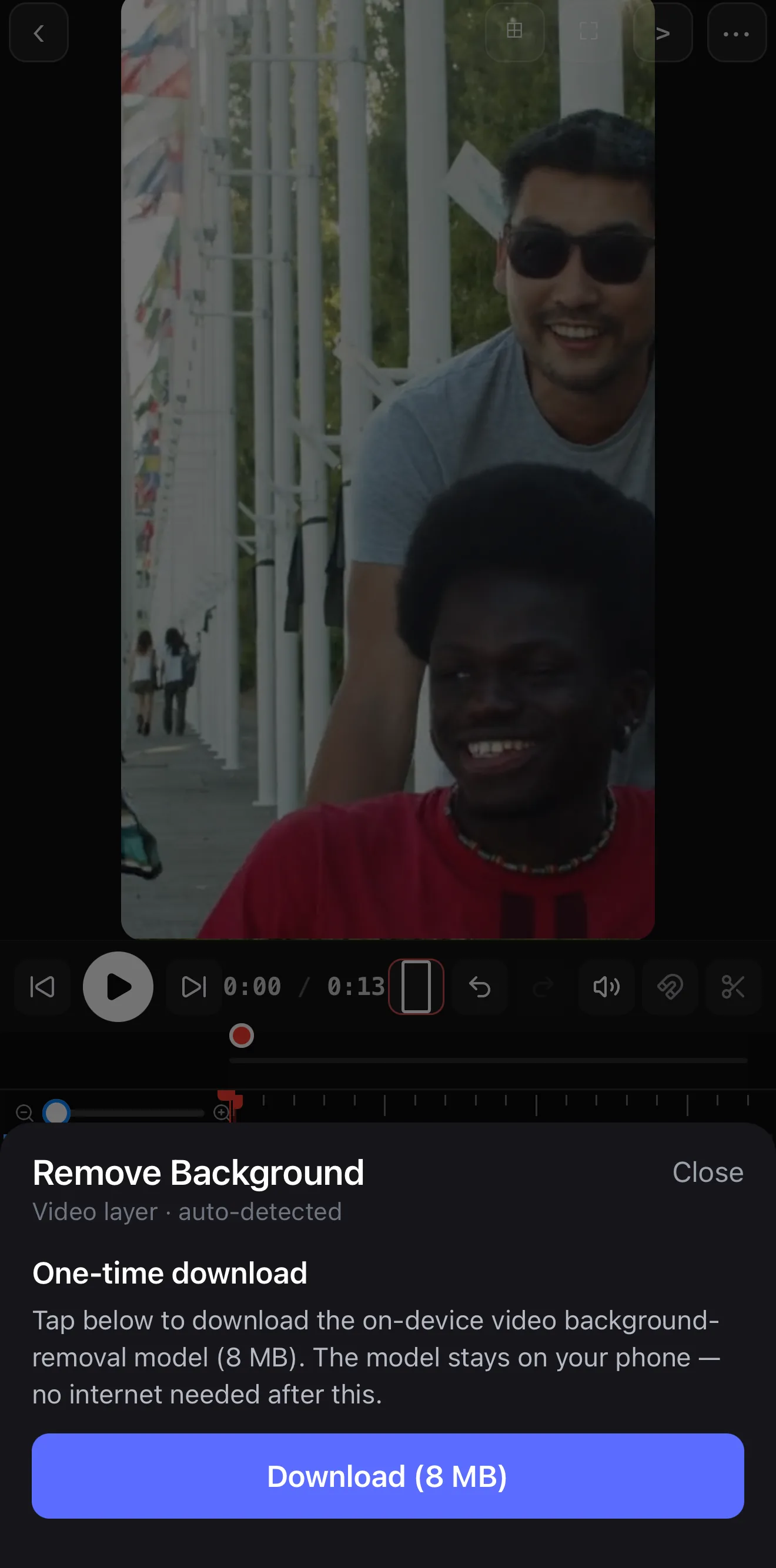 A one-time ~8 MB download — then it works offline
It’s all on-device. Subject detection runs locally, so background removal works offline and your footage never uploads anywhere.
Once it finishes, your subject is isolated — everything behind it is gone, so the layer you placed underneath shows through in the final video.
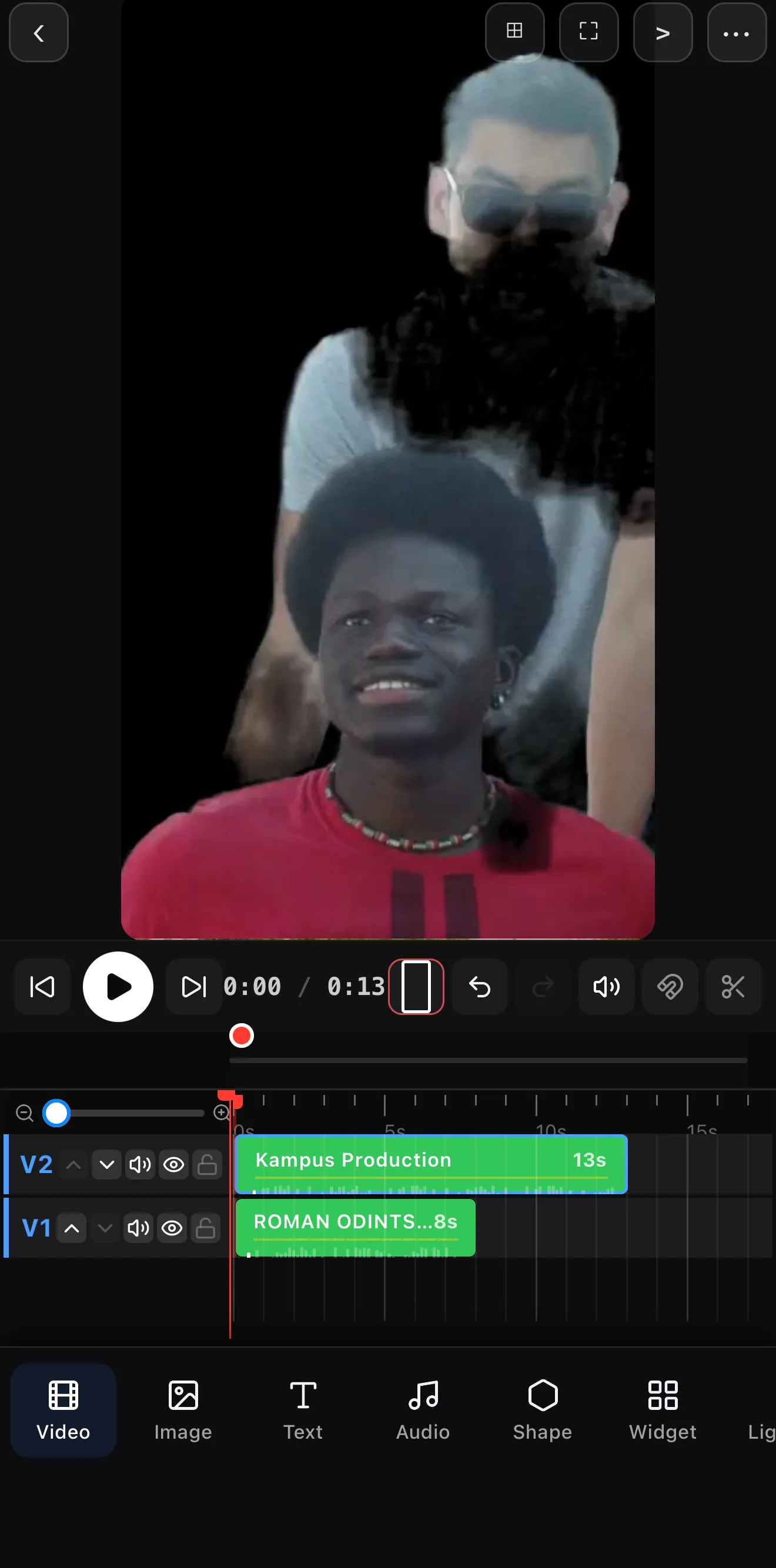 The subject, cleanly isolated — the old background is gone
Step 3 — Sell the composite
A cut-out only looks real when the subject belongs in the new scene. Three quick wins:
- Match the color. Add a light filter or grade so the subject and backdrop share the same temperature.
- Add depth. A slightly blurred background reads as “shot on a real camera” and hides any rough edges.
- Add a shadow or glow sparingly. A soft contact shadow grounds the subject; skip heavy glows.
Subject Blur — the same detection, a different result
Right next to Remove BG is Subject Blur: the same on-device person detection, but instead of deleting the background it blurs it, so the subject pops with a portrait-mode look while the real room stays. Use it when the setting is fine but busy; use Remove BG when the setting has to change. Both run on the phone.
When to reach for chroma key instead
If you actually filmed against a green or blue screen, use Chroma Key on the clip instead of auto-removal. Keying a single solid color gives cleaner edges — especially around hair, glasses, and fast movement — and lets you fine-tune exactly which color drops out. Light the screen evenly and keep your subject a step forward to avoid green spill.
A few footage tips for a clean cut
- Even, soft lighting on the subject — avoid harsh shadows behind them.
- Contrast between subject and background (don’t wear the wall’s color).
- Keep the camera steadier; less motion blur means a cleaner edge.
Where to go next
- Give the composite a unified look: color grading on your phone.
- Build a backdrop that moves: generative backgrounds & shaders.
- Layer subjects with shapes & masks: shapes, masks & overlays.
No green screen, no studio — just tap Remove BG, drop in a new backdrop, and you’re anywhere you want to be.
Frequently asked questions
Can I remove a video background without a green screen?
Yes. ExpoCut uses on-device subject segmentation to detect a person (or foreground) and erase everything behind them automatically — no green screen required. Put any image, video, color, or blurred backdrop on a layer underneath and the subject sits on top of it.
Background removal vs. chroma key — which should I use?
Use automatic background removal for everyday footage shot on any backdrop. Use chroma key when you actually filmed against a solid green or blue screen — keying a clean color gives crisper edges, especially around hair and fast motion. Both live on the clip's tools.
Does background removal work offline?
Yes — the subject detection runs on the phone, so it works without a connection and your footage stays private. Even lighting and good contrast between subject and background give the cleanest cut-out.
Related guides
Cut the background in one tap
On-device subject detection erases the background automatically — no green screen. Drop your subject onto any backdrop you like.
Get ExpoCut Browse all guides