How to Color Grade Video on Your Phone (Cinematic Look)
Color is the single biggest reason some phone videos look ‘cinematic’ and others look flat. Grading is how you control it. Here’s how to color grade on your phone — from a one-tap film look to manual control over every tonal range.
Quick answer
To color grade video on your phone in ExpoCut: select the clip, tap the pencil (Edit), then Filters for a one-tap base look (drop Intensity to ~60 %), LUTs for a professional .cube grade with a before/after slider, FX ▸ Filters ▸ Looks ▸ Color Grade for manual Temperature, Tint, Exposure, Contrast, Saturation, Lift, Gamma and Gain, and Light to grade only part of the frame with a shaped region. Correct first, then grade with restraint — lower contrast, slightly desaturate, lift the shadows a touch.
- Four grading tools, all on the Edit toolbar: Filters (looks), LUTs (.cube library + import), FX ▸ Filters ▸ Looks ▸ Color Grade (manual sliders), Light (regional grade).
- Filters and LUTs both have a drag-to-compare line and an Intensity scrubber — 50–70 % is where a look reads as a grade.
- The Color Grade card is the manual desk: Temperature, Tint, Exposure, Contrast, Saturation, Lift, Gamma, Gain — with Neutral/Warm Pop/Faded presets as starting points.
- Light Studio grades a region (Area, Gradient, Radial, Object) with its own Exposure/Contrast/Highlights/Shadows and even its own Look.
- Every grade previews live and exports identically — the same LUT engine renders the canvas and the file.
- Grades are keyframeable: apply a filter in Edit mode and it lands as a keyframe you can animate.
Two creators shoot the same scene on the same phone. One clip looks flat; the other looks like a film still. The difference is almost always color. Grading is how you take control of it — and on a modern phone editor you have the same tools a desktop colorist uses.
Correct first, then grade
Good color is two jobs in order:
- Correct — fix what’s wrong: white balance (is it too blue or too orange?), exposure (too dark/bright?), and matching shots so they agree.
- Grade — add a mood: warm and nostalgic, cool and clinical, teal-and-orange cinematic.
Do them in that order. Grading on top of an un-corrected shot just amplifies the problem.
Where the grading tools live
Select a clip and tap the pencil (Edit). The toolbar that appears holds four colour tools:
| Tool | What it is | Use it for |
|---|---|---|
| Filters | One-tap looks in categories (Film, Cinematic, Vintage, B&W…) with an Intensity scrubber | The fast base grade |
| LUTs | A library of .cube colour grades (All / Custom / Film / Cinematic / Vintage) + Import .cube |
Professional or matched looks |
| FX ▸ Filters ▸ Looks ▸ Color Grade | Manual sliders: Temperature, Tint, Exposure, Contrast, Saturation, Lift, Gamma, Gain | Correction and fine-tuning |
| Light | Light Studio — shaped regions, each with its own tone controls and look | Grading part of the frame |
The fast path: a filter as your base
The quickest cinematic grade is a filter. A film or Teal & Orange look does 80 % of the work in one tap — then you refine. Drop it to ~60 % intensity so it reads as grading, not a preset.
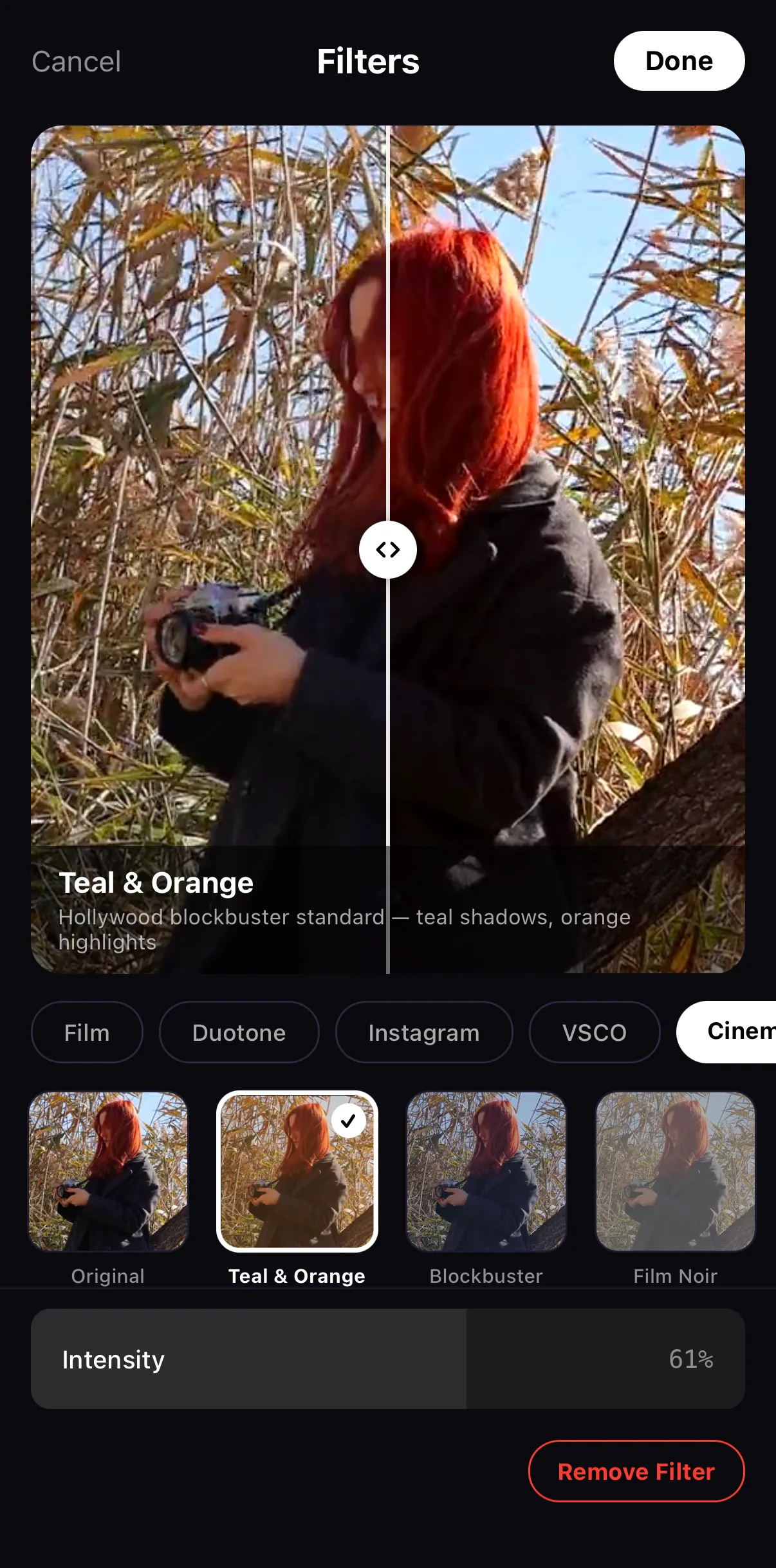 Drag to compare
Teal & Orange
Intensity → ~60 %
Drag to compare
Teal & Orange
Intensity → ~60 %
Select the clip and tap the pencil
The transform toolbar appears — swipe it to find Filters, LUTs, FX and Light.
Tap Filters and pick a category
Film and Cinematic are the grading categories; tap a tile to preview it on your actual frame.
Pull Intensity back
Scrub the Intensity row to 50–70 %. Drag the compare line across the preview to judge it, then tap Done.
Fine-tune by hand (optional)
Tap FX ▸ Filters ▸ + Add ▸ Looks ▸ Color Grade and nudge Temperature, Contrast, Saturation and Lift — see below.
Grade a region (optional)
Tap Light, add a Radial or Gradient region over the subject, and lift its Exposure a touch.
The manual controls (and what each does)
For precise control, add the Color Grade filter: FX ▸ Filters ▸ + Add, then the Looks tab. The tiles at the top are the Cinematic Grade presets (Teal & Orange, Cross-Process, Film Print…); scroll down for the plain Color Grade presets — Neutral, Warm Pop, Faded, Vivid, Cool Cinematic — which open the slider card.
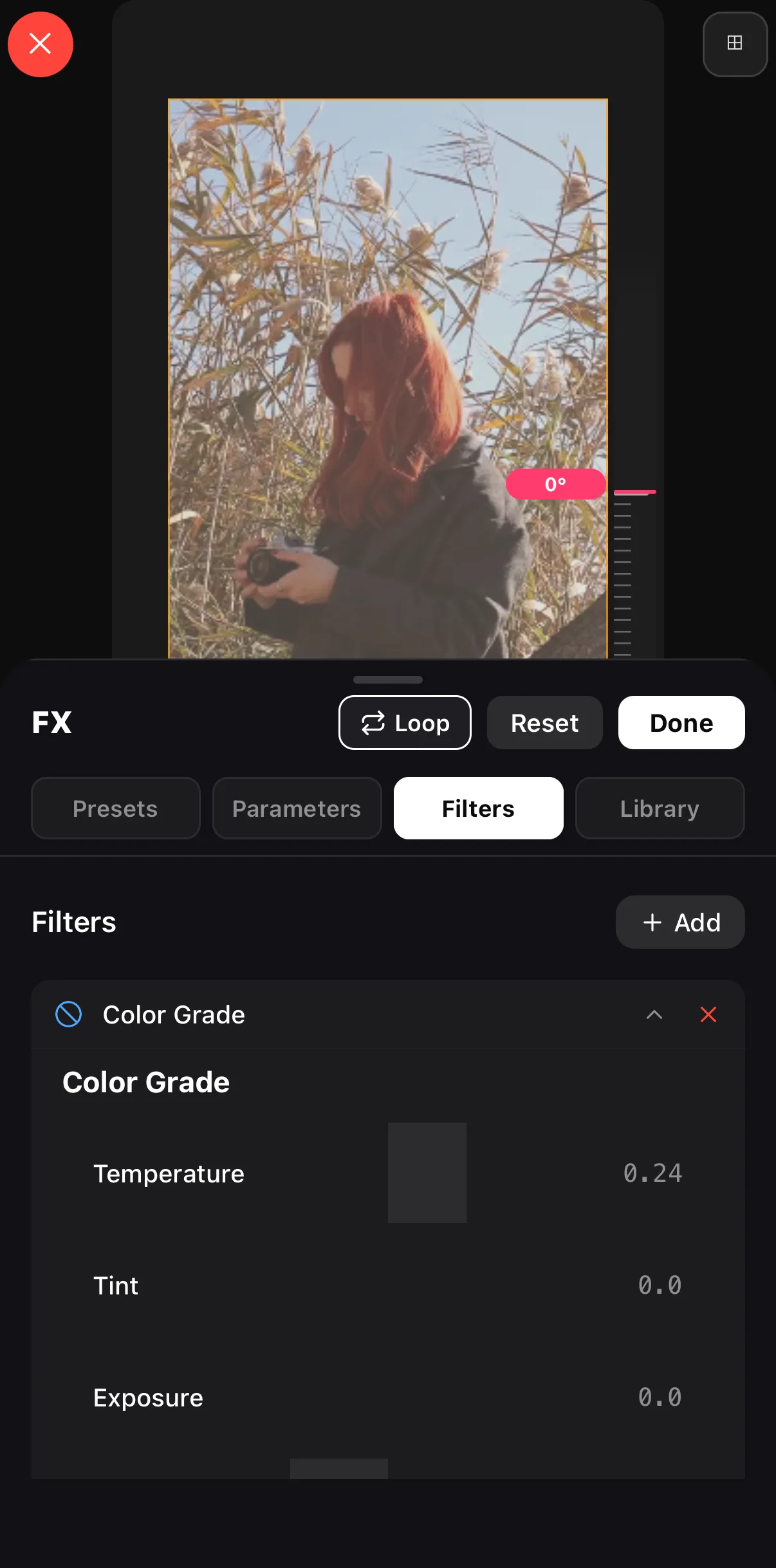 FX ▸ Filters tab
Color Grade card
Temperature +0.24 = warmer
FX ▸ Filters tab
Color Grade card
Temperature +0.24 = warmer
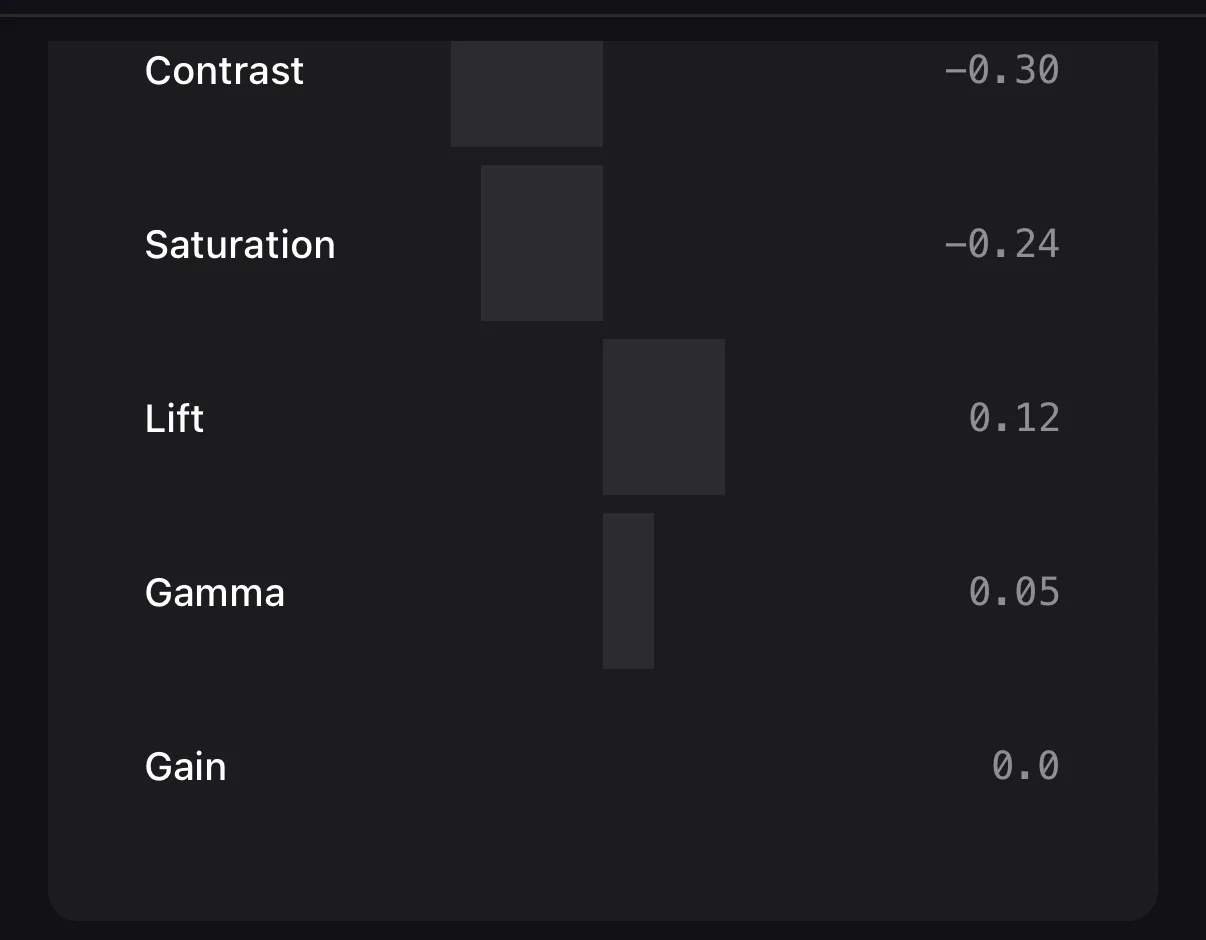 Contrast −0.30
Saturation −0.25
Lift +0.12 — the faded-film move
Contrast −0.30
Saturation −0.25
Lift +0.12 — the faded-film move
| Control | What it changes | Cinematic move |
|---|---|---|
| Exposure | Overall brightness (in stops) | Set so highlights aren’t blown |
| Contrast | Difference of light/dark | Slightly lower for film feel |
| Temperature / Tint | Warm↔cool, green↔magenta | Nudge warm for golden, cool for moody |
| Saturation | Colour intensity | Often reduce slightly — less is filmic |
| Lift | The darkest tones | Raise a touch for the “faded” look |
| Gamma | Midtones | Small moves; brightens skin without blowing skies |
| Gain | The brightest tones | Pull down to recover sky/skin |
Highlights and Shadows sliders live in Light Studio (below), where they apply to a region.
The cinematic secret is restraint. Beginners crank contrast and saturation; pros pull them down, lift the shadows, and add a subtle colour cast. Lower-contrast, slightly desaturated, warm-or-cool — that’s the film look people chase.
LUTs: portable professional looks
A LUT is a colour recipe in a file. Tap LUTs on the Edit toolbar to browse the library — All / Custom / Film / Cinematic / Vintage — with a live preview on your frame, an Intensity scrubber and the same drag-to-compare line. + Import .cube brings in a grade from a desktop colourist.
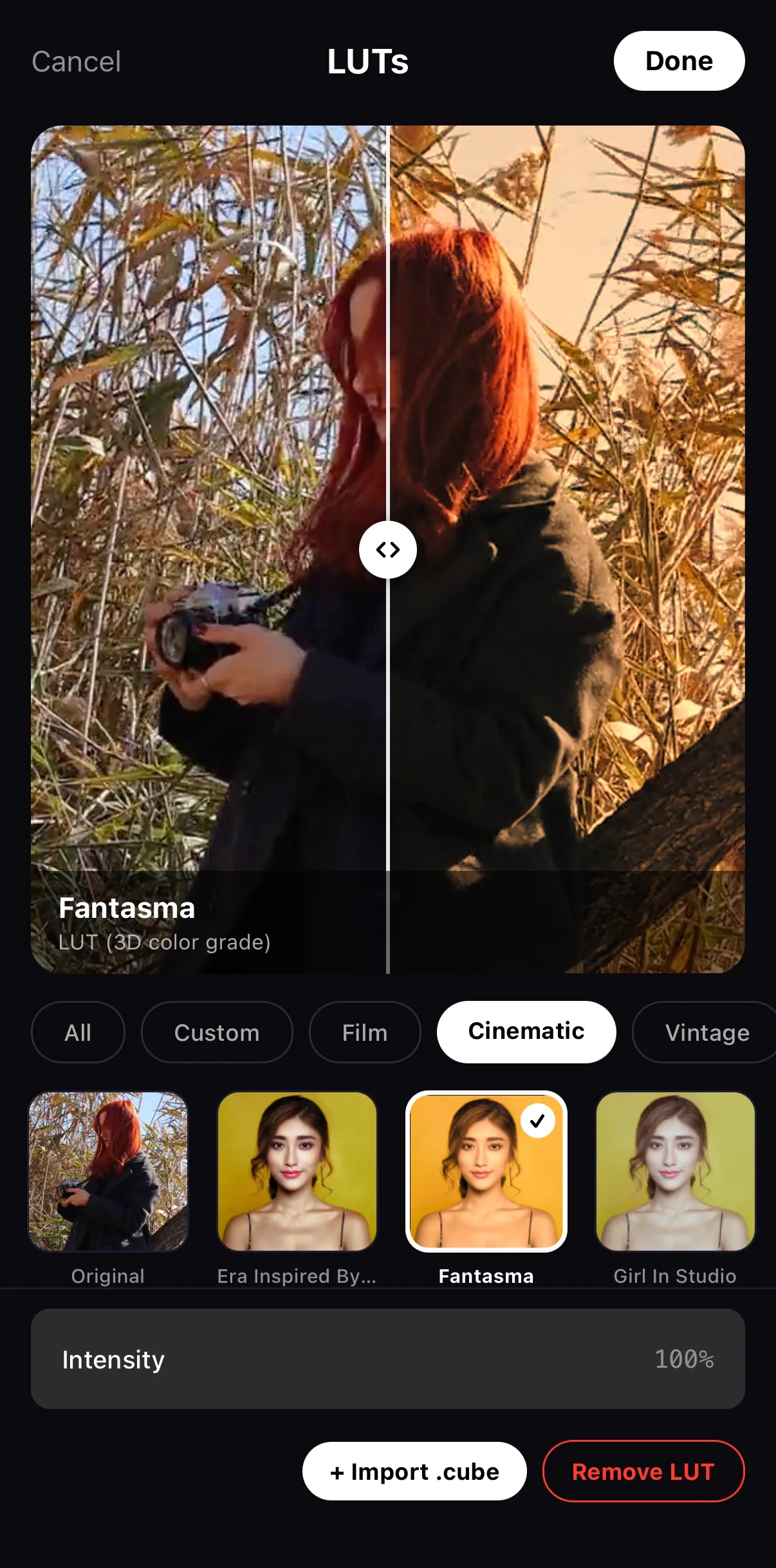 Before / after
All · Custom · Film · Cinematic · Vintage
Intensity
+ Import .cube
Before / after
All · Custom · Film · Cinematic · Vintage
Intensity
+ Import .cube
Because ExpoCut bakes every filter into the same LUT engine, the preview is exactly what exports — no surprises. More in the LUTs guide.
Grade part of the frame: Light Studio
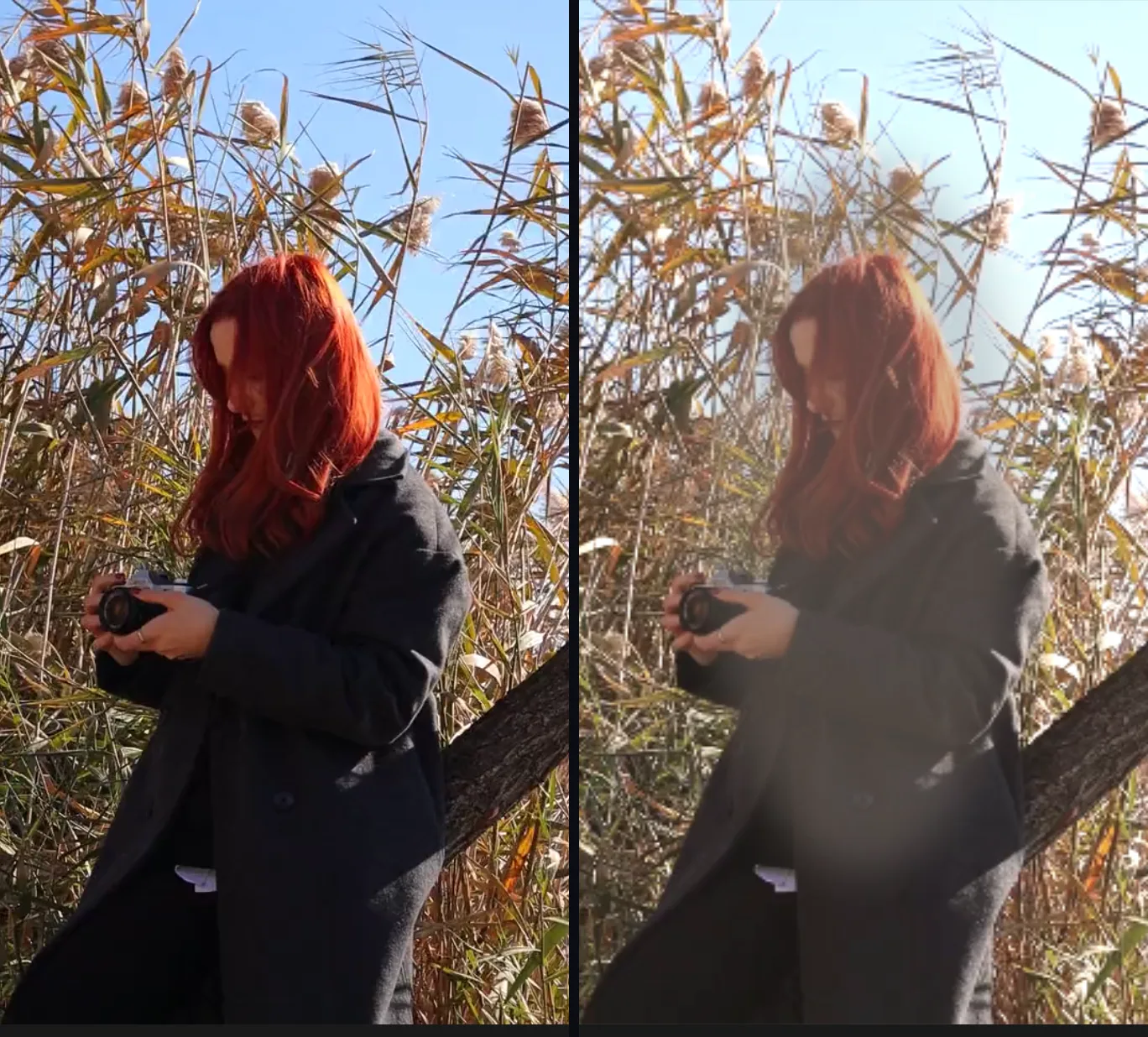
A global grade treats the whole image the same. Light lets you grade a region — brighten a face, darken a sky, warm a window — the way a colourist uses a power window.
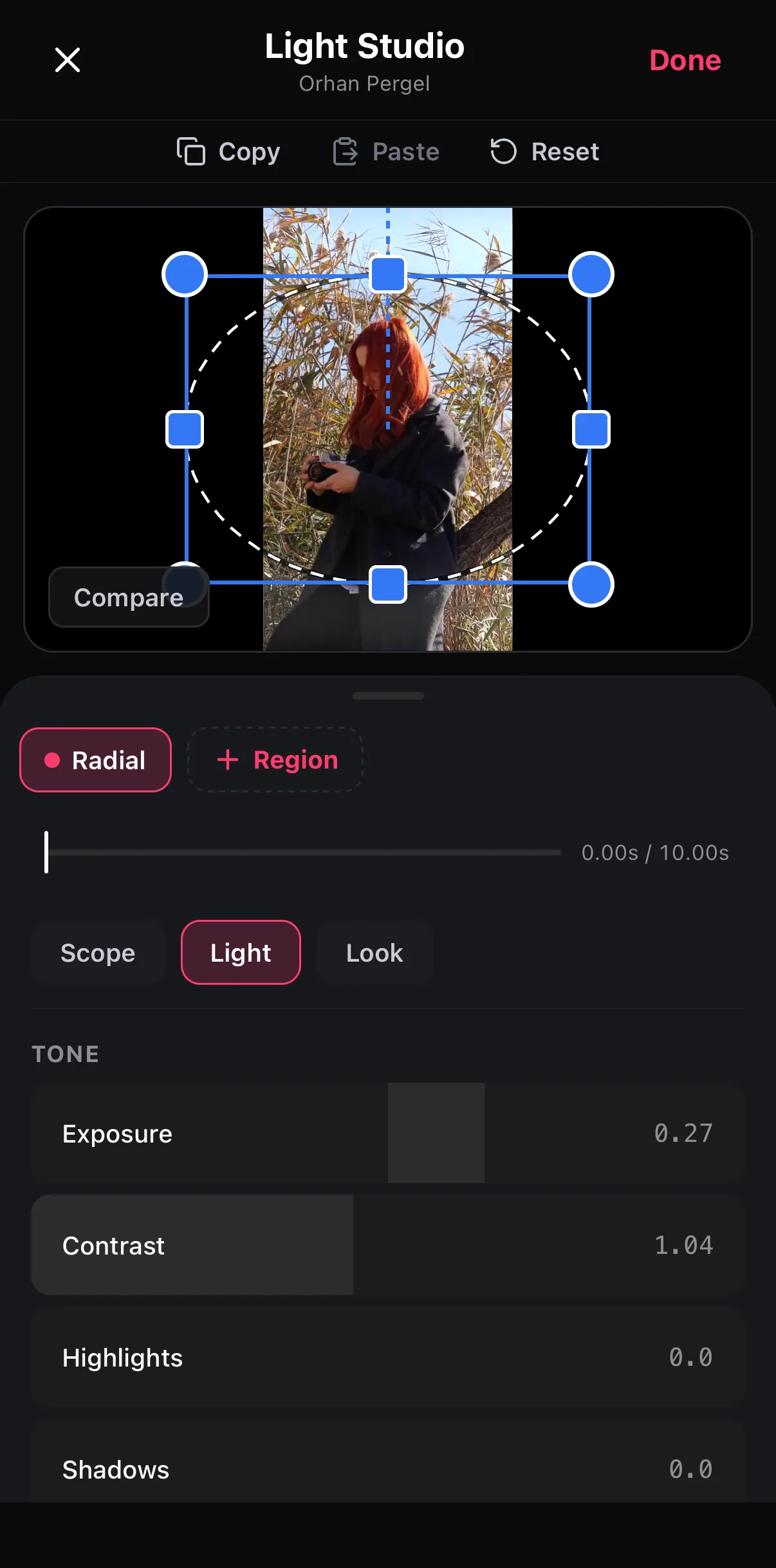 Radial region — drag the handles
Tone: Exposure, Contrast, Highlights, Shadows…
Radial region — drag the handles
Tone: Exposure, Contrast, Highlights, Shadows…
- Scope — Area (rectangle), Gradient (sky/ground split), Radial (a soft oval over the subject), Object (a drawn shape). Feather softens the edge so it reads as light, not a cut.
- Light — the region’s own tone sliders. A +0.3 Exposure radial over a face is the classic “relight” move.
- Look — a filter or LUT scoped to the region.
- Stack as many regions as you need; Compare toggles the whole studio off.
Before and after
Animate the grade
Because you applied the filter in Edit mode, it lands as a keyframe — you’ll see a numbered diamond on the Keyframe row. Move the playhead, change the Intensity, and the clip blooms from flat to fully graded over a few seconds. Light Studio has its own Capture keyframe button for animating a region. See keyframes & motion.
Where to go next
- The one-tap version of colour: Filters & looks.
- Import a desktop grade: how to use LUTs and CDL grades from DaVinci.
- Where grading fits among effects: video effects guide.
- The full edit context: mobile video editor guide.
Correct first, grade with restraint, and let colour do the heavy lifting. It’s the most cinematic upgrade you can make to phone footage.
Frequently asked questions
What is the difference between color correction and color grading?
Color correction fixes problems — wrong white balance, under-exposure, mismatched shots — to make footage look natural. Color grading is creative: pushing the image toward a mood (warm and nostalgic, cool and moody, teal-and-orange cinematic). You correct first, then grade.
How do I make my phone video look cinematic?
Start with a film or Teal & Orange filter at around 60% intensity, then refine: slightly lower the highlights, lift the shadows a touch (the 'faded film' move), add a hint of warmth, and reduce saturation slightly. Cinematic is usually less saturated and lower-contrast than people expect.
What is a LUT?
A LUT (look-up table) is a portable color recipe — the same format professional colorists use. Apply one to instantly remap your footage to a designed look. ExpoCut bakes its filters into the same LUT engine and lets you import your own .cube files from the LUTs panel.
Where are the exposure, contrast and white-balance sliders in ExpoCut?
Select the clip, tap the pencil (Edit), then FX ▸ Filters ▸ + Add ▸ Looks and choose Color Grade (or one of its presets such as Faded or Warm Pop). The card exposes Temperature, Tint, Exposure, Contrast, Saturation, Lift, Gamma and Gain. For part of the frame only, use the Light button instead — each region has its own Exposure, Contrast, Highlights, Shadows, Blacks, Vibrance and Saturation.
Related guides
Grade your next clip
From one-tap film looks to full manual control and imported LUTs — all previewing live, all rendered on-device.
Get ExpoCut Browse all guides