How to Clean Up Video Audio (Isolate, EQ & Loudness)
Viewers forgive shaky footage; they won’t forgive bad audio. Here’s how to clean up your video’s sound on your phone — voice isolation, EQ, dynamics, and the loudness step almost everyone skips.
Quick answer
Three moves, all on the clip’s own toolbar: tap Clean Audio on a video clip for one-tap on-device noise reduction (or Stems to pull the voice onto its own row), tap Audio FX and choose the Clean Voice preset or shape it with EQ & Tone, then open the Dynamics tab and add a Compressor for consistent loudness and a Limiter to stop peaks clipping. Auto-Cut next to Clean Audio removes the silent gaps.
- Clean Audio and Auto-Cut sit on the video clip’s toolbar after Reverse; Stems and Audio FX are on the audio clip’s toolbar.
- Audio FX = Quick Presets (Clean Voice, Podcast) + EQ & Tone · Dynamics · Spatial · Modulation.
- Compressor evens out levels; Limiter caps the peaks — add both before export.
- Keep music around 30 % under speech so the voice stays on top.
Do it now → Reduce background noise — on-device
Audio is half of video — and the half people notice when it’s wrong. Muddy voices, music that drowns the talking, and clips that are too quiet all read as “amateur” instantly. The fixes are quick, and they live right on the clip.
The three-step audio cleanup
- Isolate a clean voice out of noise.
- Shape it with EQ and dynamics.
- Even out the loudness for the platform.
Do them in that order: isolate first so every later move lands on a clean signal, not on noise.
Step 1 — Isolate a clean voice
Two on-device tools handle the noisy-room problem, both on the clip’s own toolbar:
- Clean Audio — one tap on a video clip (swipe its toolbar past Reverse) runs on-device noise reduction on the clip’s sound. Auto-Cut, right next to it, removes the silent gaps.
- Stems — on an audio clip, splits the sound into separate Vocals, Drums, Bass and Other rows so you can keep the voice and mute the rest. Background hiss, rumble and music drop away with the other stems.
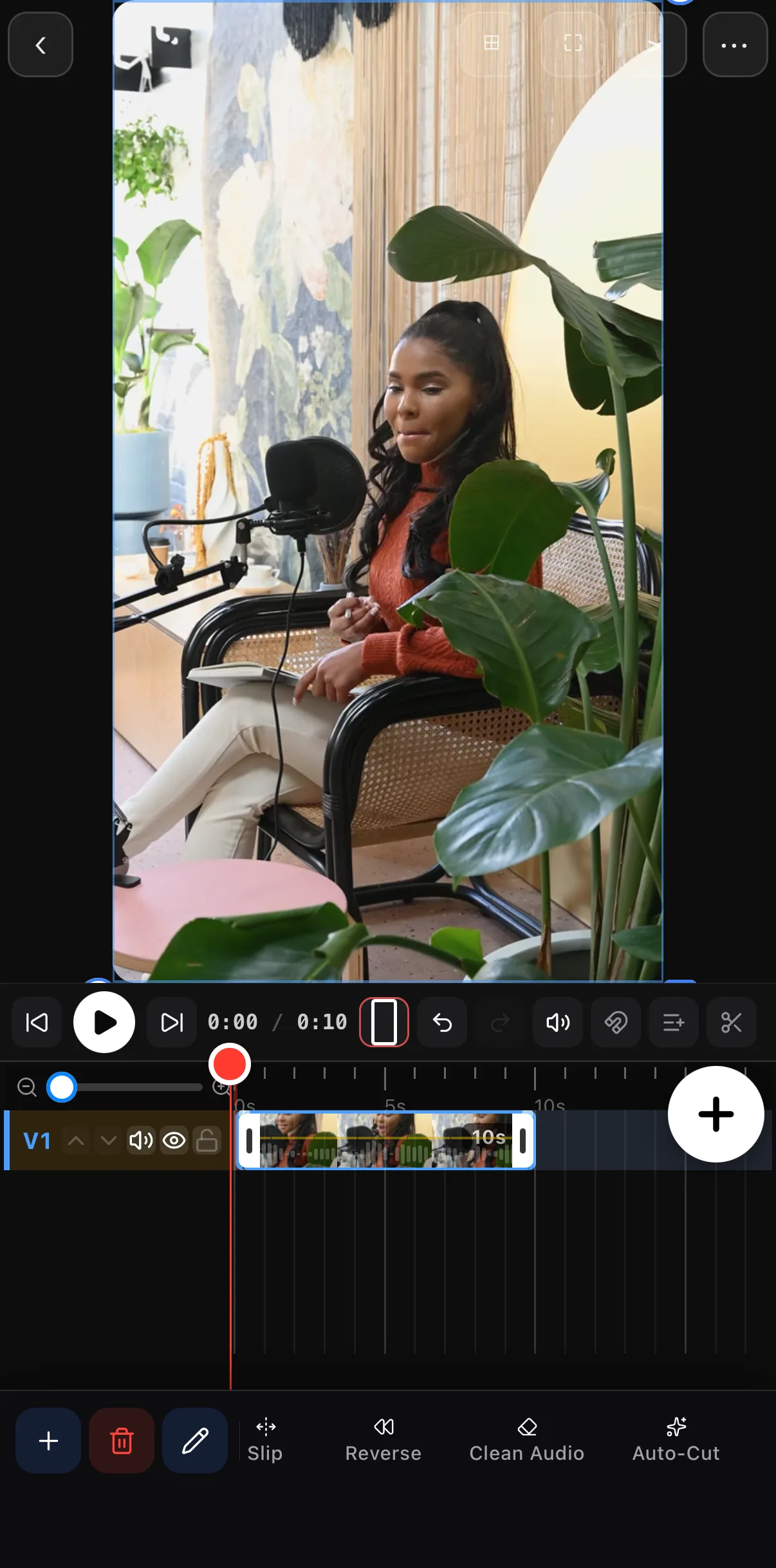 Clean Audio
Auto-Cut
Clean Audio
Auto-Cut
For the full breakdown of stem separation see stem separation & vocal isolation.
Step 2 — Shape it with EQ and dynamics
With the voice clean, tap the audio clip and open Audio FX on its toolbar. The fastest win is the Clean Voice preset — one tap optimizes a voice for clear narration. From there, EQ & Tone lets you roll off low rumble and add a touch of presence so words cut through, while Spatial and Modulation add polish.
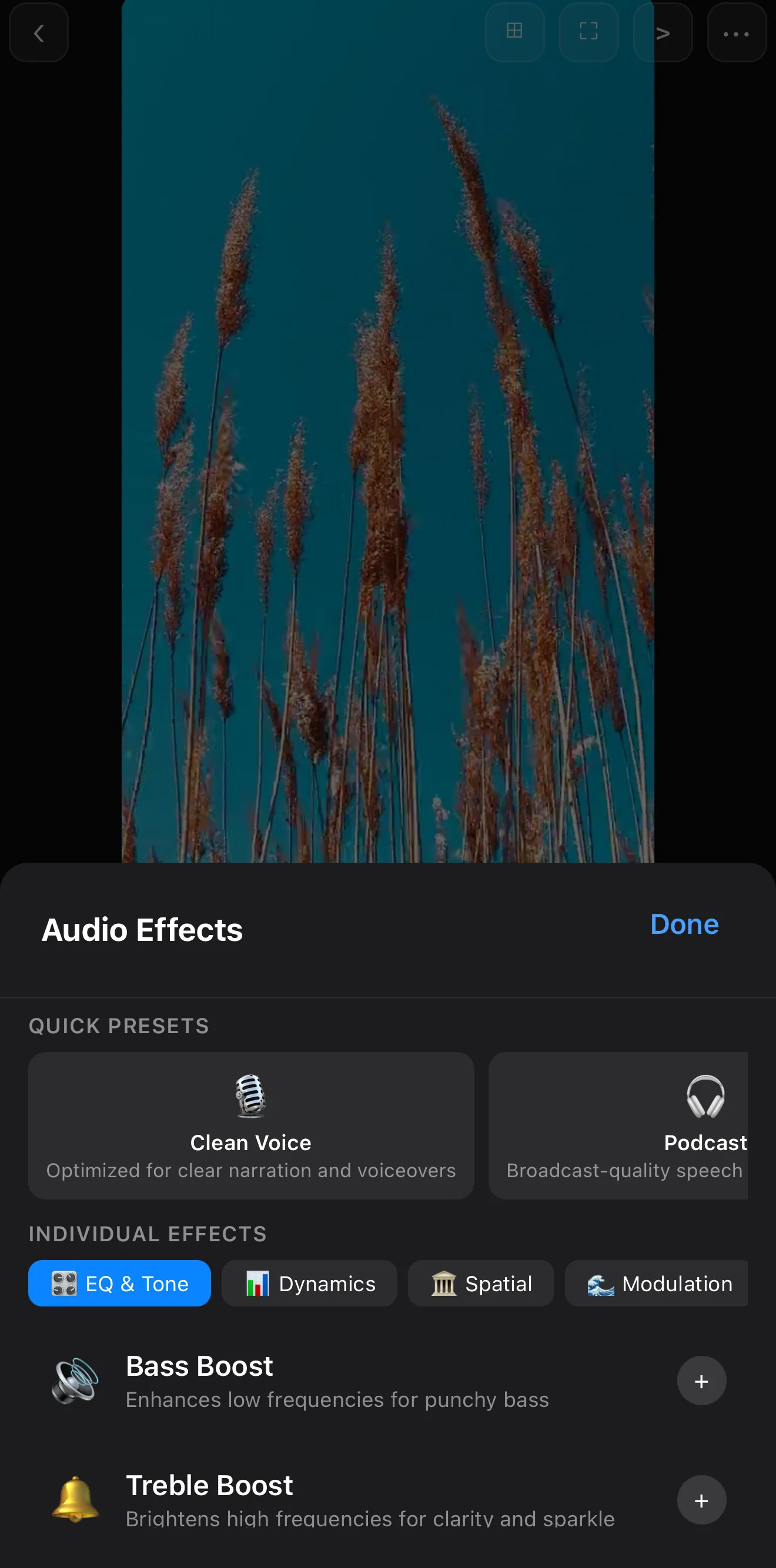 Clean Voice — one-tap cleanup
EQ & Tone · Dynamics · Spatial · Modulation
Clean Voice — one-tap cleanup
EQ & Tone · Dynamics · Spatial · Modulation
Balance the music under the voice. Once the voice is clean, drop the music track’s volume in the talking sections to roughly 30% so it sits underneath, then bring it back up in the gaps. Your voice should always be clearly on top.
Step 3 — Even out the loudness
Here’s the step almost everyone skips. Platforms play everything at a target loudness; if your video is quieter than the feed it feels weak, and if it’s louder it gets turned down (and distorts). In the Dynamics tab, a Compressor evens out a voice that jumps between loud and quiet — “consistent loudness” — and a Limiter stops peaks from exceeding a safe ceiling.
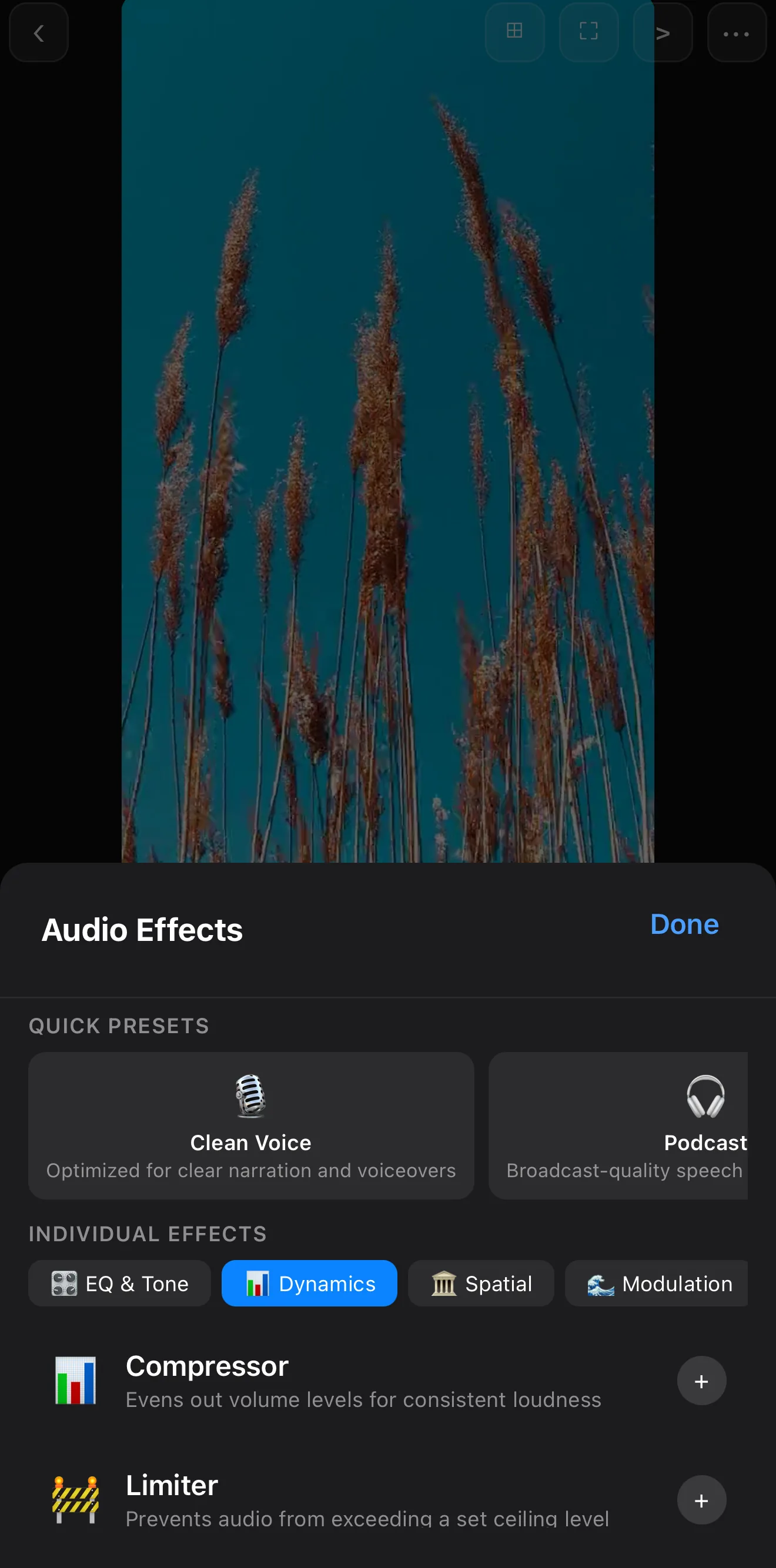 Dynamics
Compressor & Limiter
Dynamics
Compressor & Limiter
- Pull voice out of noise: stem separation & vocal isolation.
- Build the music mix: add music & audio.
- Ship it at the right level: best export settings.
Great audio is invisible — viewers only notice when it’s missing. Isolate, shape, even out, and your video will sound as finished as it looks.
Frequently asked questions
Can I reduce background noise on my phone?
Yes — isolate the voice using stem separation to pull speech away from background noise, then shape what's left with EQ and dynamics. It won't beat a treated studio, but it rescues a lot of real-world audio, all on-device.
How do I make music quieter when someone is talking?
Lower the music's volume in the section where the voice plays — pull it down to roughly 30% so it sits under the speech, then bring it back up in the gaps. Isolating the voice onto its own track first makes this balance much easier to hear.
Why does my video sound quieter than others on Instagram?
Because it isn't evened out to a consistent loudness. Run a compressor and limiter on the voice so it sits at a steady level before export — no surprises when it autoplays next to everything else in the feed.
Related guides
Sound as good as you look
Voice isolation, EQ, dynamics and loudness — clean, consistent audio that survives the feed. Fix the half of video everyone hears.
Get ExpoCut Browse all guides