How to Use Shapes, Masks & Overlays in Video
Shapes and masks are the design layer of video editing — the tools behind clean lower-thirds, spotlight reveals, shaped photo frames and composite effects. Here’s how to use them on your phone, with no design background required.
Quick answer
Shapes: with nothing selected tap Shape, pick from the Basic, Brushes, Layouts, Arrows or Stars tabs, style it in the Shape Style editor (Fill / Outline / Glow, one-tap looks) and it lands on its own S row. Masks: select a clip, tap Edit ▸ Mask, tap a shape in the strip (ellipse, rectangle, star, heart…), then drag the on-canvas handles to move, resize and feather it — Invert flips it inside-out. Only the masked region shows; whatever sits on the row below shows through.
- A mask controls visibility, never deletes footage — the trash icon on the Mask sheet clears it.
- Masks reflect live on the main canvas; there is no separate preview.
- Brushes are 134 hand-drawn strokes that take the same fills and glows as shapes.
Shapes and masks are where video editing becomes design. They’re the tools behind clean lower-thirds, shaped photo frames, spotlight reveals and two-clip composites. They sound advanced — but on a phone they’re just a couple of taps. Here’s how to use them.
Shapes: the graphic building blocks
A shape layer is a graphic element — a rectangle, circle, arrow, star or brush stroke — that lives on its own row like any other layer. Use them for:
- Lower-thirds — a color bar behind a name or caption.
- Color blocks — backdrops that make text pop.
- Badges & dividers — small graphic accents.
- Progress bars & frames — UI-style overlays.
- Hand-drawn marks — circles, underlines, arrows and sparkles from the Brushes tab.
Because they’re layers, shapes animate with keyframes, take colors from your brand palette, and stack with everything else.
Open the catalog
With nothing selected, tap Shape in the bottom bar. The Add Shape catalog opens on Basic — circles, squares, rounded blocks, triangles, polygons, capsules — with Brushes, Layouts, Arrows and Stars in the tabs above.
Pick one
Tap a shape. It drops onto the canvas on its own S row and the Shape Style editor opens straight away.
Style it
Fill takes a flat colour, a blend, a mesh gradient, a pattern, or even a photo or movie; Outline and Glow are one tab over. Or tap a look — Clean, Neon Pink, Rainbow, Sunset — for a finished style in one tap. Done returns you to the canvas, where you drag, pinch and grip it like any layer.
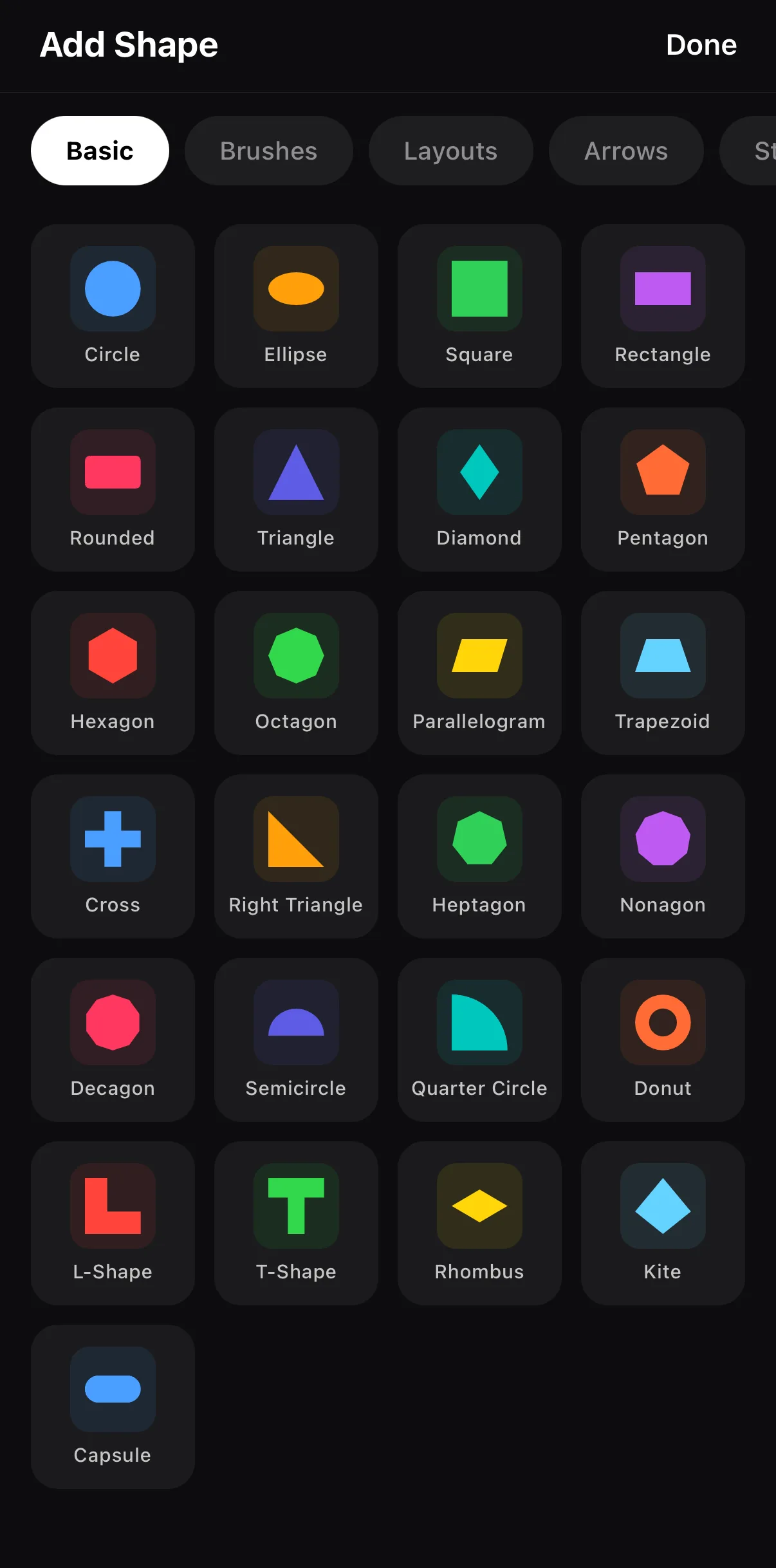 Basic · Brushes · Layouts · Arrows · Stars
25 basic shapes
Basic · Brushes · Layouts · Arrows · Stars
25 basic shapes
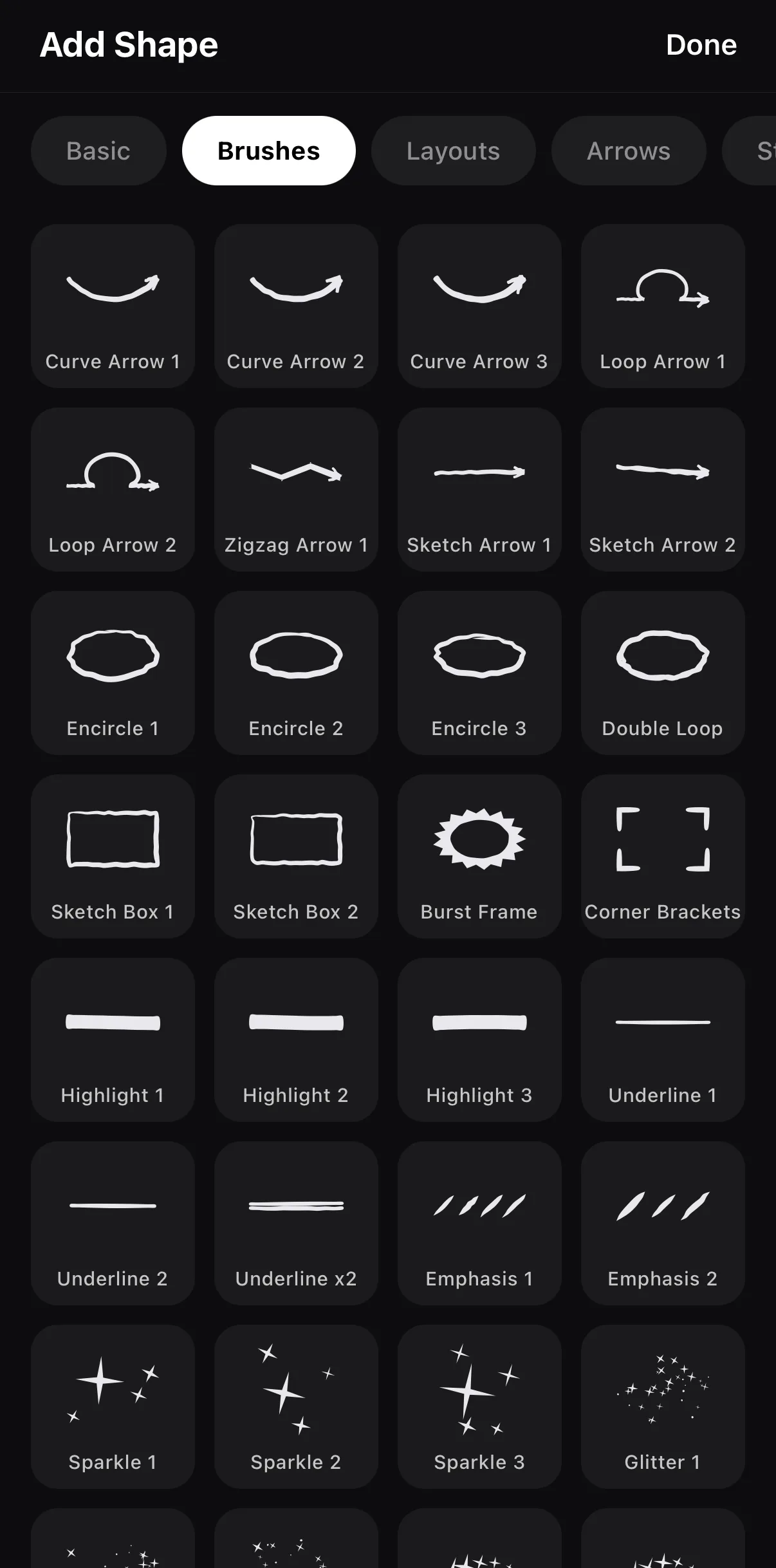 134 procedural brush strokes
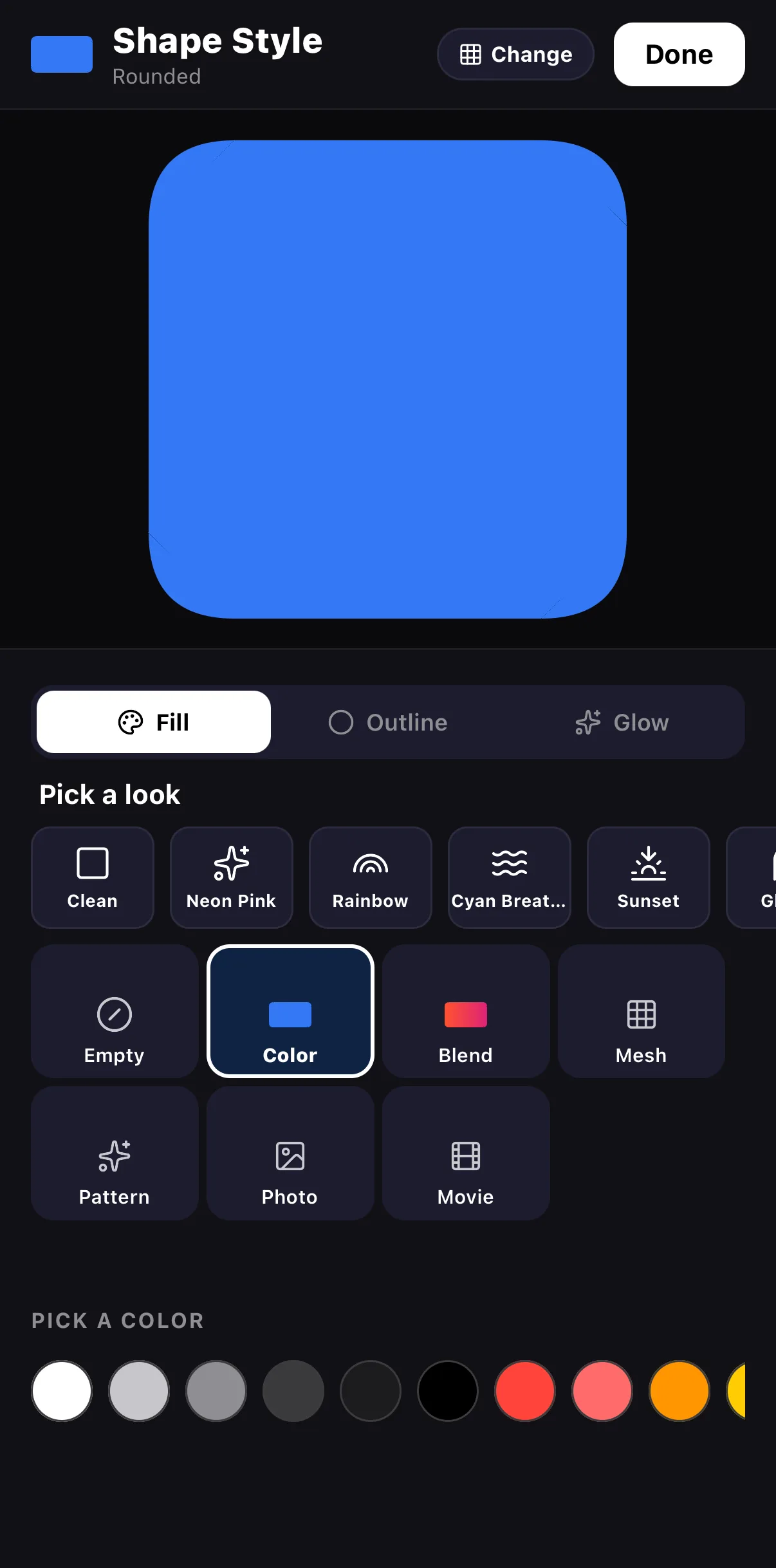 Fill · Outline · Glow
One-tap looks
Fill type
Colour
Fill · Outline · Glow
One-tap looks
Fill type
Colour
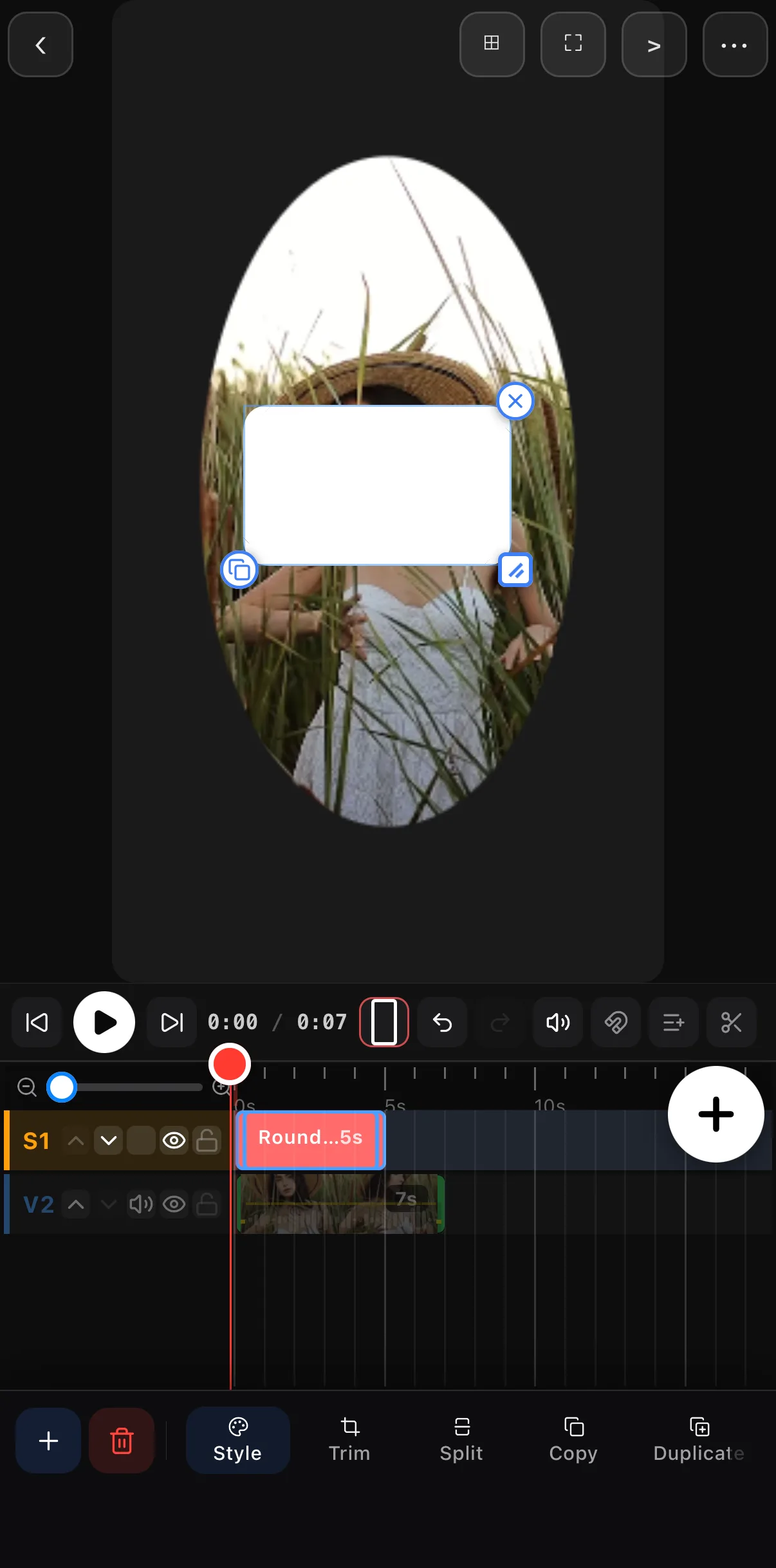 Drag, pinch, grip
Its own S row
Style · Trim · Split · Copy · Duplicate
Drag, pinch, grip
Its own S row
Style · Trim · Split · Copy · Duplicate
Masks: control what’s visible
A mask hides part of a layer based on a shape. The classic uses:
| Mask move | What you get |
|---|---|
| Ellipse / rounded-rect mask on a clip | Footage clipped into that shape — a framed photo or video |
| Linear mask | A soft reveal from one edge |
| Heart / star / triangle | Playful shaped frames |
| Mask + keyframes | Animated wipes and spotlight reveals |
| Invert | Everything except the shape — a vignette or a cut-out window |
Apply an ellipse mask to a clip and only the ellipse shows — everything outside becomes transparent, revealing the layer beneath. That’s the foundation of compositing: stacking two clips and choosing what shows from each.
Select the clip and tap Edit
Tap the clip on the timeline, then the pinned pencil Edit button.
Tap Mask
It’s the second tool on the transform toolbar, right after Opacity. The Mask sheet slides up from the bottom with a strip of shapes.
Pick a shape
Tap the ellipse (or rectangle, triangle, star, heart, cross, diamond…). The mask appears on the canvas with its own handles. Invert flips it inside-out.
Shape it on the canvas
Drag the ↕ and ↔ handles to move the mask, the ⤢ handle to resize it, and the ◎ handle to soften the edge with feather. The ≡ handle opens the mask’s settings. Tap Done.
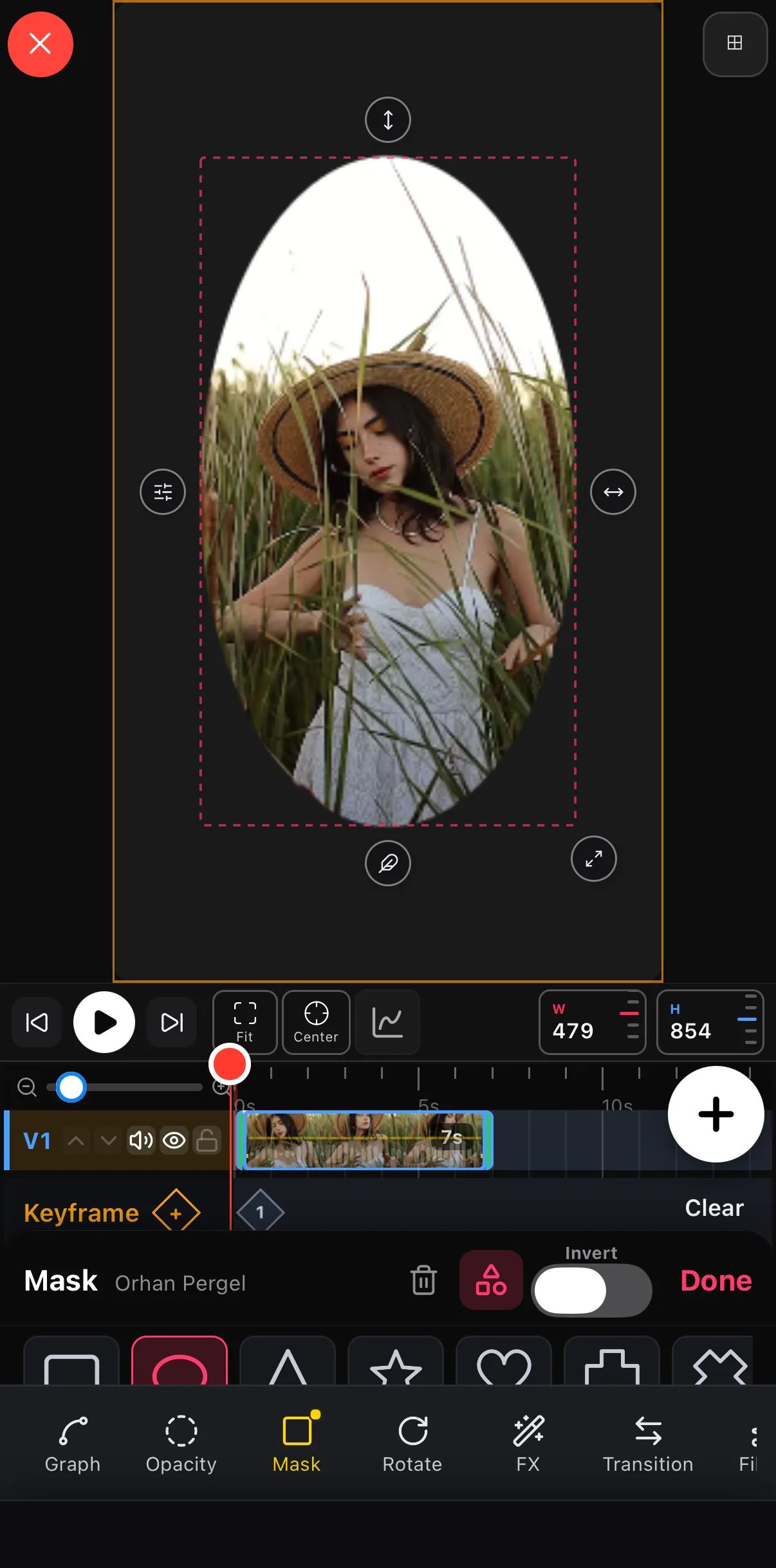 Mask — with a dot once one is set
Delete · Shapes · Invert · Done
Shape strip
Mask — with a dot once one is set
Delete · Shapes · Invert · Done
Shape strip
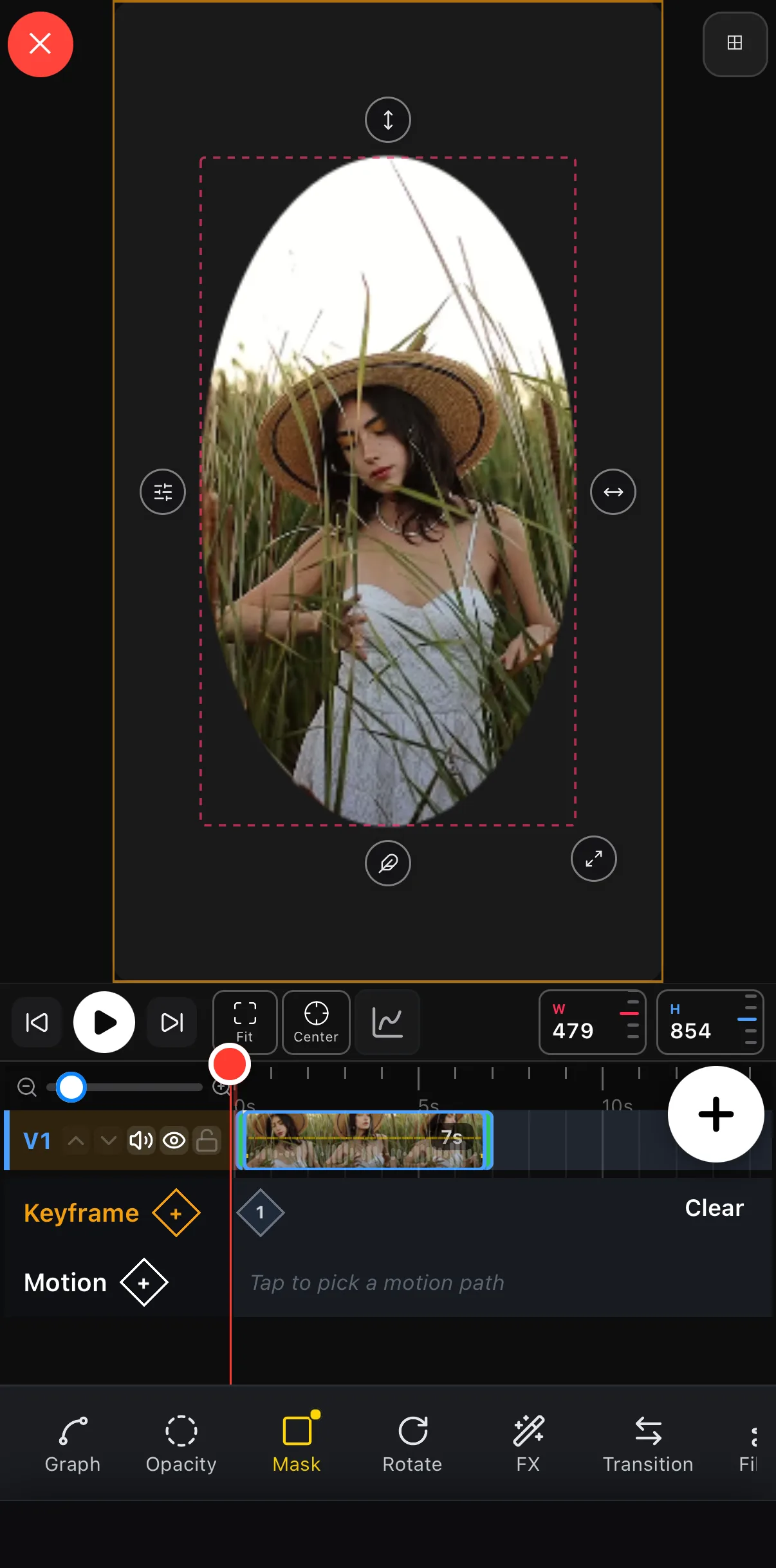 Only the ellipse shows
Resize
Feather
Settings
Only the ellipse shows
Resize
Feather
Settings
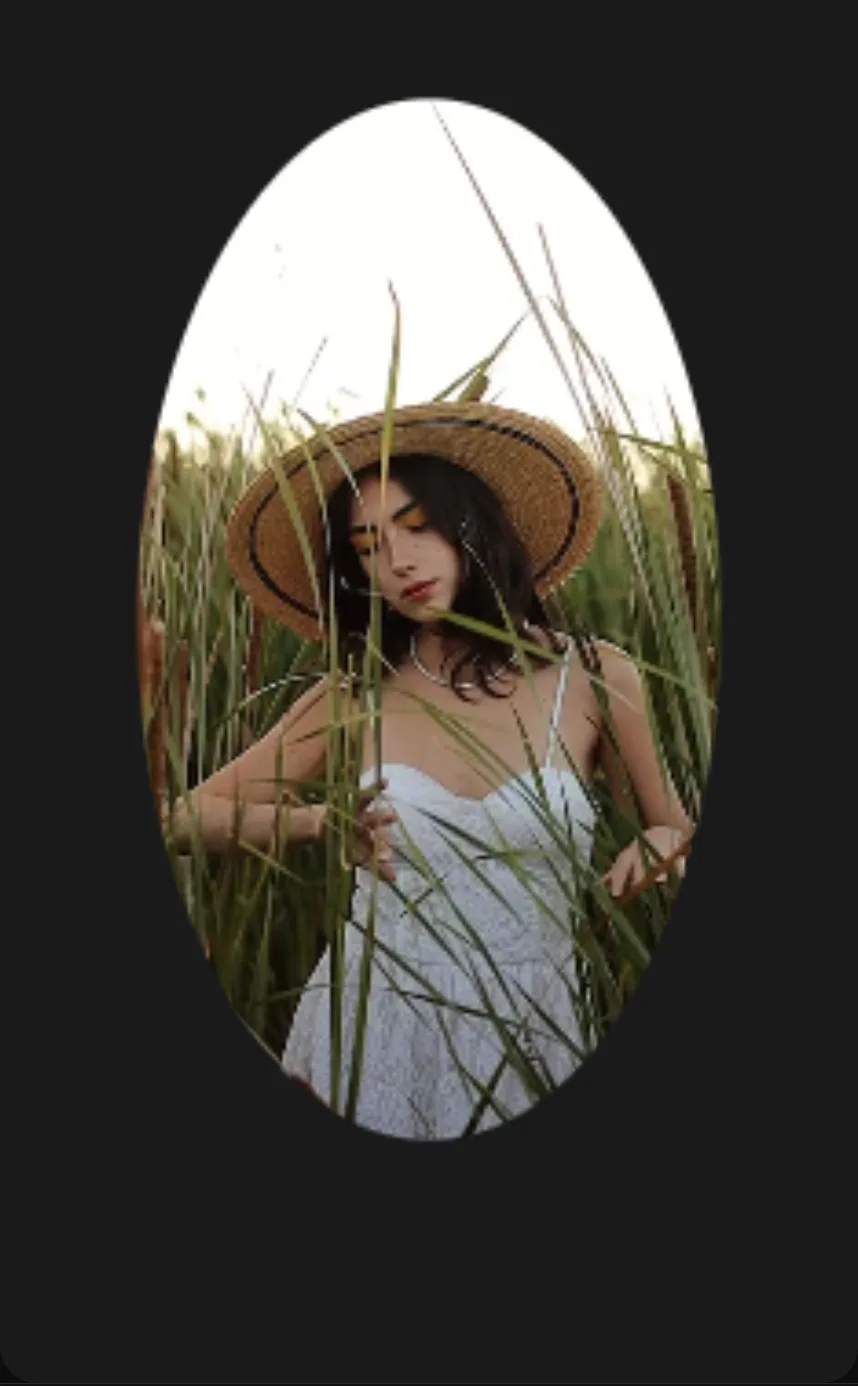
Mask = transparency, not deletion. A mask never harms your footage — it just controls visibility. Adjust or remove it any time (the trash icon on the Mask sheet clears it). That’s why masking is safe to experiment with: you can’t break the clip.
A practical recipe: the framed reveal
Stack two layers
A background (colour, blurred footage, or a shader) on the bottom, your subject clip on top.
Mask the top clip
Apply an ellipse or rounded-rectangle mask to the subject so it sits in a clean frame — then add a rounded shape just behind it for a card look.
Animate it
Keyframe the mask’s size or position for a reveal — the subject grows or slides into frame. See keyframes & motion.
Where to go next
- Animate shapes and masks: keyframes & motion.
- Blur or pixelate inside a region instead of hiding it: blur part of a video.
- Combine with color and effects: video effects guide.
- Use shaders as mask backgrounds: shaders & generative backgrounds.
Shapes and masks turn an editor into a design tool. Start with a lower-third and an ellipse-masked clip — two small wins that immediately make a video look produced.
Frequently asked questions
What is a mask in video editing?
A mask defines which part of a layer is visible. Apply a circle mask to a clip and only the circle shows; everything outside it becomes transparent, revealing the layers below. Masks power shaped frames, spotlight reveals, and compositing two clips together.
How do I put a video inside a shape?
Select the video, tap Edit, then Mask, and pick a shape from the strip — ellipse, rounded rectangle, heart, star, triangle and more. The footage is clipped to that shape, and you drag the on-canvas handles to move, resize and feather it. Position and scale it over a background layer for a framed, designed look.
What are shapes used for in video?
Shape layers create graphic elements — color blocks behind text, lower-third bars, progress bars, badges and dividers. They're the building blocks of clean, branded motion graphics, and they animate like any other layer with keyframes.
Related guides
Design with shapes & masks
Shape layers, a full mask catalog, rotation and cinematic reveals — all on-device with live preview. Add a shape and start compositing.
Get ExpoCut Browse all guides