Text-to-Speech Voiceover on Your Phone (No Mic Needed)
Don’t want to record your own voice? Type the script instead. ExpoCut turns text into a natural on-device voiceover — pick a voice, paste your lines, done.
Quick answer
Tap Text in the bottom bar and choose Text To Voice (it’s also on every audio clip’s toolbar). Type or paste the script (up to 2,000 characters), pick a Voice Agent — Heart, Bella, Emma, Nicole, Fenrir, Michael and more, each labelled by style, accent and gender — tap Download & Generate (a one-time on-device model download), listen to the preview, then tap + Add to Timeline. The narration lands as an audio clip you trim, split and mix like any other.
- Everything is generated on-device — the script never leaves the phone.
- Storyboard splits a long script into segments with pauses and different voices; Advanced Settings sets speed, pitch and sample rate.
- Regenerate re-reads the script with the same settings; + Add to Timeline drops the take on an audio row.
- Voice Clone lives in the Audio tray’s Record tab, not here.
Do it now → Add a text-to-speech voiceover — no mic
Recording a voiceover means a quiet room, a decent mic, and a dozen retakes. Text-to-speech skips all of it: you type the script, pick a voice, and ExpoCut generates clean narration on-device — ideal for faceless channels, explainers, and tutorials.
When text-to-speech wins
- Faceless / explainer videos where you never appear on camera.
- Drafting a voiceover before recording the real one, to lock timing.
- Accessibility — a spoken version of on-screen text.
- No good mic or quiet space right now.
Step 1 — Open Text to Voice
Open Text To Voice
Tap Text in the bottom bar and choose Text To Voice from the fan-out. (Already have an audio clip selected? Text To Voice is on its toolbar too.)
Type or paste your script
Up to 2,000 characters. Write the way people speak — short sentences, natural pauses. Story turns a long script into a Storyboard of segments with breaks and per-segment voices.
Pick a voice and generate
Open the Voice Agent row and choose by style, accent and gender — Heart (warm), Bella (expressive), Emma (broadcast, British), Nicole (clear), Fenrir (energetic), Michael (authority) and more. Advanced Settings holds speed, pitch and sample rate. Tap Download & Generate — the first run fetches the ~60 MB on-device model — then play the Preview.
Add it to the timeline
Happy with the read? Tap + Add to Timeline. Not quite? Regenerate. The narration lands as an audio clip on its own row at the bottom of the timeline.
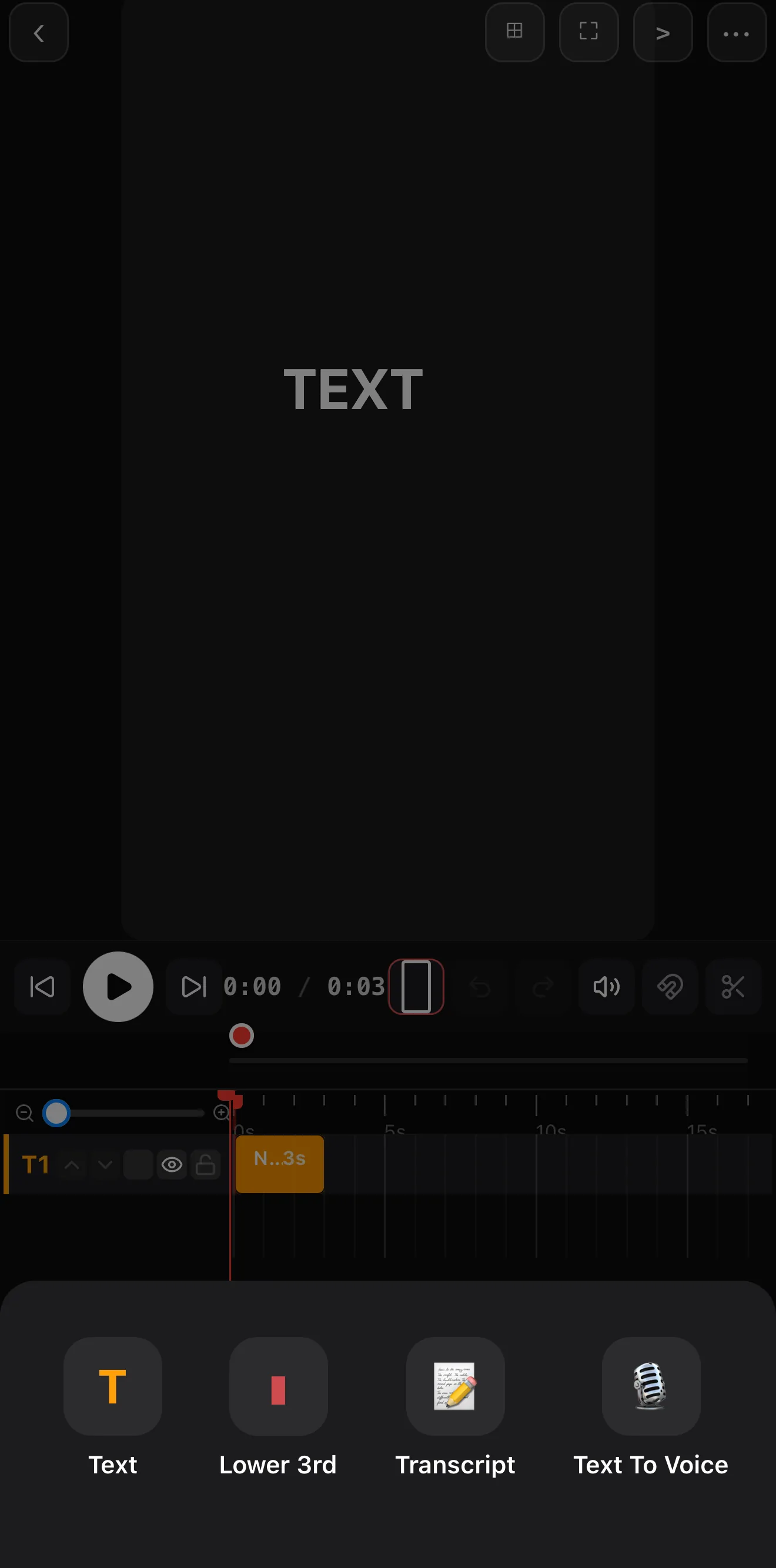 Text ▸ Text To Voice
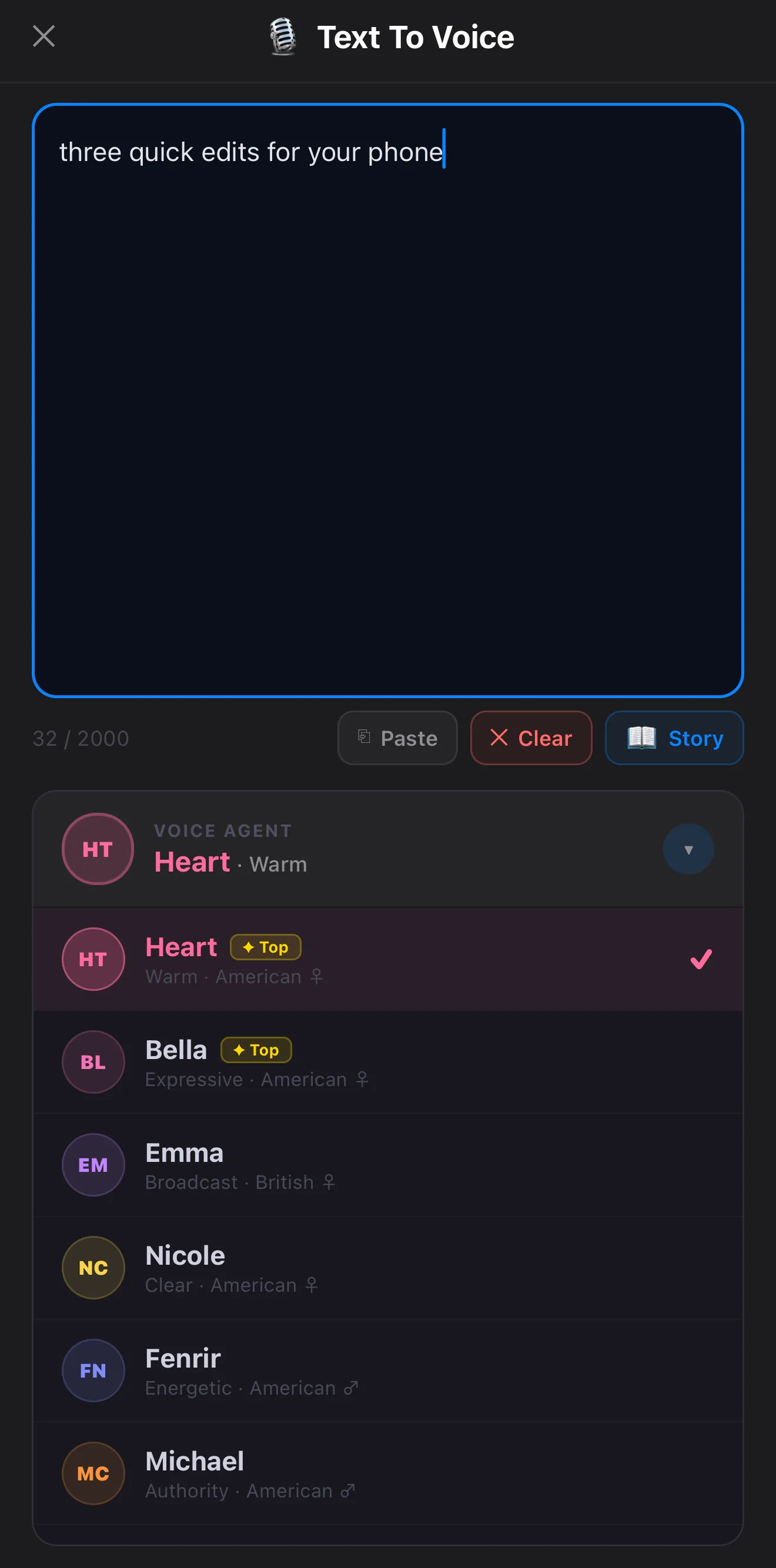 Type or paste — up to 2,000 characters
Pick a voice — style · accent · gender
Type or paste — up to 2,000 characters
Pick a voice — style · accent · gender
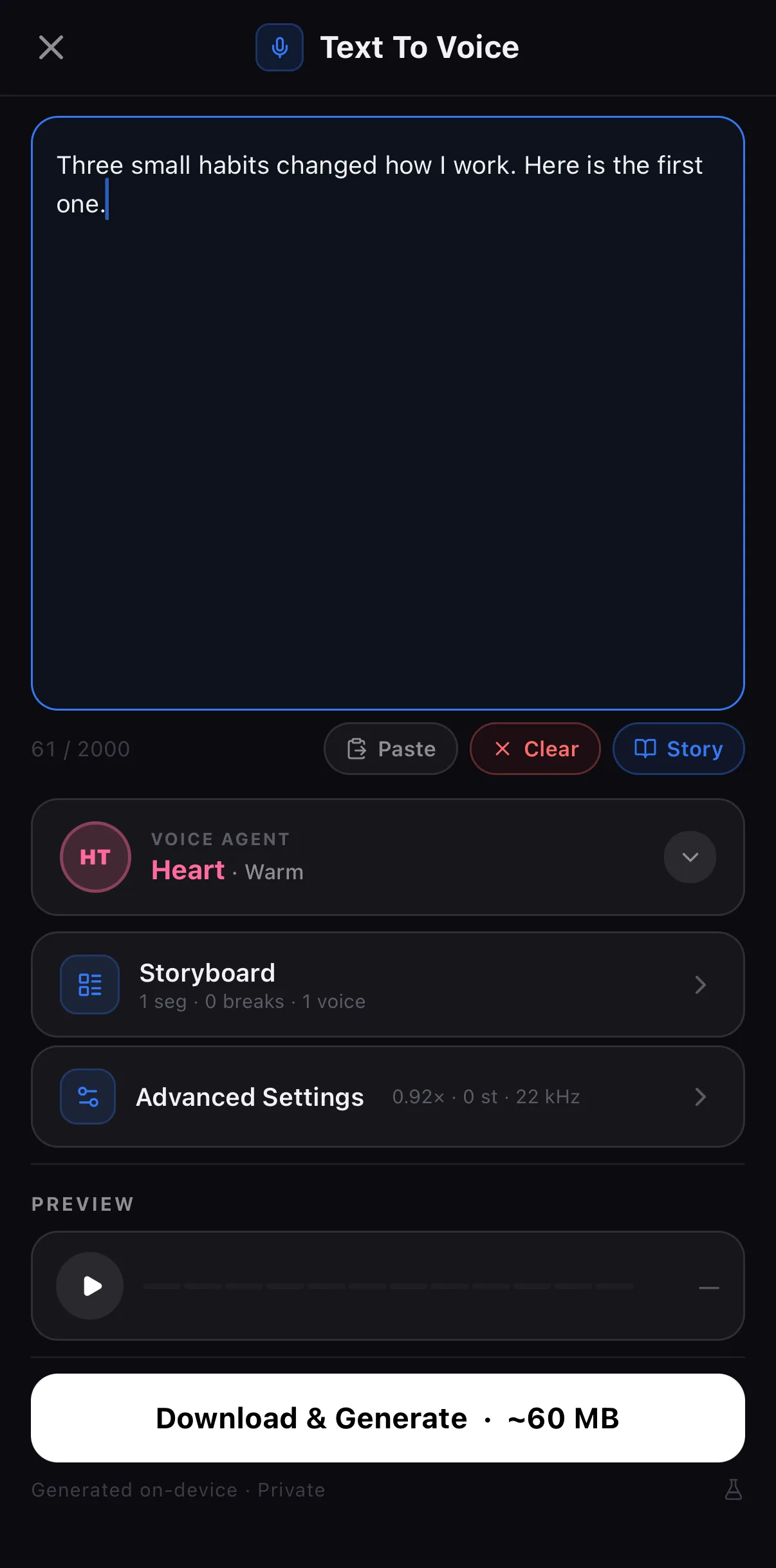 Storyboard — segments, breaks, voices
Speed · pitch · sample rate
Download & Generate
Storyboard — segments, breaks, voices
Speed · pitch · sample rate
Download & Generate
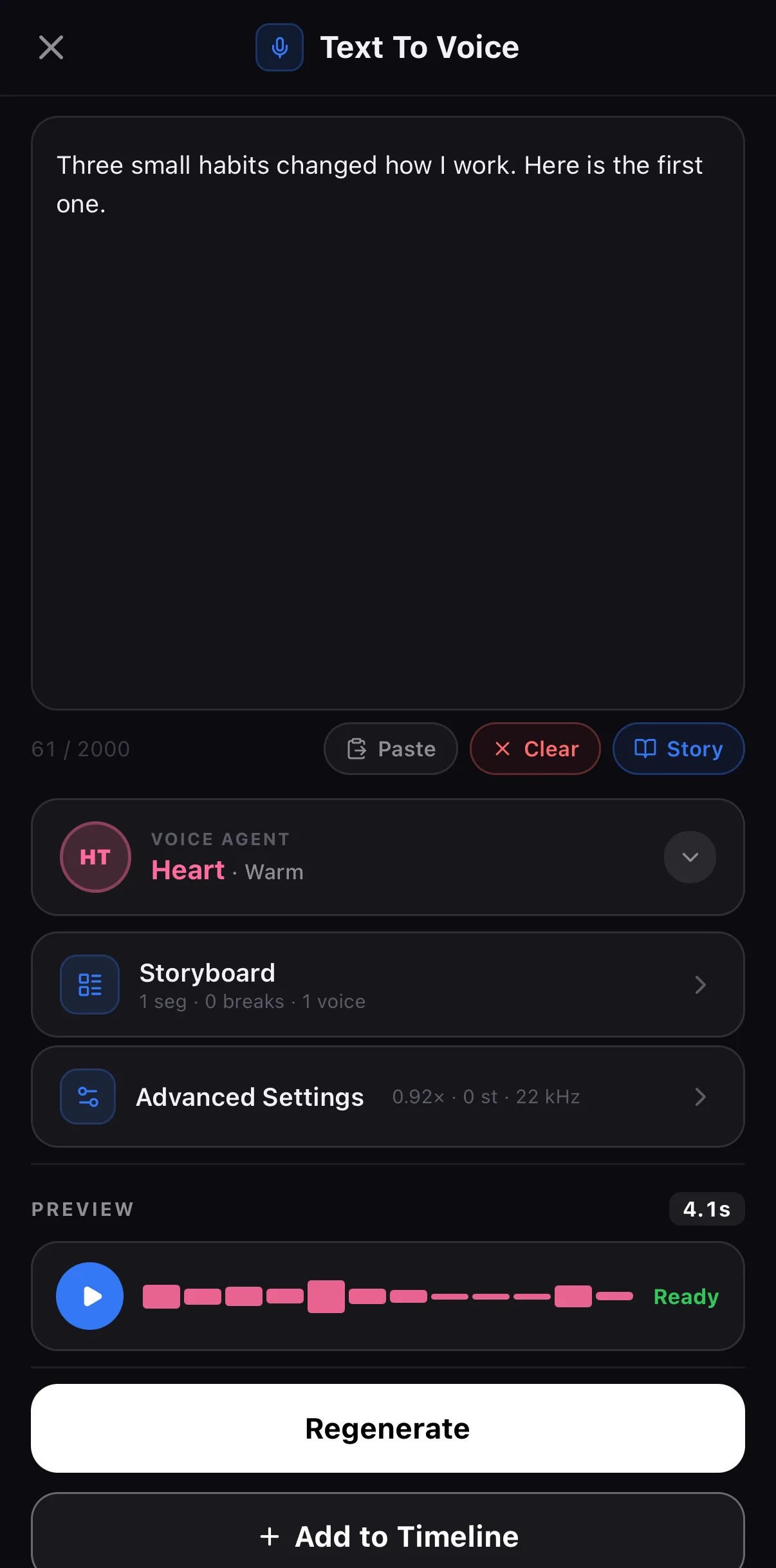 Preview the take
Regenerate
+ Add to Timeline
Preview the take
Regenerate
+ Add to Timeline
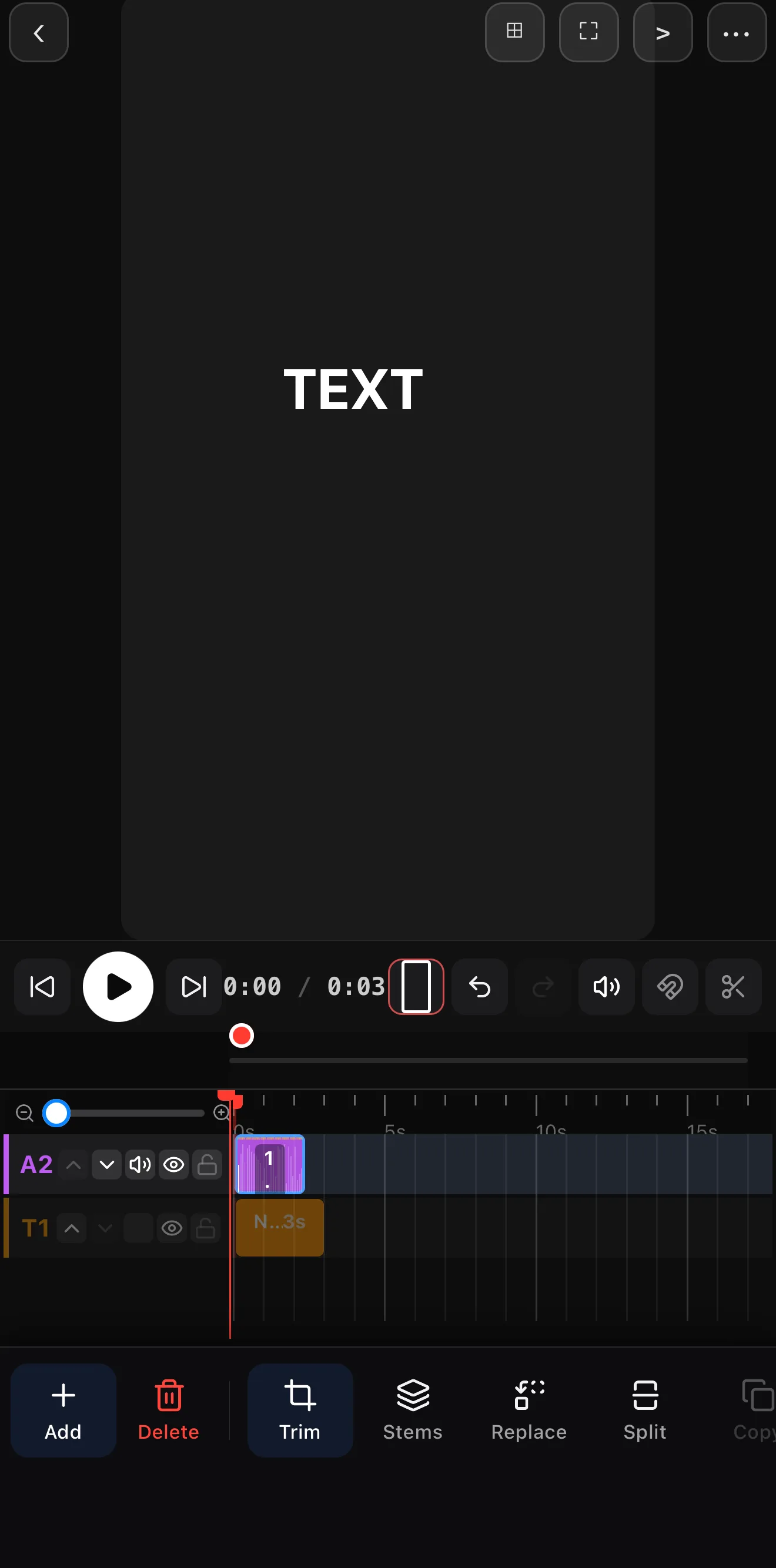 The take on its own audio row (A2)
Slip · Volume · Audio FX · Sync · Text To Voice
The take on its own audio row (A2)
Slip · Volume · Audio FX · Sync · Text To Voice
Step 3 — Mix it forward
Narration has to sit on top of the music. Add your music bed first, then duck it under the voice so the words are always clear — the same mixing move covered in the audio guide. Put the words on screen as titles so muted viewers can read along too.
Writing for the ear
- One idea per sentence. Long sentences trip up any voice — human or synthetic.
- Punctuate for pauses: commas and periods become breaths.
- Read it aloud yourself first. If you stumble, so will the voice.
Where to go next
- Ship it right: best export settings.
- Build the full mix: add music & audio.
- Put words on screen too: animated text & titles.
Type, pick a voice, narrate — and never let “I don’t like my voice” stop you from shipping a video again.
Frequently asked questions
How do I add a text-to-speech voiceover to a video?
Open the Text tool, choose Text To Voice, type or paste your script, and pick a voice by accent and gender. ExpoCut generates the narration on-device and drops it onto the timeline as an audio layer you can trim and mix like any other clip.
Does the voiceover sound robotic?
The voices are neural and natural-sounding. Write the way people talk — short sentences, commas where you'd pause — and the delivery reads smoothly. You can regenerate with a different voice if one doesn't fit the vibe.
Is my script private?
Yes. Text-to-speech runs on-device, so your script text never leaves the phone and it works offline.
Related guides
Narrate without a mic
Type your script, pick a voice, and ExpoCut speaks it — on-device, private, no recording. Perfect for faceless and explainer videos.
Get ExpoCut Browse all guides