How to Add a Countdown Timer to a Video
A ticking countdown creates urgency like nothing else — for a drop, a giveaway, or a ‘starts in 5.’ ExpoCut has a real countdown widget you drop on the canvas and style. Here’s how.
Quick answer
To add a countdown timer in ExpoCut: tap Widget in the bottom bar, choose Countdown Timer, and in the Clock Widget editor keep Countdown mode (Live Clock and Stopwatch are the alternatives), pick a Display Format (HH:MM:SS, HH:MM, MM:SS, MM:SS.ms) and type the Countdown Duration in days, hours, minutes and seconds. The Style tab has presets (Dark Minimal, Neon Blue, Broadcast, Sports, Cinema Gold) plus text, background, border and badge colours; Glow is optional. Tap Apply Changes — the timer lands as a 10-second layer you can drag, trim and restyle, and it ticks with playback.
- Countdown Timer, Live Clock and Stopwatch are three modes of the same Clock Widget.
- Set format and duration on the Mode tab; presets and colours on Style; Glow on its own tab.
- The timer is a layer with a 10 s clip — extend the clip to match how long the countdown should run.
- Cinema Gold / Broadcast / Sports presets give a broadcast look in one tap; keep it clear of the action.
- Stopwatch counts up from zero with playback — use it for workouts and intervals.
Nothing drives action like a clock running out. A countdown timer turns a passive viewer into someone who acts now — and ExpoCut has a real one you drop straight onto the canvas, no animation required.
Where a countdown earns its keep
- Sales & launches — “Offer ends in 02:59.”
- Giveaways — a timer that builds suspense to the reveal.
- “Starting soon” screens for streams and premieres.
- Workouts & challenges — interval and rest timers.
- Recipes & tutorials — real-time step timers.
Step 1 — Drop in the widget
Tap Widget ▸ Countdown Timer
Widget in the bottom bar opens the catalog; Countdown Timer is in the Clock group.
Pick the mode, format and duration
Countdown ticks down to zero; Stopwatch counts up; Live Clock shows the wall clock. Choose a display format and type the duration.
Style it, apply, place it
Pick a Style preset, tap Apply Changes, then drag the timer where you want it on the canvas.
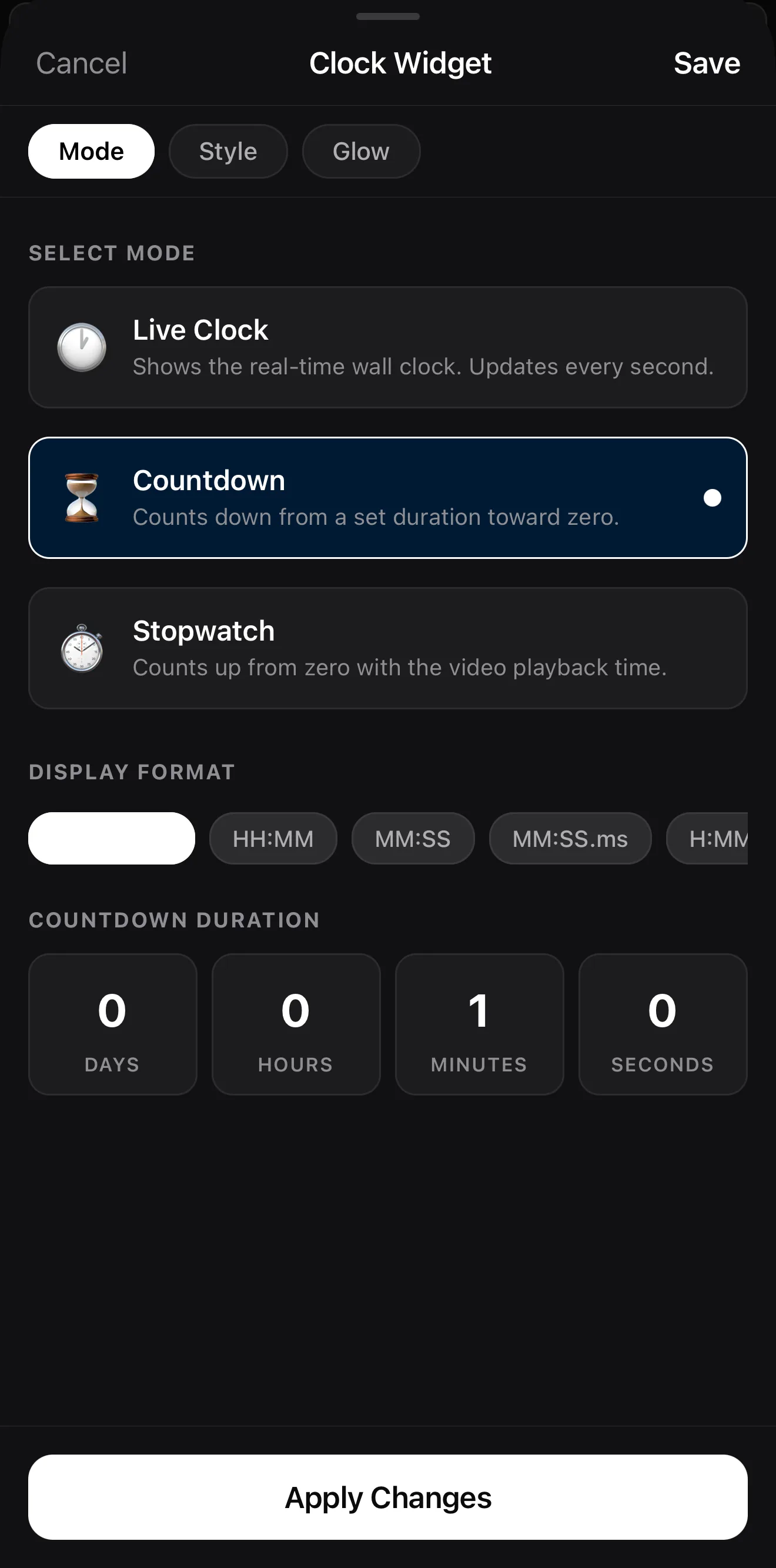 Mode · Style · Glow
Countdown mode
Display format — HH:MM:SS · HH:MM · MM:SS · MM:SS.ms
Dial in any duration — days, hours, minutes, seconds
Mode · Style · Glow
Countdown mode
Display format — HH:MM:SS · HH:MM · MM:SS · MM:SS.ms
Dial in any duration — days, hours, minutes, seconds
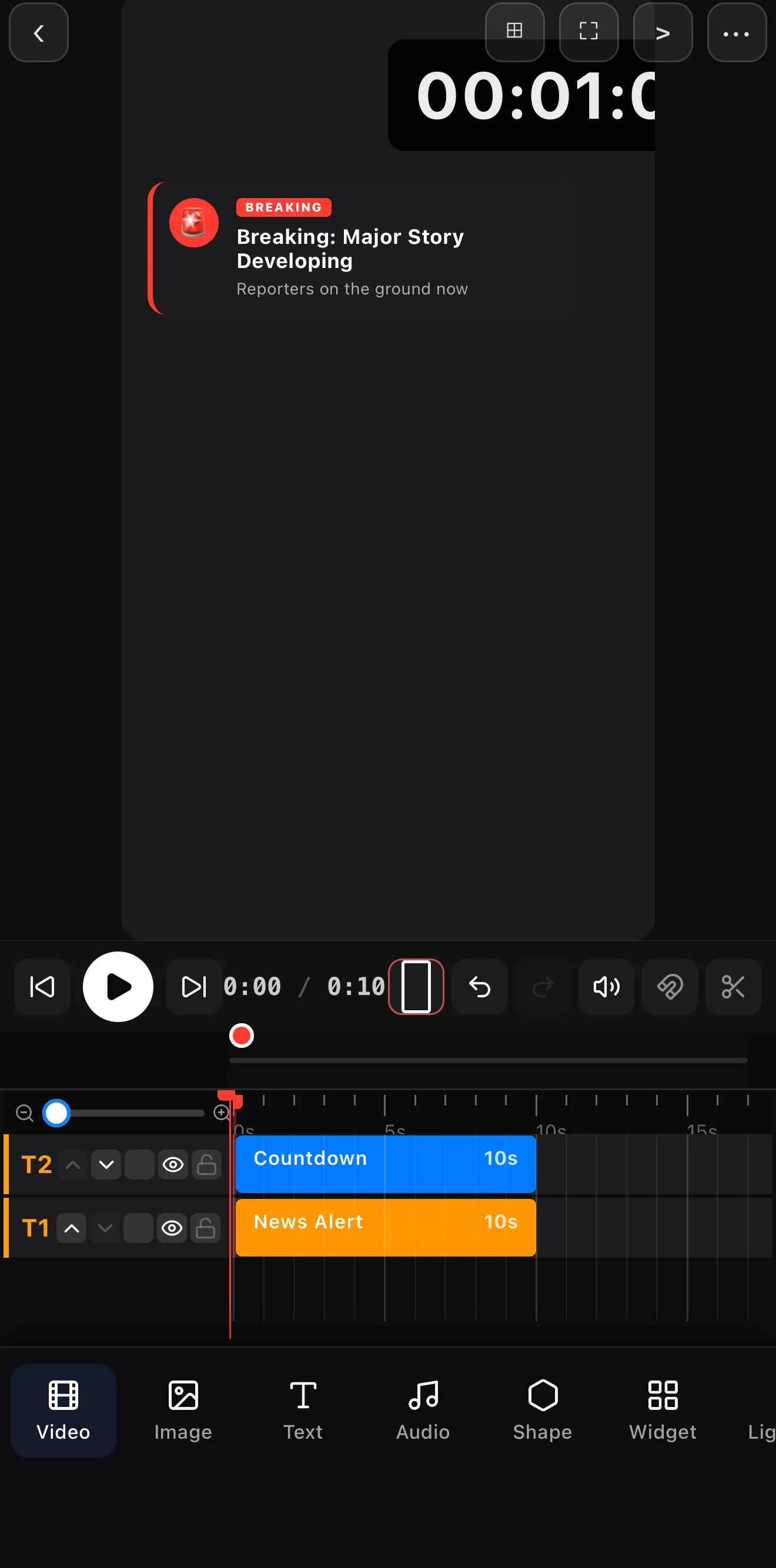 The countdown on the canvas, styled Cinema Gold
Countdown clip on T1 — ticks with playback
The countdown on the canvas, styled Cinema Gold
Countdown clip on T1 — ticks with playback
Step 2 — Style it to match
The timer is a first-class layer, so make it yours: set the number color and size, pick a position clear of the main action, and keep it readable over busy footage with a subtle shade or background.
Put it in the safe zone. On 9:16, keep the timer out of the very bottom (platform buttons) and away from faces. Top-center or upper-corner reads cleanly.
Step 3 — Build the moment around it
A countdown is the star of a “starting soon” or “sale” screen. Pair it with a title (“Doors close at 0:00”), a generative background, and music that builds. When the clock hits zero, cut or transition straight into the payoff.
Where to go next
- More on-screen data: scoreboard, poll & data widgets.
- Make a hype background: generative backgrounds & shaders.
- Title the offer: text & titles.
Drop the clock, style it, build the moment — and let the ticking do the persuading.
Frequently asked questions
How do I add a countdown timer to a video?
Add a Countdown widget from the Add menu, set its duration, and place it on the canvas. It ticks down in real time as the video plays, and you can style the numbers, color, and position like any other layer.
What's a countdown good for?
Urgency and structure: sale and launch countdowns, giveaway timers, 'starting soon' screens for streams, workout intervals, recipe timers, and challenge clocks. There's a stopwatch too for counting up.
Can I style the timer?
Yes — color, size, and position are all adjustable, so the timer matches your brand and sits exactly where you want it without covering the action.
Related guides
Add urgency with a ticking clock
A real countdown (or stopwatch) widget you drop on the canvas and style — for launches, giveaways and 'starting soon' screens. Make them watch the clock.
Get ExpoCut Browse all guides