How to Add Music & Audio to a Video (the Right Way)
Audio is half your video — and the half most people get wrong. Here’s how to add music to a video on your phone, sync it to your cut, and mix it so the music supports your message instead of burying it.
Quick answer
With nothing selected tap Audio in the bottom bar. The Audio tray opens on Explore — a searchable library of music and sound effects with category chips (Music, Ambient, Cinematic, Electronic…) — beside Record (voice, plus Voice Clone), Import (a file from your phone) and URL. Preview a track with ▶ and tap Add; it lands on its own audio row at the bottom of the timeline. Then drag it to line the beat up with your cut, drag the pins on its top corners for a fade in / out, and use Volume and Audio FX on its toolbar to set the level and clean it up.
- Audio always lands on the bottom rows; video and text sit above it.
- Fades are the small pins on the clip’s top corners — drag them inward.
- Audio FX has one-tap presets (Clean Voice, Podcast) and EQ, Dynamics, Spatial and Modulation effects.
- Beats on the toolbar marks the drums; Sync and Auto-Cut do the tedious alignment work.
Music sets the mood of a video more than any single visual choice — and bad audio makes a beautiful edit unwatchable. Here’s how to add music and sound to a video on your phone, sync it to your cut, and mix it so it sounds intentional.
Audio is just another layer
Like video and text, audio lives on its own track on the timeline. You drag it in time to sync it, trim it to length, and control its volume independently. (New to layers? See the mobile video editor guide.)
Step 1 — Add a track
Open the Audio tray
With nothing selected, tap Audio in the bottom bar. The tray opens on Explore — a searchable library of music and sound effects — with Record, Import (a file from your phone) and URL tabs beside it.
Pick a track
Tap a category chip — Music for melodies, or Ambient, Cinematic, Electronic and the sound-effect tags — press ▶ to preview, then tap Add. The track lands on its own audio row at the bottom of the timeline.
Line up the beat
Drag the track left or right so a beat or drop lands on your cut or a key moment. Cutting on the beat is the single biggest upgrade to any edit.
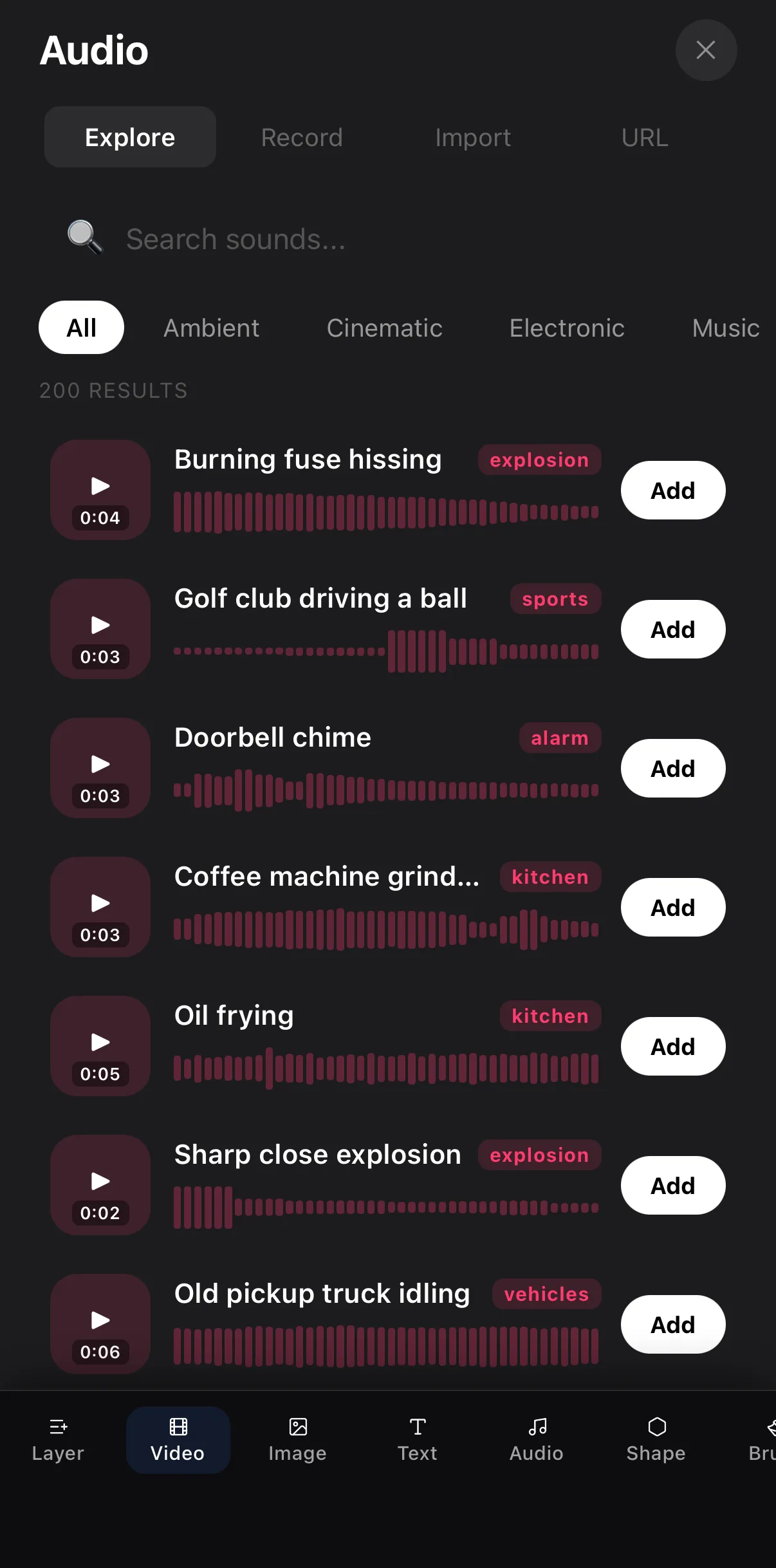 Explore · Record · Import · URL
Categories
Tap Add
Explore · Record · Import · URL
Categories
Tap Add
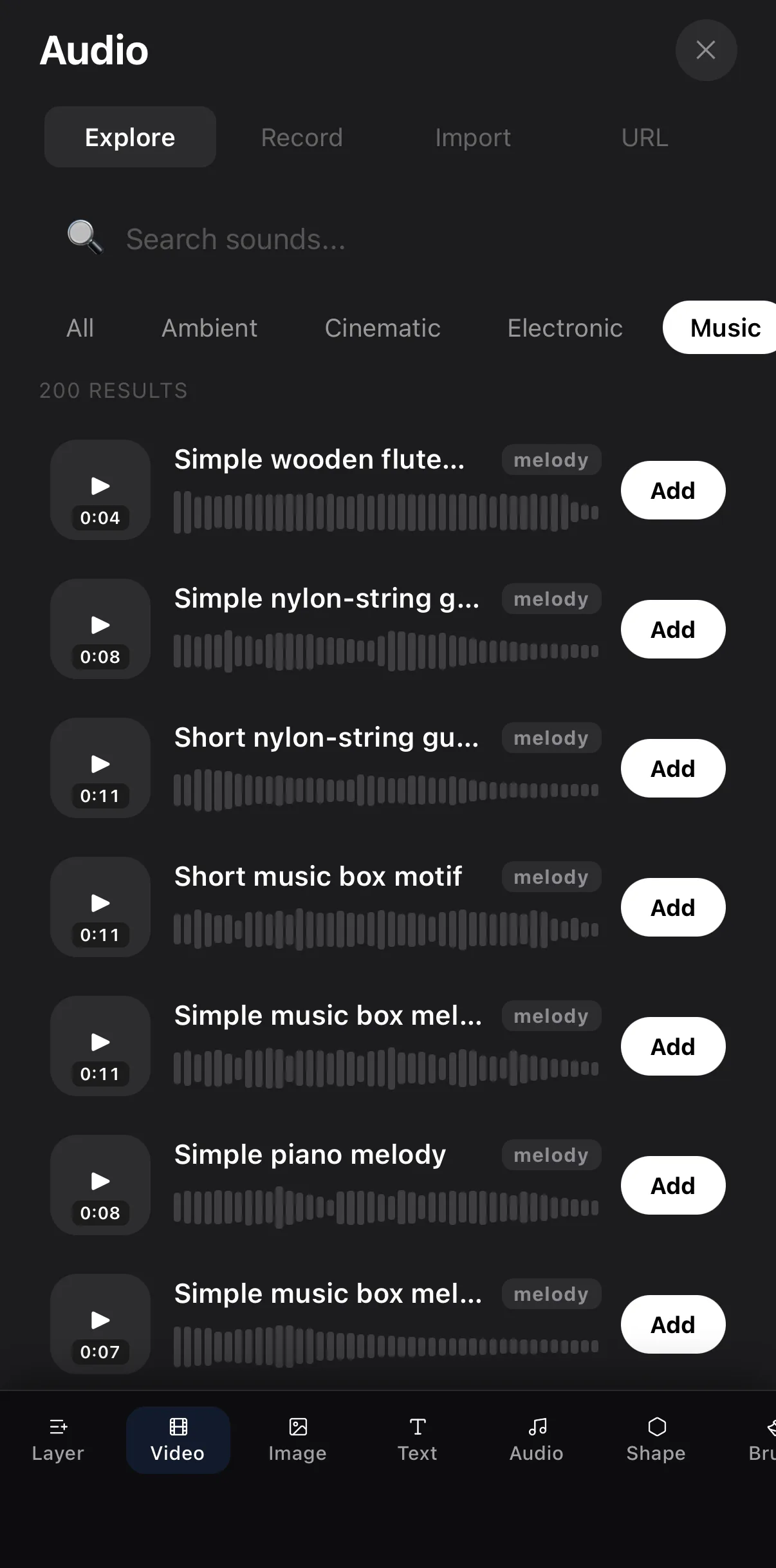 Music
Music
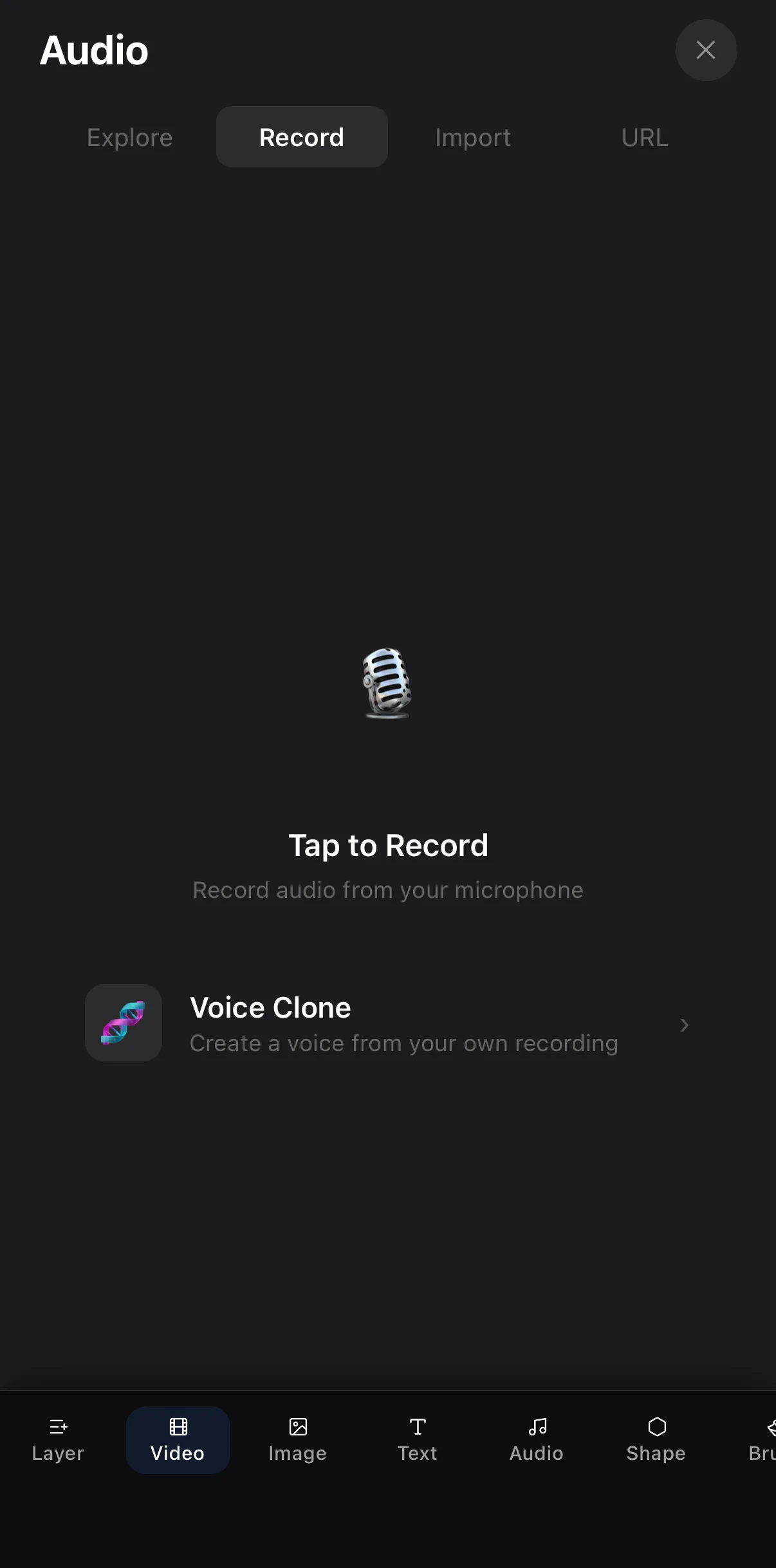 Tap to Record
Voice Clone
Tap to Record
Voice Clone
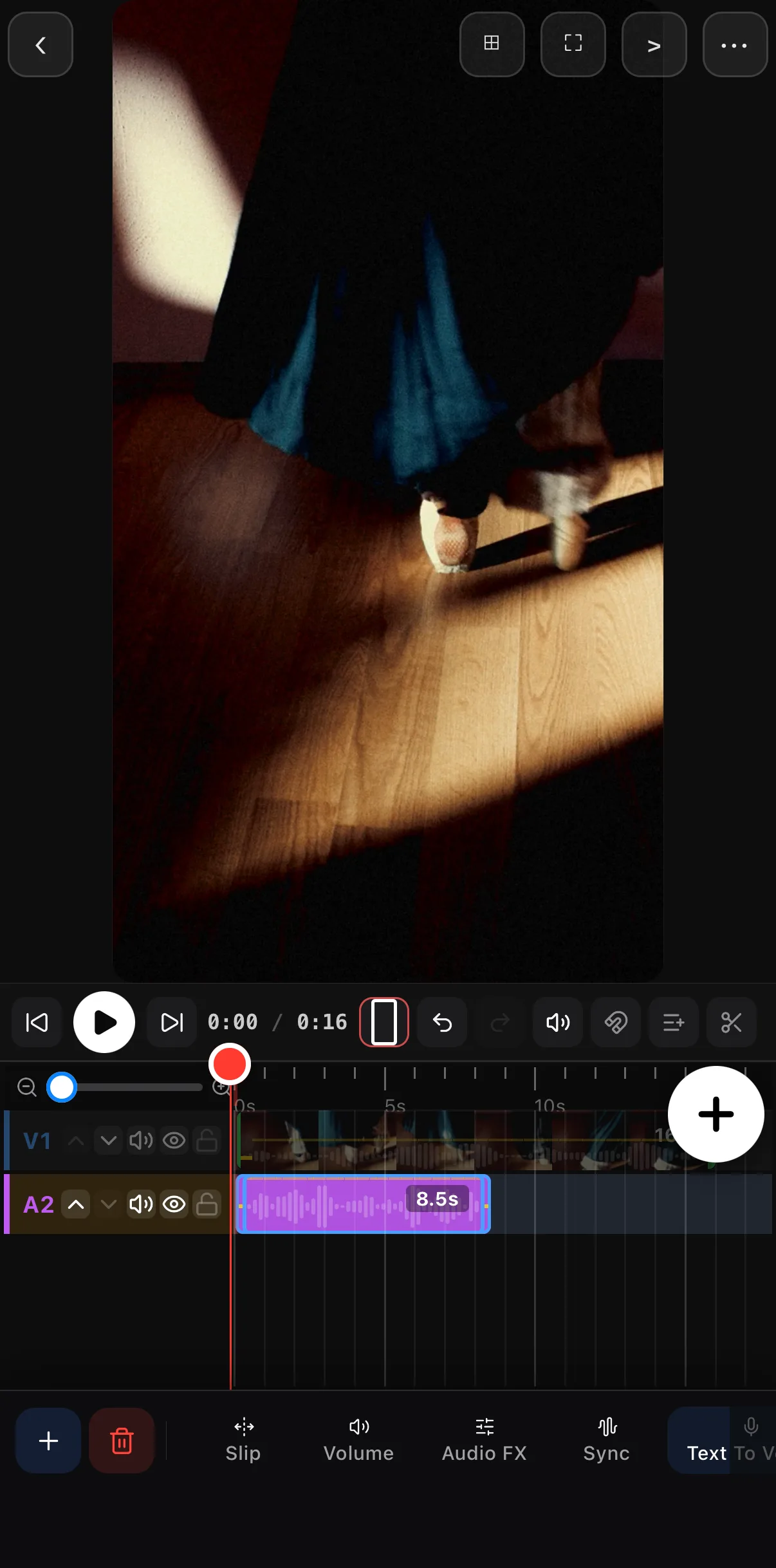 Music on its own row, at the bottom
Volume · Audio FX · Sync
Music on its own row, at the bottom
Volume · Audio FX · Sync
Hard audio cuts sound abrupt and amateur. With the clip selected, drag the small pins on its top corners inward — the left pin sets the fade in, the right pin the fade out — so the music eases in and out. Even a half-second fade makes a clip feel finished.
Step 3 — Balance the mix
If you have both music and speech, the words win:
- Set the level with Volume on the clip’s toolbar; duck the music under any voiceover — drop it well below the voice so it’s a bed, not competition.
- Avoid clipping — keep levels below the point where audio distorts.
- Match energy — a calm clip wants a calm track; don’t fight your footage.
Watch the silent test. Most of social plays muted first, then unmutes if hooked. So your visuals and captions must work silent, and your audio must reward the unmute. Design for both.
Beyond music: effects and voice
A full mobile editor gives you more than a soundtrack. Tap Audio FX on any audio clip for one-tap presets (Clean Voice, Podcast) and individual EQ & Tone, Dynamics, Spatial and Modulation effects; Beats marks the drum hits on the waveform, Sync lines a clip up to another, and Clean Audio / Auto-Cut fix noise and silences. Add a voiceover from the Record tab or text-to-speech, or layer a subtle whoosh on a transition and a riser before a reveal — your edit gains polish instantly.
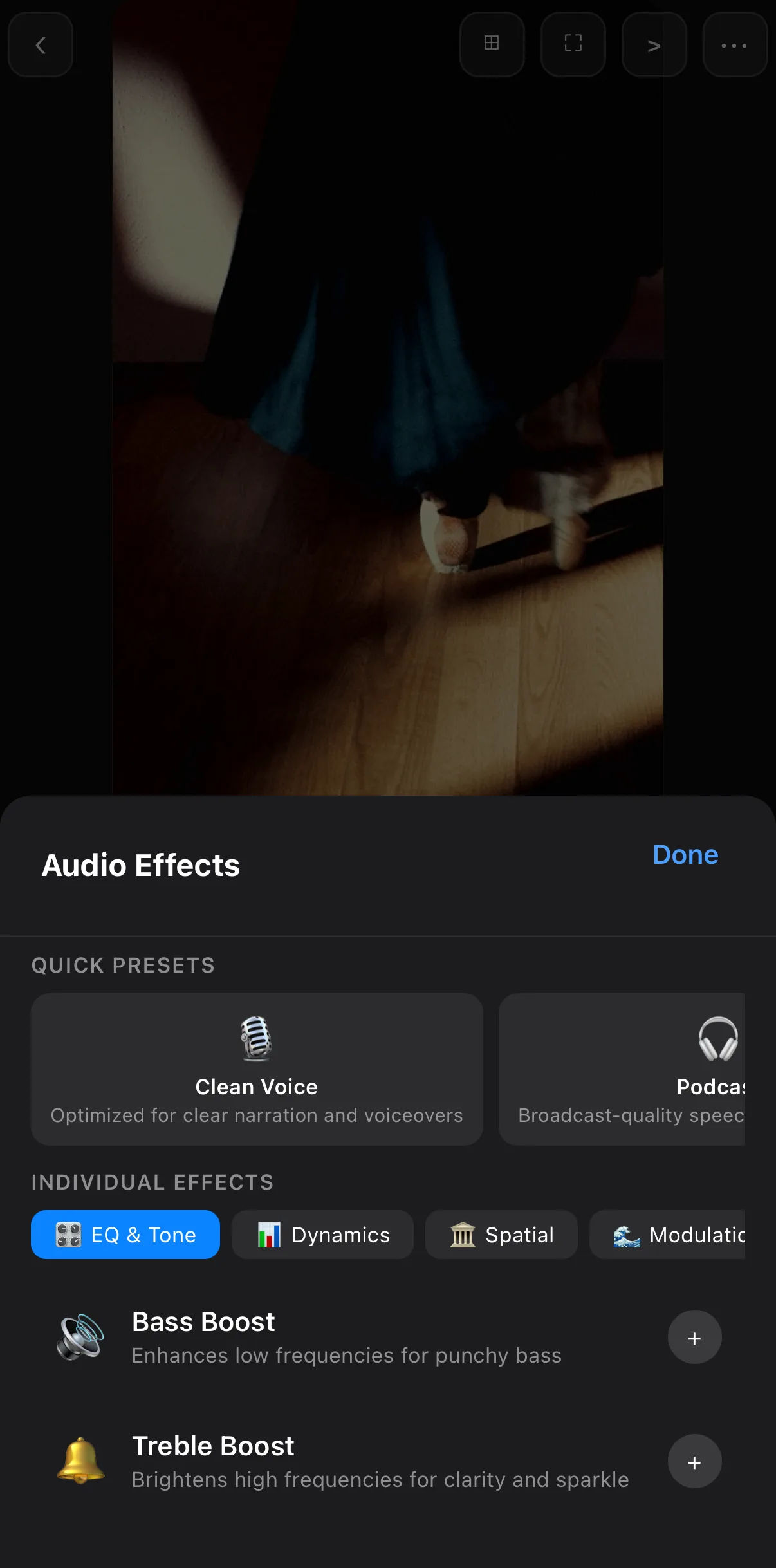 One-tap presets
EQ & Tone · Dynamics · Spatial · Modulation
One-tap presets
EQ & Tone · Dynamics · Spatial · Modulation
Where to go next
- Add music in a full first edit: Make Your First Video.
- Cut on the drums: edit video to the beat.
- Fix noisy or uneven audio: clean up video audio.
- Sync visuals to the beat with keyframes & motion.
- The full edit context: mobile video editor guide.
Good audio is invisible — viewers just feel that the video is “professional.” Sync to the beat, fade the edges, balance the levels, and yours will too.
Frequently asked questions
How do I add music to a video on my phone?
Tap the music/audio tool in the bottom toolbar, pick a track from the built-in library or your phone, and it lands on its own audio layer beneath your video. Drag it to line the beat up with your cut, then add a fade in and fade out so it eases in and out cleanly.
How do I make music quieter under a voiceover?
Lower the music layer's volume under any speech — a technique called ducking. Aim for the music to sit roughly 15–20 dB below the voice so words stay clear. Some editors do this automatically; otherwise keyframe the music volume down during the talking.
Why does my video audio sound bad?
Usually it's levels: music too loud over speech, or harsh cuts with no fades. Add a fade in at the start and fade out at the end, balance music under voice, and avoid clipping (audio peaking into distortion). Those three fixes solve most problems.
Related guides
Give your video great sound
A built-in sound library, per-layer fades, audio effects and clean mixing — all on-device. Drop a track and line it up with your cut.
Get ExpoCut Browse all guides