Best Video Export Settings for Social (1080p & FPS)
You made the video. Now don’t lose it at the finish line. This guide covers the exact export settings — resolution, aspect ratio, frame rate, format and quality — that keep your video sharp, small enough to upload fast, and compatible everywhere.
Quick answer
Tap ••• ▸ Export Video. For social pick 1080p, keep the 9:16 aspect you started with, Video + Audio, Quality High, Bitrate Auto (or 20 Mbps if a platform asks for a number), MP4, 30 fps — then tap Export. The sheet shows your layer counts, duration and an estimated render time before you commit, and the finished file saves to your camera roll. ExpoCut never watermarks the picture; the Free plan adds a 3-second outro, Pro and Elite export clean.
- The sheet defaults to 480p / Low / 24 fps for a fast draft — step up to 1080p / High for the real export.
- Bitrate Auto derives from resolution + quality; pick a Mbps value only when a spec calls for it.
- Resolution 480p → 4K, aspect presets from 9:16 to 2.39:1, MP4 or MOV, 24/30/60 fps.
- Render List (••• menu) queues several exports; nothing leaves the phone until you share the file.
Exporting is the one step where a great edit can quietly go wrong — too big to upload, the wrong shape for the platform, or a draft-quality render you didn’t mean to post. Get these six settings right and your video looks exactly as intended, everywhere you post it.
The six settings that matter
Tap ••• ▸ Export Video and you’ll choose resolution, aspect ratio, format, frame rate, quality and bitrate. The sheet opens on a fast-draft default — 480p, Low, 24 fps — so here’s the safe recipe and when to deviate:
| Setting | Safe default | Change it when… |
|---|---|---|
| Resolution | 1080p | You need 4K for a big screen or future crop room |
| Aspect ratio | 9:16 (vertical) | Square (1:1) for feed, 16:9 for YouTube |
| Format | MP4 (H.264) | You need HEVC efficiency and the destination supports it |
| Frame rate | 30 fps | 24 for filmic, 60 for heavy motion / slow-mo |
| Quality | High | Almost never — High is the right call |
| Bitrate | Auto | A platform spec asks for a number (8 / 20 / 50 / 100 Mbps) |
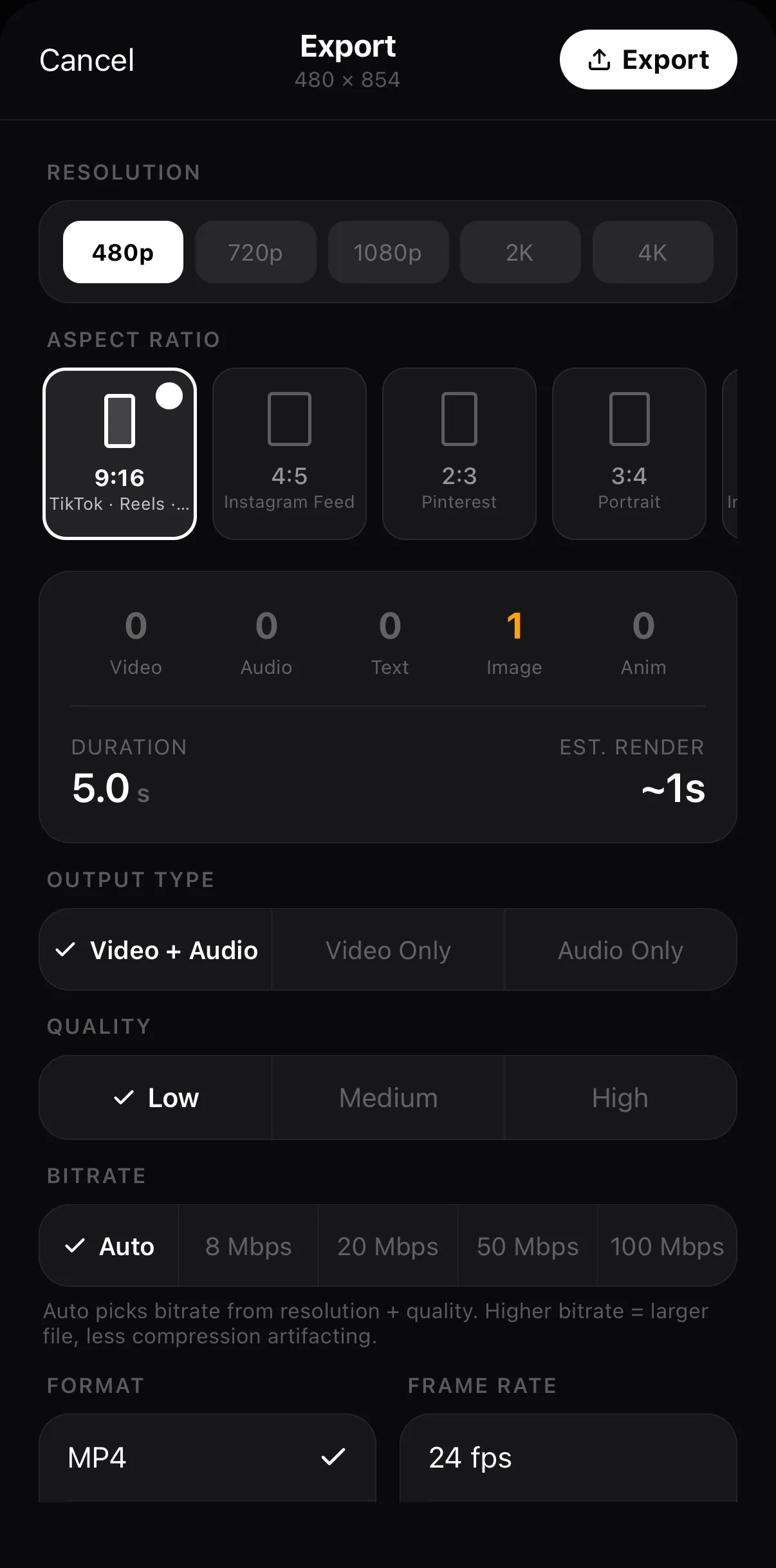 Resolution — opens on 480p
Layer counts · duration · estimated render
Quality — opens on Low
Resolution — opens on 480p
Layer counts · duration · estimated render
Quality — opens on Low
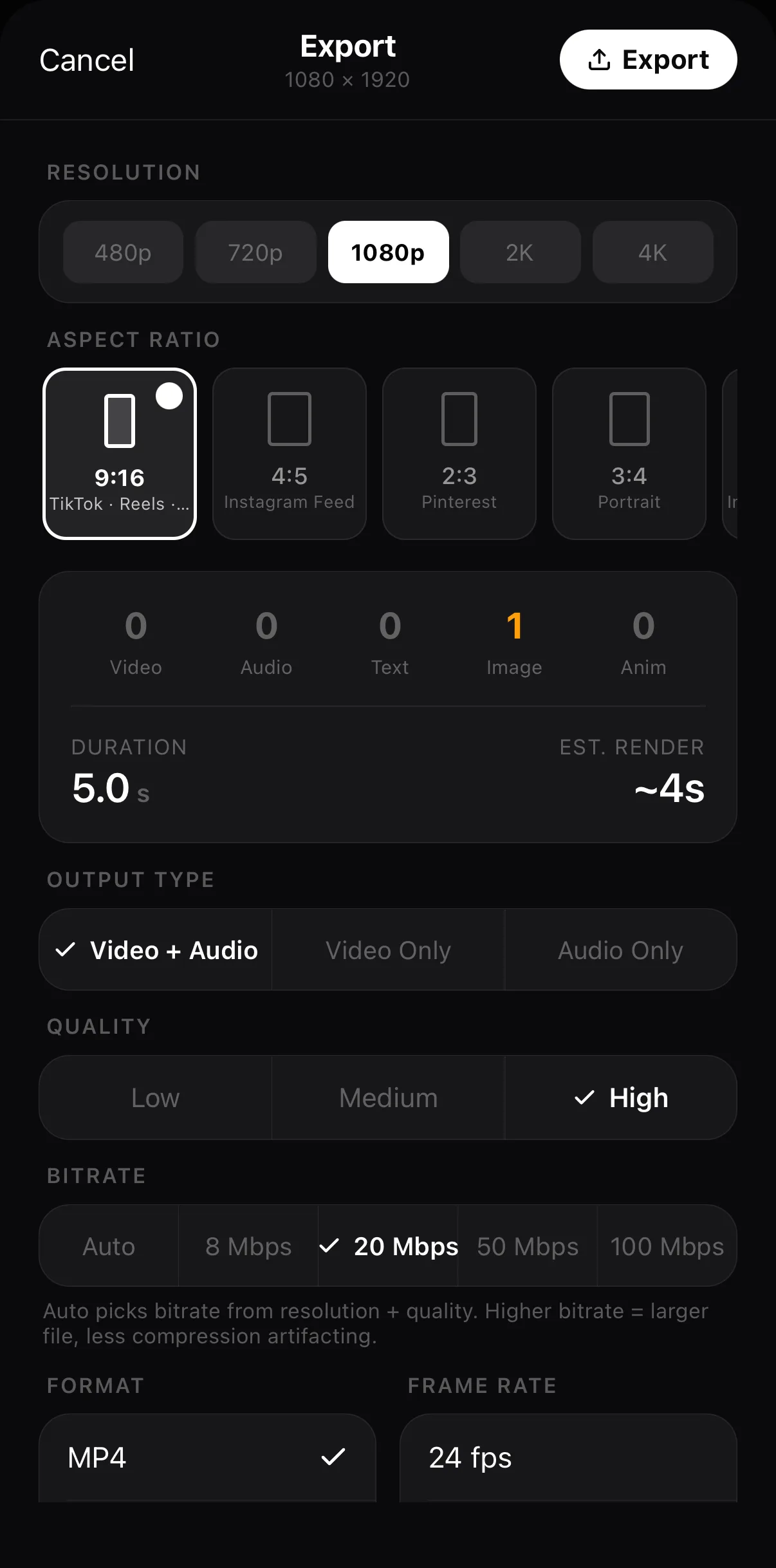 1080p
High
Bitrate — Auto, or a fixed Mbps
Export
1080p
High
Bitrate — Auto, or a fixed Mbps
Export
Aspect ratio is the one setting you should decide before you start editing, because it shapes your whole composition:
- 9:16 (vertical) — TikTok, Instagram Reels, YouTube Shorts. The default for short-form.
- 1:1 (square) — Instagram feed posts.
- 16:9 (landscape) — YouTube, presentations.
- 4:5 (portrait) — Instagram feed (takes more screen than square).
A good editor lets you set this at project creation and exports to it automatically — see how it’s set in the first-video walkthrough.
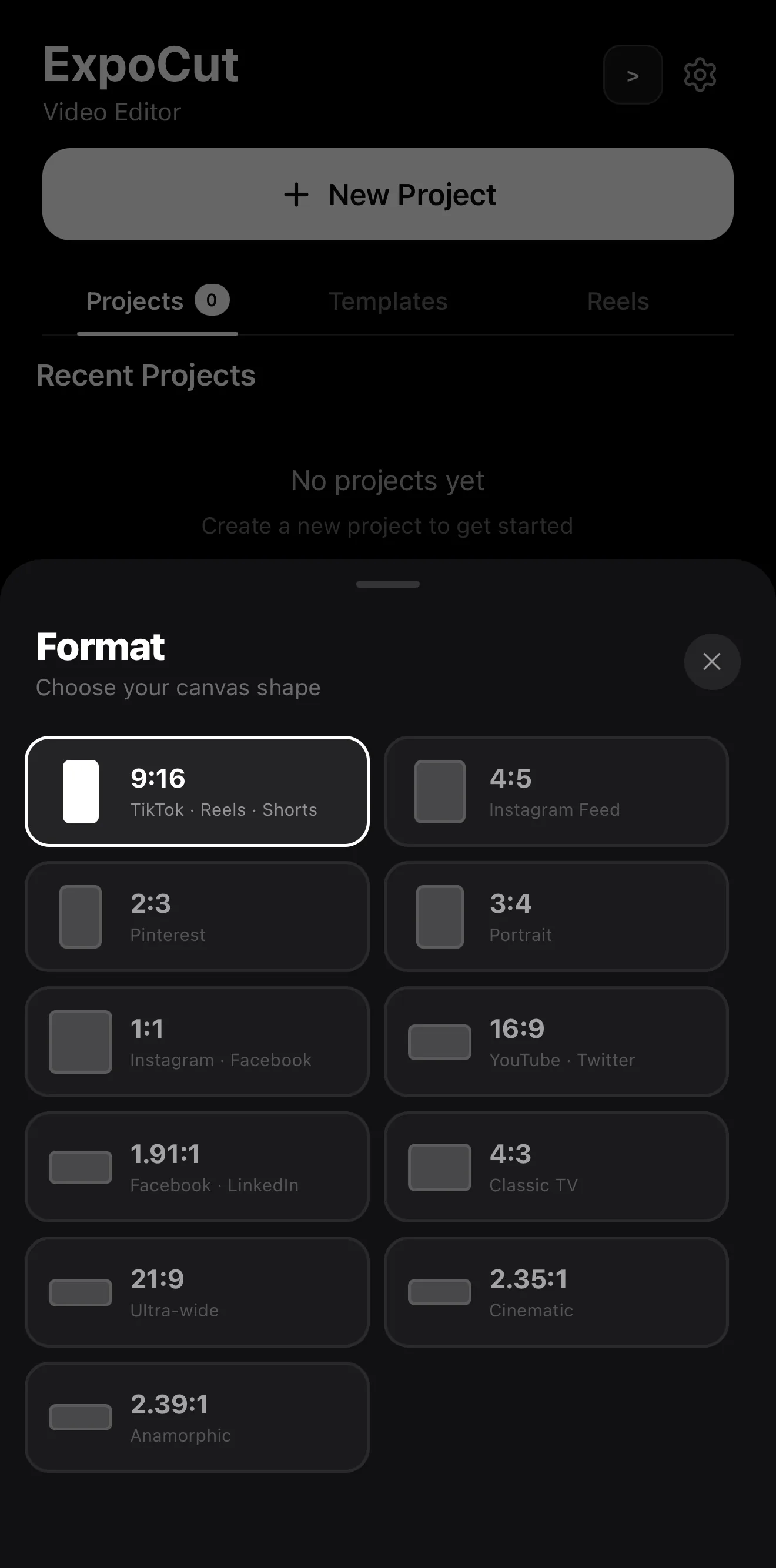 9:16 — the vertical default for Reels, Shorts and TikTok
Every platform shape, labelled
9:16 — the vertical default for Reels, Shorts and TikTok
Every platform shape, labelled
4K sounds better, but for social it’s usually the wrong choice. 1080p is sharp on every phone screen, uploads in a fraction of the time, and is what platforms re-compress to anyway. Reserve 4K for footage you’ll crop into later, or content destined for a TV. Bigger files also mean longer renders and more storage for no visible gain on a feed.
Output type & audio
Most exports are Video + Audio. Use Video Only to drop the soundtrack (e.g., you’ll add music in-platform), or Audio Only to pull a track out. Keep audio at the project’s native rate; a good editor handles this for you.
Export is the privacy step too. Nothing was uploaded while you edited — your footage only leaves the phone when you share the finished file. ExpoCut never stamps the picture: the Free plan ends the export with a short 3-second outro, Pro and Elite export completely clean.
Batch exporting for every platform
Posting the same video to TikTok, Reels and YouTube? The ••• ▸ Render List queues several exports from the editor, and automation pipelines render multiple aspect ratios from one project in a single run. That’s part of video automation — design once, export every variant at once.
Where to go next
- The full edit that leads here: mobile video editor guide.
- Do your first export step by step: Make Your First Video.
- Render at scale: video automation.
Nail these five settings and you’ll never lose a good edit to a bad export again. For social: 1080p, 9:16, MP4, 30 fps, High. Memorize it.
Frequently asked questions
What is the best resolution to export video for social media?
1080p (1920×1080, or 1080×1920 vertical) is the sweet spot for social. It's crisp on every phone, uploads fast, and is supported everywhere. Only step up to 4K when you need it — the file is roughly four times larger for a difference most social viewers won't notice.
Should I export as MP4 or MOV?
MP4 (H.264) for almost everything — it's the most compatible format across platforms and devices. Use MOV or HEVC only when you specifically need higher efficiency or are staying in the Apple ecosystem and the destination supports it.
What frame rate should I use?
30 fps for most social video. Use 24 fps for a filmic look, and 60 fps when you have a lot of motion or plan to slow footage down later. Match the project frame rate to your source footage where possible.
Why does my exported video have a watermark?
Some free editors add one. A quality editor exports clean. Always check the export screen before you render — and confirm there's no watermark toggle hiding in the settings.
Related guides
Export your video clean
Five resolutions, ten aspect ratios, H.264 or HEVC — exported on-device with no watermark and no upload. Pick your settings and render.
Get ExpoCut Browse all guides