Brush Strokes & Hand-Drawn Overlays on Your Phone
The hand-drawn arrow is the most honest graphic in video: it says ‘look here’ with zero production value and total clarity. ExpoCut ships a whole library of them — and circles, underlines, splatters, scribbles — as a Brush layer. Here’s how to use them without the video looking like a whiteboard.
Quick answer
In ExpoCut, tap Brush in the bottom bar (or + ▸ Brush) to open the Brushes catalog — 134 strokes in 14 families: Arrows, Circles, Underline, Sparkle, Splatter, Ink, Marker, Paint, Dry Brush, Spray, Scribble, Comic, Neon and Energy. Tap a stroke (Curve Arrow 1, Encircle 2, Highlight 3…) and its Shape Style editor opens — Fill · Outline · Glow tabs, a row of looks, and colour swatches — then Done. The stroke lands as a shape layer on an S-row (5 s), so you drag it onto the thing you’re pointing at, resize with the corner grip, and keyframe or animate it like any layer.
- Brush is a bottom-bar entry; the catalog has 134 strokes with family chips and a live thumbnail for each.
- Every stroke is a shape layer: Fill / Outline / Glow style, colour, then position, rotation, keyframes and transitions.
- Arrows, Encircle and Highlight are the workhorses; Sparkle, Splatter and Spray are accents; Scribble and Comic are for reactions.
- Match the stroke colour to one accent in the frame, and keep strokes under 2 seconds unless they’re labelling something.
- Pair a stroke with a Starting transition (Draw-on / Fade) so it arrives instead of just appearing.
A drawn arrow beats a polished lower third when the job is “look at this”. ExpoCut’s Brush layer is a library of those marks — arrows, rings, underlines, splatters, scribbles — each one a real layer you can colour, place, time and animate.
Where it lives
Brush is in the bottom bar between Shape and 3D (and on the big + Add Layer sheet). It opens the Brushes catalog.
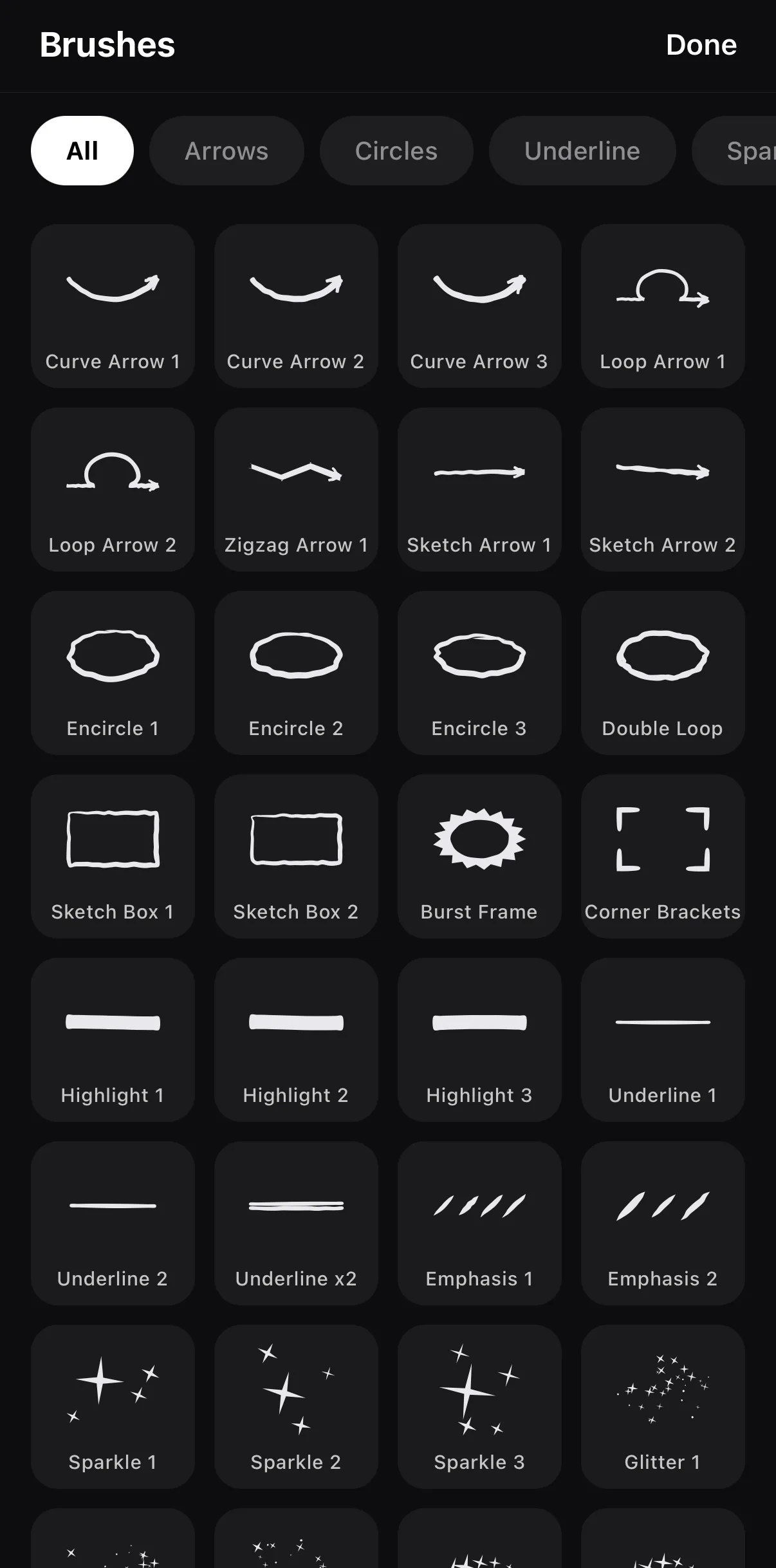 All · Arrows · Circles · Underline · Sparkle · Splatter · Ink · Marker · Paint · Dry Brush · Spray · Scribble
Tap a brush to add it
All · Arrows · Circles · Underline · Sparkle · Splatter · Ink · Marker · Paint · Dry Brush · Spray · Scribble
Tap a brush to add it
Step 1 — Add a stroke
Tap Brush and pick a family
Swipe the chip row — the families run from Arrows to Scribble. All shows everything.
Tap a stroke
Its Shape Style editor opens with the stroke drawn large so you can judge the line.
Style it and tap Done
Pick a Fill colour (or a look), add an Outline for contrast on busy footage, skip Glow unless it’s a neon reaction. Done drops it on the canvas.
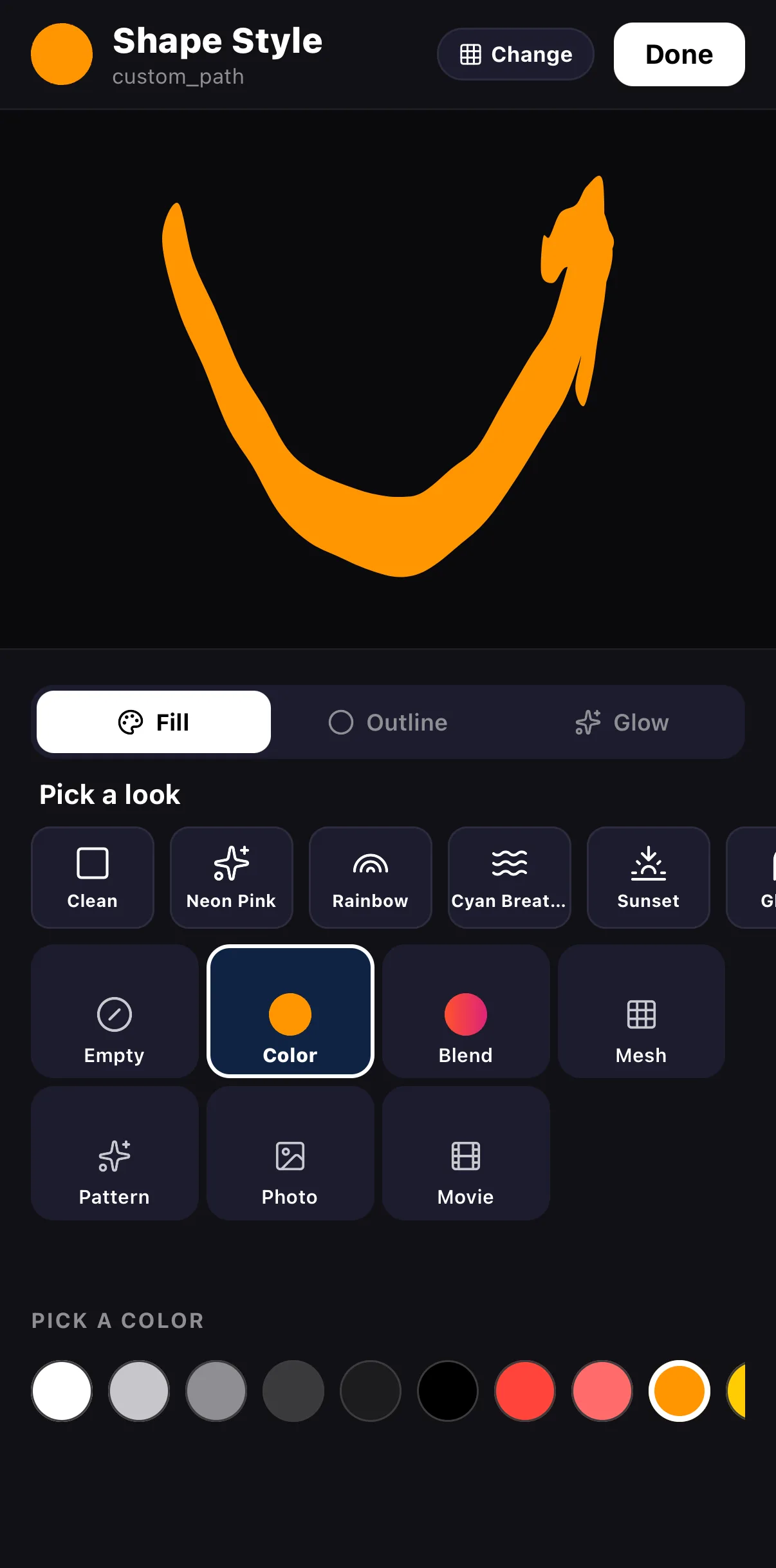 Fill · Outline · Glow
Looks
Colour swatches
Fill · Outline · Glow
Looks
Colour swatches
Step 2 — Place and time it
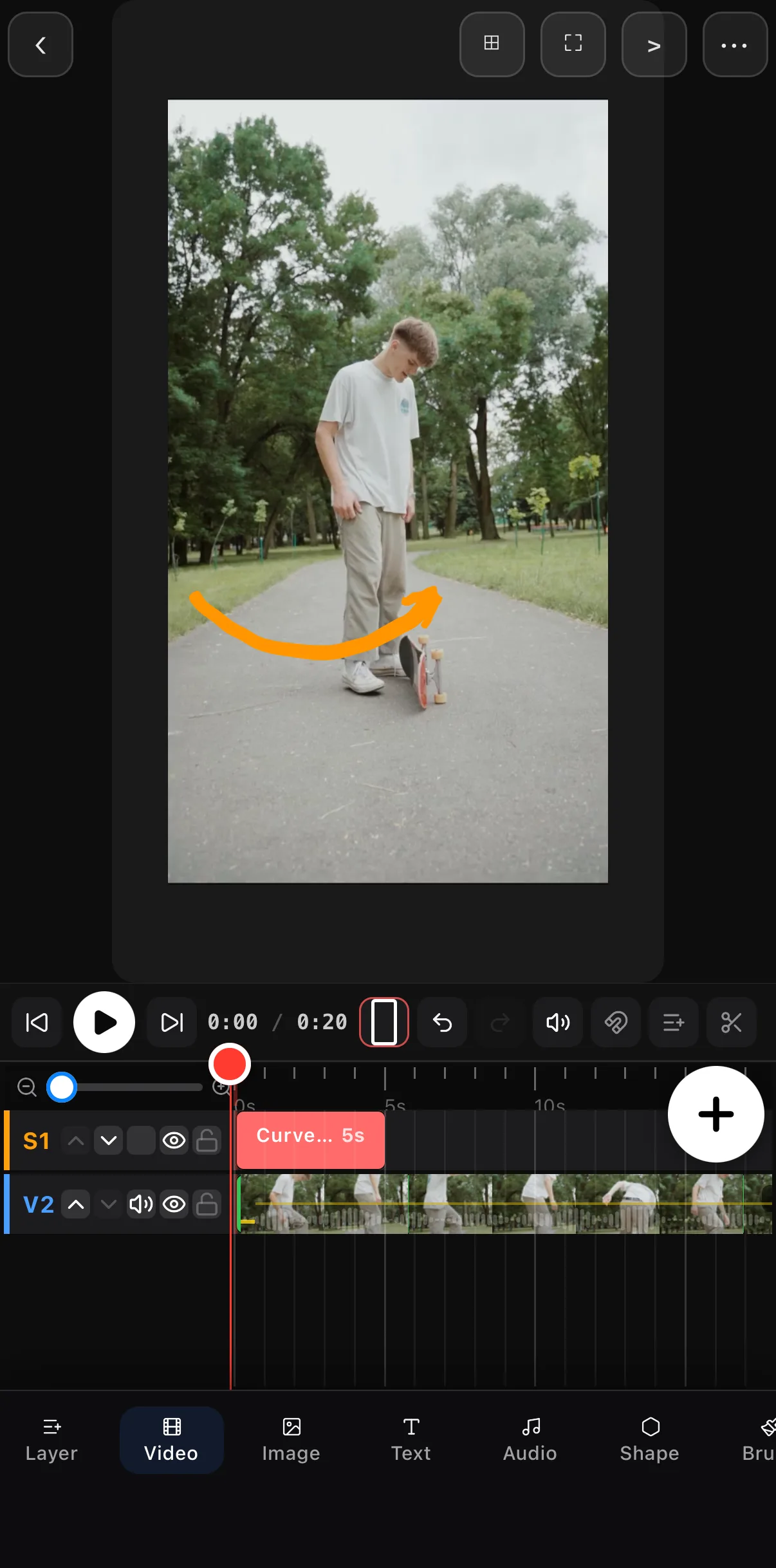 The stroke is a shape layer — drag, resize, rotate
S1 — 5 s by default
The stroke is a shape layer — drag, resize, rotate
S1 — 5 s by default
- Point with the tip. Rotate the arrow so the head lands on the subject; a stroke that floats in space reads as decoration.
- One colour. Pick the frame’s accent (a jacket, a sign) or plain white with a dark outline.
- Short. One to two seconds for a pointer; longer only for a label that stays.
- Arrive. Give it a Starting transition from the transform toolbar so it draws or fades on instead of popping.
Family cheat-sheet
| Family | Use it for |
|---|---|
| Arrows (Curve, Loop, Zigzag, Sketch) | “Look here” — tutorials, reactions, product callouts |
| Circles (Encircle, Double Loop, Sketch Box, Burst Frame, Corner Brackets) | Framing a detail |
| Underline (Highlight, Underline, Emphasis) | Under a title or a number |
| Sparkle | A “new” or “clean” moment |
| Splatter · Spray · Paint · Ink · Dry Brush · Marker | Texture, reveals (with a Photo/Movie fill), grunge titles |
| Scribble · Comic · Energy · Neon | Reactions, memes, hype cuts |
Where to go next
- Shapes, masks and the same style editor: shapes, masks & overlays.
- Make a stroke move: keyframes & motion paths.
- The meme toolkit that pairs with Scribble: make a meme video.
Pick the mark, colour it, aim it, time it — a drawn stroke is the fastest way to steer attention in a frame.
Frequently asked questions
How do I draw an arrow on a video on my phone?
Tap Brush in ExpoCut's bottom bar, choose an arrow from the Arrows family (Curve Arrow, Loop Arrow, Zigzag Arrow, Sketch Arrow), pick a colour in the Shape Style editor and tap Done. Drag the arrow so it points at your subject and rotate it with the corner grip; trim its clip on the timeline to control how long it stays.
Can I change the colour or thickness of a brush stroke?
Yes. A brush is a shape layer, so the Shape Style editor gives it a Fill (any colour, gradient, blend, mesh, pattern, photo or movie), an Outline, and an optional Glow. Thickness is the stroke's own drawing, so pick a heavier brush — Highlight 3 or a Marker stroke — for a bolder line.
Do the brushes animate?
The strokes are static drawings, but as layers they take every animation ExpoCut has: a Starting transition to draw them on, keyframes to move or scale them, a motion path, and an Ending transition to remove them.
Related guides
Point, circle, underline
134 hand-drawn strokes as editable layers — arrows, circles, splatters, scribbles — on any video, on your phone.
Get ExpoCut Browse all guides