How to Make a Split-Screen & Collage Video on Phone
Split screens do a lot of work: comparisons, reactions, multi-cam, before/after. ExpoCut has ready-made layouts so you just drop a clip into each slot — no fiddly resizing.
Quick answer
To make a split-screen or collage video in ExpoCut: tap the big + and choose Collage on the Add Layer sheet, pick a layout family — Grid (2×2, 3×3, 2×3, 3×2, Triple), Mosaic (Feature + 4, Spotlight, L-Shape, Pinterest, Hero + 2), Diamond, Freeform or Shape (Heart, Circle) — then tap each numbered slot on the Customize screen and pick a photo or video. The Style tab sets the background and border width/colour. Tap Add to Timeline and the whole grid lands as one Collage clip you can trim, move and label.
- Collage is a tile on the Add Layer sheet (big + button), between Brush and Lower Third.
- Five layout families: Grid, Mosaic, Diamond, Freeform, Shape — from 2 to 9 tiles, sizing done for you.
- The Customize screen previews the grid live; every numbered slot takes a photo or a video from your library.
- Style tab = background swatch + border width (0–12) and colour.
- The finished collage is a single clip on its own row (C1), 10 s by default — trim, keyframe or transition it like any clip.
A single frame can hold more than one story. Split screens and collages let you compare two takes, react to a clip, show four angles at once, or build a before/after — and ExpoCut’s ready-made layouts mean you never have to eyeball the sizing.
What you can build
- Reaction — the source clip big, you small in a corner.
- Comparison / before-after — two tiles, side by side.
- Multi-cam — three or four angles in a grid.
- Stylized split — diamond or mosaic for a designed look.
Step 1 — Pick a layout
Tap + ▸ Collage
The Add Layer sheet has a Collage tile. Choose a family — Grid, Mosaic, Diamond, Freeform (place tiles anywhere) or Shape (Heart, Circle) — and a layout.
Drop a clip into each tile
On Customize, tap each numbered slot and pick a video or photo; ExpoCut handles the sizing and position. The preview updates as you go.
Style it and add it
The Style tab sets the background and the border. Tap Add to Timeline — the grid lands as one Collage clip.
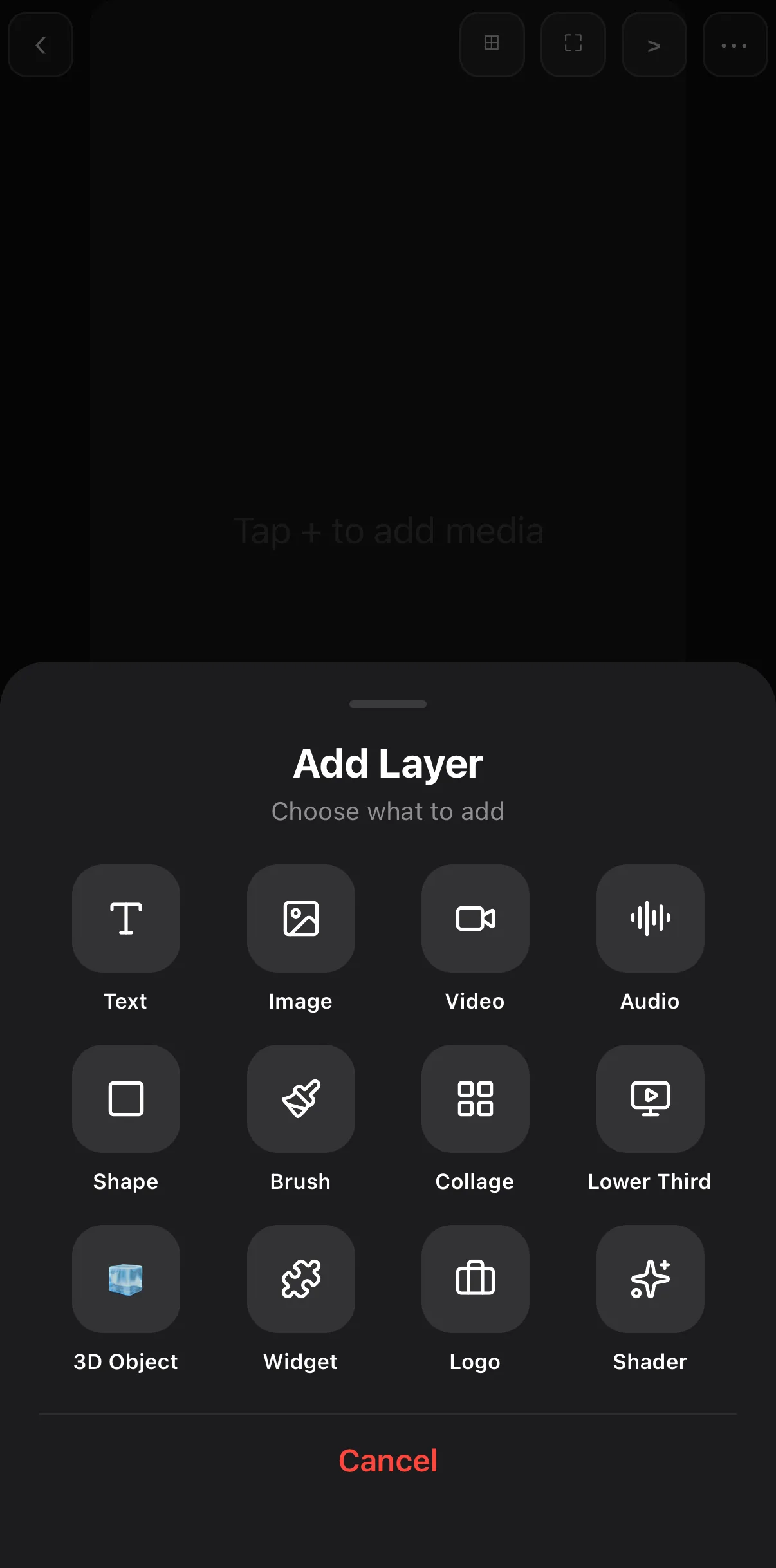 Collage
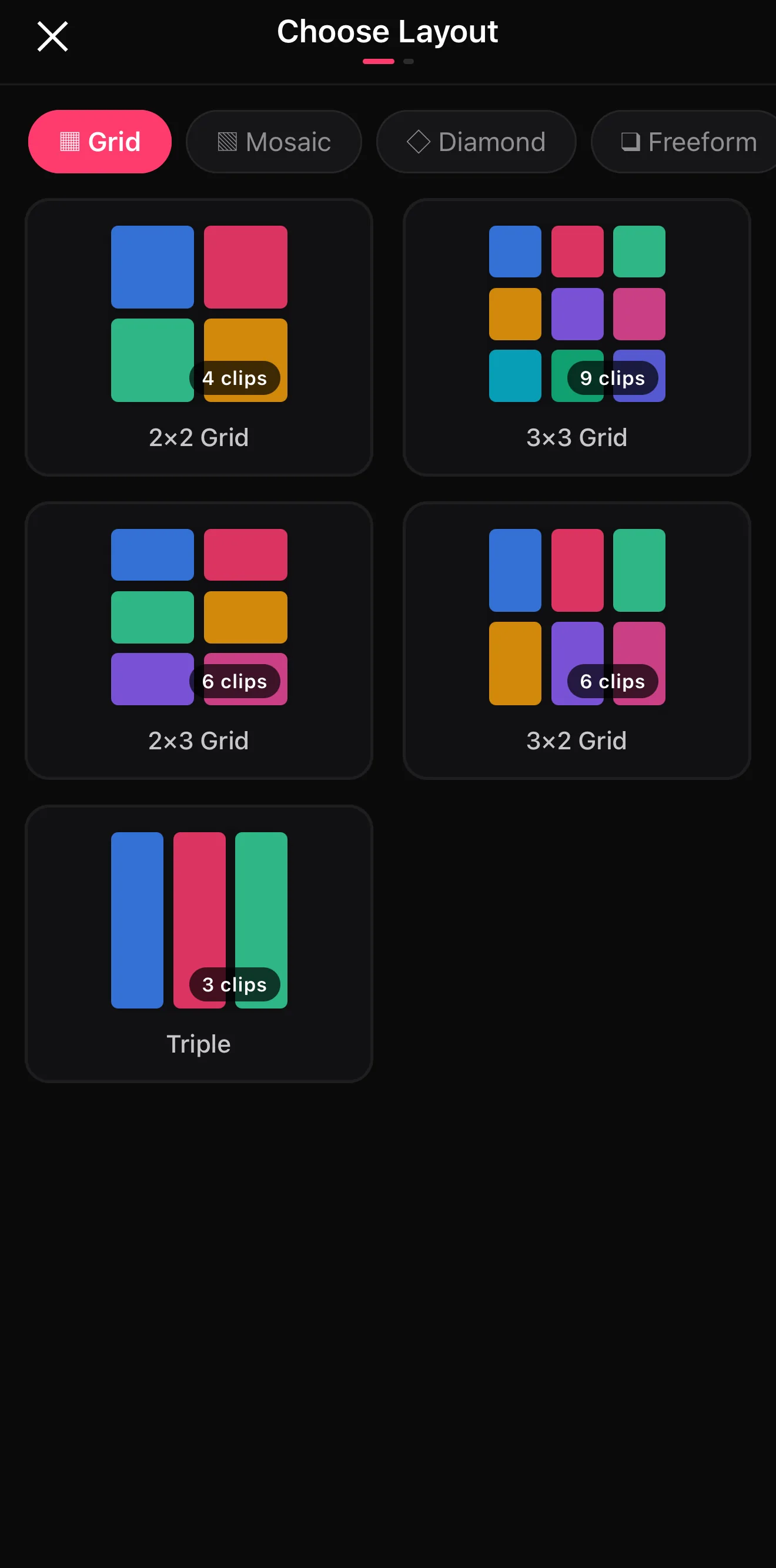 Grid · Mosaic · Diamond · Freeform · Shape
2 to 9 tiles — sizing done for you
Grid · Mosaic · Diamond · Freeform · Shape
2 to 9 tiles — sizing done for you
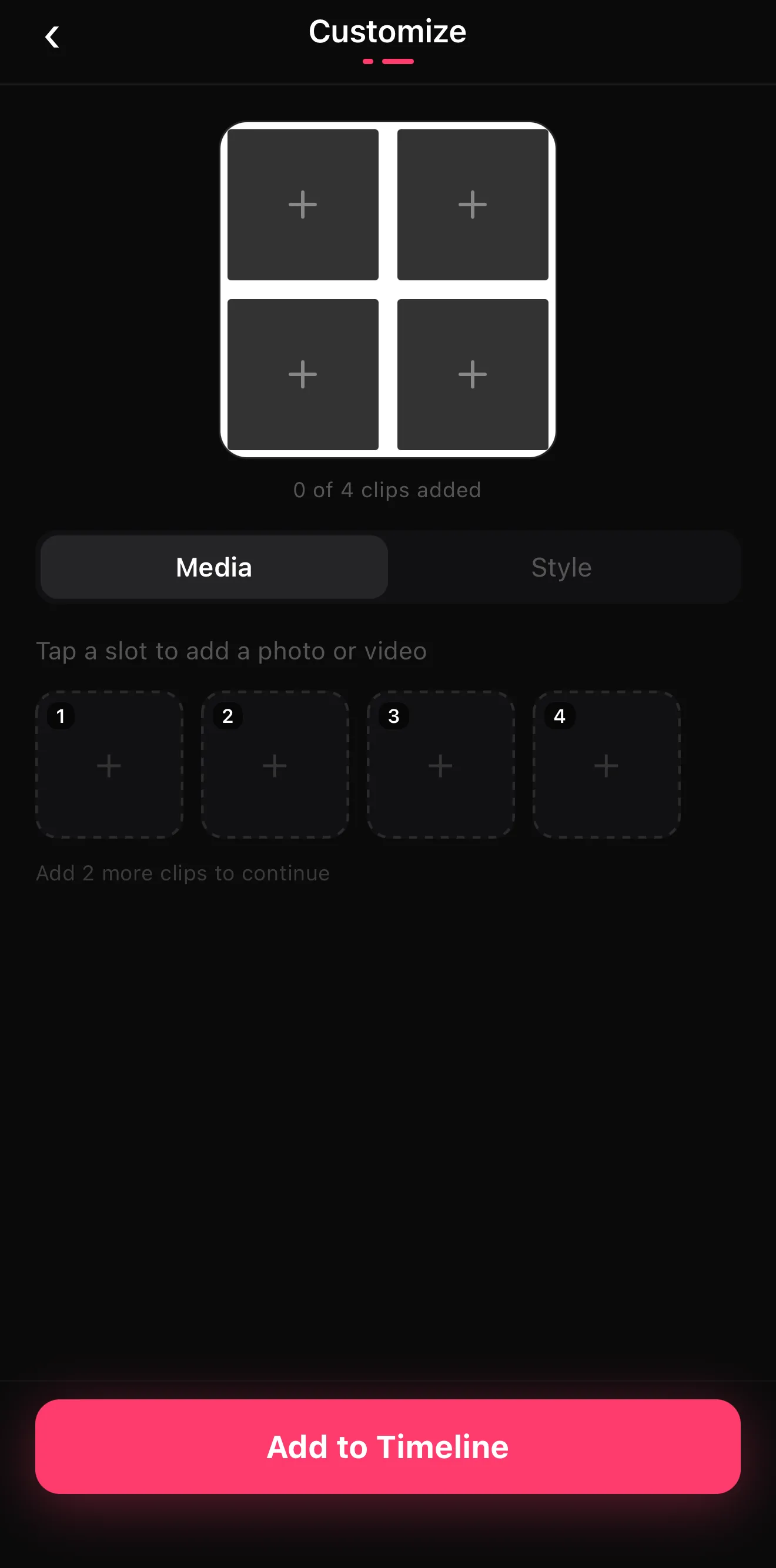 Live preview
Tap each numbered slot
Add to Timeline
Live preview
Tap each numbered slot
Add to Timeline
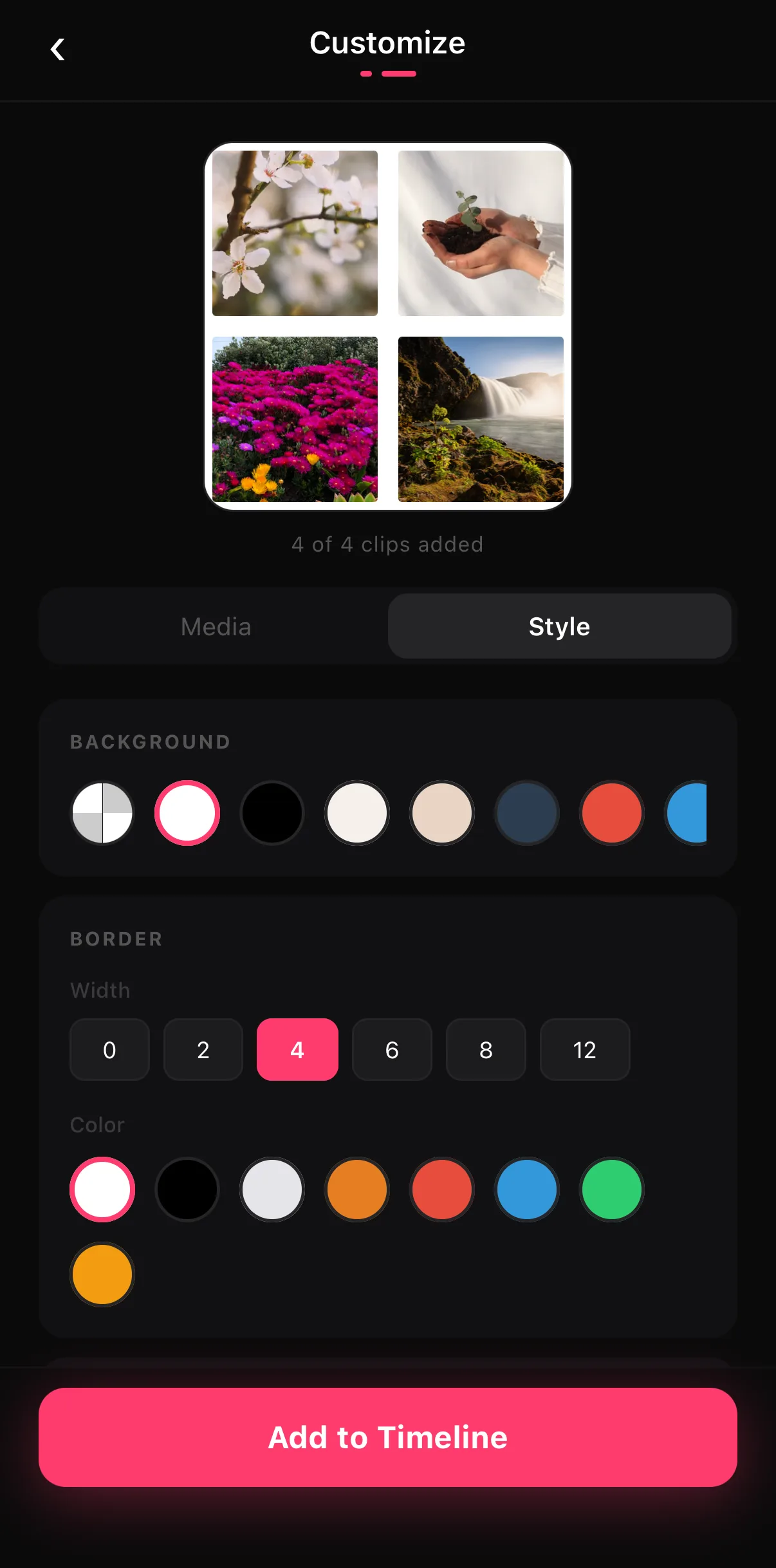 Background
Border width + colour
Background
Border width + colour
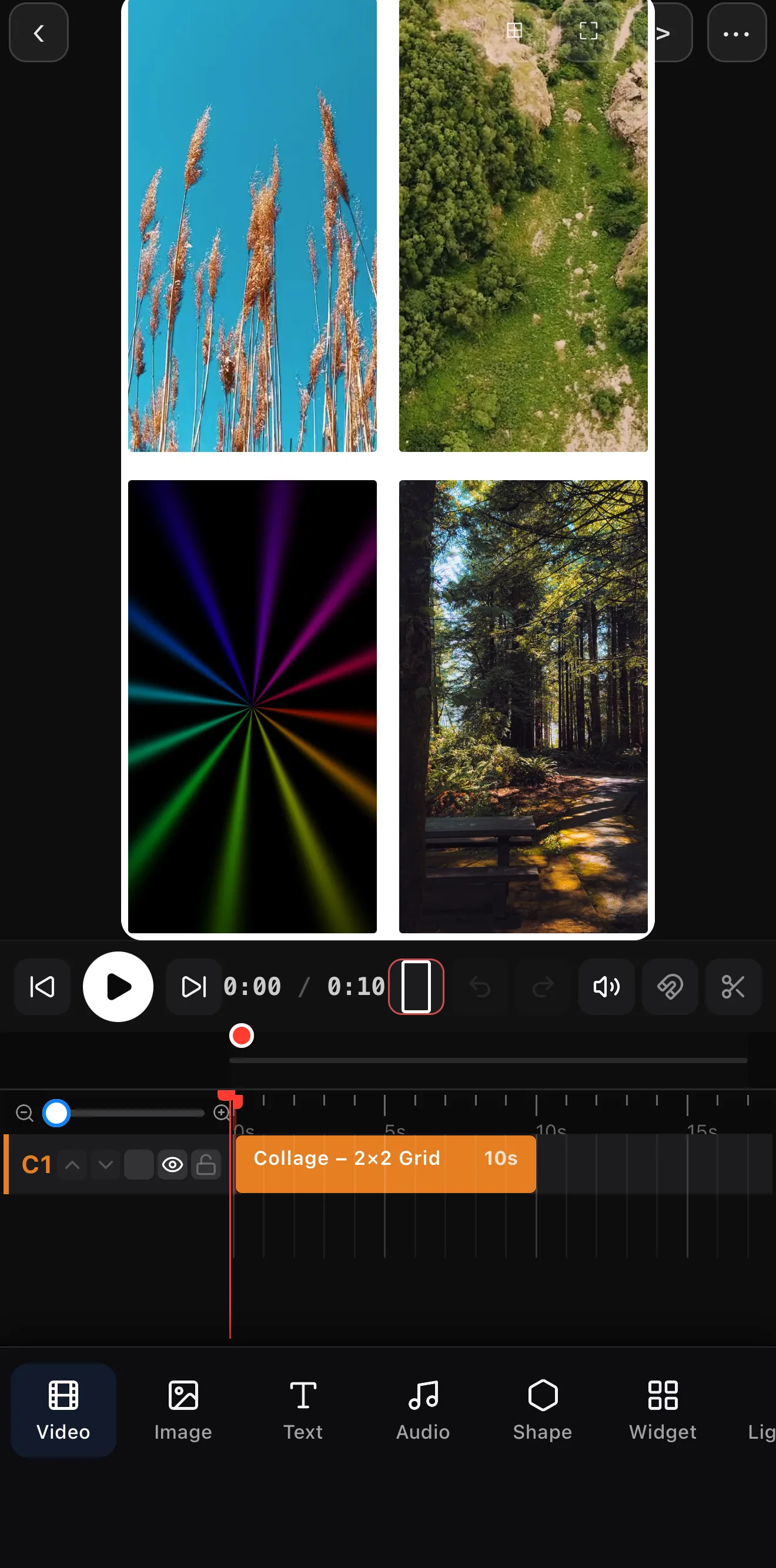 Four clips, one grid — playing together
One Collage clip on C1
Four clips, one grid — playing together
One Collage clip on C1
Step 2 — Make it move
A static split is fine; a moving one is better. The collage is one clip, so you can:
- Start full-screen and transition into the split.
- Keyframe a tile sliding in from the edge.
- Animate a comparison wipe between before and after.
Step 3 — Add labels
Split screens almost always want labels — “Before / After”, names, or camera tags. Drop a title or a lower third on each tile so viewers know what they’re looking at.
Mind the safe area. On a 9:16 split, keep faces and key action away from the center seam and the platform’s UI zone at the bottom.
Where to go next
- One small inset instead of a full split: picture-in-picture.
- Animate the tiles: keyframes & motion paths.
- Label each panel: text & titles.
Pick a layout, fill the tiles, label them — and you’ve turned one frame into a comparison, a reaction, or a four-angle show.
Frequently asked questions
How do I put two videos side by side?
Add a collage or layout preset, pick a two-up split, and drop a clip into each tile. ExpoCut sizes and positions them for you, so you get a clean side-by-side without manually scaling each video.
Which layout should I use for a reaction video?
A two-tile split (or a small picture-in-picture) works best: the thing you're reacting to in the big tile, you in the smaller one. For multi-cam or comparisons, use a grid; for a stylized look, try mosaic or diamond.
Can I animate the split?
Yes — each tile is a layer, so you can keyframe a tile sliding in, or transition from full screen into a split. Freeform layouts let you place and size each clip exactly where you want.
Related guides
Two videos, one screen
Grid, mosaic, diamond and freeform layouts for split-screens, reactions and multi-cam. Drop a clip in each tile — done.
Get ExpoCut Browse all guides