How to Edit Video on Your Phone (2026 Complete Guide)
You don’t need a laptop to make a video that looks professional. Everything — multi-track editing, effects, color grading, captions, even bulk automation — now runs on the phone in your pocket. This is the complete, no-jargon guide to editing video on mobile in 2026, with links to a hands-on walkthrough for every step.
Quick answer
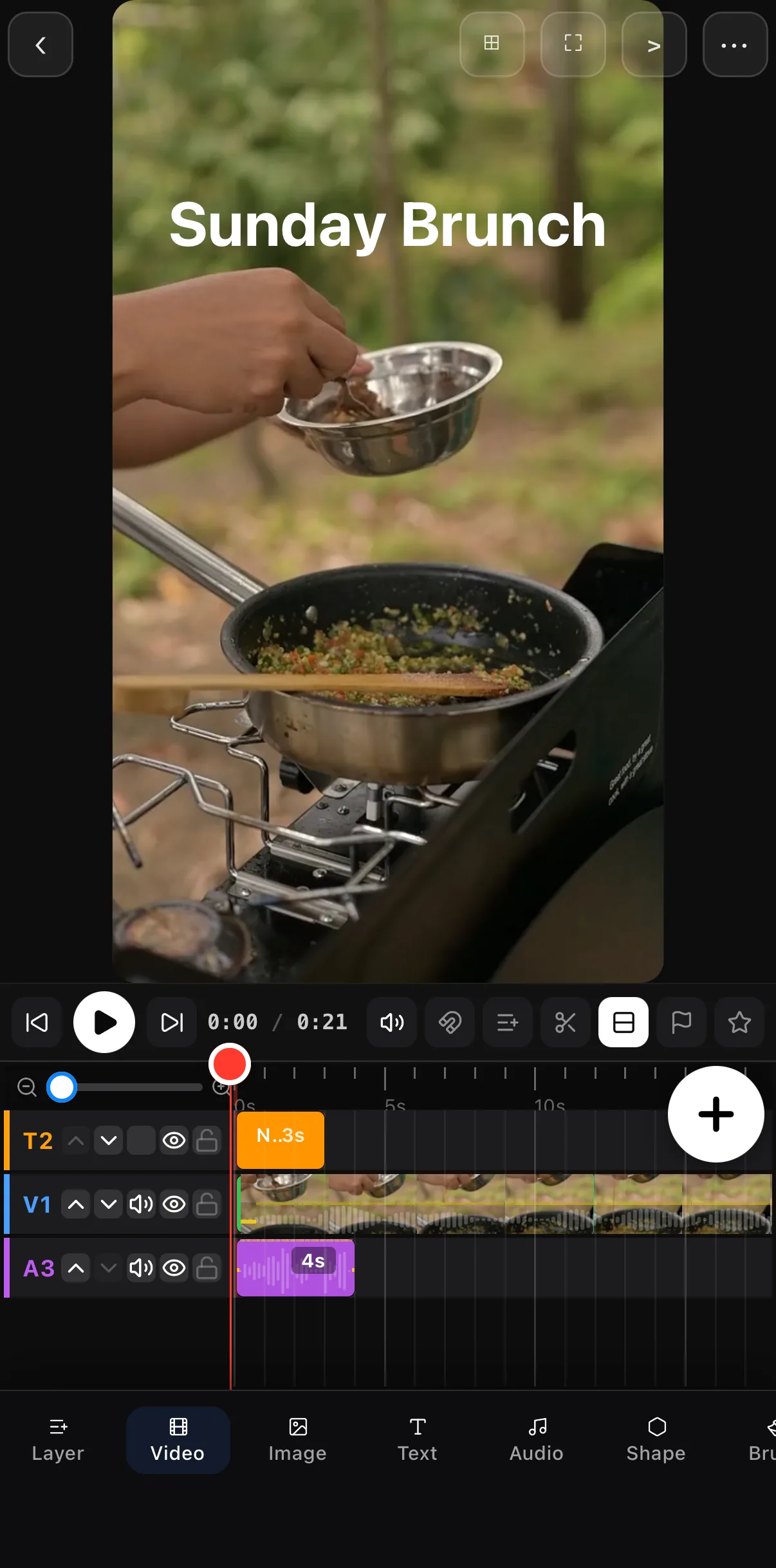
Editing video on your phone in 2026 is a six-step loop in ExpoCut: add a clip (camera roll or built-in stock), trim it, add a title from the text tray, add music from the Audio tray, grade it with Filters or LUTs from the Edit toolbar, and export at 1080p or 4K. Every element sits on its own timeline row — text on top, video and images in the middle, audio at the bottom — and the whole editor, including effects, keyframes, captions and templates, runs on-device with no upload.
- The editor is three zones: canvas on top, timeline in the middle, bottom bar of tools.
- Tap a clip for its tools; tap the pencil Edit button for the transform toolbar (Opacity, Mask, Rotate, FX, Transition, Filters, LUTs, Light, Crop, Border, Volume, Speed, Style, Camera).
- Long-press a clip for arrange mode; pick Classic, Main track or Compact timeline styles.
- Templates and Reels open in Wizard mode so you fill slots instead of building from scratch.
Editing video on your phone used to mean trimming a clip and slapping on a song. Not anymore. In 2026 a mobile video editor is a full studio: multi-track timeline, dozens of effects and filters, real color grading, keyframe animation, on-device captions, and one-tap export for every platform. This guide walks through the whole craft — and links to a hands-on, screenshot-by-screenshot tutorial for each part.
Why edit video on your phone at all?
Because that’s where the footage already is, and that’s where it’s going. Your clips are shot on the phone; your audience watches on a phone. Editing in the same place removes every transfer step — no cables, no cloud round-trips, no “I’ll finish it on my laptop later.” For short-form social video, a good phone editor is simply faster end to end than a desktop suite.
The trade-off used to be power. That gap is gone. A modern editor like ExpoCut runs a true multi-track timeline, professional color tools, and 4K export entirely on-device — nothing is uploaded, and it works offline.
The one idea that makes editing click: a video is just layers stacked on a timeline. Footage is one layer, your title is another, music is another. You stack them, line them up in time, and the editor plays them together. Every feature below is just a richer version of that idea.
What you need to start
Almost nothing:
- A phone (iOS or Android) from the last few years.
- A clip or two — shot on your phone, or pulled from a built-in stock library.
- About ten minutes for your first video.
That’s it. No subscription to learn the basics, no plugins, no render farm.
The core workflow (six steps)
Every video — a quick story or a polished brand promo — is made with the same six-step loop:
- Add a clip to the timeline.
- Trim it to the good part.
- Title it so viewers know what they’re watching.
- Music to set the mood.
- Filter / color to make it feel intentional.
- Export and share.
We built an entire walkthrough around exactly this loop, with a real screenshot for every tap: How to Make Your First Video in ExpoCut. If you’re brand new, start there, then come back here to go deeper on each step.
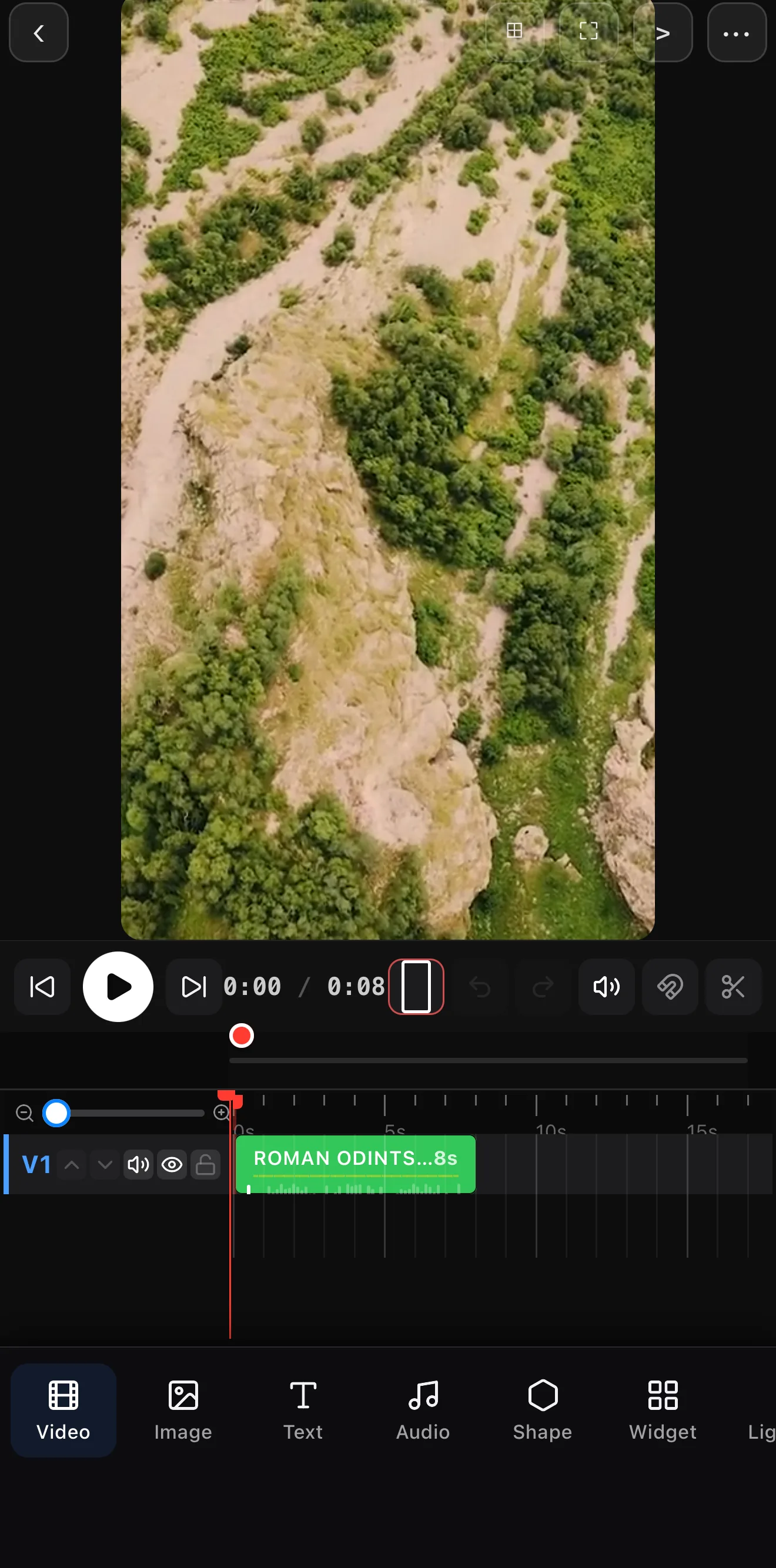 The canvas previews every frame in your real aspect ratio
Transport bar — play, scrub, undo, blade, timeline style
Rows: text on top, video in the middle, audio at the bottom
Bottom bar: Layer · Video · Image · Text · Audio · Shape · Brush · 3D · Cam Move · Widget · Light Leak · Shader
The canvas previews every frame in your real aspect ratio
Transport bar — play, scrub, undo, blade, timeline style
Rows: text on top, video in the middle, audio at the bottom
Bottom bar: Layer · Video · Image · Text · Audio · Shape · Brush · 3D · Cam Move · Widget · Light Leak · Shader
The timeline is the heart of any mobile video editor. Each element — video, image, text, shape, audio — lives on its own row, stacked top to bottom, and ExpoCut keeps the rows in families: text rows stack at the top, video and image rows in the middle, audio rows at the bottom. Higher rows render in front. Every new add gets its own row; drag a clip left or right to control when it appears, and its ends to control how long.
Master four moves and you can build anything:
- Tap a clip — it’s selected, its trim handles appear, and its own tools fill the bottom bar (Trim, Split, Speed, Freeze, Crop, Replace…).
- Trim — drag a clip’s end to shorten it, or pinch a selected clip with two fingers.
- Split — park the playhead and tap Split (or arm the blade in the transport bar) to cut a clip in two, then delete the part you don’t want.
- Long-press a clip — the rows collapse into boxes and you drag the clip to a new place in the sequence or onto another row (arrange mode). Tapping the row’s label before adding makes the next clip land butt-joined on that row.
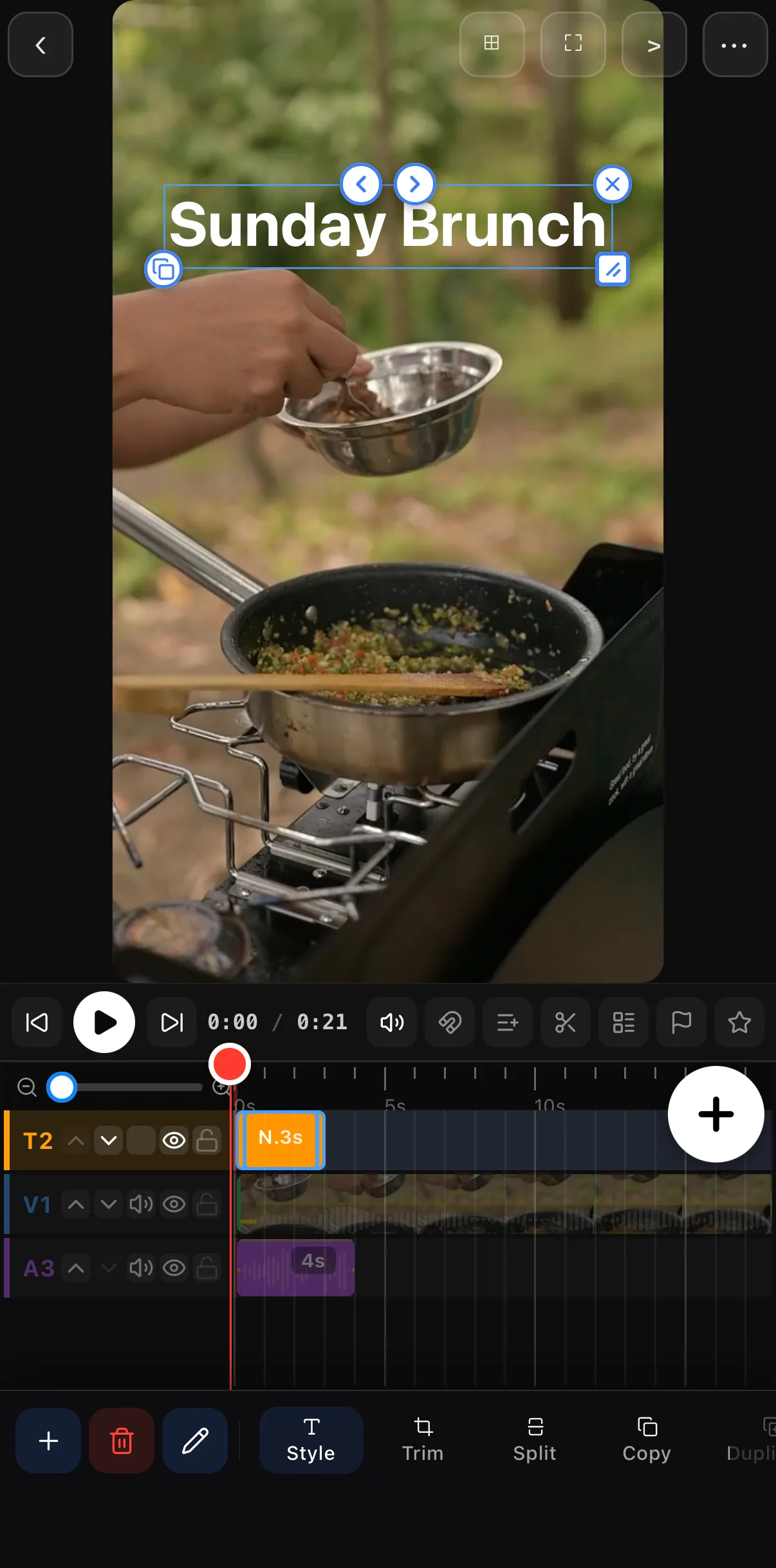 Corner controls: delete · duplicate · grip (scale + rotate)
The selected row lights up
This layer’s own tools
Corner controls: delete · duplicate · grip (scale + rotate)
The selected row lights up
This layer’s own tools
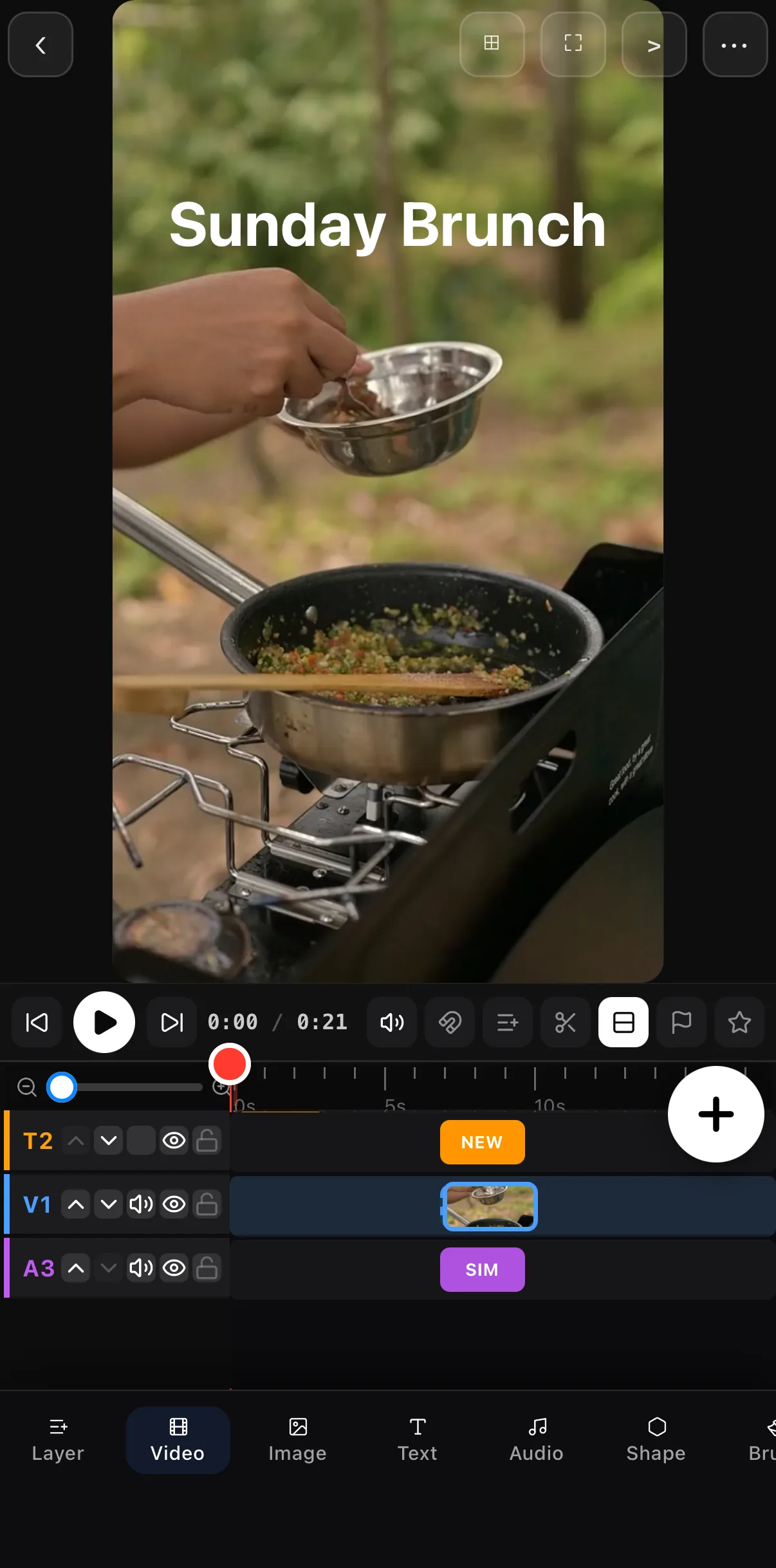 Long-press → boxes → drag to reorder
Pick a timeline style
The timeline style button in the transport bar switches between three layouts, per project:
- Classic (default) — free-form rows; every insert gets its own row and clips sit where you drop them.
- Main track — a magnetic main track: videos join end to end and deleting one closes the gap, like CapCut or iMovie.
- Compact — the main-track model with smaller rows, five on screen instead of three.
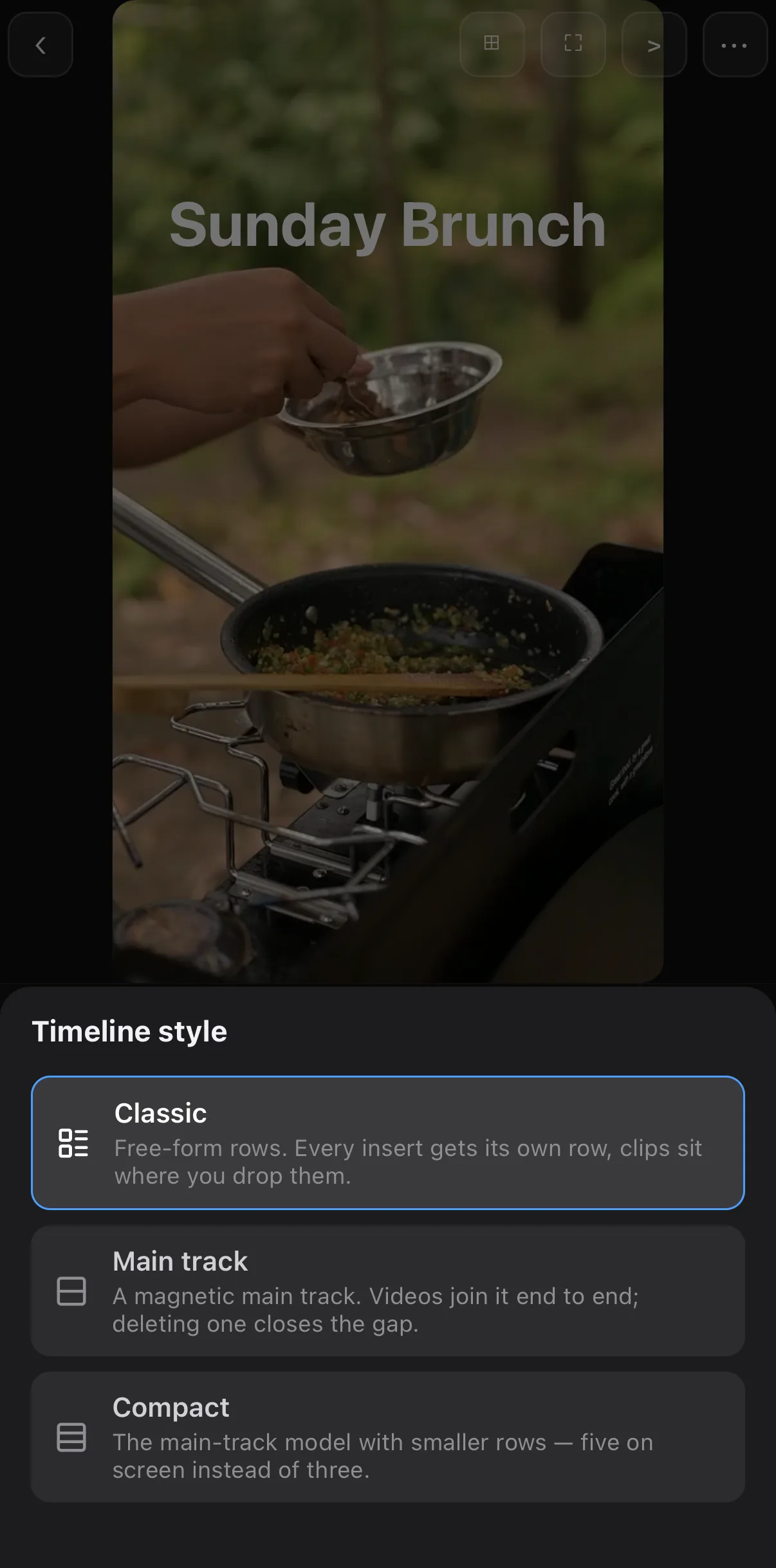 Classic · Main track · Compact
 The magnetic main track
Effects & filters — the fun part
This is where a flat phone clip becomes something that looks made. There are two families worth knowing:
- Filters / looks remap your colors to a curated palette — film, Instagram-style, VSCO-style, cinematic, vintage. One tap changes the whole mood. Full walkthrough: How to Use Filters & LUTs.
- Effects add motion and texture — 61 motion presets, seven parametric FX engines (Cinematic Grade, Warp & Distort, Retro Display, Sketch, Light FX, Cartoon, Flicker) with 100+ one-tap Looks, a 35-filter blur & bokeh suite, light leaks, shaders and speed ramps. Every tile previews on your own footage before you tap.
Both live one tap away: select the clip, tap the pencil Edit button, and the bottom bar becomes the transform toolbar — Filters, LUTs and FX sit side by side.
Subtle wins. Whatever effect or filter you pick, pull its intensity down to 40–70%. A maxed-out effect screams “filter”; a dialed-back one reads as grading. Consistency matters too — pick one look and use it on every clip so the whole video feels designed.
Text, titles & captions
A title in the first second tells viewers what they’re watching — the moment that decides whether they keep scrolling. On mobile you can add text as its own layer, animate it in (fade, typewriter, word-by-word), and style it with shadows, strokes and backdrops. Auto-captions — generated on-device, no upload — make your video watchable with the sound off, which is how most of social actually watches.
Audio
Music sets mood more than any single visual choice. Drop a track on its own audio layer beneath your video, line the beat up with your cut, and add a fade in and fade out so it eases in and out instead of cutting abruptly. Keep voice and music balanced — duck the music under any spoken word.
Color grading
Filters are the one-tap version of color; grading is the manual version. Exposure, contrast, saturation, white balance, and pro LUTs let you match shots, fix a flat phone profile, or build a signature look. You can even keyframe a grade so a clip blooms from flat to cinematic over a few seconds.
Transitions
Cuts are clean; transitions are flavor. Swipe, liquid, tile and shader transitions bridge two clips with motion. Use them sparingly — a hard cut on the beat is often stronger than a fancy wipe.
Templates & automation — make many videos fast
Here’s where mobile editing leaps ahead of “just trimming clips.” Start from the Templates or Reels tab on the home screen and the project opens in Wizard mode — the canvas on top and a strip of slot cards underneath, so you fill in text and swap media without touching the timeline (a Timeline button in the top bar takes you to the full editor whenever you want). Save any finished video as a reusable template (••• ▸ Save as Template), then swap in new footage and text to produce a whole series with a consistent look — see templates & reels. Push it further and you reach video automation — generating many videos from a template plus data (a spreadsheet, a product feed), or driving the editor with an AI assistant.
That’s a deep topic with its own guide: Automate Video Rendering with the ExpoCut MCP & Render Engine, and the .ectpl template format that makes it possible. If you build at scale, also see the MCP reference and Skills.
Exporting for every platform
The payoff. Tap ••• ▸ Export Video. ExpoCut never stamps the picture — the Free plan ends the file with a short 3-second ExpoCut outro, Pro and Elite export completely clean — and the sheet lets you choose:
| Setting | Pick this for social |
|---|---|
| Resolution | 1080p — crisp, fast to upload, supported everywhere (step up to 4K only when needed) |
| Aspect ratio | 9:16 for TikTok / Reels / Shorts, 1:1 for feed, 16:9 for YouTube |
| Format | MP4 (H.264) for maximum compatibility |
| Frame rate | 30 fps for most social; 24 for a filmic feel; 60 for motion |
| Quality | High |
| Bitrate | Auto (or set Mbps by hand for a platform’s spec) |
Then post. Because nothing was uploaded during editing, your footage never left the device until you chose to share it.
Where to go next
You now have the map. Pick the thread that matches your next video:
- Total beginner? Do the first-video walkthrough — ten minutes, start to export.
- Want it to look cinematic? Go deep on filters & looks.
- Making lots of videos? Learn video automation and templates.
Editing on your phone isn’t the compromise it used to be. For social video, it’s the best tool for the job — and it’s already in your hand.
Frequently asked questions
Can you really edit professional video on a phone?
Yes. A modern mobile video editor gives you a full multi-track timeline, effects, color grading, keyframe animation, audio mixing and 4K export — the same building blocks as desktop software, designed for a touchscreen. For social video especially, editing on your phone is now faster than on a laptop because the footage already lives there.
What is the best mobile video editor in 2026?
The best editor is the one that matches your goal. For quick social clips, look for sensible defaults, captions and one-tap effects. For serious work, you want true multi-track layers, real color grading and high-bitrate export. ExpoCut is built to do both — beginner-simple on the surface, with pro depth (multi-track, LUTs, keyframes, automation) underneath — and it runs fully on-device.
How do I edit a video for Instagram or TikTok on my phone?
Start a project in a 9:16 (vertical) aspect ratio, add your clip, trim it tight, drop on a title and music, add a filter, and export at 1080p. Vertical, short and captioned is what performs. Our step-by-step first-video walkthrough covers the exact taps.
Do mobile editors add a watermark?
Some free editors stamp the picture. ExpoCut never watermarks the frame: the Free plan ends exports with a 3-second ExpoCut outro, and Pro and Elite export completely clean. You choose resolution (480p to 4K), quality, bitrate, format and frame rate on the Export sheet. Always check the export screen before you post.
Related guides
Edit your next video on your phone
A full multi-track studio — effects, color, captions and 4K export — running entirely on-device. Start your first project in minutes.
Get ExpoCut Browse all guides