How to Use Filters & LUTs on Your Phone (One Tap)
A single filter is the fastest way to make a clip feel intentional instead of accidental. ExpoCut ships with more than a hundred curated looks — film, Instagram, VSCO-style, cinematic, vintage and more — and applying one is a two-tap job. Here’s exactly how, screen by screen.
Quick answer
Select the clip, tap the pencil Edit button, then tap Filters on the transform toolbar. Swipe the category tabs — Film, Duotone, Instagram, VSCO, Cinematic, Portrait, Landscape, B&W, Vintage, Modern, Color Pop, Seasonal — tap a thumbnail (each is rendered on your own frame), drag the before/after line to compare, and pull Intensity to 40–70 %. Tap Done; the export renders exactly what you previewed.
- Filters and LUTs are two buttons side by side: Filters = curated looks, LUTs = 3D colour grades and .cube imports.
- A look applies at 100 %; the Intensity slider is what turns a preset into a grade.
- Use one filter family across every clip for a consistent video.
Color is mood. The same mountain clip can feel like a sun-bleached memory, a moody film still, or a punchy social post — and the only thing that changes is the filter. In the next few minutes you’ll learn exactly where filters live in ExpoCut, how to browse them by category, and how to tune them so they feel like yours.
The one-tap idea behind filters
A filter remaps every color in your clip to a new palette in real time. ExpoCut bundles 100+ curated looks organised into families — Film, Duotone, Instagram, VSCO-style, Cinematic, Portrait, Landscape, B&W, Vintage, Modern, Color Pop and Seasonal — plus a separate LUTs library where you can download film grades or import your own professional .cube files. Whichever you pick, the workflow is identical: open the panel, tap a look, slide the intensity. That’s it.
Preview = export. The look you see in the filter preview is the exact look that renders into your final file. ExpoCut’s editor and exporter share one color engine, so there are no surprises when you hit export.
Step 1 — Open the Filters panel
Filters live in the transform toolbar, which appears when you put a clip into Edit mode.
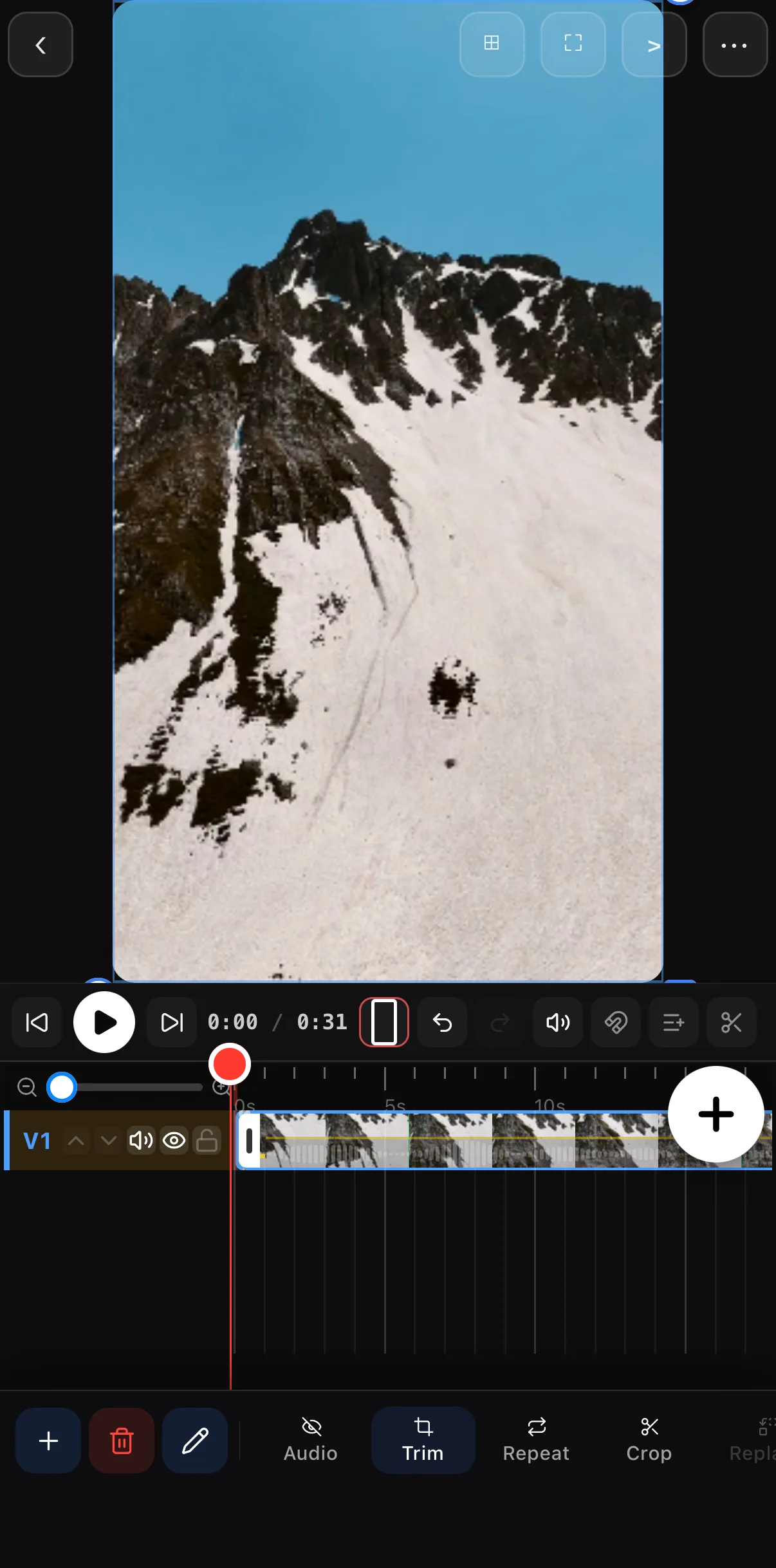
Select your clip
Tap the video or image clip on the timeline so it’s selected. Its own tools fill the bottom bar, with a pinned pencil Edit button beside the delete button.
Enter Edit mode
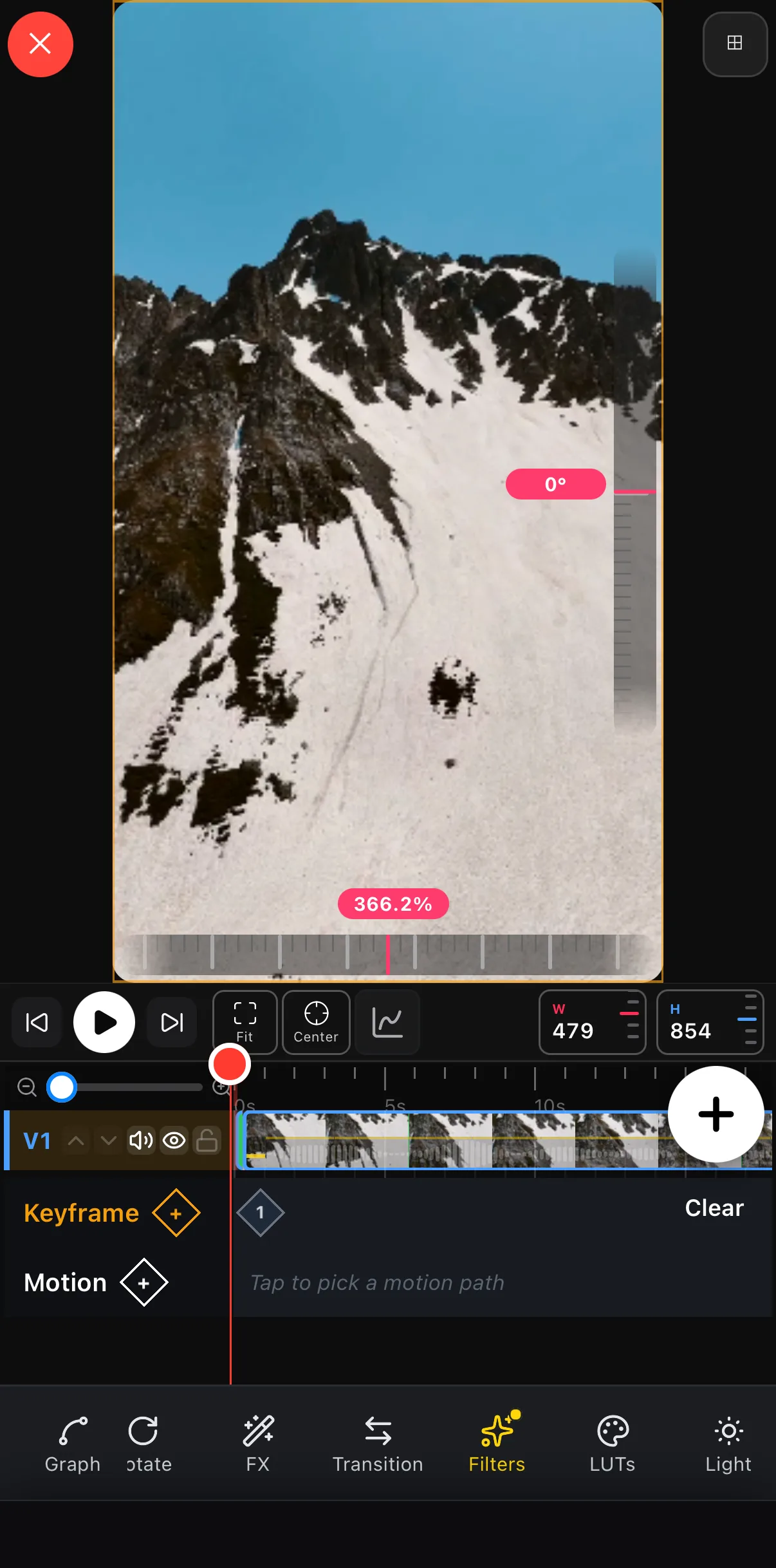
Tap Edit (or drag the white corner grip on the canvas). The bottom bar switches to the transform tools: Opacity, Mask, Rotate, FX, Transition, Filters, LUTs, Light, Crop, Border, Volume, Speed, Style and Camera. Swipe it sideways to reach the ones off-screen.
Tap Filters
Tap Filters to open the Filters browser. (Colour-grade LUTs have their own LUTs button right next to it — see the end of this guide.)
 Tap the clip
Edit
Tap the clip
Edit
 Filters
LUTs
Filters
LUTs
.cube importer. The yellow dot means a filter is already applied to this clip.Step 2 — Browse looks by category
The browser puts a big live preview at the top and a row of category tabs underneath. Tap a category, then swipe the thumbnails to audition looks — every thumbnail is rendered on your frame, and the preview updates instantly.
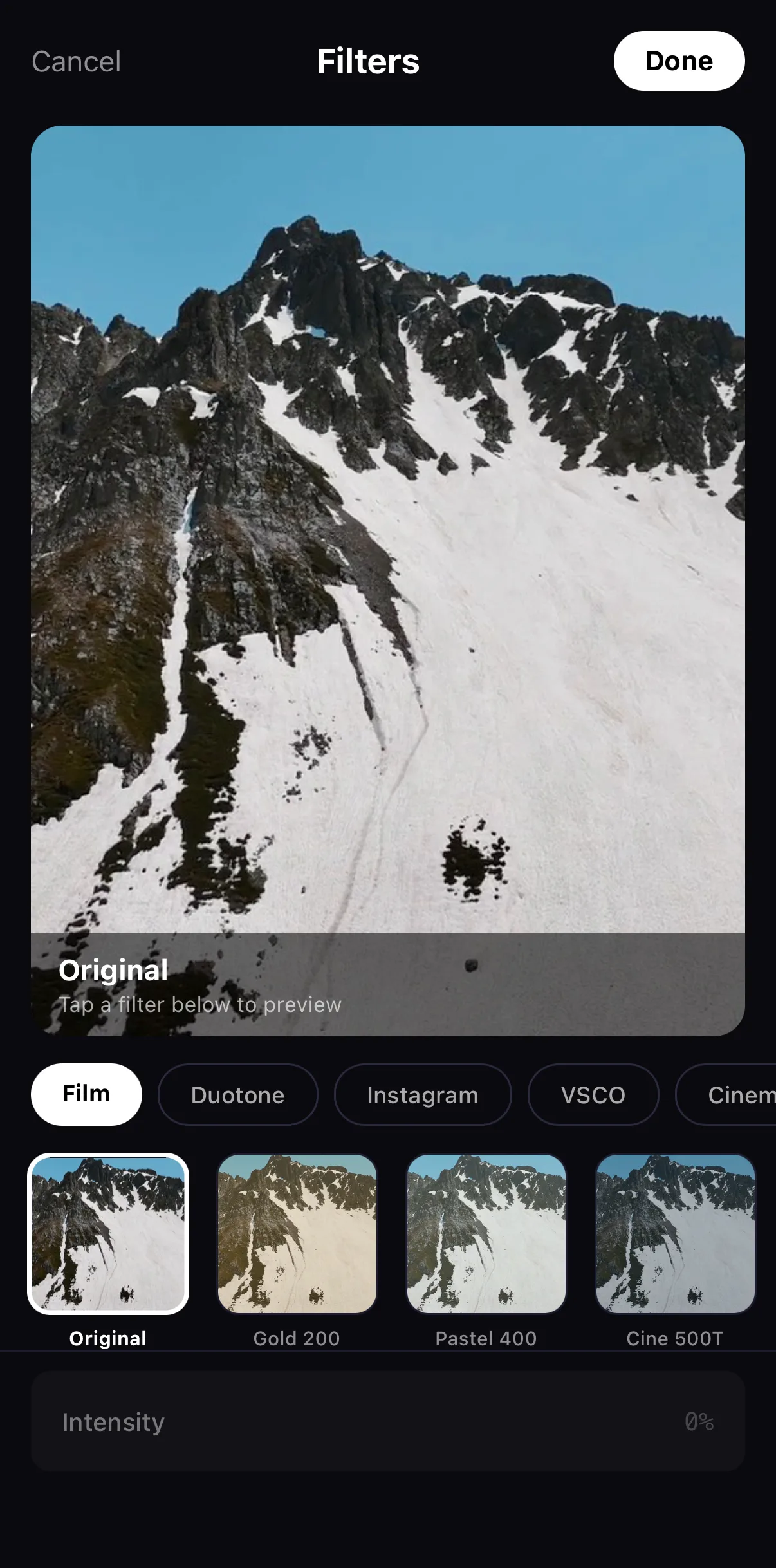 Category tabs — swipe for more
Looks rendered on your frame
Intensity
Category tabs — swipe for more
Looks rendered on your frame
Intensity
Tip: start with a family, not a specific filter. Decide whether you want warm-and-nostalgic (Vintage), clean-and-punchy (Instagram), or graded-and-filmic (Cinematic) — then audition within that family. It’s far faster than scrolling all 100+.
Step 3 — See the difference
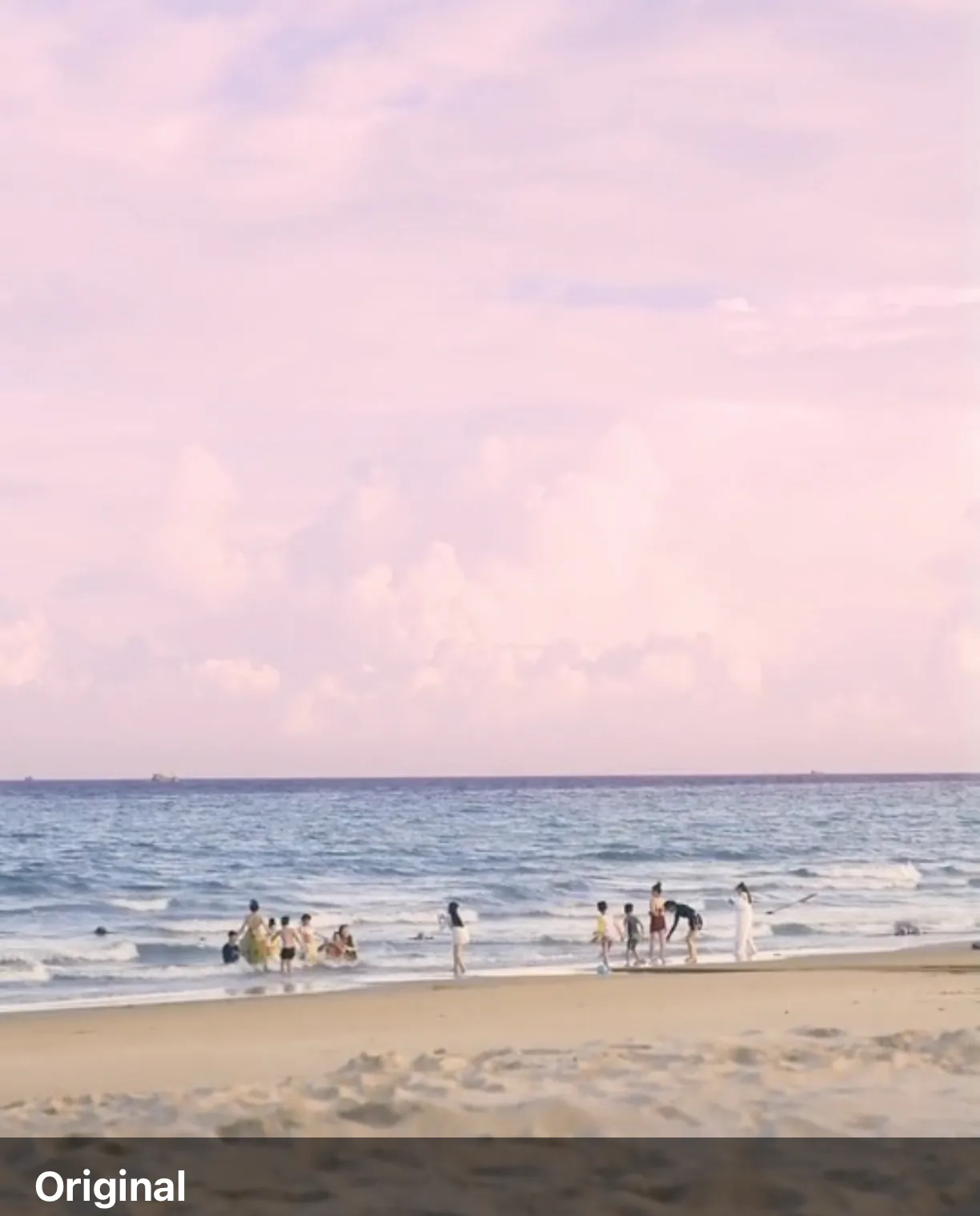
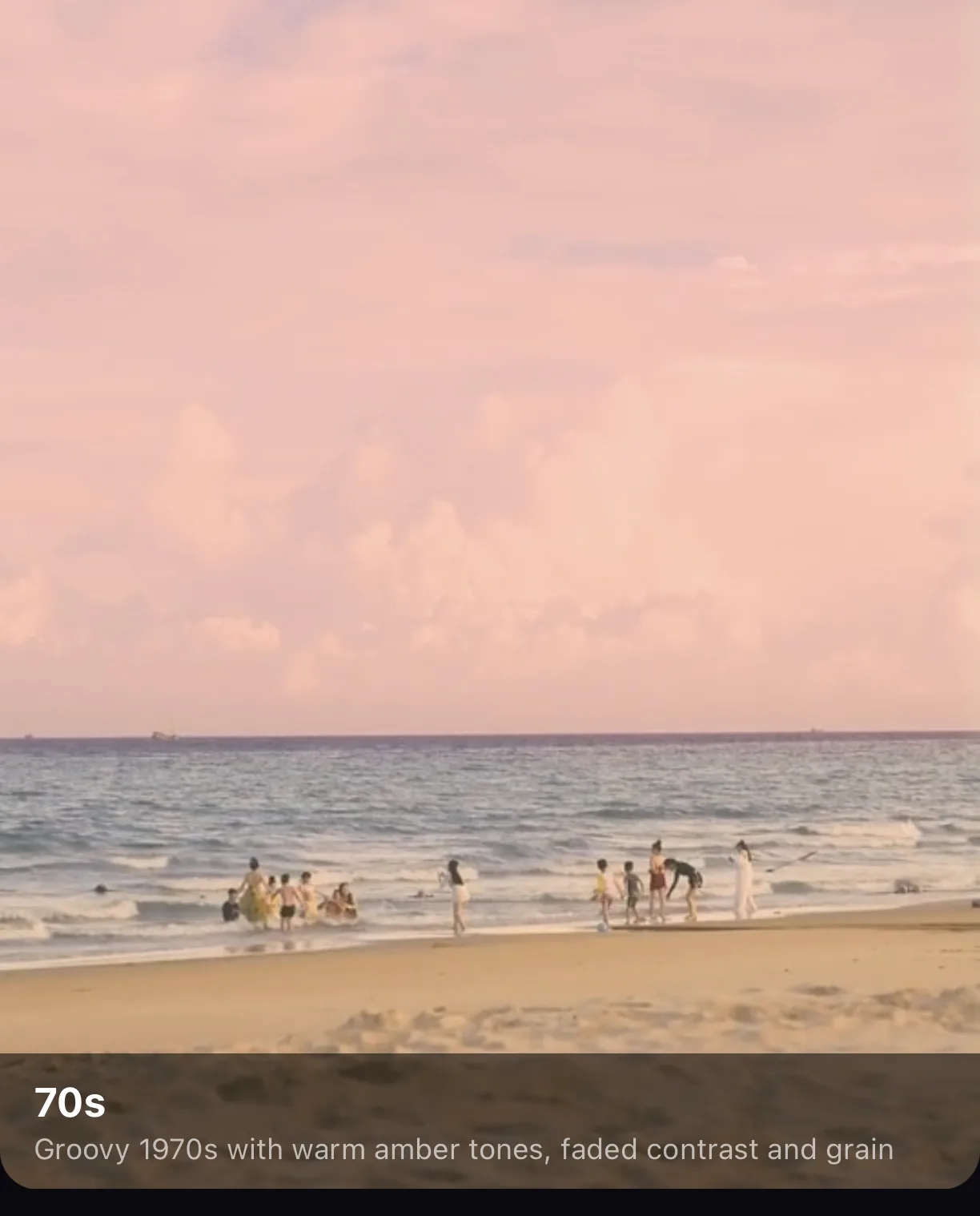
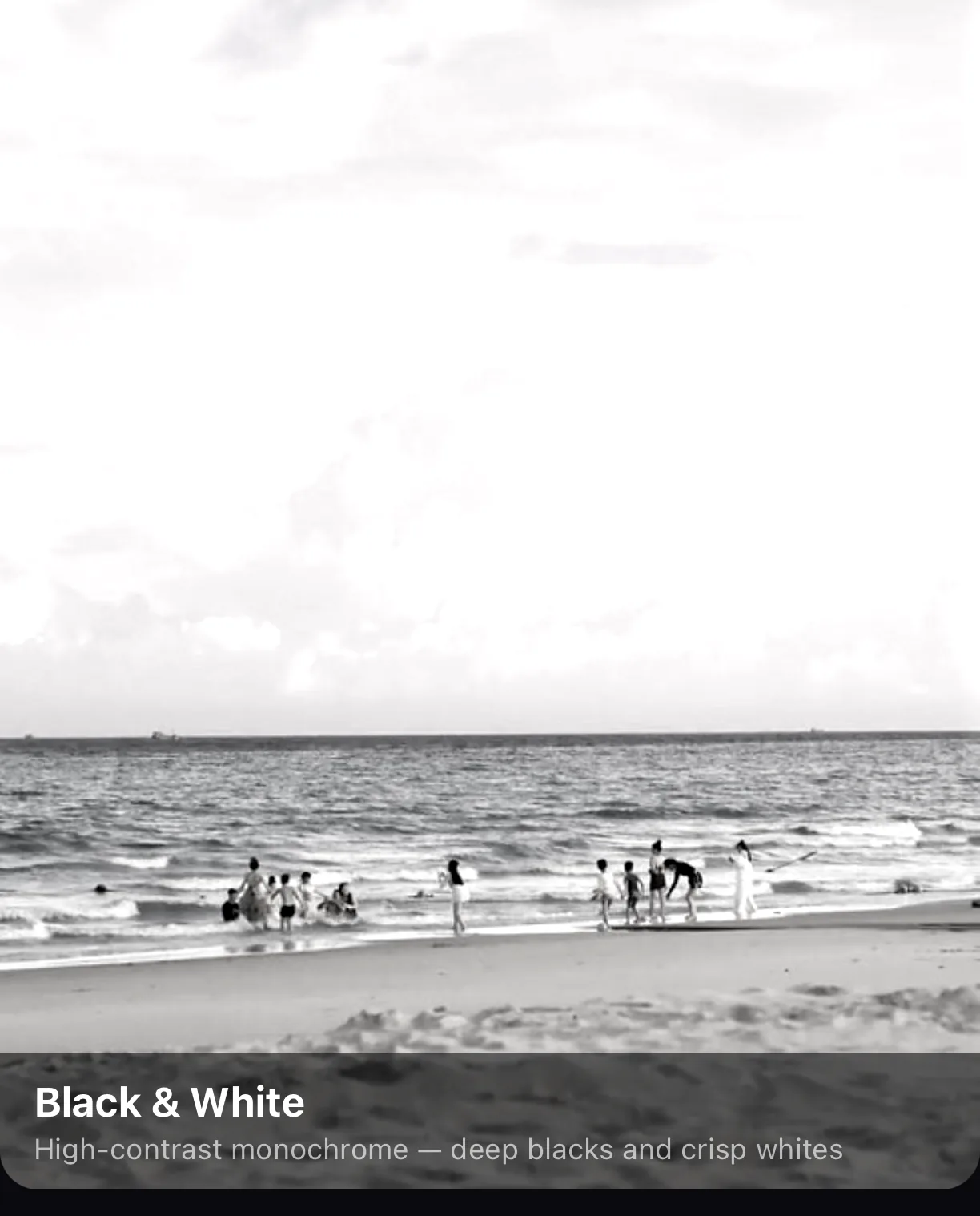
Here’s the same mountain clip with no filter, then six looks from six different families. Notice how each one changes the feeling of the shot without touching the footage itself.
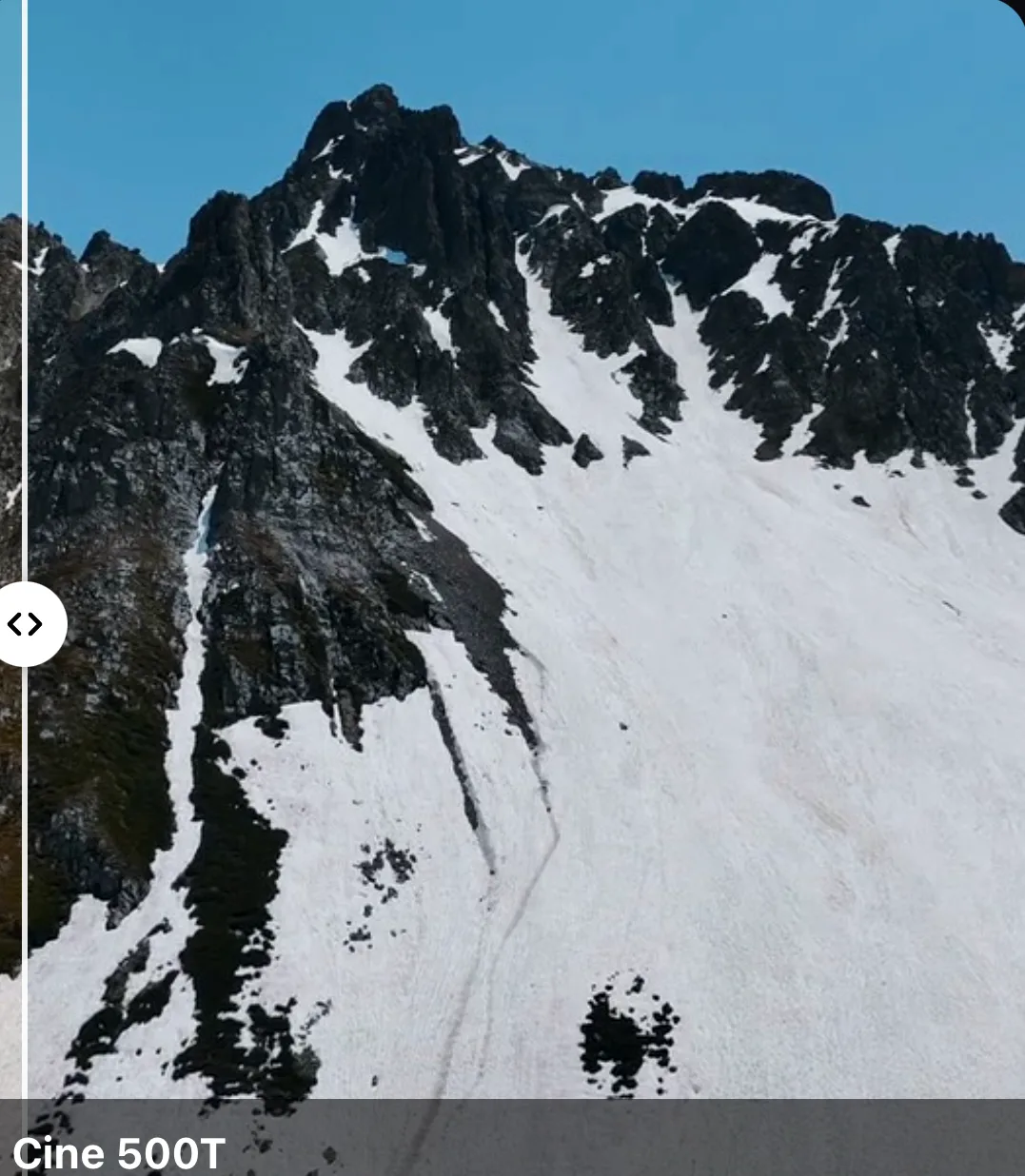
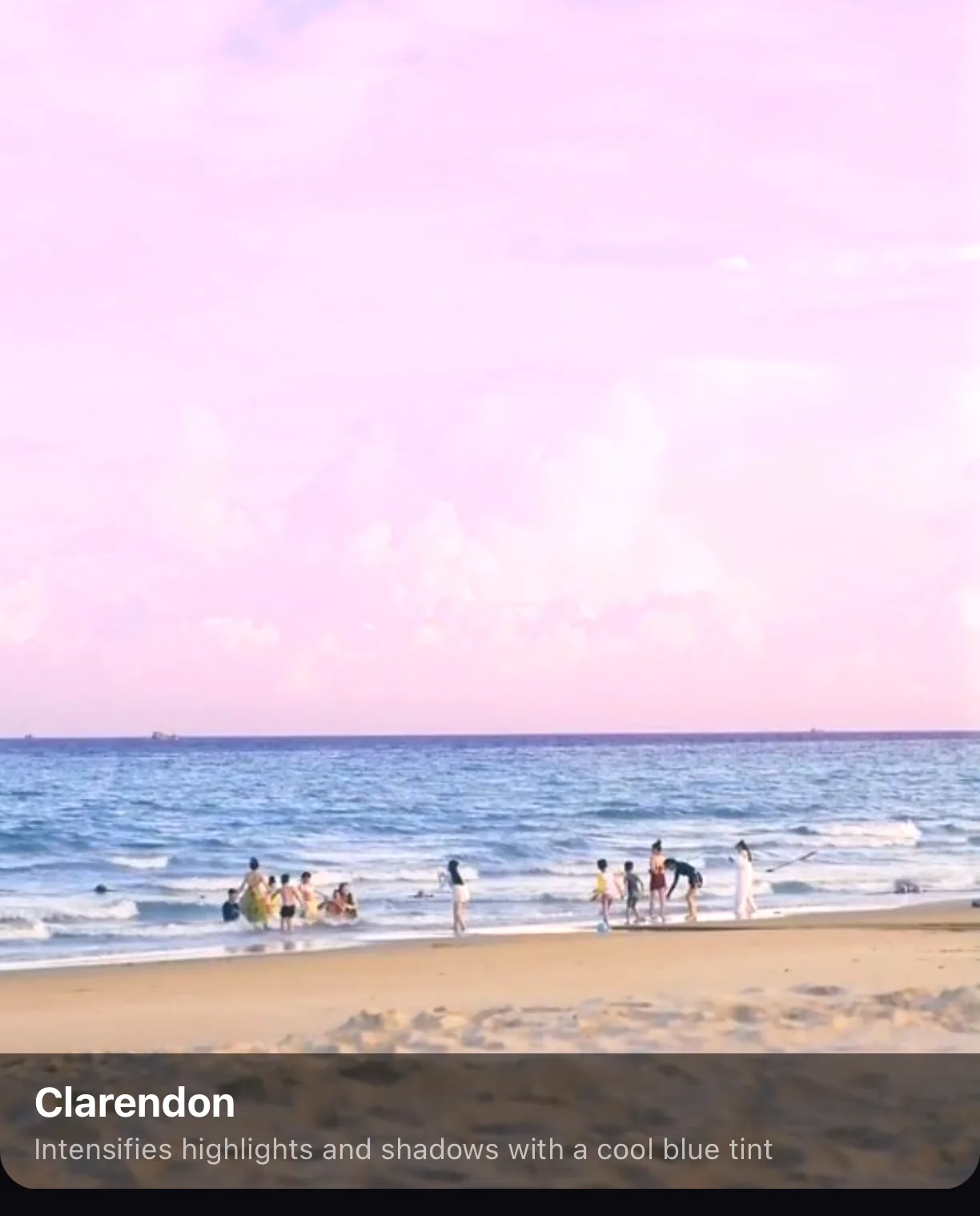
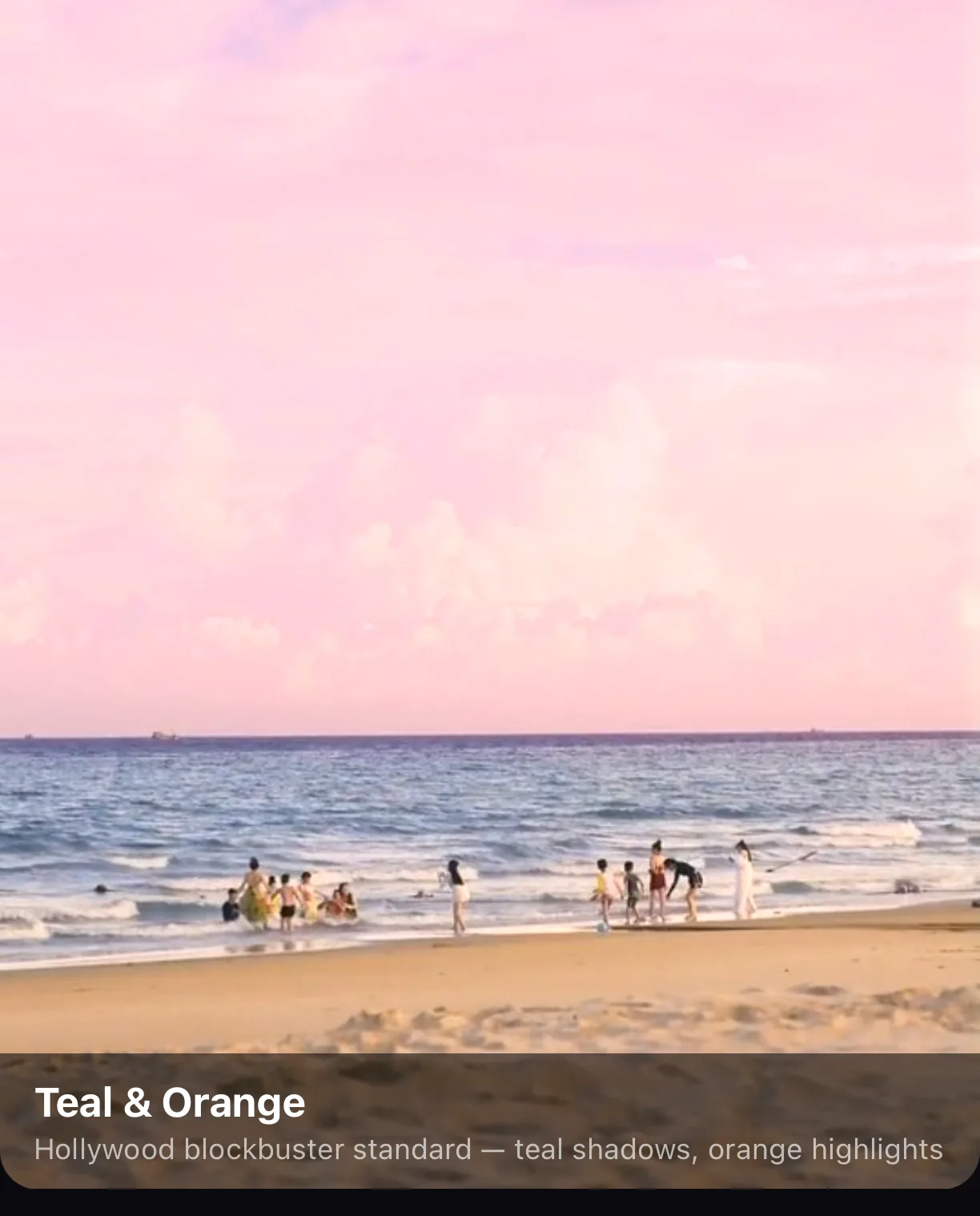
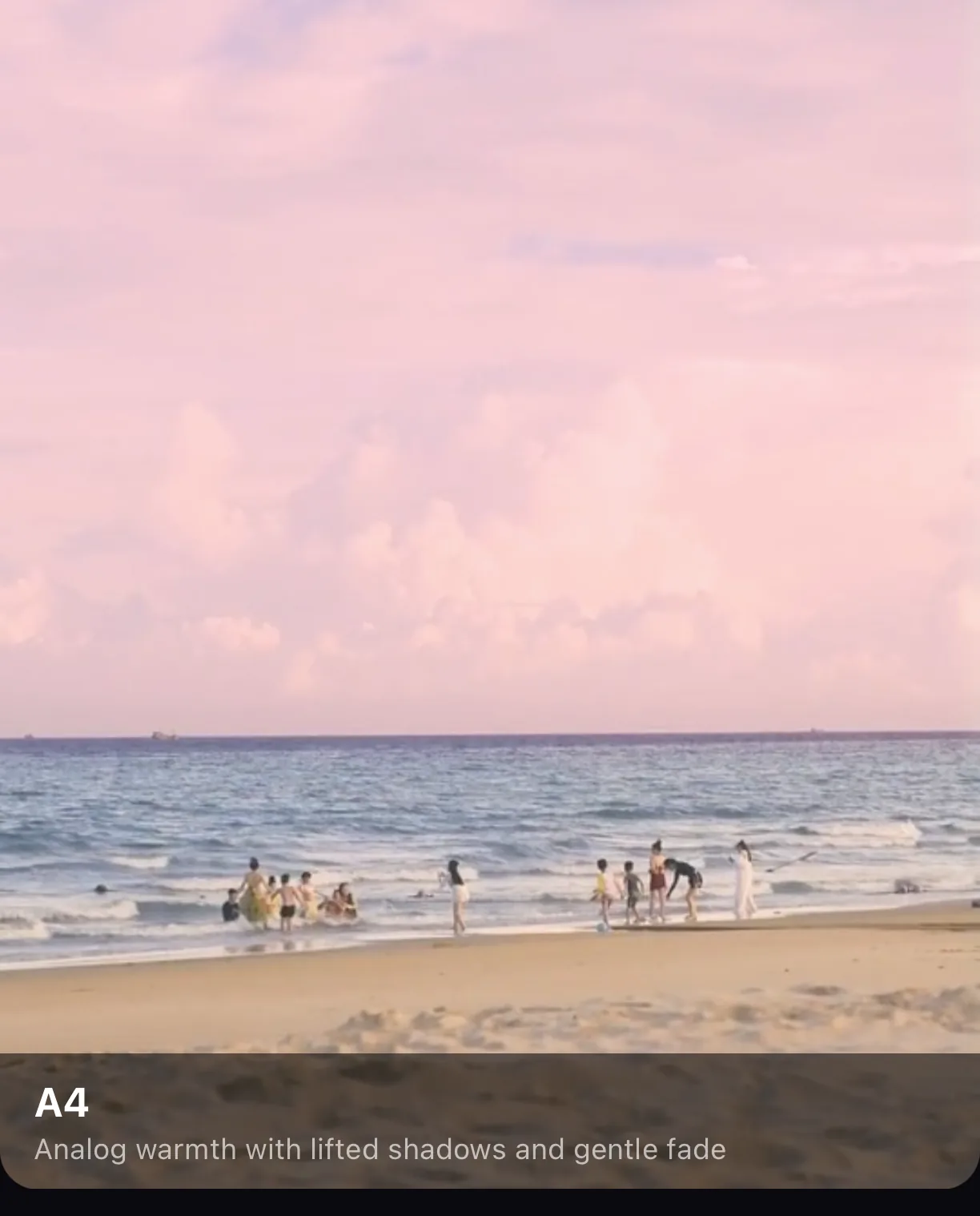
Step 4 — Compare, then dial in the intensity
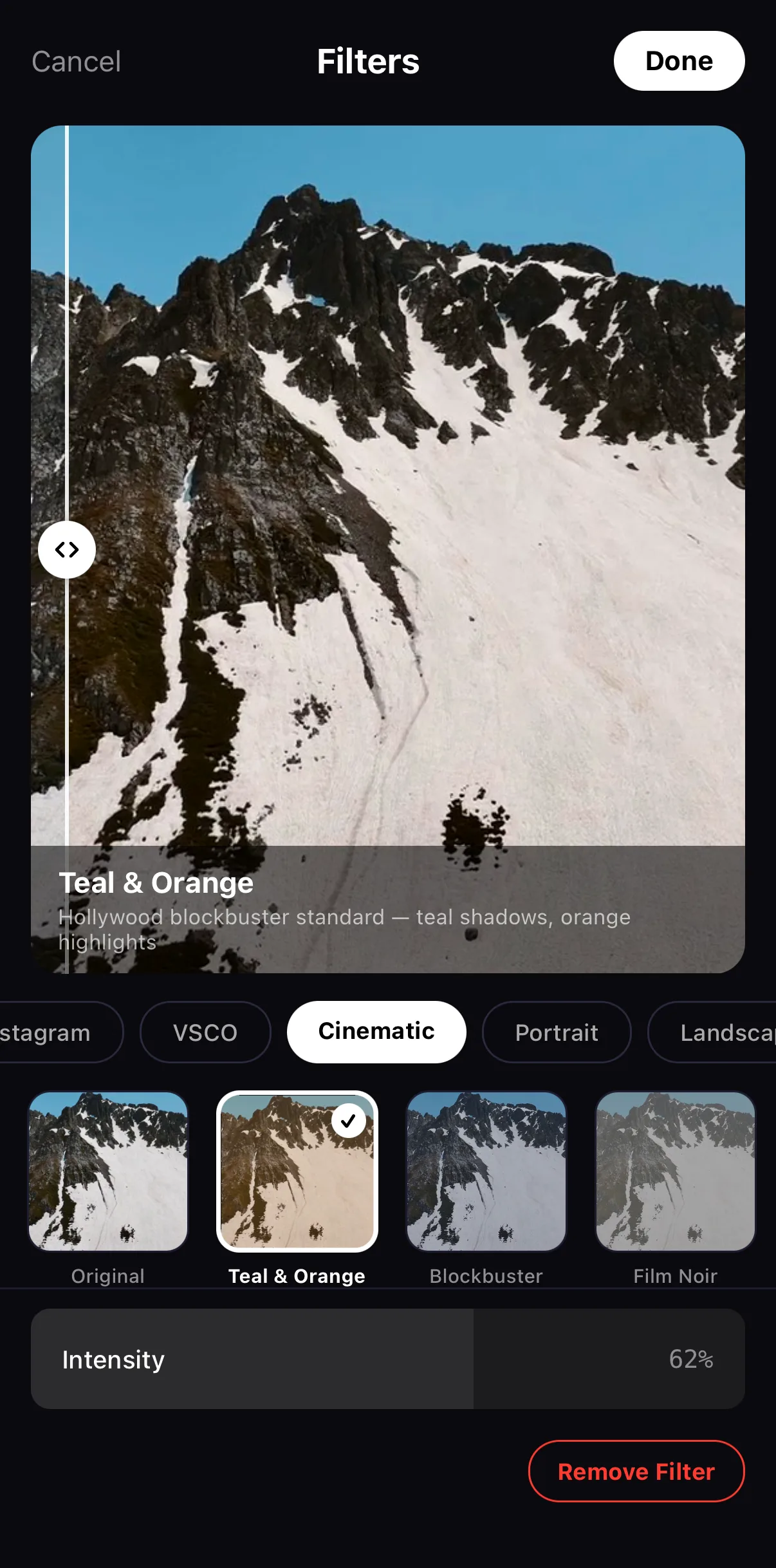
A filter at 100% is a statement. A filter at 50% is a grade. The Intensity slider blends the look back toward your original footage, so you can keep the character of a filter while toning down its heaviest moves.
Apply your look
Tap the filter you want. It applies at full strength (100%) so you can see its full character, and a before / after line appears on the preview.
Compare
Drag the split line across the preview — original on the left, graded on the right — to see exactly what the look is doing.
Pull it back
Drag the Intensity slider down. Somewhere between 40% and 70% is where most looks feel polished rather than overpowering. Remove Filter clears it if you change your mind.
Commit
Tap Done. The look is now baked onto that clip — and it’ll render out exactly as previewed.
 Before / after line
Intensity — 62 %
Remove Filter
Before / after line
Intensity — 62 %
Remove Filter
| You want it to feel… | Reach for this family |
|---|---|
| Shot on film | Film (Gold 200, Pastel 400, Cine 500T) |
| Clean & punchy for social | Instagram (Clarendon, Gingham, Moon) |
| Cinematic & graded | Cinematic (Teal & Orange, Blockbuster, Film Noir) |
| Warm, faded, editorial | VSCO (A4, A6, C1) |
| Nostalgic & retro | Vintage (70s, 80s Retro, Polaroid) |
| Bold & graphic | B&W and Duotone |
| A studio colour grade | LUTs button → library, or import a .cube file |
Consistency is the secret. A reel where every clip wears the same filter family feels designed. A reel where every clip wears a different filter feels random. Pick a look, commit to it, and let it tie your whole video together.
Beyond filters: the LUTs button
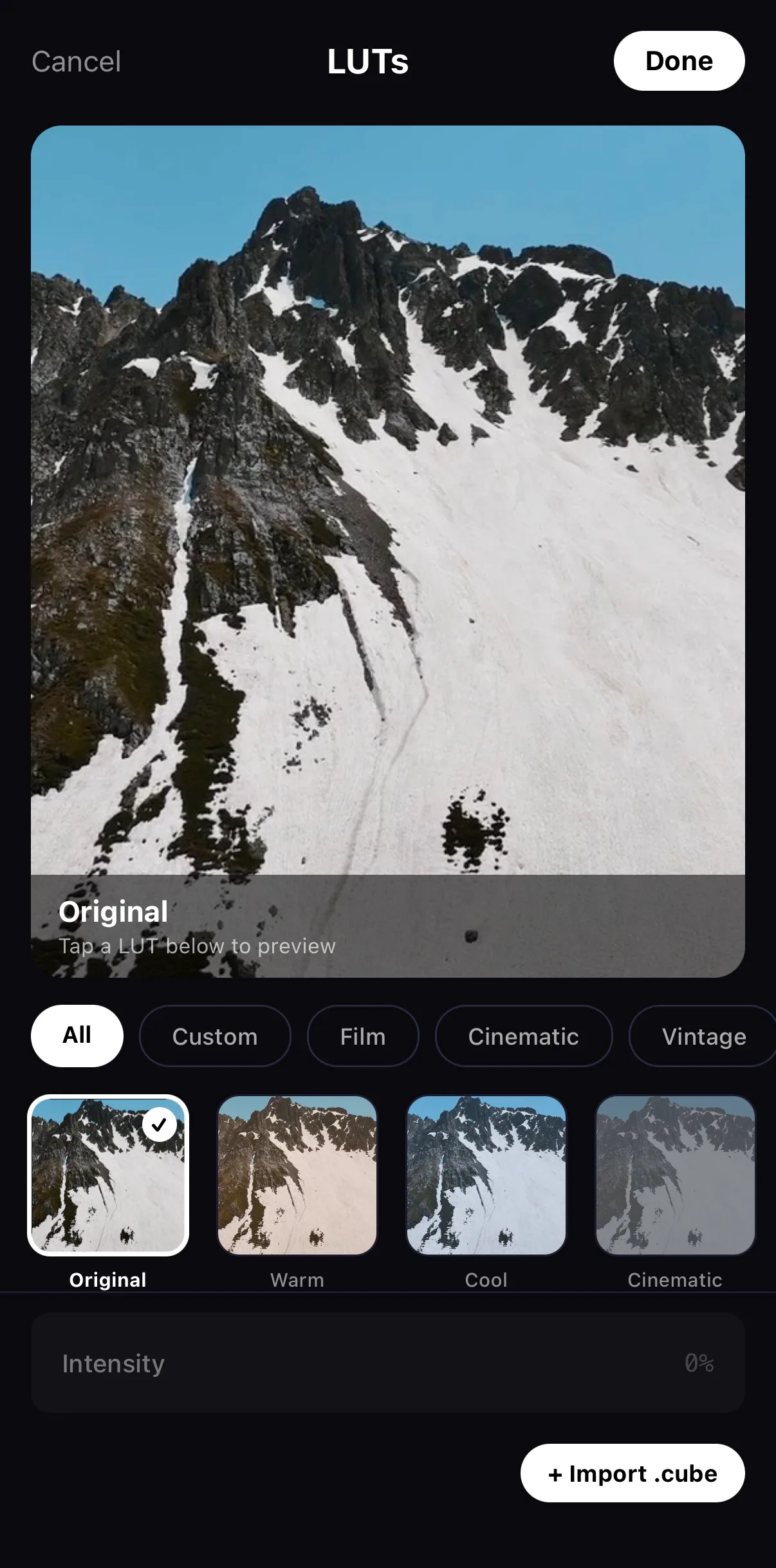
Right next to Filters on the transform toolbar is LUTs — a separate browser for true 3D colour grades. It has its own tabs (All, Custom, Film, Cinematic, Vintage), previews every grade on your frame, and the + Import .cube button at the bottom loads a LUT from Resolve, Premiere or a pack you bought. Imported grades land under Custom and also show up as a quick-select badge row back in Filters.
 All · Custom · Film · Cinematic · Vintage
+ Import .cube
All · Custom · Film · Cinematic · Vintage
+ Import .cube
Where to go next
A filter sets the overall mood in one tap. When you’re ready for finer control:
- Go frame-accurate with manual color grading — exposure, contrast, saturation and white balance.
- Animate the look by keyframing intensity so a clip blooms from flat to graded.
- Bring your own professional
.cubeLUTs — the LUT guide covers the library, importing and matching a desktop grade. - Stack a Look — the FX button’s parametric engines (Cinematic Grade, Retro Display, Cartoon…) go beyond colour into halation, grain and texture; see the video effects guide.
But for 90% of videos, the right filter at the right intensity is all the color work you’ll ever need.
Frequently asked questions
What's the difference between a filter and a LUT?
They do the same job — remap your colors to a new look. A LUT (look-up table) is the format Hollywood colorists use; ExpoCut bakes every built-in filter into the same engine. Filters live under the Filters button; the LUTs button next to it holds a downloadable colour-grade library and lets you import your own .cube files. Either way you just tap a thumbnail and slide the intensity.
Will a filter change how my video exports?
Yes — and that's the point. What you see in the preview is exactly what renders out, because the editor and the export pipeline share one color engine. The filter is baked into the final file at full quality.
Can I make a filter more subtle?
Absolutely. Every filter has an Intensity slider from 0–100%. Drop it to 40–60% when a look feels too heavy — subtle grading almost always reads as more professional than a maxed-out filter.
Can I use a different filter on each clip?
Yes. Filters are per-layer, so each clip can carry its own look. For a consistent feel across a whole video, though, pick one filter family and apply it to every clip.
Related guides
Got a look in mind?
Open any clip, tap Filters, and swipe until something clicks. Your footage is one tap away from cinematic.
Get ExpoCut Browse more guides