How to Add Picture-in-Picture (PiP) to a Video on Your Phone
Picture-in-picture is the format behind every reaction, every webcam-over-gameplay, every ‘here’s me explaining this screen.’ It’s just a small video layer on top — here’s how to do it cleanly.
Quick answer
Add the background clip, tap Edit ▸ Fit so it fills the frame, then add the second (webcam / reaction) clip — it lands on its own row above. Shrink it by pinching, dragging its bottom-right grip toward the centre, or tapping Edit and typing exact W / H values, then drag it into a corner over dead space. The inset stays a normal video layer: mask it round, add a border, and keyframe it in if you like.
- New layers always land in front, on their own row — no layer ordering needed.
- Three ways to shrink: pinch, the corner grip (which also rotates), or W / H fields in Edit mode for exact sizes.
- Keep the inset over dead space and in one corner for the whole video.
- Mask + Border on the transform toolbar turn a raw inset into a bubble cam.
Picture-in-picture is everywhere — reaction videos, gameplay with a facecam, tutorials with the presenter in a corner. The good news: it’s not a special mode, it’s just a smaller video layer sitting on top of a bigger one.
Step 1 — Stack two videos
Add your main (background) clip
The screen recording, the gameplay, or the scene you’re reacting to. Tap the pencil Edit button and Fit so it fills the frame.
Add a second video on top
Tap the black margin to deselect, then Video again — your webcam or reaction clip lands on its own row above the first. New layers sit in front, so it’s already on top.
Scale it down and place it
Pinch it, drag its bottom-right grip toward the centre, or — for an exact size — tap Edit and type into the W / H fields (keep the ratio: 383×683 → 160×285). Then drag it into a corner where it won’t cover anything important.
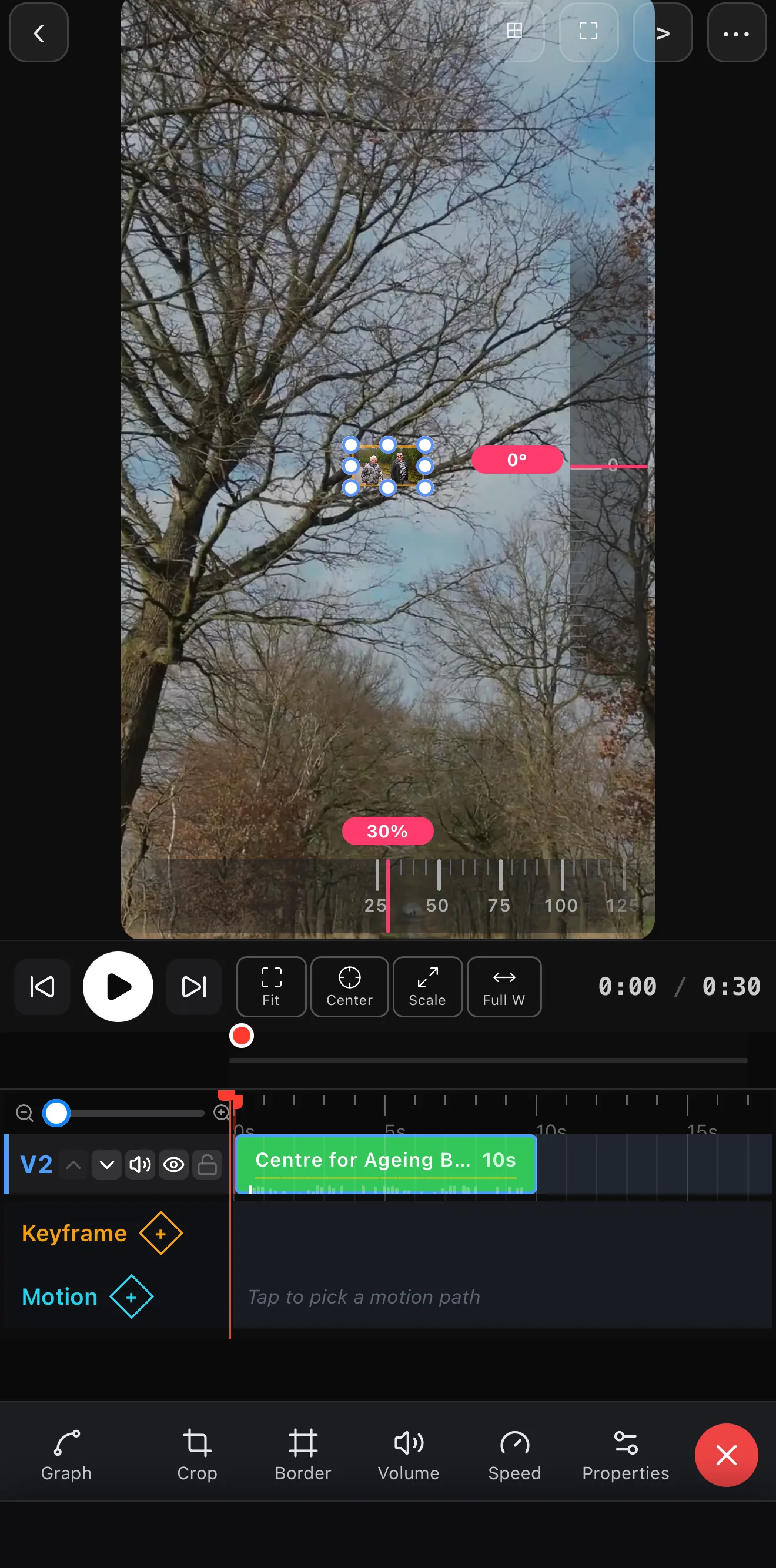 Type an exact W / H
The inset at 160 × 285
Type an exact W / H
The inset at 160 × 285
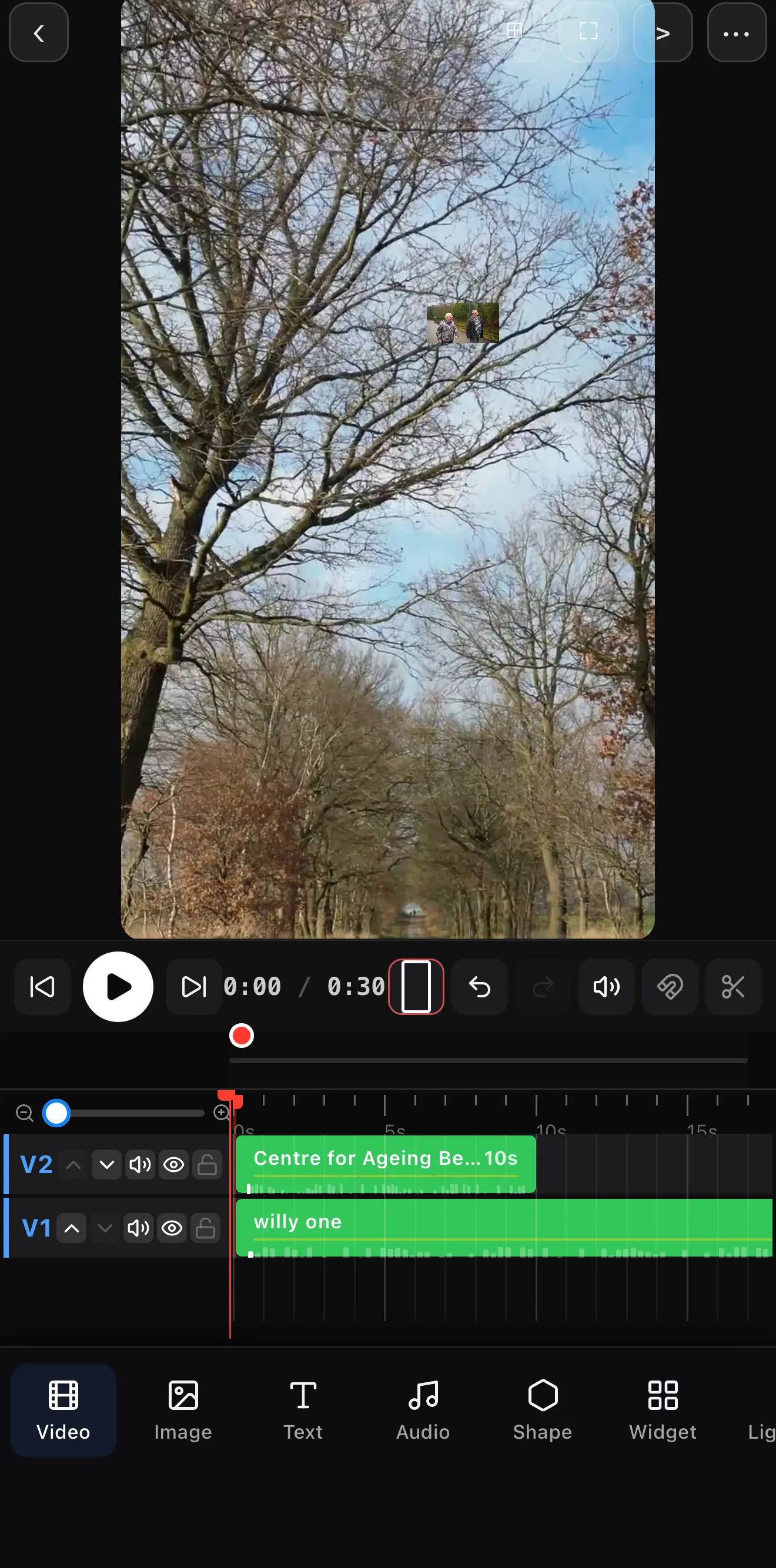 The inset, dragged into the corner
Grip — scale & rotate
Inset (V2) rides its own row above the base (V1)
The inset, dragged into the corner
Grip — scale & rotate
Inset (V2) rides its own row above the base (V1)
A raw inset looks like a mistake; a styled one looks designed:
- Round the corners with a mask, or go full circle with an ellipse for a “bubble cam.”
- Add a border or soft glow so it separates cleanly from the background.
- Pick a consistent corner and keep it there the whole video.
Don’t cover the action. On a screen recording, put the PiP over dead space (a margin, the sky, a blank corner) — never over the thing you’re pointing at.
Step 3 — Animate it in (optional)
A PiP that slides or pops in feels more produced. Keyframe it scaling up from the corner, or have it appear only when you start talking and tuck away when you don’t.
Common PiP layouts
| Use | Setup |
|---|---|
| Reaction | Source big, you small in a corner (or a circle cam) |
| Tutorial | Screen recording base, presenter inset |
| Commentary | Gameplay base, facecam bottom-corner |
| Explainer | A photo/map base, talking head inset |
Where to go next
- Round or shape the inset: shapes, masks & overlays.
- Multiple insets / panels: split screen & collage.
- Animate the bubble: keyframes & motion paths.
One layer, scaled and placed — that’s all picture-in-picture is. Style it, keep it consistent, and your reactions and tutorials instantly look the part.
Frequently asked questions
How do I put a small video over a big one?
Add your main clip, then add a second video on a layer above it, scale that layer down, and drag it into a corner. The smaller video plays on top of the larger one — that's picture-in-picture. Round the corners or add a border to make it pop.
How do I make a webcam-over-screen-recording video?
Put the screen recording as your base layer and your webcam clip on top as a small PiP in a corner. Position it where it won't cover anything important, and it reads as a classic commentary/tutorial layout.
Can I make the PiP a circle?
Yes — mask the PiP layer with an ellipse for a round 'bubble cam,' a common reaction look. You can also add a border or soft glow around it.
Related guides
Two videos, one on top
Reactions, webcam-over-gameplay, tutorials — picture-in-picture is a small layer away. Scale, place, round the corners, done.
Get ExpoCut Browse all guides