How to Use & Import LUTs (.cube) on Your Phone
A LUT is a one-tap color recipe the pros use to lock a consistent look across an entire project. ExpoCut ships a library of them and lets you import your own .cube files. Here’s how to use them well.
Quick answer
Select the clip, tap Edit, then LUTs on the transform toolbar (right after Filters). The panel opens on All with the bundled Warm, Cool and Cinematic grades; the Film, Cinematic and Vintage tabs are a downloadable library, and + Import .cube at the bottom loads your own file into the Custom tab. Tap a grade, drag the before/after line to compare, pull Intensity to 60–80 %, and tap Done.
- Filters = curated presets under the Filters button; LUTs = exact 3D colour grades under the LUTs button.
- Library grades download once on first tap and are yours from then on.
- Imported .cube grades also appear as a quick-select badge row inside Filters.
A LUT is the color world’s copy-paste: a precise recipe that turns flat footage into a film look, identically, across every clip. ExpoCut gives you a downloadable colour-grade library and lets you import your own .cube files — so the same grade your favorite creator uses can be one tap on your phone.
Filter vs. LUT — what’s the difference?
Both apply a look with one tap and both have an intensity slider. The difference is precision and source:
- Filters — curated presets, great for fast vibe-setting (see the filters guide). They live under the Filters button.
- LUTs — exact 3D color mappings, often exported from pro grading tools. Use them when you need a specific, repeatable look, or to match a studio grade. They live under the LUTs button, right next to Filters.
Step 1 — Apply a LUT from the library
Open the LUTs panel
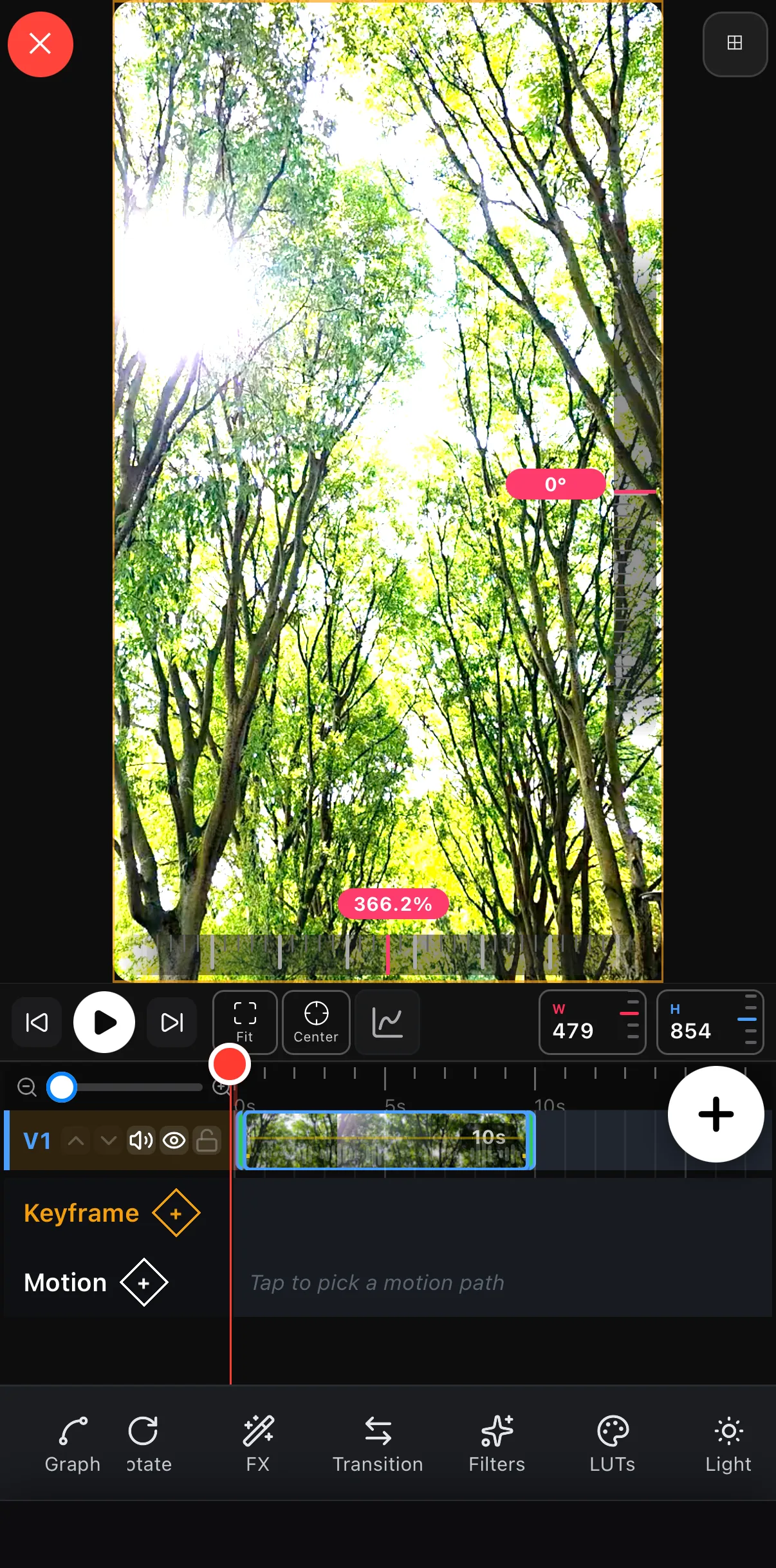
Tap the clip on the timeline, tap the pinned pencil Edit button, then tap LUTs on the transform toolbar (swipe it if you don’t see it — it’s just after Filters).
Pick a grade
The panel opens on All with the bundled grades — Warm, Cool, Cinematic — and the Film, Cinematic and Vintage tabs hold the downloadable library. Tap a tile: bundled grades apply instantly; library grades download once (a couple of seconds) and are yours from then on.
Compare and dial it in
A before / after line appears on the preview — drag it to see exactly what the grade does. Then pull Intensity back to ~60–80 % so it reads as a grade, not a gimmick. Tap Done.
 LUTs
LUTs
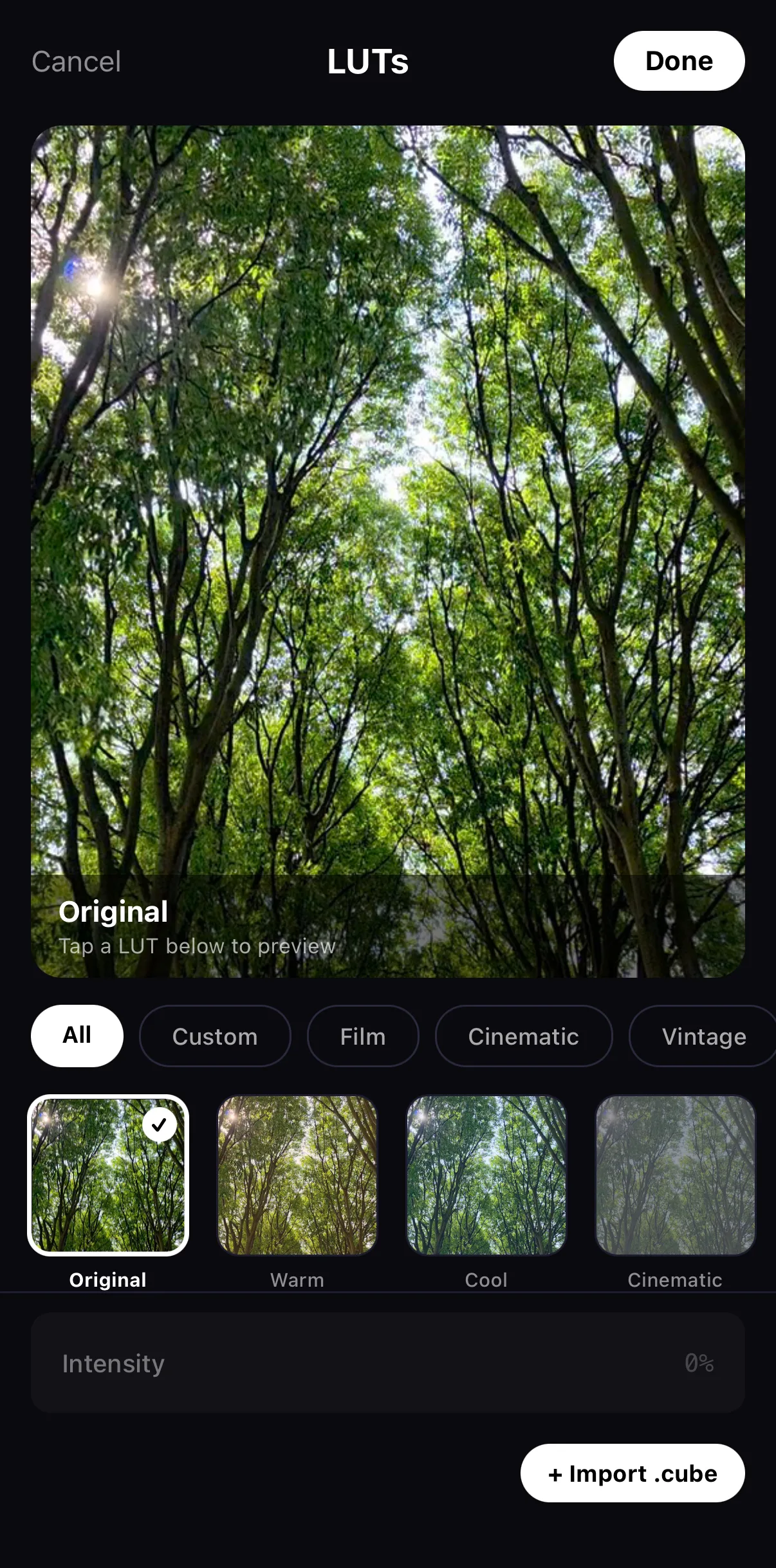 All · Custom · Film · Cinematic · Vintage
Bundled grades — rendered on your frame
+ Import .cube
All · Custom · Film · Cinematic · Vintage
Bundled grades — rendered on your frame
+ Import .cube
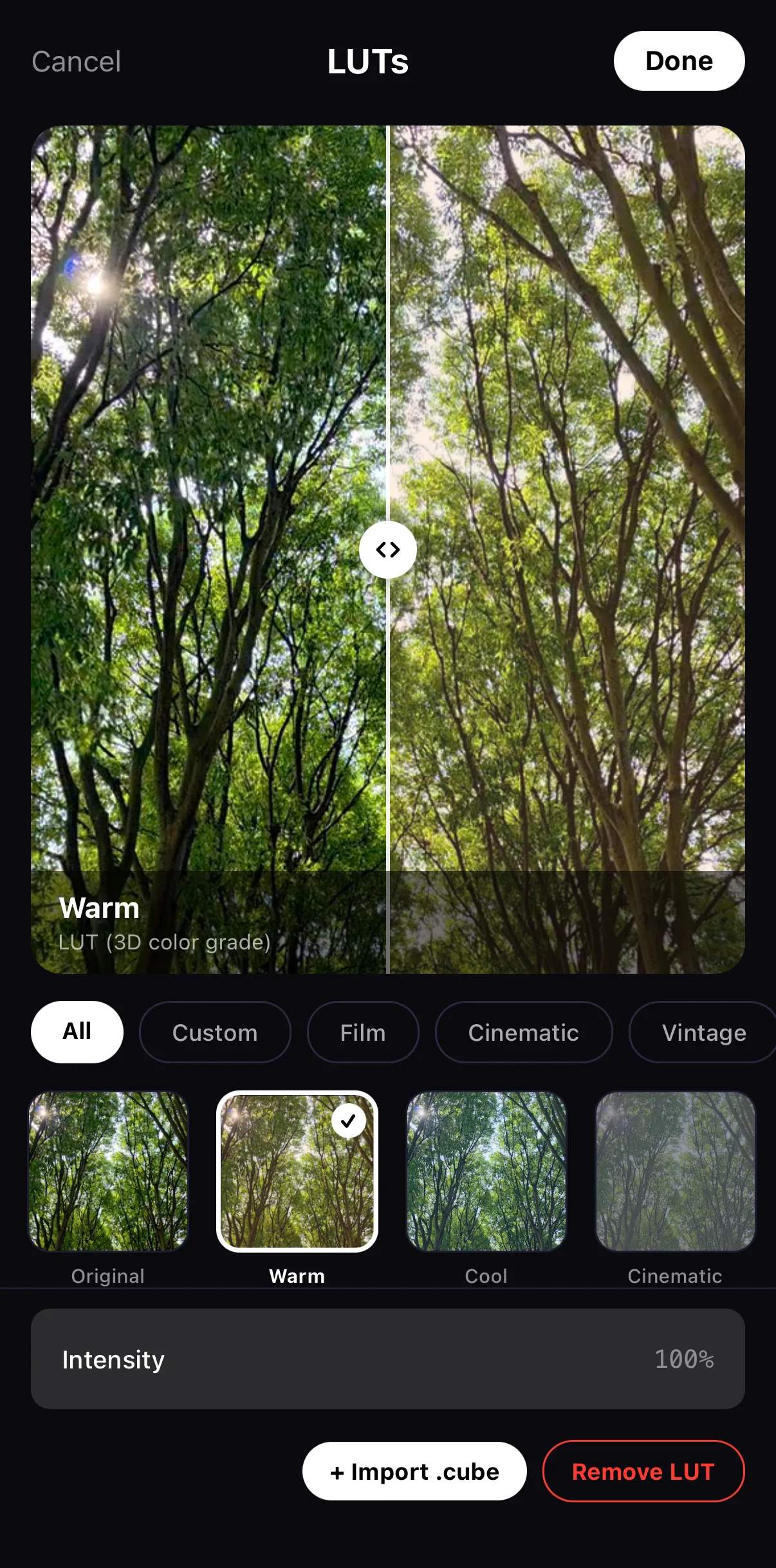 Drag to compare
Intensity
Remove LUT
Drag to compare
Intensity
Remove LUT
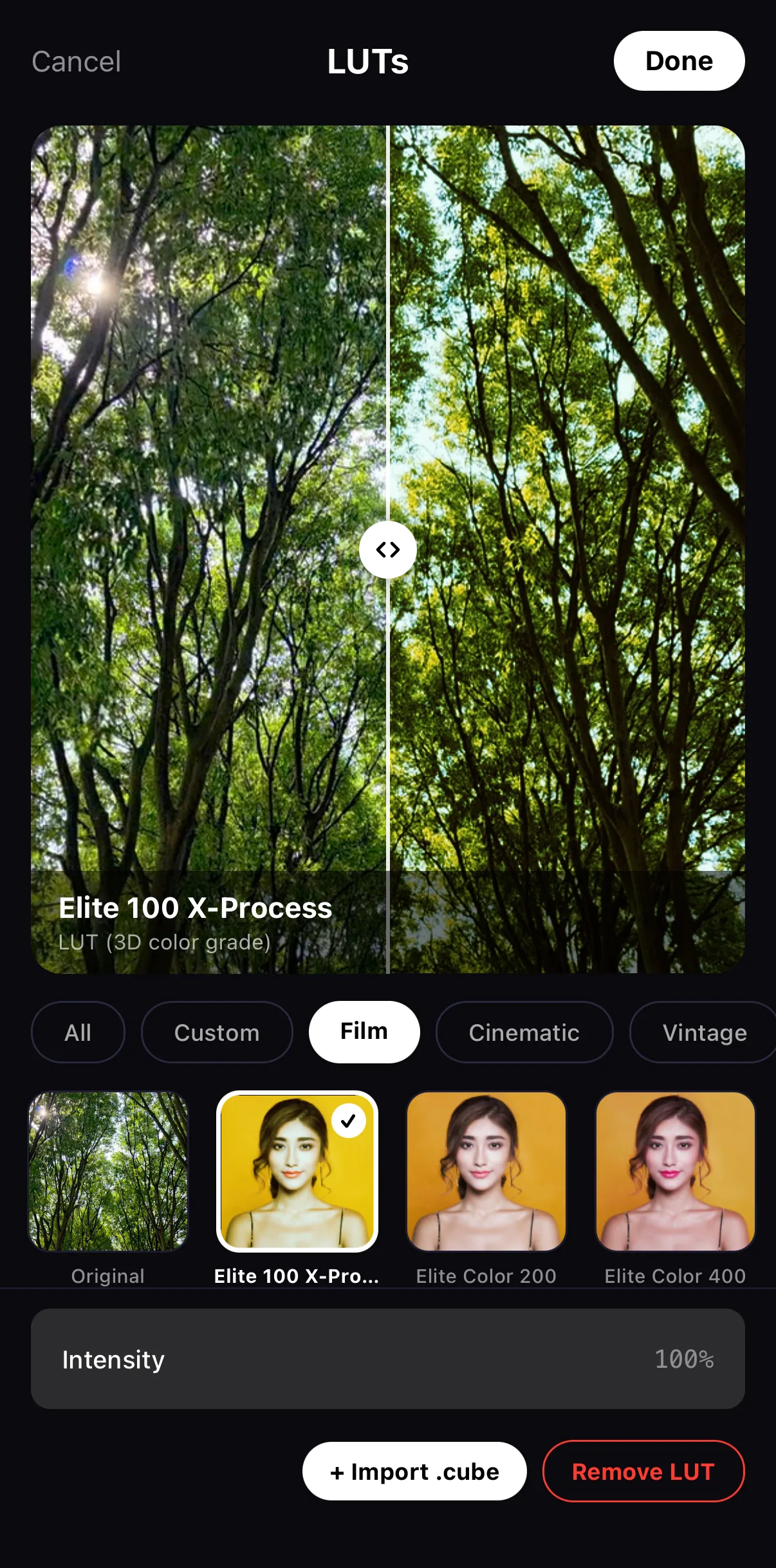 Film tab
Library grades — tap to download
Film tab
Library grades — tap to download
Step 2 — Import your own .cube
Bought a LUT pack, or matched a look in a desktop grading app? Tap + Import .cube at the bottom of the LUTs panel and pick the file from Files, iCloud or a download. ExpoCut parses it, bakes a preview, and files it under the Custom tab — from then on it behaves like a built-in: tap it, compare, pull the intensity back. Imported grades also show up as a quick-select badge row back in the Filters panel, so they’re never more than one tap away.
Grade, then LUT — or LUT, then grade? A LUT looks best on reasonably balanced footage. Do a quick exposure/white-balance correction first, then apply the LUT, so the look lands the way the LUT’s author intended.
Step 3 — Keep it consistent (and animate it if you like)
The whole point of a LUT is consistency. Use the same LUT on every clip in a project (or apply it on an adjustment layer so it grades the whole timeline at once). Mixing LUTs per clip is the fastest way to break a cohesive look.
A grade can also move: with the clip’s Keyframes open, set the LUT intensity at two points in time and the clip crossfades from flat to graded on the canvas and in the export.
Where to go next
- The one-tap version: filters & looks.
- Manual control: color grading on your phone.
- Bring a DaVinci grade across: import a .cdl.
- Grade everything at once: adjustment layers.
Apply a LUT, correct first, dial the intensity, keep it consistent — the professional path to color that looks intentional across your whole video.
Frequently asked questions
What is a LUT?
A LUT (lookup table) is a precise color recipe that remaps every color in your footage to a target look — a film stock, a cinematic teal-orange, a vintage fade. It's how pros apply the exact same grade consistently across many clips with one tap.
How do I import a .cube LUT?
Select the clip, tap Edit, then LUTs on the transform toolbar, and tap + Import .cube at the bottom of the panel to pick your file. ExpoCut parses it and applies it as a look you can dial back with the intensity slider. Use this to load looks you bought or matched in a desktop grading app.
What's the difference between a filter and a LUT?
A filter is a curated preset; a LUT is a precise color mapping, often exported from a professional grading tool. LUTs give you exact, repeatable looks and let you bring in studio-matched grades — but you apply both the same way and both have an intensity control.
Related guides
Pro color in one tap
Built-in cinematic LUTs plus your own .cube imports — the precise, repeatable looks that lock a film grade across your whole project.
Get ExpoCut Browse all guides